NICE ROBUS RBS600 - standalone drive for sliding gates (A)
NEW| Product availability: | In stock | We normally dispatch goods within 24 hours. |
|---|
In stock
€609.30 including VAT
| Weight |
|---|
| 11 kg |
Description of NICE ROBUS RBS600 - standalone drive for sliding gates (A)
Gate operator NICE Robus RBS600 is designed for sliding gates weighing up to 600 kg and with a passage width of up to 8 m. It has an inductive limit switch. The gate operator is non-reversible. The gate operator is compact, safe and practical, with an impact-resistant cover, making it ideal for both residential and commercial use. Detailed technical specifications ». Programming the gate operator ». Download the manual ».
This product—the standalone NICE Robus RBS600 sliding gate operator (our code NICE-RBS600-A)—includes:
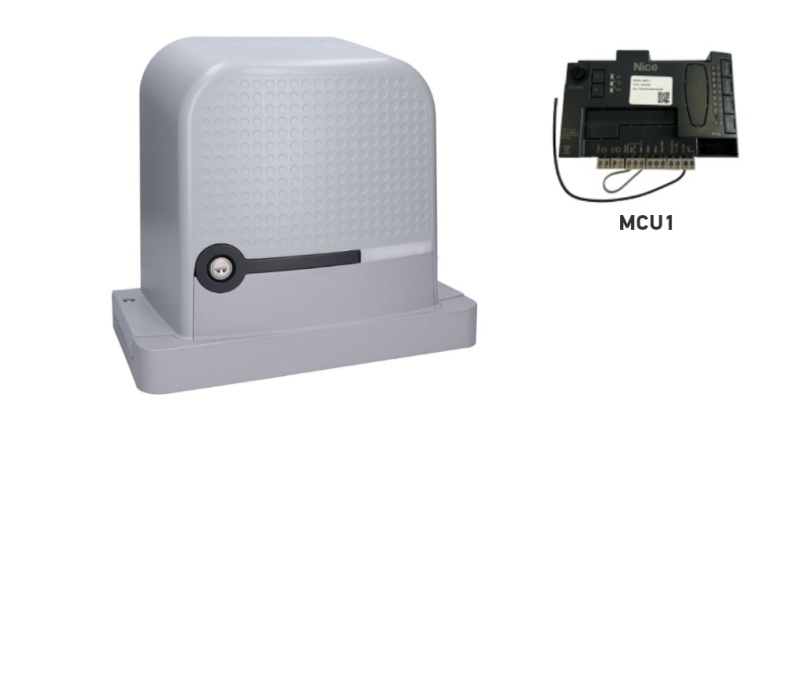
- Electromechanical NICE Robus RBS600 gate operator with a load capacity of 600 kg, a maximum gate leaf length of 8 m and a built-in (but removable) MCU1R30 control unit, with a built-in radio receiver and an “SM” connector for a plug-in receiver.
- 2 x release keys for manual operation of the gate operator (required in the event of a power outage).
- Mounting components for the gate operator: anchors, mounting plate and magnetic stops for the inductive limit switch.
- Installation manual
One of the main advantages of the Robus RBS600 is its high opening and closing speed, enabled by advanced technology. It features obstacle detection and supports the connection of photocells, ensuring maximum safety. It is also equipped with a temperature sensor that adjusts the operator's force to suit the climate and is protected by a thermal cut-out.
Its high-quality construction and IP44 protection rating ensure a long service life. The Robus RBS600 is compatible with Nice accessories. The integrated "Eye Check" system provides visual feedback via an LED light (red/green).
The “Slave unit” function (master-slave mode) allows two motors to be controlled in sync, making it possible to automate two opposing sliding gate leaves. It is also compatible with the older Robus RB600, but only versions fitted with the RBA3R10 control unit. The older RBA3/c is not compatible with the RBS.
The built-in control unit makes operation easy. Programmability is one of the key features of this model.
The built-in bidirectional receiver is ready to be programmed straight away, making connection and operation easier.
Another advantage is the ability to add extra functions via an expansion board, including lighting for a safer installation.
User-friendly BlueBUS technology simplifies the power supply and control of up to 7 pairs of photocells using a two-core cable.
The operator achieves up to 90% energy savings in standby mode and is compatible with the Nice solar kit.
It has a pinion with module 4, compatible with the rack available in our range.
Thanks to the BiDi-WiFi module (optional accessory), the operator can be controlled using the mobile MyNice app (Android/iOS) and programmed with MyNice Pro (Android/iOS).
Remote control compatibility:
The operator has a built-in receiver and is compatible with NICE series MYGO, ONE and INTI remote controls. The internal receiver does not support FloR or Flo coding. However, the control unit also has an SM connector for connecting a plug-in receiver, which can be useful if you have replaced your old operator with a new RBS and own older remote controls.
Information for owners of older NICE FLOR remote controls:
If you already own older NICE FLOR remote controls (models FLO2R-S, FLO2RE, FLO4R-S, FLO4RE), you can continue using them with the new NICE RBS. However, you will need to purchase a plug-in OXIBD receiver or one of the external receivers, such as the NICE OX2.
Extra-long range for remote controls:
The NICE RBS operator has a slot for an internal receiver, allowing you to install a NICE OXILR receiver with LoRa. A NICE OXIFM receiver can also be connected for additional options.
Information for owners of vintage NICE FLO and NICE SMILO remote controls:
If you use NICE remote controls at home with FLO or SMILO, these can also be used with the NICE RBS. However, you must purchase the internal receiver OXIBD, which supports receiving fixed-code signals (FLO, SMILO). In this case, the receiver will only accept these older types of remote control, and new models cannot be paired at the same time.
Accessories compatible with the Nice Robus RBS600 gate operator
We recommend purchasing compatible optional accessories for the gate operator, or choosing one of our pre-assembled discounted gate operator kits.
| What | Why | Type |
|---|---|---|
| Flashing light | Flashes to indicate gate movement – ideal for exits with limited visibility. Also includes an antenna for increased remote-control range. |
Alternatively, all flashing lights with 12V–24V power supply from other manufacturers. |
| Photocells | They detect obstacles while the gate is closing and stop its movement, preventing it from hitting vehicles or people. | |
| Remote control | For operating the gate remotely. | |
| Receiver |
For operating the gate remotely. The RBS drive has an integrated radio receiver, but also allows you to connect a plug-in receiver. This makes it easy to upgrade from an older RB drive to a newer RBS without pairing the remote controls again. |
|
| Programming devices |
|
|
| Antenna | For improved remote-control range. | |
| Keypad | If you forget your remote control, or have many vehicles or users and don’t want to issue a remote control to everyone. | |
| Key switch | Operate the gate with a key using a switch wired to the drive. | |
| Card readers | Operate the drive by holding a card or key fob up to the reader. | ERA Transponder Reader ETPB |
| Gear rack | Essential for automating the gate – without a rack, the drive cannot move it. | |
| Backup power supply | Keeps the gate operating during a power outage. |
Manuals and documents for download
Nice Robus RBS600 drive manual – PDF
Instructions for pairing remote controls with a Nice drive – link
NICE Robus RBS600 at a glance
NICE Robus RBS is a family of irreversible electromechanical gear drives for sliding gates. They come with a built-in (removable) NICE MCU1R30 control unit with a built-in receiver and an SM connector for plug-in OXI radio signal receivers, for example NICE OXIBD. It features an ON-OFF function for disabling the internal receiver (in Level I programming). The internal receiver does not support FloR or Flo coding.
Electrical connections for external devices ( photocells, warning light and so on) have been simplified in the NICE Robus RBS family using BlueBUS, which allows multiple devices to be connected to a shared connector using a single two-core cable (with no need to observe polarity). Conventional relay photocells can also be connected to the control unit.. The control unit MCU1R30 also has an OSE input (Optoelectronic Safety Edge), max. 15 mA.
Automatic operation of the drive depends on the availability of electrical power. In the event of a power outage, the motor can be released using the release key. You can also purchase a NICE PSS124 backup battery, which allows the drive to operate during a power outage. The older backup power supply NICE PS124 is compatible only when used with the CABLA11 adapter.
The drive has two LEDs: green indicates movement, while red indicates active photocells, abnormal conditions and errors. The limit switch is inductive.. The functions can also be controlled and configured using the mobile My Nice Pro app (Android/iOS).
Choosing a drive – is the NICE Robus RBS600 suitable for my gate?
Every gate has its own size (i.e. leverage) and weight (i.e. the force exerted by its weight), and every drive has its limits. The NICE Robus RBS600 drive is suitable for gates with the following leaf lengths and weights:
| Cycles per hour Consecutive cycles |
Gate leaf weight | ||
|---|---|---|---|
| up to 400 kg | up to 600 kg | ||
| Gate leaf length | up to 4 m | 35 | 40 |
| from 8 m | 20 | 20 | |
In general, the gate leaf length determines the maximum number of cycles per hour and the maximum number of consecutive cycles, i.e. it indicates how long the drive can operate. A greater weight reduces these figures proportionally because of the greater strain, and also determines the maximum permitted speed for the given load. The drive is equipped with a thermal cut-out that measures the temperature of the motor and its surroundings and reduces the number of possible cycles accordingly.
The values shown apply when the manufacturer's conditions are met (weather conditions, temperatures, gate rigidity and smooth movement of the gate). In practice, we recommend keeping the total load to approximately 80% of these parameters.
NICE Robus RBS600 drive limits
The values shown are recommended by NICE. Based on our experience, we recommend allowing a margin of approximately 20% below the values shown:
| Robus RBS600 | Maximum | Recommended |
|---|---|---|
| Gate leaf length | 8 m | 6 m |
| Gate leaf weight | 600 kg | 480 kg |
Using the drive at its maximum capacity shortens its service life – below is an estimated service-life calculation based on stress factors.
NICE Robus RBS600 drive service life
In the table, add the stress indices for the gate leaf weight and length, then add the indices for any other applicable factors. Then use the graph to estimate the drive's service life in cycles.
Example: A gate with a clear opening of 4.5 m and a weight of up to 200 kg: length index ~30 + weight index 10 + low-temperature index 10 ⇒ total 40. The graph indicates ~120,000 cycles, which at 10 operations per day is approximately 32 years.
| Characteristics of the complete automation system | Index | Service life graph |
|---|---|---|
| Gate leaf weight | 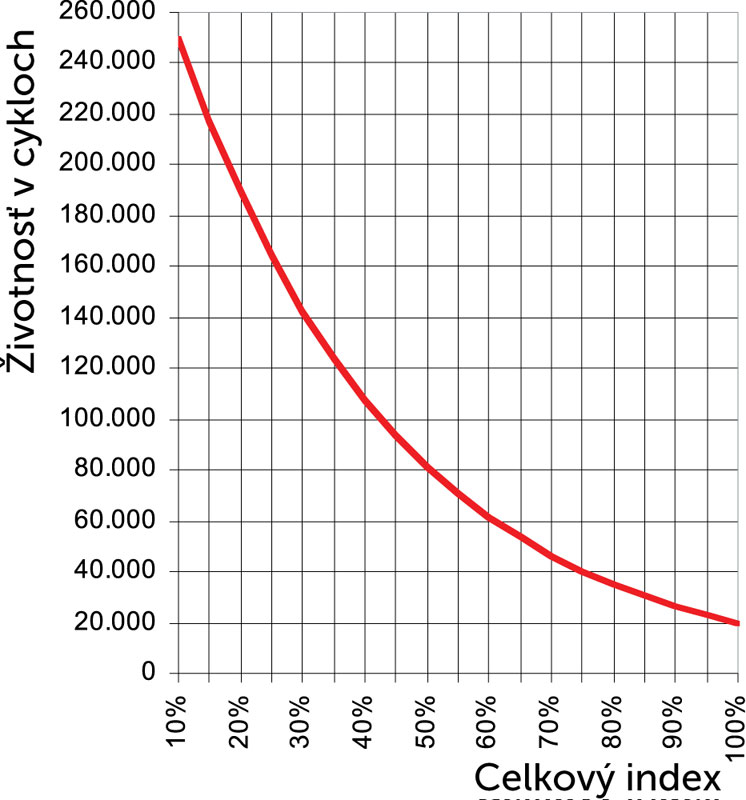
The recommended maximum total index is up to 75% (≈ 40,000 cycles; at 10 cycles/day ≈ 10 years). |
|
| Up to 200 kg | 10 | |
| 200–400 kg | 30 | |
| 400–500 kg | 40 | |
| 500–600 kg | 60 | |
| Gate leaf length | ||
| Up to 4 m | 15 | |
| 4–6 m | 25 | |
| 6–8 m | 40 | |
| Other factors (if the probability of occurrence is > 10%) | ||
| Temperature > 40 °C, < 0 °C, or humidity > 80% | 10 | |
| Dusty environment | 15 | |
| Saline environment | 20 | |
| Photocell activation | 20 | |
| STOP input activation | 30 | |
| Speed greater than “L4 – Fast” | 25 | |
| Peak function active | 25 | |
Installing the NICE Robus RBS600 gate operator
The installation method of the gate operator is different for a track-mounted sliding gate and a cantilever sliding gate . For a track-mounted gate the operator is generally installed at ground level; for a cantilever gate the operator must be raised (using Ø8 threaded rods, a custom bracket, a raised concrete foundation, etc.). The key factor is the height of the rack, so that it meshes properly with the operator's pinion (see “Rack and its limit stop”).
Wiring
A typical (optional) wiring setup for the gate operator and accessories looks as follows:

List of accessories
- A – Nice Robus RBS gate operator
- B – Photocells
- C – Photocell posts
- D – Key switch
- E – Flashing light with built-in antenna
- F – Rack
- G – Static safety edge 1
- H – Moving safety edge 1
- I – Opening limit stop
- J – Static safety edge 2
- K – Moving safety edge 2
- L – Closing limit stop
- M – Remote control
Wiring list
| Purpose | Type | Max. length |
|---|---|---|
| Power supply | 3 × 1.5 mm² |
30 m For longer distances, use 3 × 2.5 mm² + grounding. |
| Flashing light with antenna |
2 × 0.5 mm² 1 × RG58 coaxial cable |
20 m 10 m (recommended < 5 m) |
| Photocells | 2 × 0.5 mm² |
30 m; use 2 × 1 mm² for distances over 30 m
If the BlueBUS cable is > 30 m (max. 50 m), use 2 × 1 mm². |
| Key switch | 2 cables, each 2 × 0.5 mm² |
50 m
Can be replaced with a single 4 × 0.5 mm² cable. |
| Safety edges – static | 2 × 0.5 mm² |
30 m
For multiple static safety edges, see the manual – “Adding or removing devices / STOP input”. |
| Safety edges – moving | 2 × 0.5 mm² |
50 m
For multiple static safety edges, see the manual – “Adding or removing devices / STOP input”. |
Installation
Correct operator height is one of the requirements for proper operation. More in the article “What height should the gate operator be installed at?”.
Rack and its limit stop
Operating principle: the pinion's rotary torque is converted into linear motion through the rack-and-pinion drive on the rack. Most common types:
 |
Nylon rack (optionally with a steel reinforcement) – secured with self-tapping screws through the mounting tabs; ideal for lighter/shorter gates, with quieter operation (nylon against a steel pinion). |
 |
Steel rack – secured by welding on threaded brackets and then fastening with screws; suitable for longer/heavier gates, with slightly noisier operation (steel against steel). |
It is essentialthat the operator's pinion module is compatible with the module of the rack. The NICE Robus RBS600 has a tooth module of 4.
The operator detects the open and closed limit positions using limit stops mounted on the rack.
Procedure for installing the limit stops on the rack:
1. Level the gate operator and gate. The gate and operator must be level.

2. Leave a 1–2 mm clearance between the rack and pinion so that the weight of the gate is not transferred to the motor.

3. Tighten the operator's anchorage so it does not shift when engaged.

4. Move the gate to the open position and adjust the limit stops so they activate the switch at the end position.


5. Move the gate to the closed position and adjust the limit stops so they activate the switch at the end position.


Wiring the NICE Robus RBS600 operator
Before connecting, disconnecting, or changing the wiring of the operator (to the mains or to accessories), remember to disconnect the power supply – switch off the circuit breakers, remove the power fuse, or disconnect the backup battery.
MAINS WIRING
 |
For basic operation, you need to run a power cable to the operator and connect it to the electrical supply. |
| The wiring is simple: | |
| L – live (brown) | |
| I – earth/PE (green) | |
| N – neutral (blue) |
ACCESSORY WIRING
NICE MCU1R30 control unit of the NICE Robus RBS600 provides the following inputs and outputs:
| Input/output | Description |
|---|---|
| FLASH (warning light) |
24 V output for a warning light, e.g. Nice ELDC. |
| OGI (indicator) |
Output for an indicator (24 V). Behaviour can be set in Level II programming, item L4 – Indicator output. |
| FOTO (photocells) |
Photocell input. |
| STEP-BY-STEP (SbS, P.P., step-by-step) |
Input for devices that step the gate through its movement. NO (normally open) contacts can be connected. |
| 24 V (+) | Power supply for external devices (e.g. contactless card reader): 24 V DC, −30% to +50%, max. current 100 mA. |
| GND (ground) |
Ground connection for external devices powered from the 24 V terminal. |
| STOP (stop) |
Input for devices that stop the gate's movement. Possible wiring configurations:
|
| OSE (optical safety edge) |
Interface for an OSE (Optical Safety Edge) sensor, 12 V. |
| BLUEBUS | Input for connecting compatible devices in parallel using BlueBUS technology (the two-wire cable provides both power and communication). |
| AERIAL (antenna) |
Input for the radio receiver antenna. The antenna is usually housed in the warning light, e.g. Nice ELDC, or an external NICE Aerial ABF. |
Operator fuses
The operator contains two fuses:
| Designation | Protection | Type |
|---|---|---|
| F1 | control unit | T 2A 250 V |
| F2 | power supply | T 1.6A 250 V |
 |
||
Standard wiring diagram

Operator photocells
User-friendly BlueBUS technology allows you to power and control up to 7 pairs of photocells using a two-wire cable.
Connecting multiple pairs of NICE EPMB photocells to the NICE BlueBUS data network
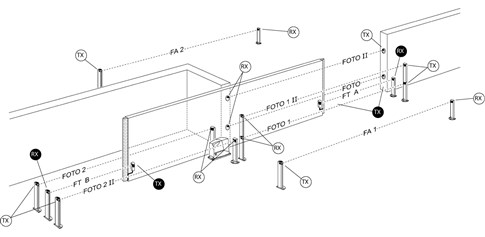
Position the photocells around the gate according to the example configurations for full wiring, and set the jumpers according to the photocell jumper configuration table NICE EPMB. To prevent interference between nearby pairs, observe the orientation of the transmitters TX and receivers RX as shown in the example configurations. Connect the photocells in parallel as shown (polarity does not matter):
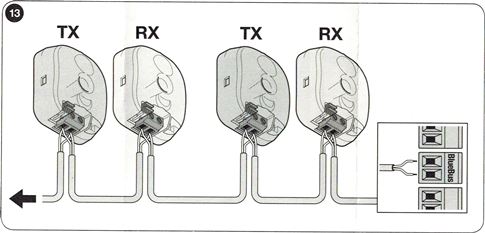
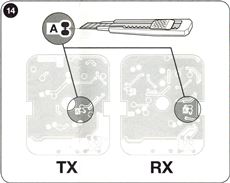
If you need the photocells to function as gate openers (see FA1 and FA2 in the example configurations), i.e. to trigger the gate to open when a vehicle enters the area between their optical axes, break the link A on both the transmitter TX and receiver RX – see the diagram:
Example photocell wiring configuration
NICE EPMB photocell jumper configuration table
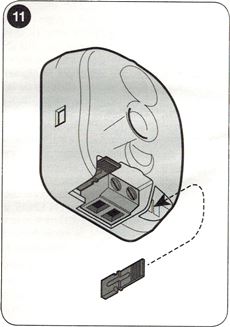 |
Connecting multiple pairs of photocells to the BlueBUS system is done by setting different jumper combinations. Each connected pair must have a unique combination; no two pairs on the same BlueBUS data network may have the same settings. Set the jumpers identically on the TX transmitter and RX receiver within each pair. Keep unused jumpers for future use. |
| Photocell pair designation | Jumper – jumper combination |
|---|---|
| PHOTO | 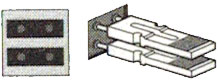 |
| PHOTO II | 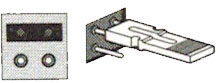 |
| PHOTO 1 | 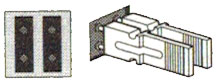 |
| PHOTO 1 II | 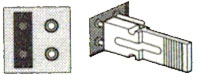 |
| PHOTO 2 | 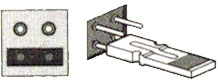 |
| PHOTO 2 II | 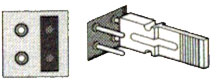 |
| PHOTO 3 | 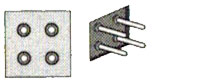 |
| FA1 (Break the connection A on both TX and RX) |
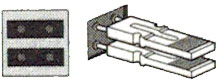 |
| FA2 (Break the connection A on both TX and RX) |
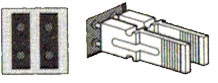 |
If you need to replace a photocell, set the jumper on the replacement to match the original. There is no need to repeat the device recognition procedure.
Radio receiver for operators
NICE Robus RBS600 operator has a radio receiver built into the control unit NICE MCU1R30. MCU1R30 also has an SM connector (under the plastic cover) for connecting an external radio receiver NICE OXIBD (or the older NICE OXI). The SM connector makes it easy to switch from an older Robus RB operator to a Robus RBS operator while retaining the paired remote controls.
Selecting the gate’s direction of travel
The direction setting must match the position of the operator relative to the gate leaf. View the gate from the side where the operator is installed.

| If the gate opens to the left, set the switch to the left. | If the gate opens to the right, set the switch to the right. |
| The switch is on the right-hand side of the back of the control unit. |
|

Recognising connected operator devices
Whenever you connect, disconnect or change the wiring of devices on the BlueBUS and STOP inputs, run the accessory recognition procedure. The operator indicates this by flashing LEDs L1 and L2.
 |
|
Recognising the gate leaf length
To calculate the acceleration/deceleration distance and partial opening correctly, the operator must detect the length of the gate leaf. During this procedure, it moves the gate from one end stop to the other and detects its length using a switch.
 |
|
Programming the operator
The Robus RBS operator offers several programmable functions, including enabling or disabling a function using Level I programming and setting a predefined parameter using Level II programming.
MCU1R30 control unit has three buttons for operating and programming the operator:
 |
Open |
This button commands the operator to open the gate. It is also used during programming to increase the value of the parameter being programmed. |
|
Stop/Set |
This button commands the operator to stop the gate. Pressing and holding it for 5 seconds takes you to Level I programming. Pressing and holding it again takes you to Level II programming for the currently selected LED. |
|
|
Close |
This button commands the operator to close the gate. It is also used during programming to decrease the value of the parameter being programmed. |
Programming – Level I
At Level I, programming enables or disables the selected function.. When a function is enabled, its corresponding LED on the control unit is lit. All functions are disabled by default.
Entering Level I programming Press and hold the “Stop/Set” button for approximately 5 seconds, until the L1 LED starts flashing. Use the “Open” and “Close” buttons to move the active LED up or down. You have 10 seconds for each action; otherwise, the operator will exit the mode. When the flashing LED is next to the function you want to change, press “Stop/Set” to make it flash faster (function enabled) or slower (function disabled), then wait for the operator to exit the mode within 20 seconds. If everything went as expected, the corresponding LED will remain lit.
List of functions that can be enabled:
| LED | Function | Description |
|---|---|---|
| L1 | Automatic closing | After the set time (“Level II programming – Pause duration”), the gate closes automatically after opening. If this function is disabled, the gate responds only to a command (e.g. from the remote control or similar). |
| L2 | Close after photocells are triggered | Once the photocells are clear (the vehicle has passed), closing starts after 5 seconds. Behavior depends on L1:
|
| L3 | Always close | After a power failure, the gate either stays in its original position (disabled) or closes automatically (enabled). |
| L4 | Standby mode | Reduces power consumption to a minimum (useful with PSS124). One minute after the last movement, BlueBUS (and connected devices) and all LEDs except the BlueBUS LED switch off (the latter flashes slowly). When a command is received, the control unit first wakes up/restarts and only then carries out the command. |
| L5 | Starting torque | Disables the soft start—the motor immediately runs at full power (useful with high friction, snow or ice). Reduces the drive's service life. |
| L6 | Pre-flashing | Before the gate starts moving, the warning light flashes for 3 seconds before the manoeuvre starts. |
| L7 | Disable the built-in radio control | Disables the radio receiver integrated into the control unit. Enable this if you use an external plug-in receiver such as an OXI. When this function is disabled, the built-in receiver is active. |
| L8 | “Slave” mode – secondary unit | When activated, the drive becomes the “Slave”. Allows two motors on opposing gate leaves to be synchronized (Master/Slave). For details, see the Robus RBS manual, section “Slave mode”. |
Programming – Level II
Level II is used to set function values (other than those in Level I).
Entering Level II programming Press and hold the “Stop/Set” button for about 5 seconds, until LED L1 starts flashing. Use the “Open” and “Close” buttons to move the active LED up or down. You have 10 seconds for each action; otherwise, the drive exits the mode. When the LED is next to the function whose parameter you want to change, press and hold “Stop/Set” to enter the setting. The lit LED (while you continue to hold “Stop/Set”) indicates the current value. Change the value using “Open” (up) or “Close” (down), then release “Stop/Set” and wait for the drive to exit the mode within 20 seconds. To check the setting, repeat the procedure without changing the value.
List of adjustable functions:
| Input LED — Name and description | Setting LED — Value |
|---|---|
| L1 — Pause duration If “Automatic closing” is enabled in Level I, this sets the interval between opening and automatic closing. |
L1 — 5 s L2 — 15 s L3 — 30 s L4 — 45 s L5 — 60 s L6 — 80 s L7 — 120 s L8 — 180 s |
| L2 — Step-by-step mode Sets the movement sequence for repeated commands (remote-control button or STEP-BY-STEP/P.P./Step-by-step input). Note: with L4, L5, L7 and L8, the behavior of the “Open” and “Close” commands changes. |
L1 — Open/Stop/Close/Stop L2 — Open/Stop/Close/Open L3 — Open/Close/Open/Close L4 — Condominium mode L5 — Condominium mode after two “Stop” commands L6 — Step-by-step after two “partial opening” commands L7 — Hold-to-run mode L8 — “Semi-automatic” opening; closing in “hold-to-run” mode |
| L3 — Motor speed Speed during normal operation (excluding acceleration/deceleration). „L6 – Extremely fast” = 100% of 0.34 m/s, etc. |
L1 — Very slow (30%) L2 — Slow (44%) L3 — Medium (58%) L4 — Fast (72%) L5 — Very fast (86%) L6 — Extremely fast (100%) L7 — Opens “Fast”, closes “Slow” L8 — Opens “Extremely fast”, closes “Fast” |
| L4 — OGI indicator output Sets the OGI output function (when activated, it supplies 24 V, −30%/+50%, max. 10 W). |
L1 — Gate opening L2 — Gate closed L3 — Gate open L4 — Second radio output L5 — Third radio output L6 — Fourth radio output L7 — Maintenance L8 — Electric lock |
| L5 — Motor force Adjusts force control to suit the weight of the automation system. The system also takes the ambient temperature into account and increases the force in cold conditions. |
L1 — Extremely light gate L2 — Very light gate L3 — Light gate L4 — Average-weight gate L5 — Medium-heavy gate L6 — Heavy gate L7 — Very heavy gate L8 — Extremely heavy gate |
| L6 — Partial opening Passage width for partial opening. |
L1 — 0.5 m L2 — 1.0 m L3 — 1.5 m L4 — 2.0 m L5 — 2.5 m L6 — 3.0 m L7 — 3.4 m L8 — 4.0 m |
| L7 — Maintenance alert Number of operating cycles after which the drive indicates that maintenance is required. |
L1 — 1,000× L2 — 2,000× L3 — 4,000× L4 — 7,000× L5 — 10,000× L6 — 15,000× L7 — 17,000× L8 — 20,000× |
| L8 — Fault log Check the fault type for the last 8 operating cycles (see “Fault history” in the manual). |
L1 — Result of the 1st operating cycle L2 — Result of the 2nd operating cycle L3 — Result of the 3rd operating cycle L4 — Result of the 4th operating cycle L5 — Result of the 5th operating cycle L6 — Result of the 6th operating cycle L7 — Result of the 7th operating cycle L8 — Result of the 8th operating cycle |
Automating two opposing sliding gates with two NICE Robus RB600 drives (Master-Slave mode)
If you need to automate two sliding gates facing each other, the Robus drives support slave mode (“Master-Slave”). One drive acts as the master (Master) and sends commands to the other drive, the slave (Slave). All Robus drives are set as master by default, so enable the function on the slave drive in Level I: L8 (Slave). Connection between Master ↔ Slave is via BlueBUS.
Restrictions for master-slave connections
- The gate cannot be opened using the slave drive.
- All devices (e.g. photocells, external receiver etc.) must be connected to the master drive. Only a warning light, devices connected to the STOP, SBS (STEP-BY-STEP) input and the indicator output OGIcan be connected to the slave drive; the OPEN/CLOSE inputs are ignored.
- If you use a backup battery (NICE PSS124), each drive must have its own.
- On the slave drive, all programmed functions are ignored except those listed below.
| Level I programming | Level II programming |
|---|---|
| L4 — Standby mode | L3 — Motor speed |
| L5 — Start-up | L4 — Indicator output |
| L8 — Slave | L5 — Motor force |
| L8 — Fault log |
Installation procedure for two Robus drives in slave mode
- Install both gate leaves and both motors. Decide which drive will be the Master (N) and which will be the Slave (P). In Master-Slave mode, only the slave gate leaf can be fully opened.
- (P) Select the opening direction (direction switch on the control unit).

- (P) On the Slave run device and gate-leaf length learning (“Device learning”, “Gate-leaf length learning”). If the direction is reversed, repeat step 1.
- (P) On the Slave enable the “Master-Slave mode” function (Level I, L8).
- (P+N) Connect both automation systems according to the wiring diagram.

- (N) Select the opening direction on the Master.
- (N) On the Master run device and gate-leaf length learning. The Slave drive will also move while the gate-leaf length is being learned. If the direction is reversed, repeat step 6.

Connecting additional external devices
To the control unit
On the MCU1R30 control unit there are 24 V DC (+) and GND (−) for powering external devices, as well as terminals for OGI, BlueBUS and Flash. In Master-Slave connect the devices to the master drive (exceptions for "Slave" see manual – "Master-Slave mode").
MCU1R30 also allows connection of an expansion board, which provides additional inputs and outputs.
Expanding the control unit with additional inputs/outputs
The control unit can, in addition to the terminals provided, connect an expansion board.. This allows the MCU1R30 unit to be expanded with additional inputs and outputs, making it possible to connect multiple devices. The number and type of inputs and outputs depend on the type of expansion board. For MCU1R30 3 types are currently available of expansion boards:
MLAE21 - 2x 24V inputs (default: Open, Close), 1x 24V output (default: OGI)
MLAE22 - 2x 24V inputs (default: Open, Close), 1x 24V output (default: OGI), 1x 230V output (default: Lighting)
MLAE44 - 4x 24V inputs (default: Open, Close, Partial opening, Photocell), 4x 24V outputs (default: OGI, Gate closed, Radio output 4, Phototest)
Procedure for connecting the expansion board:
Adding or removing expansion boards must always be carried out with the power disconnected (by removing fuse F2 and, if connected, the backup battery).
 |
|
Procedure for learning additional devices.
 |
|
After adding or removing devices, the automation must be tested again as described in section “Testing” (see manual, section 6.1, page 24).
Special drive functions
Gate held open
If a command to the STEP-BY-STEP input (P.P., SbS, Step-by-step) lasts longer than 2 seconds, the control unit will keep the gate open for as long as the command is active. Suitable for use with a timer.
Forced movement
If a safety device fails or an obstacle blocks, for example, the photocells and the gate does not move for safety reasons, activate the “Hold-to-run” mode—continuously (Level II, L2 = L7) or temporarily:
- Send a command (e.g. remote control or key switch).
- If there is a problem, the gate will not move and the warning light will probably indicate a fault.
- Send the command again within 3 seconds of the previous one and hold it.
- The gate moves while the command is held; when it is released, the gate stops.
Maintenance alert
In Level II programming, item L7 – Maintenance alert sets the number of cycles after which the drive should signal that maintenance (inspection) is required. The drive signals this using the warning light (or, if the OGI output is set to Level L7 – Maintenance in Level II programming, item L4 – Output indicator) as follows:
| Number of cycles | Warning light indication | OGI output indicator signal |
|---|---|---|
| less than 80% of the limit | Normal operation, flashing at half-second intervals. | “On” for 2 seconds after opening begins. |
| 80–100% of the limit | On for 2 s after the manoeuvre starts, then operates normally. | Flashes during the manoeuvre. |
| over 100% of the limit | On for 2 s after the manoeuvre starts, then operates normally; on again for 2 s when the manoeuvre ends. | Flashes continuously. |
These settings can also be configured using the mobile app My Nice Pro.
Troubleshooting the drive
If anything is unclear or you have another problem, please feel free to contact our technical support team for NICE drives.
Depending on the nature of the problem
During installation (or if the drive malfunctions), you may encounter one of the following problems:
| Problem | Possible solution |
|---|---|
| The gate does not respond to a remote-control command, and the LED on the remote control does not light up. | Check whether the batteries in the drive remote control all right; if not, replace them (instructions are in the manual for the specific remote control). |
| The gate does not respond to the remote control, but the LED on the remote control lights up. | Check whether the remote control was correctly stored in the receiver's memory; if necessary, store it again. |
| The gate does not move and the BlueBUS LED does not flash. | Check that the drive is receiving 230 V power. If it is, test both fuses and, if necessary, replace them with new ones of the same rating. |
| The gate does not move and the warning light does not flash. | Check whether the drive has registered the command at all: – for a command from the remote control, the BlueBUS LED should flash rapidly twice; – for a command via the STEP-BY-STEP (SbS) input, the corresponding STEP-BY-STEP LED should light up. |
| The gate does not move and the warning light flashes several times. | Count the flashes and see the section “Diagnostics Using Warning-Light Flashes” below. |
| The gate starts moving, but soon stops and reverses. | The motor force is probably set too low. Check for anything obstructing the gate and, if necessary, increase the force or enable the “Start-up“. |
| The gate starts moving, but the warning light does not work. | Check whether voltage (approx. 10–30 V DC) is present at the FLASH terminal during operation. If voltage is present, the problem is with the warning light – try replacing it. If there is no voltage, the FLASH output may have been overloaded – check the wiring for a short circuit. |
| The gate starts moving, but the OGI output does not work. | Check which function is assigned to the OGI output; if it is supposed to flash, check for 24 V DC. If voltage is present, the bulb is faulty – replace it. If there is no voltage, the OGI output may have been overloaded – check the wiring for a short circuit. |
Diagnostics Using Warning-Light Flashes
While the gate is moving, the warning light flashes regularly once per second. If a problem occurs, it signals an error with two faster flash sequences in succession.
| Flash sequence | Error | Solution |
|---|---|---|
| 1 flash, 1 s pause, 1 flash | BlueBUS error | The devices connected to the BlueBUS input do not match those detected during the recognition phase. Run the recognition phase again; if that does not help, use a process of elimination to find the faulty device, then replace, repair, or return it under warranty. |
| 2 flashes, 1 s pause, 2 flashes | Photocell activation | The photocells are being triggered (normal when the beam is interrupted while closing). If the beam was not interrupted, the photocells may be dirty, exposed to glare, or faulty. |
| 3 flashes, 1 s pause, 3 flashes | Motor force limiter activated | The gate has detected increased friction – check and adjust the gate (test manual movement). Increasing the force or enabling “Start-up“. The problem may also be caused by a bottom stop. |
| 4 flashes, 1 s pause, 4 flashes | STOP input activated | A command was received at the STOP input. If this was unexpected, check the connected devices. |
| 5 flashes, 1 s pause, 5 flashes | Control unit internal error | Wait at least 30 seconds, then send the command again. If the error persists, try a reset.. The control unit will probably need to be repaired or replaced. |
| 6 flashes, 1 s pause, 6 flashes | Hourly movement limit reached | Wait a few minutes for the cycle limiter to drop below its maximum. |
| 7 flashes, 1 s pause, 7 flashes | Internal electronic circuit error | Disconnect the drive from the power supply for a few seconds, reconnect it, and try sending the command. If the error persists, try a reset.. If that does not help, the control unit will probably need to be repaired or replaced. |
| 8 flashes, 1 s pause, 8 flashes | Continuous command active | If a command is being continuously sent to the drive, check the devices connected to the OPEN input. If a timer is connected, it is probably sending this continuous command. |
Diagnostics Using LED Flashes
Diagnostics can be performed by monitoring several sets of LEDs. Two sets are on the control unit, and the third is the status light directly on the drive.
On the drive...
The status light is located on the front of the cover of the Nice RBS drives..

Red and green LEDs indicate normal operation and provide basic gate diagnostics, as shown in the table below. If the drive detects an abnormality or error, it signals it using the warning light.
| Status light with positions learned | |
|---|---|
| Green light | |
| on | Indicates the start of each gate movement, provided there are no abnormalities or errors in the system, and turns off when the movement ends. |
| off | Normal operation |
| Red light | |
| on | Indicates the start of each gate movement, if the set number of movements before maintenance has been exceeded; and turns off when the movement ends. |
| off | Normal operation |
| Warning light | The control unit has detected an abnormality. See the table “Diagnostics using beacon flashing.” |
| Status light with positions NOT learned | |
|---|---|
| Green light | |
| on | The light comes on when the opening limit switch is reached. |
| off | Normal operation |
| Red light | |
| on | The light comes on when the closing limit switch is reached. |
| off | Normal operation |
| Beacon | The control unit has detected an anomaly. See the table “Diagnostics using beacon flashing.” |
On the MCU1/MCU1R30 control unit...
MCU1R30 control unit of the NICE Robus RBS800 drive, there are two sets of LEDs, each of which uses flashing and steady illumination to indicate normal control unit operation or diagnose faults, as shown in the tables below.

Horizontal LEDs: BLUEBUS, STOP, SbS, FOTO:
| Indicator | Status | Solution |
|---|---|---|
| BlueBUS LED | ||
| off | anomaly/fault | Check the mains power connection. If it is OK, check fuses F1 and F2 and, if necessary, replace them with new fuses of the same rating. |
| on | serious fault |
Try disconnecting the control unit, or all inputs. If this does not help, reset the control unit. If the fault persists, the control unit will probably need to be replaced. |
| 2 green flashes at one-second intervals | everything OK | Normal control unit operation. |
| 2 quick green flashes | input status changed |
Normal operation – the status of the STEP-BY-STEP, STOP, OPEN or CLOSE input changed, the photocells, or the drive received a command from the remote control. |
| a series of red flashes, separated by a one-second pause | various | The number of flashes in the series corresponds to the fault diagnostics indicated by the beacon. See “Diagnostics using beacon flashing”. |
| a series of quick and slow red flashes | short circuit at the BlueBUS terminal | Disconnect the terminal and check the BlueBUS connections for the cause of the short circuit. After clearing the short circuit, reconnect the terminal; the LED will start flashing again after ten seconds. |
| STOP LED | ||
| off | the STOP input has been activated | Check the devices connected to the STOP input. |
| on | the STOP input did not respond | The STOP input is active. |
| STEP-BY-STEP LED (also labelled SbS, P.P. or Step-by-step) | ||
| off | everything OK |
The STEP-BY-STEP input is inactive. |
| on | the STEP-BY-STEP input has been activated | Normal control unit operation if a device connected to the STEP-BY-STEP input was activated. |
| FOTO LED | ||
| off | The FOTO input has been activated | The FOTO input has been triggered. |
|
on |
Everything OK | Normal control unit operation if the safety device has not been triggered. |
Vertical LEDs L1–L8:
| Indicator | Solution |
|---|---|
| LED 1 | |
| off | During normal operation, indicates that the “Automatic closing” function is disabled. |
| on | During normal operation, indicates that the “Automatic closing” function is enabled. |
| flashing |
- The function is being programmed.
|
| LED 2 | |
| off | During normal operation, indicates that the “Close” function after the photocells are interrupted is disabled. |
| on | During normal operation, indicates that the “Close” function after the photocells are interrupted is enabled. |
| flashing |
- The function is being programmed.
|
| LED 3 | |
| off | During normal operation, indicates that the “Always close” function is disabled. |
| on | During normal operation, indicates that the “Always close” function is enabled. |
| flashing |
- The function is being programmed.
|
| LED 4 | |
| off | During normal operation, indicates that the “Standby mode” function is disabled. |
| on |
During normal operation, indicates that the “Standby mode” function is enabled. |
| flashing |
- Function programming in progress.
|
| LED 5 | |
| off | During normal operation, indicates that the function “Soft start” is disabled. |
| on | During normal operation, indicates that the function “Soft start” is enabled. |
| flashing | Function programming in progress. |
| LED 6 | |
| off | During normal operation, indicates that the function “Pre-flashing” is disabled. |
| on | During normal operation, indicates that the function “Pre-flashing” is enabled. |
| flashing | Function programming in progress. |
| LED 7 | |
| off | During normal operation, indicates that the function “Internal radio receiver” is disabled. |
| on | During normal operation, indicates that the function “Internal radio receiver” is enabled. |
| flashing | Function programming in progress. |
| LED 8 | |
| off | During normal operation, indicates that Robus is configured as the “Master unit” (also called Master). |
| on | During normal operation, indicates that Robus is configured as the “Slave unit” (also called Slave). |
| flashing | Function programming in progress. |
Installing a backup battery for the NICE Robus RBS600 gate operator
The backup NICE PSS124 battery is not supplied as standard with the gate operator, but can be ordered separately. In the event of a power failure, it will power the gate operator. The battery is continuously charged from the mains. Connect the battery to the control unit only after completing all installation and programming stages.
| 1. Pry off the plastic cover (A) of the battery connector on the gate operator. | 2. Connect the supplied cable to the backup battery connector (PSS124). |
 |
 |
| 3. Connect the corresponding connector (C) to the battery connector on the gate operator. | 4. Insert the backup battery (D) into its compartment inside the gate operator. |
 |
 |
Manual release of the NICE Robus RBS600 gate operator
In the event of a power failure or malfunction, you will not be able to operate the gate using the remote control. Therefore, you can release the gate operator using the release key and move the gate manually.
1. Unlock the locking hook (A) with the supplied key and pull out the release lever. You can now move the gate manually.

2. To lock the gate, close the locking hook, turn the key anticlockwise and remove it.

Technical specifications of the NICE Robus RBS600 gate operator
| Model | NICE Robus RBS600 |
|---|---|
| Description | Electromechanical geared motor for automatic operation of sliding gates in residential settings. Supplied with NICE MCU1R30 control unit with an integrated radio receiver. |
| Drive sprocket |
|
| Torque [Force] |
21.1 Nm [700 N] – force required to start the gate leaf moving |
| Rated torque [Rated force] |
10 Nm [330 N] – force required to keep the gate leaf moving |
| Speed | 0.34 m/s |
| Limit on consecutive cycles | 100 cycles/day (the control unit limits the number according to the conditions – see gate operator selection) |
| Operating time limit | 7 minutes (the control unit limits the time according to the conditions – see gate operator selection) |
| Service life | Approximately 20,000–250,000 cycles, depending on the weight and length of the gate leaf and the gate operator settings. |
| Power supply | 230 V (+10 % / −15 %) 50/60 Hz |
| Power consumption [Load] |
450 W [2.1 A] |
| Insulation class | 1 – must be earthed |
| Backup power supply | NICE PSS124 backup battery can be purchased separately and installed. (With the use of the adapter CABLA11 it is also possible to use the older model PS124.) |
360° view of the Nice Robus RBS600 drive
How can I order this item?
Choose the option that suits you:
- order online: use the buy button to add the goods to your shopping cart (you will find the buy button here in the product variants table).
- order by email: place your order at [email protected]