Pairing remote controls with NICE gate operators
NICE remote control pairing page contents:
NICE drive systems are controlled remotely using two components: remote control and receiver.
Remote control (also called a transmitter) is a wireless device with buttons. Pressing a button only sends a signal; it never stores anything.
The remote and receiver must use the same encoding for the system to work correctly.
Receiver captures the signal sent by the remote and uses its code to determine what to do with it. The receiver stores remote control codes in its memory.
The receiver may be built into the drive control unit (e.g. NICE Road 400, the newer Wingo and Toona operators), in which case it is controlled using the R (RADIO) button directly on the control unit. The receiver can also be an external unit, connected to the control unit via a connector (e.g. OXI receiver / SMXI on the operator NICE Robus, Run, or older Wingo and Toona operators).
| R (RADIO) button on the NICE RBA4R10 control unit for the NICE Road 400 operator | Button on the external NICE OXI/SMXI receiver for NICE Robus, Run, etc. operators |
|---|---|
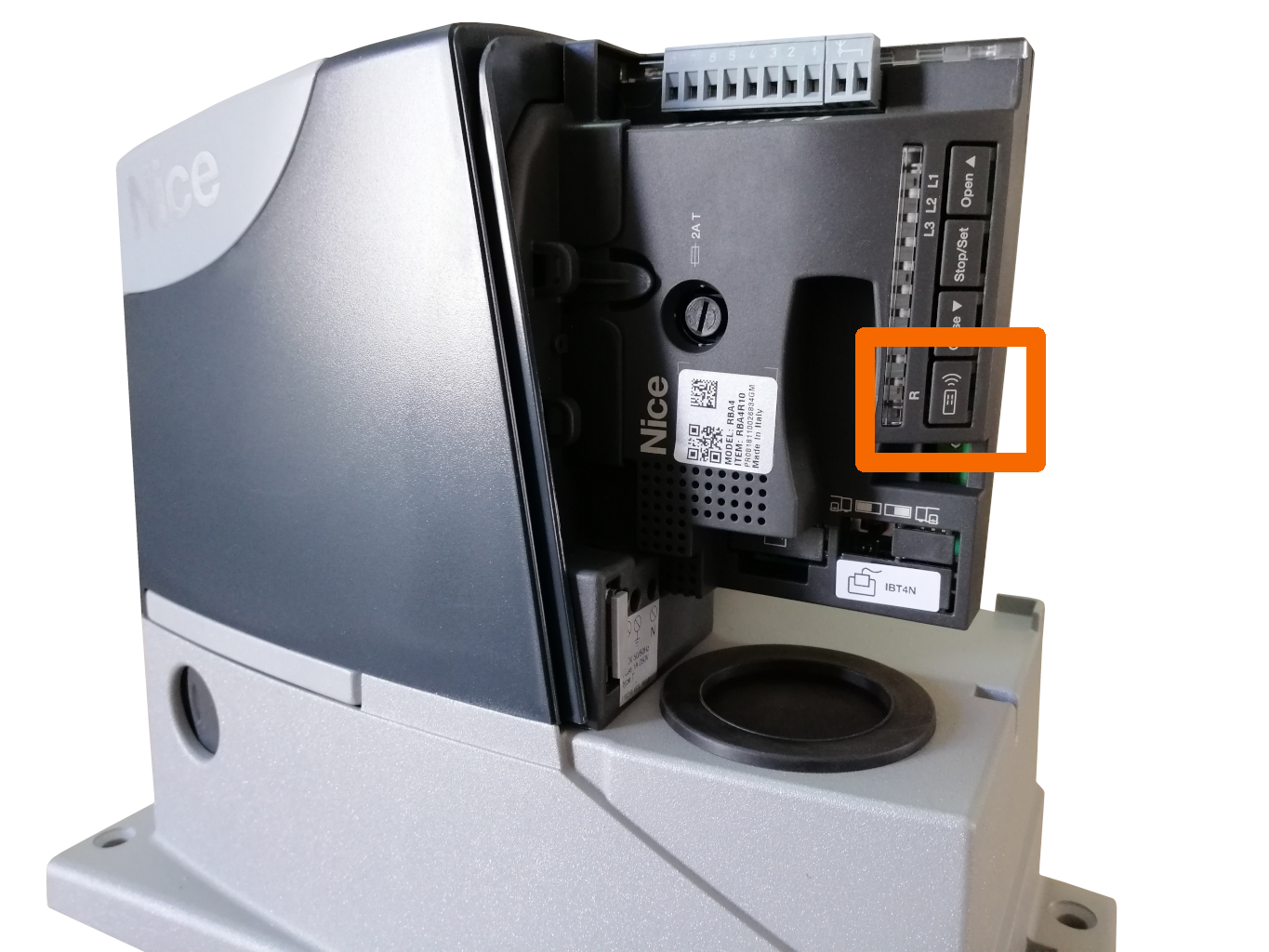 |
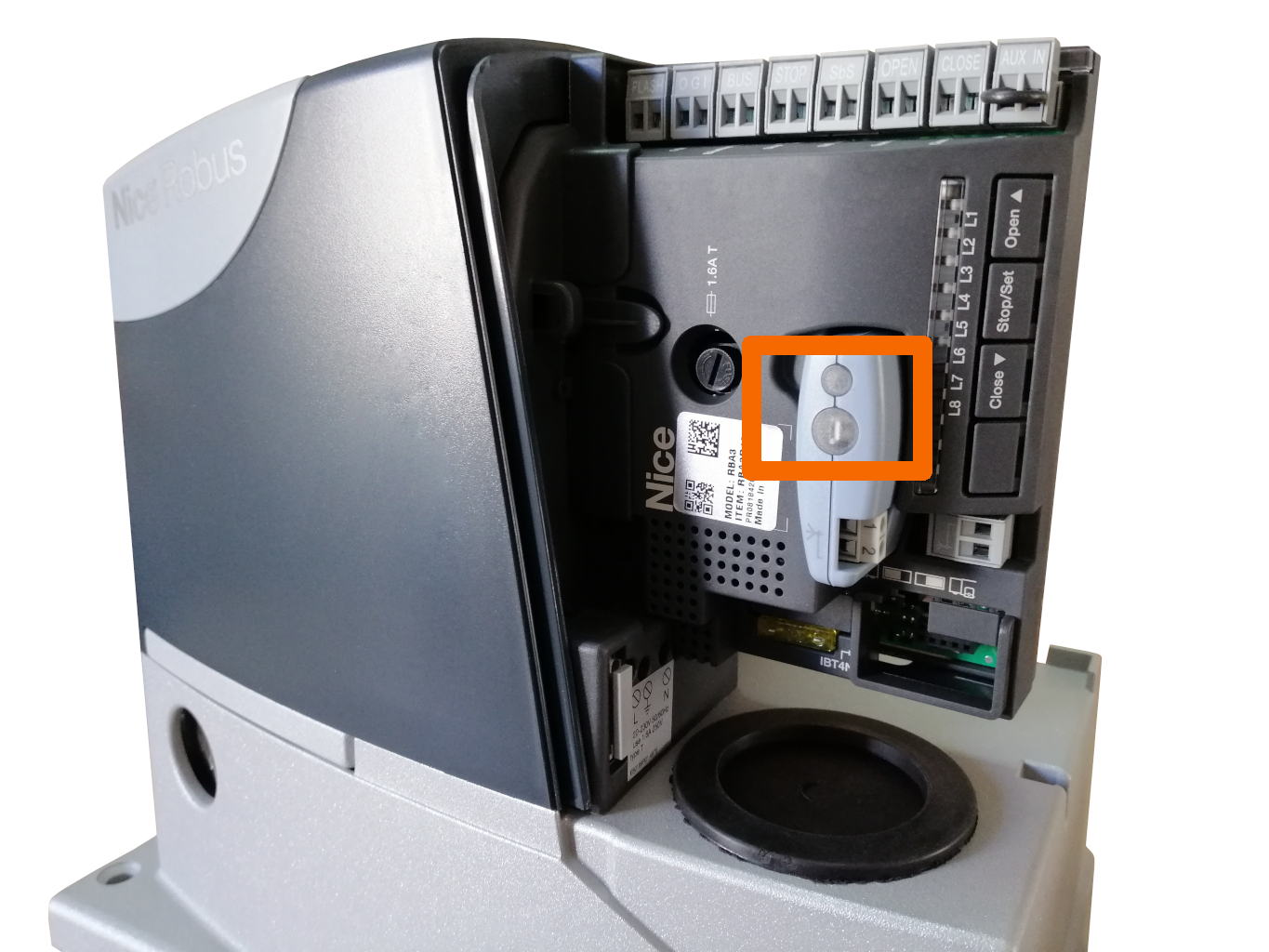 |
NICE electronic components allow you to program remotes into receiver memory in two modes:
| Mode I. “One remote for one device” |
Mode II. “One remote for multiple devices” |
||||||||||||||||||||
|---|---|---|---|---|---|---|---|---|---|---|---|---|---|---|---|---|---|---|---|---|---|
|
This mode is suitable for remotes with up to four channels.
In this mode, the buttons are assigned fixed functions for controlling one device (buttons are numbered from left to right and top to bottom):
|
This mode is suitable for remotes with two or more channels (buttons).
In this mode, each button is assigned exactly one function for a device:
You can also control multiple devices with one button. The remote is always programmed into the receiver; the remote itself never stores anything. |
||||||||||||||||||||
|
Examples: With a single-channel remote, you will only be able to operate step by step the gate. The other commands will not be available. With a two-channel remote button 1 will operate the gate step by step with each press, while button 2 will only open the gate partially. The other two commands will not be available. With a four-channel remote all available commands will be accessible. |
A simple example: I have a two-channel remote and I have a sliding gate and a garage door. You can use the first button to operate (step by step) the sliding gate and the second button to operate the garage door.
A more complex example: I have a four-channel remote. At home, I have a sliding gate, a garage door, and a swing gate. At work, we have an 8 m double-leaf gate. You can control everything with one remote. You can use the first button to operate the sliding gate at home, and set it to partially open the swing gate at work (only one 4-metre leaf will open). You can use the second button to operate the swing gate at home and, for example, open both leaves at work when you are going out in a truck. You can use the third button to operate the garage door at home and the fourth, for example, to partially open the sliding gate at home by 1 m when you are tired after playing football and the gate is a long way away. Alternatively, you can pair the swing gate at work, for example, in Mode I. |
Available commands for NICE devices
1. Step-by-step operation
There are several types of step-by-step sequences, depending on the specific automation system. NICE devices generally support the following combinations (see the manual for the specific device):
| Open > Stop > Close > Open |
|---|
| Usually the default setting. When the gate is closing, pressing the button immediately starts it opening. |
| Open > Stop > Close > Stop > Open |
| The safest option. The gate can be stopped during any movement. |
| Open > Close > Open |
| A practical, but not entirely safe, option. With this combination, if the gate hits an obstacle, you’ll be chasing it up and down. |
The specific step-by-step sequence is set when programming the drive. From then on, this command sequence will apply not only to remote controls, but also to devices connected to the STEP-BY-STEP input, if present.
2. Partial opening
Each time you press the button, the gate will make the following movements:
| Partial opening > Stop > Closing > Stop > Partial closing |
|---|
This button lets you open the gate only partially, never fully.
Partial opening has a different meaning for each type of automation:
| Automation type | Partial opening |
|---|---|
| Opens the sliding gate by 1 m (pedestrian opening) | |
| Opens one gate leaf | |
| Partial opening |
3. Open
Each time you press the button, the gate will make the following movements:
| Opening > Stop > Opening |
|---|
until it is fully open; after that, the button will not respond.
4. Close
Each time you press the button, the gate will make the following movements:
| Closing > Stop > Closing |
|---|
until it is fully closed; after that, the button will not respond.
Deleting remote controls from memory
Deleting all remote controls from the receiver’s memory
- Press the R (RADIO) button on the control unit (or the button on the receiver) and hold it.
- The R (RADIO) indicator (or the indicator on the receiver) will light up and then go out (keep holding the button).
- The indicator will start flashing andDURING the third flash, release the R (RADIO) button.
- If deletion is successful, the indicator will flash rapidly for a short while, then flash 5 times.
Deleting a specific remote control from the receiver’s memory (OXI receiver only)
- Press the R (RADIO) button on the control unit (or the button on the receiver) and hold it.
- The R (RADIO) indicator (or the indicator on the receiver) will light up. Keep holding the R (RADIO) button, then press and hold a button on the remote control as well.
- If deletion is successful, the indicator will flash 5 times; release both buttons.
Adding a remote control to memory
If you’re not sure which remote control you’re holding, whether it may already be paired, or which modeit is in, we recommend that you delete it before pairing, both in Mode Iand Mode II.
Adding a remote control to the receiver’s memory using the buttons on the receiver
| Adding to memory in Mode I. | Adding to memory in Mode II. | ||||||||||
|---|---|---|---|---|---|---|---|---|---|---|---|
|
Adding a remote control to memory in Mode II is done in two steps: 1. Selecting a command
2. Adding the remote control Procedure:
|
Adding a remote control to the receiver’s memory remotely using an already paired remote control
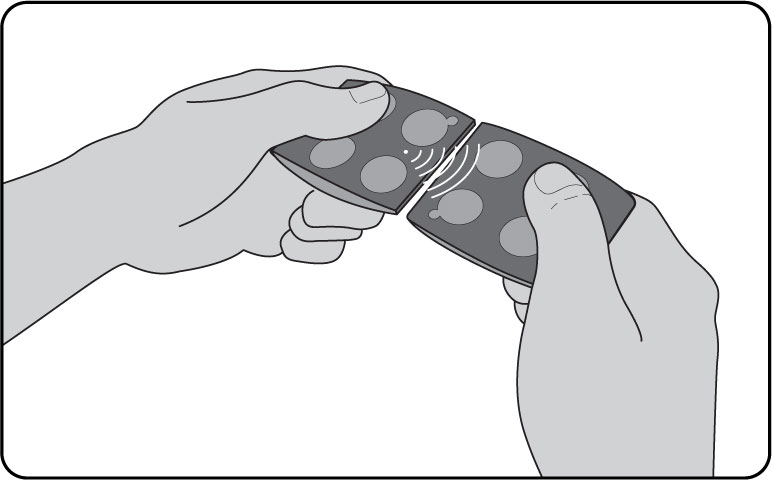 This operation must be carried out within range of the receiver. You have two remote controls: one OLD, already paired, and one NEW, not yet paired. If the OLD remote was paired in Mode I, NEW the remote will inherit the same settings, and the operation can be performed using any button. If the OLD remote was paired in Mode II, the operation must be performed separately for each button by pressing that specific button. The procedure is as follows:
- Press and hold a button on the NEW remote for 7 seconds, then release it.
- Press a button on the OLD remote for two seconds three times in a row; the gate should no longer move.
- Press a button on the NEW remote for 3 seconds, then release it.
- Wait 10 seconds and test it.
- If pairing was unsuccessful, try pressing the buttons more slowly. Feel free to try several times.
What can I do next?
I want to order additional NICE remotes:
You can place an order through the online store at www.fortamigo.com. For more information, you can also check our current range of NICE remote controls.
I’d like advice on other ways to control a NICE operator:
NICE operators offer a wide range of control options: you can use a wireless keypad, key switch, a magnetic card, or choose from a range of coloured remotes, and more.
I can’t pair the remote by following the instructions:
Contact technical support for NICE operators.
My remote controls have a short range:
See our page with solutions for short-range remote controls.
I’d like advice on controlling other devices using NICE transmitters:
Get in touch and we’ll suggest a solution for controlling other devices with a NICE transmitter or consolidating your remote controls.
Everything went smoothly, and the remote works just as I wanted:
In that case, please recommend us to people you know. It’s the most valuable form of marketing, and we thank you for it.