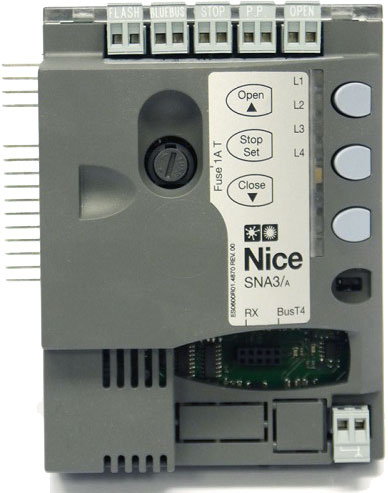
NICE SNA3 - replacement control unit for NICE Spinbus SN6031 operators
| Product availability: | currently unavailable |
|---|
Description of NICE SNA3 - replacement control unit for NICE Spinbus SN6031 operators
NICE SNA3 control unit is compatible with garage door operators NICE Spinbus SN6031. Includes a connector of type SM for connecting radio signal receiver (SMXI, OXI, ...) from remote controls (Flor, Era Flor, Era One, Era Inti, ...).
Supports BlueBus, which makes it easy to connect additional devices (photo cells, warning light, card readers, key switches, etc.) using just a two-core cable, with no need to observe polarity.
Thanks to 24V it is also suitable for the NICE Solemyo solar system, which provides power even in locations without access to mains electricity. It is also possible to power the control unit from a NICE PS124 backup battery, which allows the garage door to be opened and closed a few times for several hours after a power failure. When standby mode is enabled, the control unit with a connected control signal receiver receiver consumes just 2 W (when powered by a PS124 battery, or Solemyo solar system, consumption is just 0.1 W).
Supports NICE Opera technology. Diagnostics using warning light.
After assessing the gate leaf length, the acceleration and deceleration intervals for opening and closing are set automatically. You can also adjust the force, speed etc. See programming the drive control unit. Obstacle detection throughout the gate leaf's movement ensures safe operation of the motors.
NICE SNA3 control unit is suitable for the climatic conditions in Slovakia and meets all European safety standards.
Accessories compatible with the NICE SNA3 control unit
We recommend purchasing these compatible optional accessories for the control unit:
| What | Why | Type |
|---|---|---|
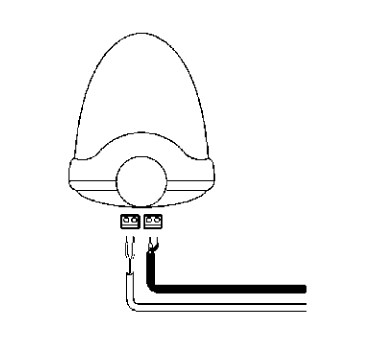
| Warning light | The warning light flashes to indicate gate movement—useful at exits with limited visibility. It also has a built-in antenna for greater remote-control range. | |
| Photo cells | When closing, they detect obstacles and stop the gate, preventing it from hitting cars or people. | - MoonBUS (MOFB) |
| Transmitter |
For remote control of the gate. |
- FloR (Flo2R-s, Flo4R-s) |
| Receiver | Required for remote gate operation. | - OXI - SMXI |
| Antenna | For better remote-control range. | - integrated into the warning light LUCYB, MLBT - ABFKIT antenna only, or ABF |
| Keypad | If you forget your remote control, or if lots of vehicles or people visit and you don't want to give everyone a remote or have to open the gate yourself. | - MOTXR |
Manual for the NICE SNA3 control unit and NICE Spinbus SN6031 opener
Download the manual for the NICE SNA3 control unit and NICE Spinbus SN6031 opener here:
Manual for the NICE SNA3 control unit and NICE Spinbus SN6031 opener
Wiring the NICE SNA3 control unit for the NICE Spinbus SN6031 opener
...to the mains
Simply plug the opener into a socket.
...accessories
Warning: Before connecting, disconnecting or changing the wiring of any accessories, remember to disconnect the power supply, either at the circuit breaker, by removing the power fuse, or by disconnecting the backup battery.
NICE SNA3 control unit for the opener NICE Spinbus SN6031 has the following inputs and outputs for accessories:
| Input/output | Description | ||||||||||||
|---|---|---|---|---|---|---|---|---|---|---|---|---|---|
|
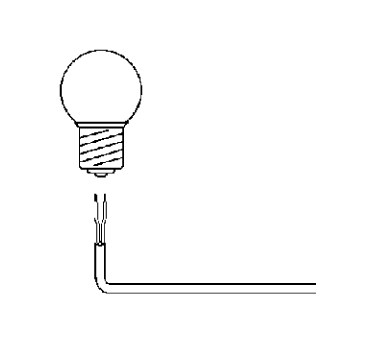
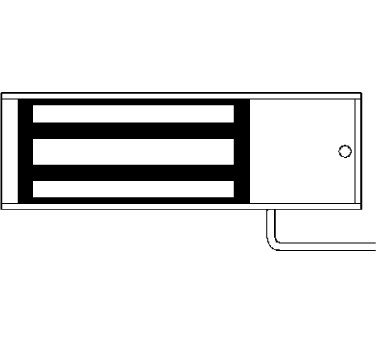
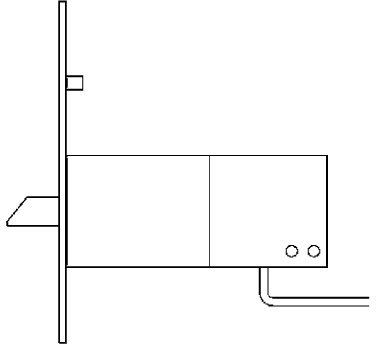
A programmable output whose operation can be set using Level II programming, item L4; see Level II programming, L4 – Output indicator. It can be programmed for the following devices:
|
|||||||||||||
| Input for parallel connection of compatible devices using BlueBUS using a two-core cable that carries both the power supply and the communication signal. | |||||||||||||
| STOP (Stop) |
Input for devices that stop the gate's movement. The following devices can be connected:
|
||||||||||||
| Input for devices that control the gate's step-by-step movement (see Step-by-step gate operation). Normally open (NO) devices can be connected. | |||||||||||||
| OPEN (Open) |
Input for devices that control the gate movement (see Gate opening). Normally open (NO) devices can be connected. | ||||||||||||
| AERIAL (Antenna) |
input for the radio receiver antenna. The antenna is usually built into the warning light, for example, the NICE LUCYB, NICE MLBT, or you can use a separate external antenna NICE ABFKIT. |
Gate opener fuses
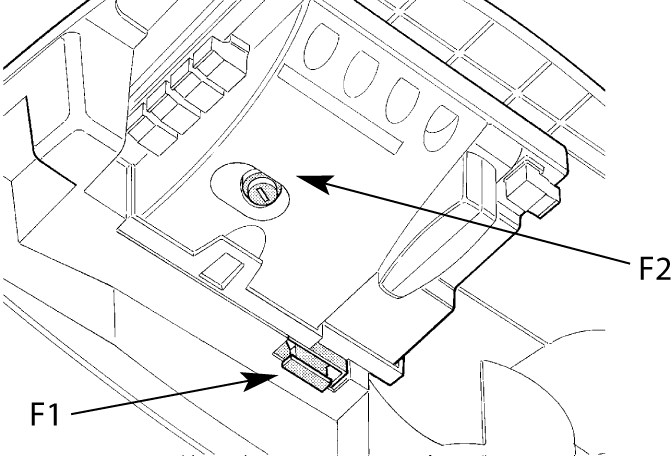 |
The gate opener contains two fuses:
|
Standard wiring diagram:
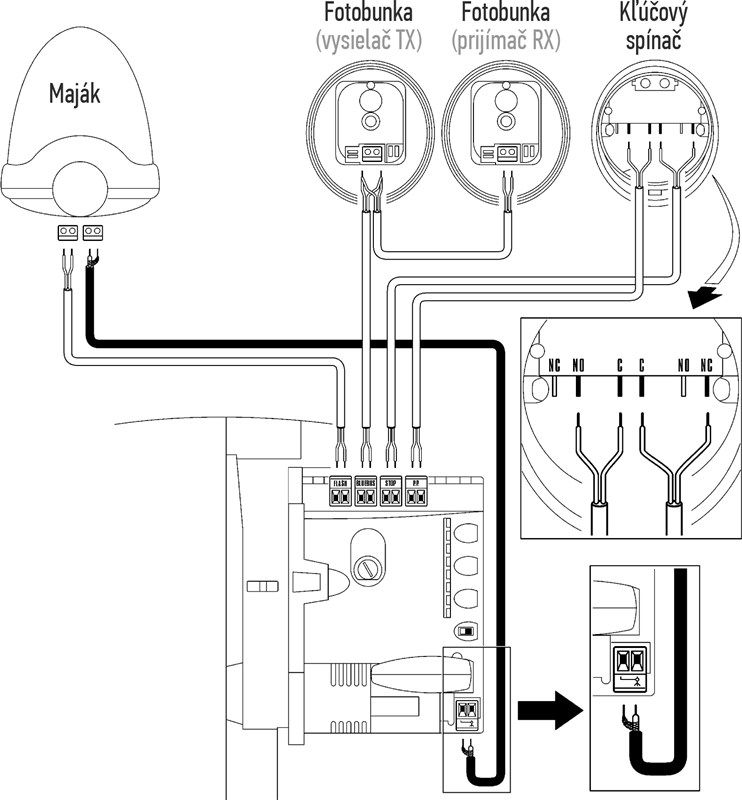
Wiring
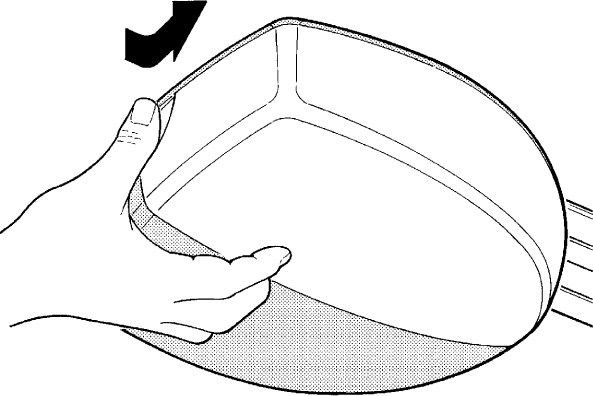
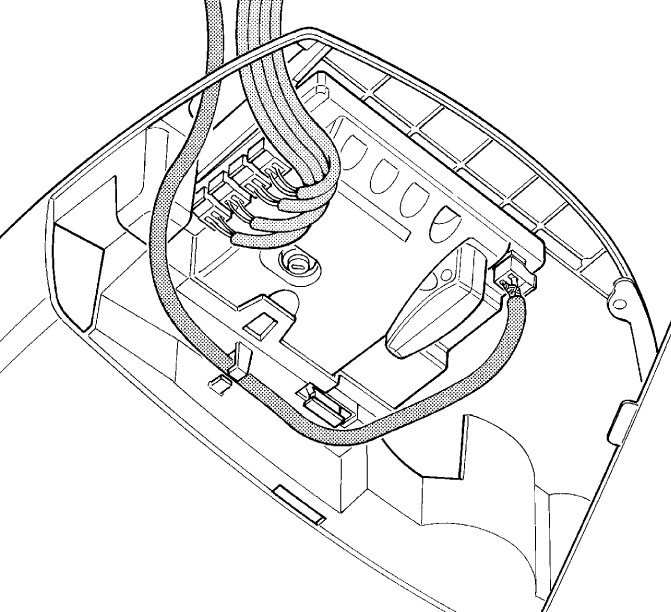
Route the cables to the control unit and connect them as follows:
| 1. Press the white cover in and turn it | 2. Pass the cables through the opening, route the antenna cable through the side eyelet, and connect all the cables. |
|---|---|
 |
 |
Gate opener photocells
The highly user-friendly BlueBUS technology allows you to power and control up to 6 pairs of photocells using a two-core cable.
WIRING MULTIPLE PAIRS OF PHOTOCELLS NICE MOFB TO THE DATA NETWORK NICE BLUEBUS
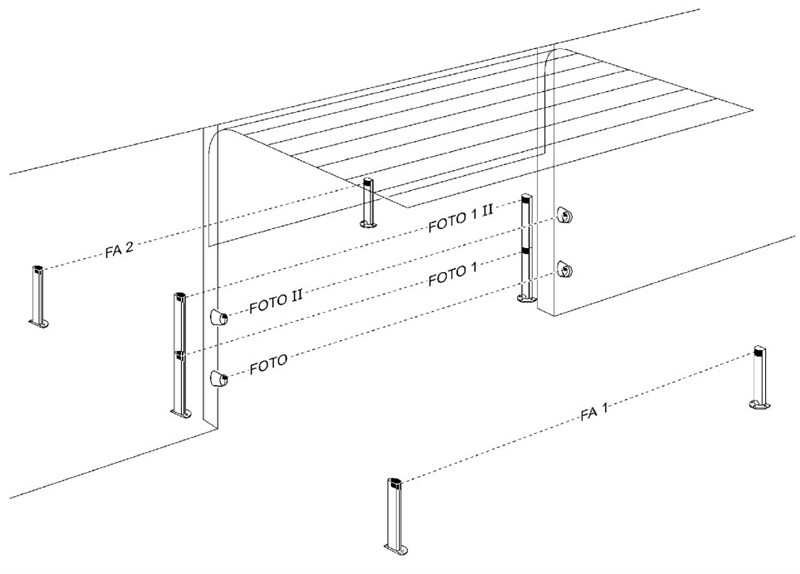
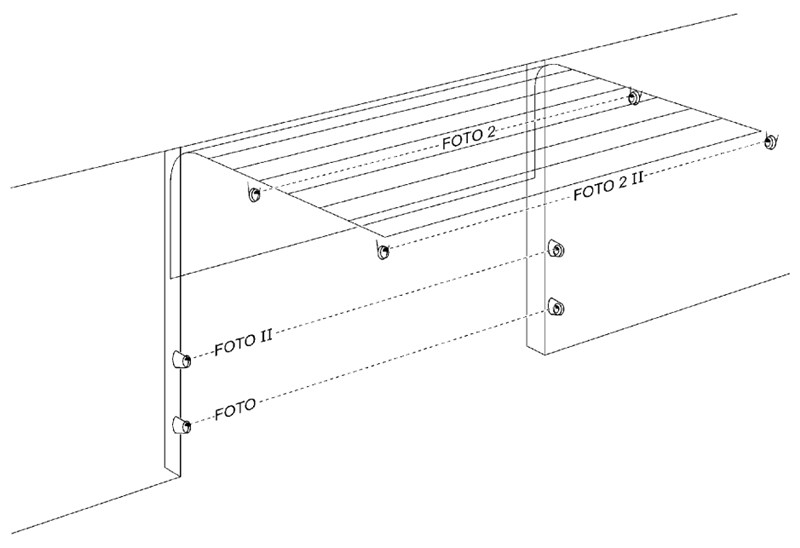
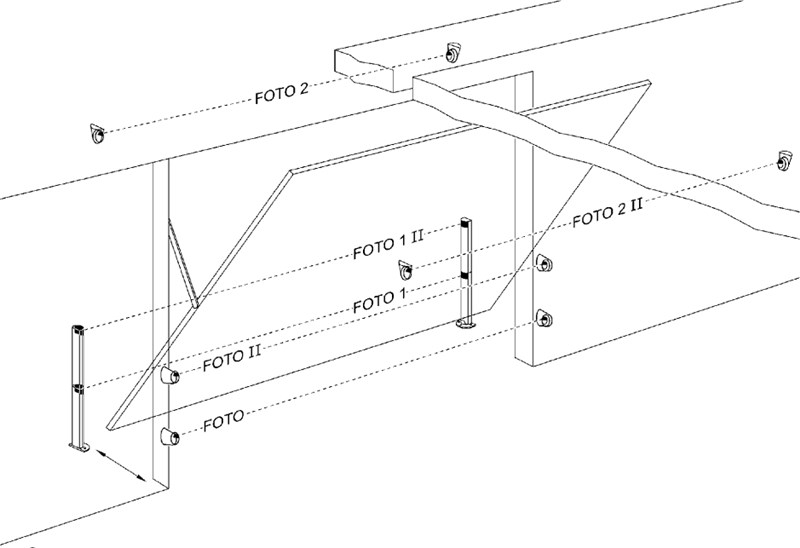
Position the photocells around the gate or doors according to the example configurations for the complete wiring, and set the jumpers according to the jumper table for the NICE MOFB photocells of the gate opener. To prevent interference between pairs installed close to one another, follow these example configurations, and make sure the transmitters are oriented correctly TX and receivers RX. Connect the photocells in parallel as shown (polarity does not need to be observed):
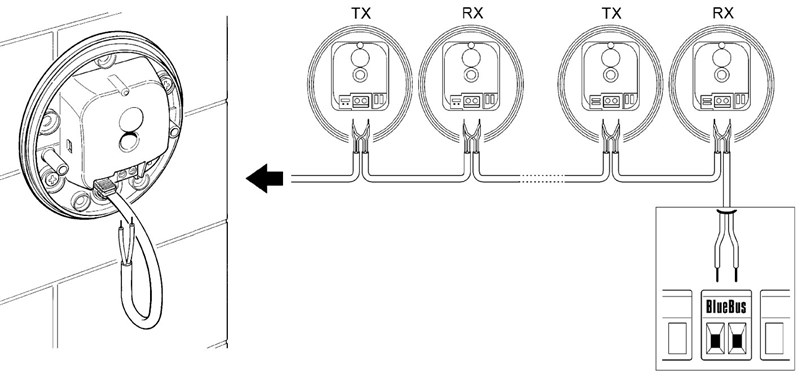
Example photocell wiring configuration
| Sectional garage door | Up-and-over garage door |
|---|---|
 |
 |
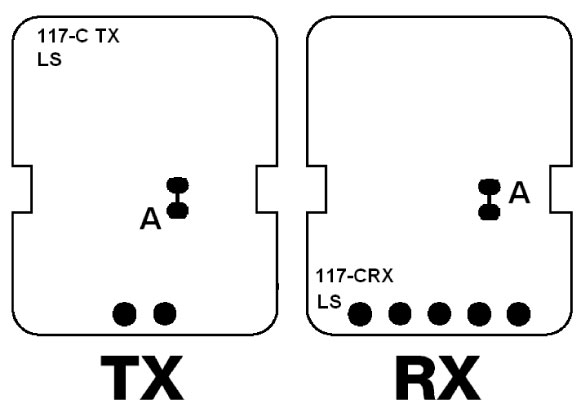
If you need the photocells to function as gate-opening sensors (see FA1 and FA2 in the figure), i.e. so that when you drive between their optical axes they open the gate, you need to break connection A on both the transmitter TX and receiver RX, see figure:
Jumper table for NICE MOFB gate opener photocells
 |
Connecting multiple pairs of photocells to the BlueBUS system is done by setting different jumper combinations, with each connected pair requiring a unique jumper configuration. Make sure that no two pairs in the same BlueBUS data network have the same configuration. For each pair of photocells, set the transmitter TX and receiver RX jumpers to the same configuration. If the jumper configuration uses only one jumper, always store the other one in the unused slot, as shown in the figure on the left. |
| Photocell pair designation | Jumper configuration |
|---|---|
| FOTO | 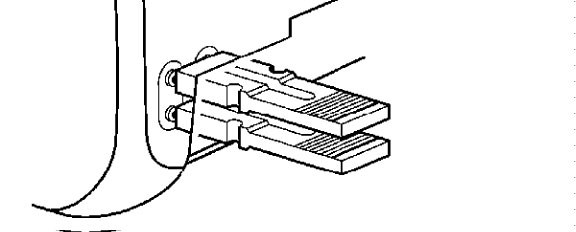 |
| FOTO II | 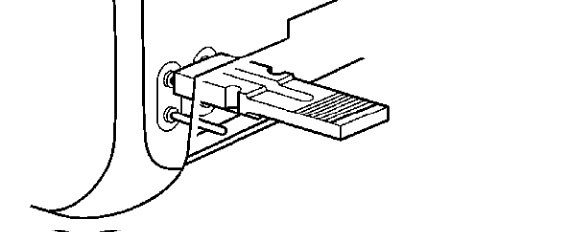 |
| FOTO 1 | 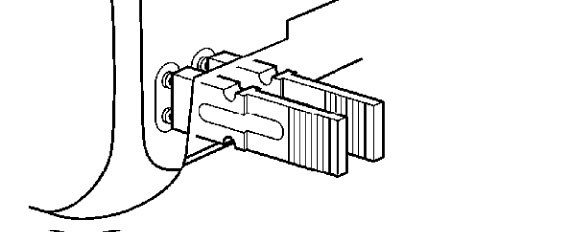 |
| FOTO 1 II | 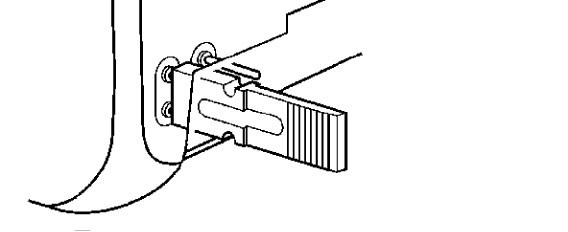 |
| FOTO 2 | 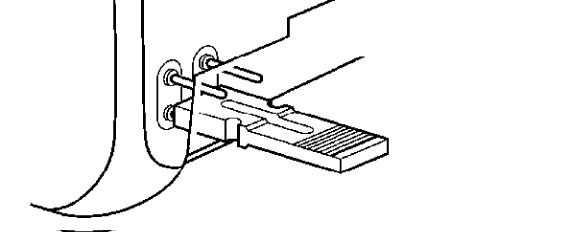 |
| FOTO 2 II | 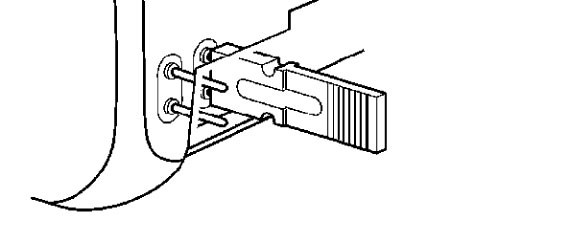 |
|
FOTO 3 WARNING: UNAUTHORIZED CONFIGURATION! |
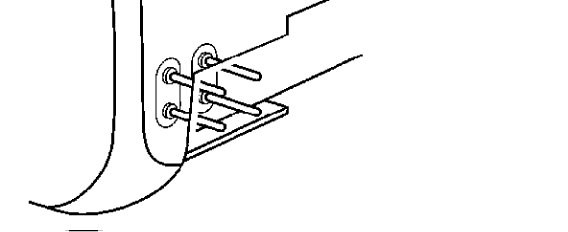 |
|
FA1 |
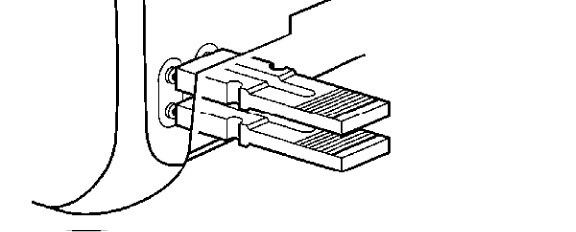 |
|
FA2 |
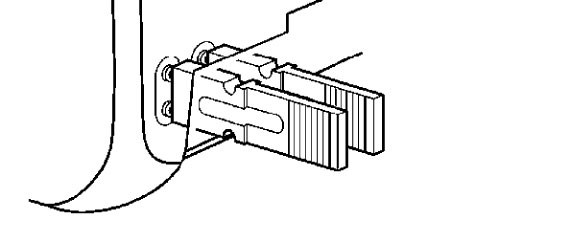 |
If a photocell needs to be replaced for any reason, simply set it to the same jumper as the original one; there is no need to carry out the device recognition procedure.
Radio signal receiver for operators
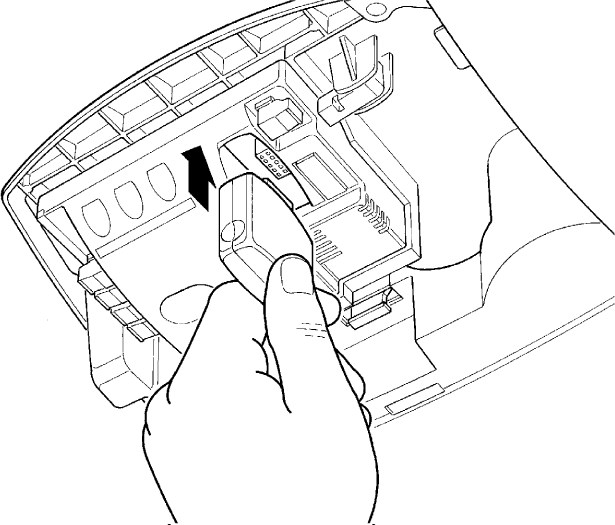 |
SNA3 control unit NICE Spinbus SN6031 operator has an SM connector for connecting an external radio receiver (e.g. NICE OXI, NICE SMXI). This receiver is essential for receiving commands transmitted from the remote controls, and is therefore required for remote operation of the sliding gate using a remote control. |
Pairing remote controls with the operator
Visit our guide to pairing a remote control with the operator, or click:
Recognition of connected operator devices
Whenever you connect, disconnect or change the wiring of accessories on the BlueBUS inputs and STOP the following procedure must be carried out: recognition of accessories. The operator will alert you when this procedure needs to be carried out by flashing LEDs L1 and L2.
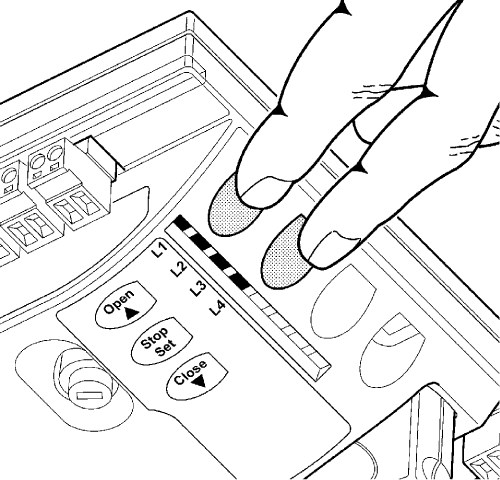 |
|
Garage door leaf length recognition
For the gate to operate correctly (including calculating acceleration and deceleration distances and partial opening), the operator must determine the length of the gate leaf itself. During this procedure, the operator moves the gate from one stop to the other and determines the gate length.
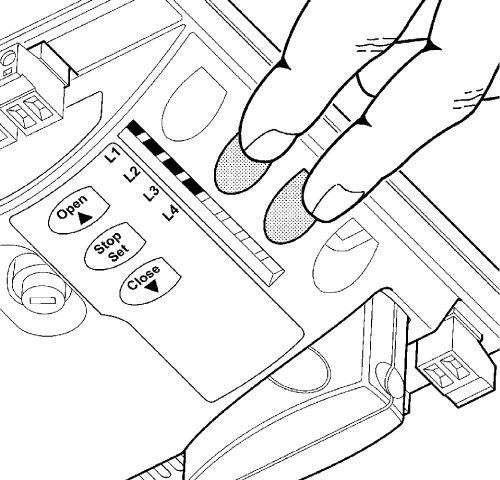 |
|
Programming the operator
The SNA3 control unit for the Spinbus SN6031 operator allows you to program several functions, either by enabling/disabling a function using Level I programming, or by setting the default parameter using Level II programming.
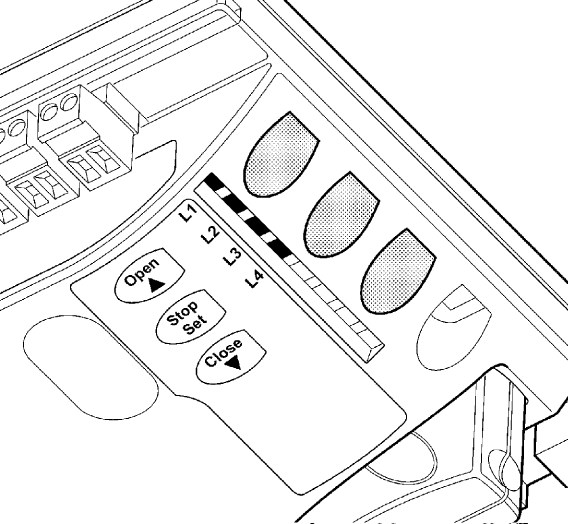
SNA3 control unit has three buttons for operating and programming the operator:
 |
Button | Use |
|---|---|---|
| Open | The button sends the gate operator a command to open the gate. It is also used during programming to move the value of the parameter being programmed up. | |
| Stop/Set | The button sends the gate operator a command to stop the gate. Press and hold for 5 seconds to enter Level I programming. Press and hold again to enter Level II programming. for the current LED. | |
| Close | The button sends the gate operator a command to close the gate. It is also used during programming to move the value of the parameter being programmed down. |
Programming Level I
At Level I, programming enables/disables the selected function. When a function is enabled, its corresponding LED on the control unit lights up. All functions are disabled by default.
To enter Level I programming, press and hold the “Stop/Set” button for about 5 seconds, until LED L1 starts flashing. Then use the “Open” and “Close” buttons to move the current LED up or down. You have 10 seconds for each action; otherwise, the operator exits programming mode. When the flashing LED is above the LED for the function you want to enable or disable, press the “Stop/Set” button once to make the flashing faster (function enabled) or slower (function disabled), then leave it as is and allow the operator to exit programming mode after 10 seconds. If everything went as expected, the corresponding LED for the function being enabled will remain lit.
List of functions that can be enabled through programming:
| LED | Function | Description |
|---|---|---|
| L1 | Automatic closing |
After a set time (configured under “Level II Programming – Pause Time”), the gate starts closing automatically after it has opened. If this function is disabled, the gate can only be operated by a command from a gate remote control and similar devices. |
| L2 | Close after photocells are cleared |
This function keeps the gate open only for the minimum time needed for a vehicle to pass through. Once the photocells are cleared (the vehicle has passed through), the gate starts closing automatically after 5 seconds. This function behaves in one of two ways, depending on whether automatic closing is enabled (see the previous function). Automatic closing enabled – the gate stops when the photocells are cleared, then starts closing after 5 seconds. This means it may not open all the way. |
| L3 | Motor power |
This function adjusts the motor’s sensitivity to obstacles. If this function is disabled, the operator is less sensitive, which is suitable for larger and heavier gates.. If your gate is small and lightweight, you can enable this function.. |
| L4 | Standby mode |
This function minimizes electricity consumption. It is especially useful when powered by a backup battery (e.g. NICE PS124). When this function is enabled, the control unit switches off one minute after the gate’s last movement. BlueBUS input (and therefore all devices connected to it), as well as all LEDs except the BlueBUS LED, which will flash slowly. In this state, when a command is received, the control unit restarts first and then carries it out. |
Programming Level II
At Level II, programming sets values for the functions (these functions differ from those in Level I).).
Forget Level I programming. To enter Level II programming, press and hold the “Stop/Set” button for about 5 seconds, until LED L1. Then use the “Open” and “Close” buttons to move the current LED up or down. You have 10 seconds for each action; otherwise, the operator exits programming mode. When the flashing LED is above the LED for the function whose parameter you want to set, press and hold the “Stop/Set” button to open the settings for that LED. The LED that remains lit (while you continue to hold “Stop/Set”) indicates the current parameter value. You can change this value up or down using the “Open” or "Close” button (continue holding “Stop/Set”), then release “Stop/Set” and leave it as is so the operator exits programming mode after 10 seconds. To check that everything went as expected, repeat the procedure without changing the parameter value.
List of functions with programmable settings:
|
Input LED — Name |
Setting LED — Value |
|---|---|
| L1 — Pause time If the value is “Automatic closing“” in Level I programming. |
L1 — 10 seconds L2 — 20 seconds L3 — 40 seconds L4 — 80 seconds |
|
Sets the sequence of gate movements triggered by repeatedly pressing, for example, a button on the gate remote control, or by activating the STEP-BY-STEP input (also known as P.P., or Step-by-step). |
L1 — Open/Stop/Close/Stop L2 — Open/Stop/Close/Open L3 — Condominium L4 — Hold-to-run |
|
Sets the gate’s travel speed during normal operation (excluding start-up and slowdown). |
L1 — Very slow (55%) L2 — Slow (70%) L3 — Medium (85%)) L4 — Fast (100%) |
|
Sets when a signal should be sent to the FLASH output. send a signal. |
L1 — Gate-open indicator L2 — Warning beacon L3 — Electromechanical lock L4 — Electromagnetic lock |
Connecting additional external devices to the operator
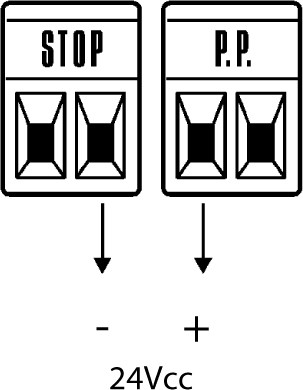 |
If you need to connect additional devices to the operator that require an external power supply (e.g. indicator lighting, key switch, magnetic cards, etc.), connect the device as shown in the diagram. The supplied voltage is 24 V DC, −30% to +50%, with a maximum current of 100 mA. |
Special operator functions
Gate held open
If a command to the STEP-BY-STEP input (also known as P.P. or Step-by-step) lasts longer than 3 seconds, the control unit will keep the gate open for as long as the command is held. This function is useful when combined with a timer.
Forced operation
If a safety device fails, or, for example, an obstruction that cannot be removed gets into the beam of the photocells and, for safety reasons, the gate will not move, you can activate the “Hold-to-run” mode, either permanently in Level II programming. under the L2 — Step-by-step mode setting to L4 — Hold-to-run, or temporarily:
- Send a command to the gate (using aremote control,, key switch, etc.)
- If there is a problem, the gate will not move, and the beacon will probably indicate an error..
- Within 3 seconds of the previous command, send the command again and hold it down.
- The gate will move while you hold the command and stop when you release it.
Troubleshooting the operator
If anything is unclear or you have any other problem, feel free to contact our technical support team for NICE operators.
Depending on the nature of the problem
During installation (or if the operator fails), you may encounter one of the following problems:
|
Problem |
Possible solution |
|---|---|
|
The gate does not respond to the remote control, and the LED on the remote control does not light up. |
Check that the batteries in the remote control are in good condition; if not, replace them. See the manual for the specific remote control for instructions. |
|
The gate does not respond to the remote control, but the LED on the remote control lights up. |
Check whether the remote control has been stored in the memory of the receiver, or try again. remote control to program it again. |
|
The gate does not move and the BlueBUS LED does not flash.
|
Check whether the operator is powered at 230 V.. If so, check both fuses and, if necessary, replace them with new fuses of the same rating. |
|
The gate does not move and the beacon does not flash. |
Check whether the operator has registered the command. When a command is sent using a remote control, the BlueBUS LED should flash rapidly twice. If the command is sent by another device via the STEP-BY-STEP input (P.P.), the corresponding indicator should light up STEP-BY-STEP LED. |
|
The gate does not move and the beacon flashes several times. |
Count the flashes and see Diagnostics using beacon flashes. |
|
The gate starts moving, but stops immediately and begins moving in the opposite direction. |
Programmed motor force is probably too low for your gate. Check that there are no obstacles preventing the gate from moving and, if necessary, increase the drive force. |
|
The gate starts moving, but the beacon does not work. |
Check whether there is voltage at the FLASH output during gate operation (the voltage level is not important, approx. 10-30Vdc). If there is voltage at the output, the problem is likely with the beacon (or another device); try replacing it with a similar one to see if it works. If there is no voltage at the output, the FLASH output may be overloaded; check whether the wiring has short-circuited. |
Diagnostics using beacon flashes
During gate operation beacon flashes regularly once per second. If a problem occurs, the beacon signals an error with two consecutive series of faster flashes.
|
Flash sequence |
Error |
Solution |
|---|---|---|
|
1 flash 1-second pause 1 flash |
BlueBUS error
|
The devices connected to the BlueBUS input do not match those detected during the device detection phase. Run the detection phase again. If that does not help, try once more; otherwise, use the process of elimination to find and replace the faulty device (purchase, return under warranty, or repair it). |
|
2 flashes 1-second pause 2 flashes |
Photocell activation |
The photocellsare being triggered, which is normal if their beam is interrupted while the gate is closing. If the beam was not interrupted, the photocells may be dirty, exposed to bright light, or faulty. |
|
3 flashes 1-second pause 3 flashes |
Motor force limiter activated
|
During movement, the gate detects increased friction – the gate may not be properly adjusted. Try moving it manually and adjusting it. Otherwise, increasing the motor force. |
|
4 flashes 1-second pause 4 flashes |
STOP input activated
|
A command was sent to the STOP inputso if this is unexpected behavior, check the devices connected to it. |
|
5 flashes 1-second pause 5 flashes |
Internal control unit error |
Wait 30 seconds and try again. If the error persists, try resetting it. Otherwise, the control unit will probably need to be repaired or replaced. |
|
6 flashes 1-second pause 6 flashes |
The hourly operation limit has been reached. |
Wait a few minutes for the cycle limiter to drop below the limit. |
|
7 flashes 1-second pause 7 flashes |
Internal electronic circuit error. |
Disconnect the entire drive for a few seconds and try again. If the error persists, try resetting it. Otherwise, the control unit will probably need to be repaired or replaced. |
|
8 flashes 1-second pause 8 flashes |
Continuous command active.
|
A command is being continuously sent to the drive – check the devices connected to the OPEN input. If you have a timer connected, it is probably the cause.
|
Diagnostics using LED flashes
On the SNA3 control unit of the NICE Spinbus SN6031 drive, there are two sets of LEDs. Each set uses flashing or steady lights to indicate normal control unit operation or diagnose errors, as shown in the following tables.
Horizontal BLUEBUS, STOP, PP, OPEN LEDs
|
Indicator |
Status |
Solution |
|---|---|---|
|
BlueBUS LED |
||
|
Off |
Error
|
Check the mains connection; if it is OK, check fuses F1 and F2 and, if necessary, replace them with new ones of the same rating. |
|
On |
Serious error
|
Try disconnecting the control unit, or all inputs. If that does not help, reset it and if that still does not help, the control unit will probably need to be replaced. |
|
Flashing at one-second intervals |
Everything is OK |
Normal control unit operation. |
|
2 quick flashes |
Input status changed |
Normal operation – the status of the input STEP-BY-STEP, STOP, OPEN, changed status ofthe inputs the drive received a command from remote control. |
|
Flashing sequences separated by a one-second pause |
More options |
The number of flashes in a sequence corresponds to fault diagnostics by means of the warning light. |
|
STOP LED |
||
|
Off |
The STOP input has been activated |
Check the devices connected to the STOP input. |
|
On |
Everything is OK |
STOP input is not active. |
|
STEP-BY-STEP LED (also labelled P.P., Step-by-step) |
||
|
Off |
Everything is OK |
STEP-BY-STEP input is not active. |
|
On |
The STEP-BY-STEP input has been activated |
Normal control unit operation if an active device is connected to the STEP-BY-STEP input. |
|
OPEN LED |
||
|
Off |
Everything is OK |
OPEN input is not active.
|
|
On |
The OPEN input has been activated |
Normal control unit operation if an active device is connected to the OPEN input. |
Vertical LEDs L1–L4
|
Indication |
Solution |
|---|---|
|
LED 1 |
|
|
Off |
During normal operation, indicates that the Automatic closing function is disabled. |
|
On |
During normal operation, indicates that the Automatic closing function is enabled. |
|
Flashing |
|
|
LED 2 |
|
|
Off |
During normal operation, indicates that the Close after photocell interruption function is disabled. |
|
On |
During normal operation, indicates that the Close after photocell interruption function is enabled. |
|
Flashing |
|
|
LED 3 |
|
|
Off |
During normal operation, indicates that the Motor force function is disabled. |
|
On |
During normal operation, indicates that the Motor force function is enabled. |
|
Flashing |
|
|
LED 4 |
|
|
Off |
During normal operation, indicates that the Standby mode function is disabled. |
|
On |
During normal operation, indicates that the Standby mode function is enabled. |
|
Flashing |
|
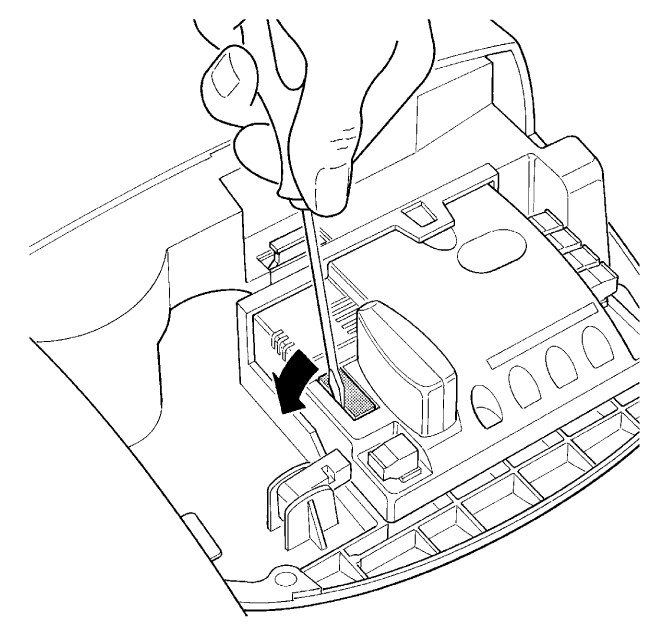
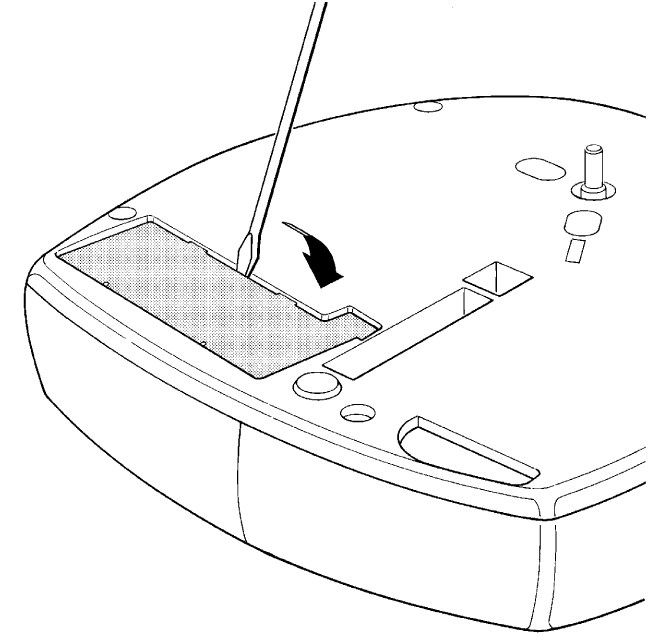
Installing the backup battery for the NICE Spinbus SN6031 drive
NICE PS124 backup battery is not included as standard with the drive, but it can be ordered separately. It is used in the event of a power outage, when it will power the gate drive. The battery is continuously recharged from the mains.
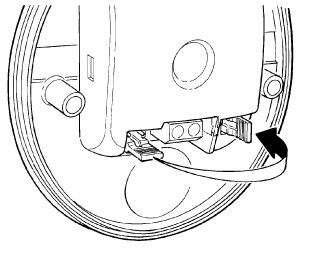
| 1. Pry off the plastic cover for the battery connector | 2. Pry off the plastic cover for the battery compartment |
|---|---|
 |
 |
| 3. Insert the battery into the compartment as shown and route the power cable to the control unit | 4. Connect the connector to the control unit |
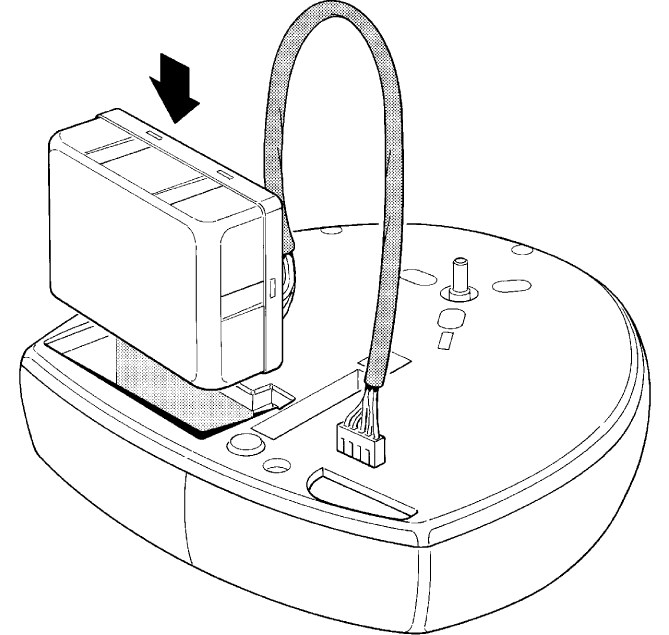 |
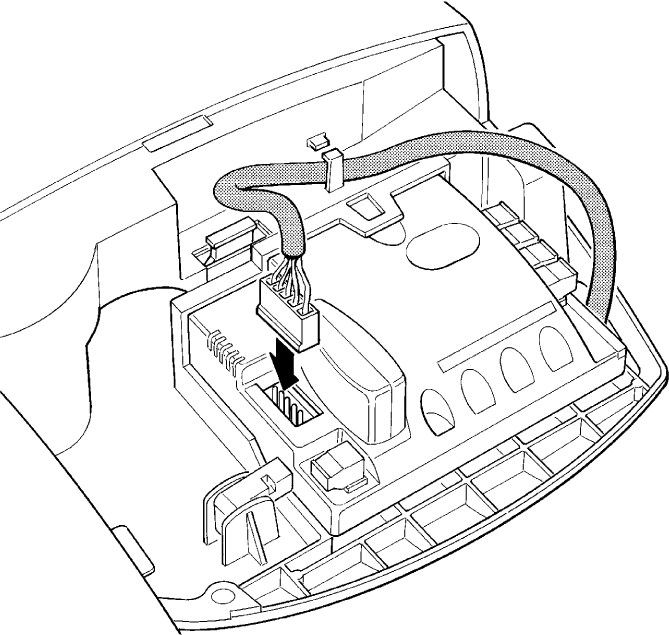 |
Resetting the control unit
1. Press and hold simultaneously first (Openand a third (Close) button.
2. When all LEDs light up, release.
3. Wait until the control unit resets.
Technical specifications of the NICE SNA3 control unit for the NICE Spinbus SN6031 drive
| Model | NICE SNA3 | ||||||||||
|---|---|---|---|---|---|---|---|---|---|---|---|
| Type description | Control unit for gear motor NICE Spinbus SN6031 for automatic operation of garage doors in private settings. | ||||||||||
| Backup power supply | can be purchased and installed as an optional extra NICE PS124 backup battery | ||||||||||
| Lighting | No, the light bulb is on the operator. | ||||||||||
| Flashing light output |
Depending on the programmed output:
|
||||||||||
| BlueBUS output | one output for 6 BlueBUS devices | ||||||||||
| STOP input | for normally open, normally closed and 8.2KΩ constant-resistance devices | ||||||||||
| STEP-BY-STEP input (P.P., step-by-step) | normally open (closing the contact triggers the command "Step-by-step") | ||||||||||
| Radio receiver | no receiver included; "SM" connector for receivers NICE SMXI, NICE OXI etc. | ||||||||||
| Antenna input | 52Ω for RG-58 coaxial cable (or similar) | ||||||||||
| Programming functions | 4 on/off functions (Level I programming) 4 adjustable functions (Level II programming) |
||||||||||
| Self-learning functions |
|
||||||||||
| Operating temperature | -20°C to +50°C | ||||||||||
| Use in saline, acidic and potentially explosive environments | no | ||||||||||
| Protection rating | IP00 |
How can I order this item?
Choose the option that suits you:
- order online: use the buy button to add the goods to your shopping cart (you will find the buy button here in the product variants table).
- order by email: place your order at [email protected]