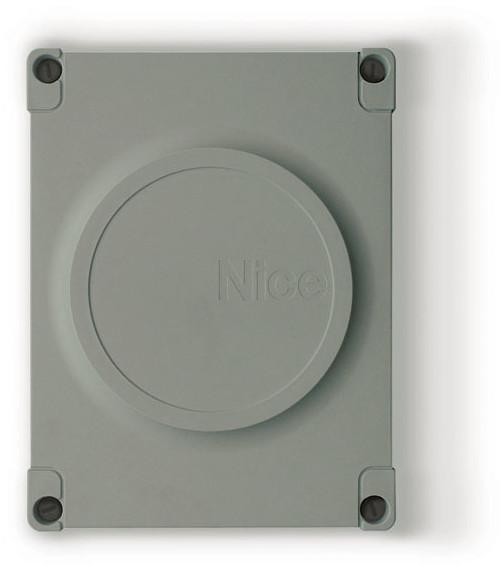
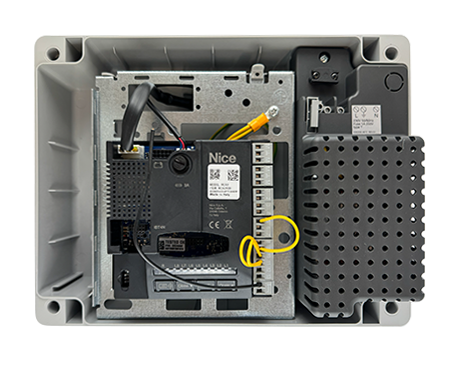
NICE Moonclever MC424LR30 - control unit for 24V swing gate operators in the Wingo range
| Product availability: | In stock | We normally dispatch goods within 24 hours. |
|---|
in stock
€288.41 including VAT
| Weight |
|---|
| 1,50 kg |
Description of NICE Moonclever MC424LR30 - control unit for 24V swing gate operators in the Wingo range
NICE MC424LR30 is a control unit for automating single-leaf, or double-leaf gates. Operators compatible with it must have a power supply of 24 Vdc. Download the manual >>
Control unit NICE MC424LR30 is equipped with the NICE MCA2R30 control unit with a built-in radio receiver.
The new MCA2R30 control unit
The new MCA2R30 control unit replaces the MCA2R10, which was preceded by the MCA2. Compatible with Nice motors: WG2024, WG3524, WG4024, WG5024, TOO3024, TOO4524 and XME2024.
Changes to the NICE MCA2R30 control unit compared with the MCA2R10
- New output sequence; otherwise unchanged.
- New connector for connecting a backup battery, using the new cable CABLA11. A new PSS124 backup power supply has also been added.
- Improved diagnostics.
- Lower power consumption in standby mode.
WARNING
All programming procedures remain unchanged compared with the older MCA2R10 control unit.
Programming the NICE MC424LR30 control unit
Do you have the control unit MC424LR30 with an MCA2R30 board, for example with Wingo WG2024 or WG3524 operators? Below, you’ll find out how to teach the gate to open and close, set its functions, and pair the INTI2 remote control. Each task is done separately. So if you only want to add a remote control, you can go straight to pairing.
What do you need to set up?
1. What the buttons and LEDs do
| Label | Function |
|---|---|
| Open ▲ | Opens the gate. During programming, use it to scroll through the function or value options. |
| Stop/Set | Stops the gate. Press and hold to enter programming, where you can use it to enable/disable a function or enter its value settings. |
| Close ▼ | Closes the gate. During programming, use it to scroll through the function or value options. |
| Radio | Used to pair and delete remote controls. The LR LED is associated with this button. |
During programming, watch LEDs L1–L8. LEDs L9–L13 show the status of the inputs, while LED LR is for the remote-control receiver. Pay attention to the programming level, too: for example, L1 at Level I enables automatic closing, while L1 at Level II sets the time after which the gate should close.
2. Setting the gate travel
The control unit needs to detect where the end stops are and how far the leaves travel. It therefore opens and closes the gate automatically. This procedure is for a double-leaf gate.
Before you begin, check the wiring, safety inputs, and end stops. Set the motor-type switches according to the operators you have installed – see Table 5 in the LR30 manual, section 4.4. The name of the kit alone is not enough to determine the setting.
- Unlock the operators according to their instructions, move the leaves by hand to roughly halfway, then lock the operators again. Make sure nothing is in the way and no one is standing in the movement area.
- Press and hold both buttons on the control unit at the same time: Stop/Set + Close ▼ for more than 3 seconds. Release the buttons when the learning process starts.
- The gate will open briefly first. The lower leaf will then close, followed by the upper leaf. The upper leaf is the one that overlaps the other leaf – it opens first and closes last.
- Now wait until both leaves have fully opened and then closed. The control unit saves the measured values and the wiring of the ALT input.
- If the leaves move in the wrong direction, in the wrong order, or pose a risk to anyone, press Stop/Set. Fix the cause first, and only then repeat the learning process. Before changing the wiring, disconnect the mains power and the backup battery.
Let the gate complete its movement during the learning process. Another command or activation of a safety input will interrupt the learning process. If you need to repeat it, do not erase the memory – simply start this procedure again.
3. Level I programming – enabling/disabling functions
At this level, you only enable or disable a function. For example, you can tell the gate to close automatically. You set how many seconds later in Level II.
- The gate must be stationary. Press and hold Stop/Set, until L1 starts flashing, then release the button.
- Use the Open ▲ / Close ▼ buttons to move to the LED for the function you want to change. The list is in the table below.
- Press Stop/Set once, without holding it down.. This toggles the function: slow flashing = enabled (ON), fast flashing = disabled (OFF).
- Do not press anything else; wait for programming to end automatically. To check the setting, enter programming again and check how the corresponding LED flashes. Then test the function on the gate.
Do not wait too long between steps; otherwise programming will end and the changes made so far will be saved. Check whether a function is enabled by looking at the LED – do not assume they are all disabled by default.
| LED | Function | What you can change |
|---|---|---|
| L1 | Automatic closing | When enabled (ON), the gate closes automatically after opening and once the pause has elapsed. You can set the pause duration at Level II. |
| L2 | Closing after photocell activation | When enabled (ON), if the photocell beam is interrupted while the gate is moving, the pause is set to 4 seconds. This function can close the gate automatically even when L1 is disabled. |
| L3 | Closing after a power failure | When enabled (ON), the warning light starts flashing when power is restored, and the open gate closes automatically. That is, even without pressing the remote control. |
| L4 | Standby / Phototest | ON = Standby energy-saving mode; OFF = Phototest. Choose the setting according to the photocell wiring. If the operator is powered only by Solemyo, Standby must be enabled. |
| L5 | Electric lock / OGI | ON = OGI open-gate indicator light; OFF = electric lock. Set this according to what is connected to the output. |
| L6 | Pre-flashing warning light | ON: the warning light starts flashing 3 seconds before movement begins. OFF: it starts flashing when movement begins. |
| L7 | Apartment block mode | When enabled (ON), pressing the remote control again will not interrupt opening. The safety inputs remain active. |
| L8 | Light / heavy gate | ON = heavy gate; OFF = light gate. This setting changes how the operators start and slow down. |
4. Level II programming – time, speed, and other settings
Here, instead of choosing enabled/disabled, you select a specific value. For example, whether the gate should close after 30 or 60 seconds. First, choose what you want to set, then choose the value you want to assign to it.
- Press and hold Stop/Set, until L1 starts flashing, then release the button.
- Use the Open ▲ / Close ▼ buttons to move to the LED for the parameter you want to set—for example, L1 for the pause duration.
- Press Stop/Set again and hold it. After about 3 seconds, the LED for the current value will light up.
- Keep holding Stop/Set and, at the same time, use the Open ▲ / Close ▼ buttons to select the new value.
- Only then release Stop/Set. Wait for programming to finish. To check the value, repeat the steps to enter the setting, but do not change it.
| LED | What you are setting | Available values |
|---|---|---|
| L1 | Pause before closing | L1–L8 values: 5, 15, 30, 45, 60, 80, 120, 180 seconds. |
| L2 | AUX input | L1: partial opening of one gate leaf; L2: partial opening of both leaves; L3: opening; L4: closing; L5: FOTO2; L6: Stop; L7/L8: input with no function assigned. When selecting PHOTO2, the photocell wiring must also be correct. |
| L3 | Motor speed | Select a combination of opening and closing speeds. The available options are listed in Table 8 of the manual. |
| L4 | Pressure release after closing | How long the drive briefly reverses after closing. L1: no reverse movement; L2–L8: 0.2 to 1.4 seconds in 0.2-second increments. |
| L5 | Force / obstacle sensitivity | L1 = lowest force and highest sensitivity; L8 = highest force and lowest sensitivity. If the gate is sticking, fix the mechanics first; do not simply increase the force. After changing the force, verify the result by measurement. |
| L6 | Gate-leaf delay | L1–L8: 0, 5, 10, 15, 20, 30, 40, 50% of the closing run time. The delay is half as long when opening. |
| L7 | Maintenance interval | The number of movements after which the unit should prompt you to perform maintenance. Set this according to the agreed gate servicing schedule. |
| L8 | Fault history | There is nothing to set here. View the results of the gate’s last eight movements. |
Example: you want the gate to close automatically after 60 seconds
First, enable L1 in Level I—that is, automatic closing. Then enter Level II, select L1 (pause duration) and, while holding Stop/Set, move to L5 (60 seconds). Release Stop/Set and wait for programming to finish.
These are two separate settings. Changing the time alone will not enable automatic closing. And if L2, “Close after photocell activation,” is also enabled, interrupting the photocell may shorten the pause to 4 seconds.
All values are in Table 8 of the LR30 manual, pages 14–16. After changing the speed, force, delay or safety functions, test the gate’s movement and stopping; verify the force limitation by measurement.
5. Pairing the NICE INTI2 remote control
This procedure is for the receiver built into the MCA2R30 control board. If you have added a separate plug-in receiver, follow its instructions. Want to add a second remote control? Do not erase anything or relearn the gate travel; just pair the remote.
Pairing both buttons at once – Mode 1
- On the control unit, press and hold Radio. When the LED LRlights up, release the button.
- Within 10 seconds press and hold any button on the INTI2.
- When LR flashes 3 times long, the remote is saved and you can release the button.
- You can add another remote within the next 10 seconds in the same way, starting from step 2. If you are not adding another remote, wait for pairing to finish and test both buttons. Keep the gate’s travel area clear.
The first button will operate step-by-step (SbS / Passo-Passo), and the second AUX. The function of the second button depends on the L2 setting in Level II. If partial opening is selected there, it works when the gate is closed. In any other position, this command operates in step-by-step mode.
Pairing one button with a selected function – Mode 2
- Press Radio without holding it, as many times as the function you want to pair: 1× step-by-step, 2× AUX, 3× open, 4× close.
- Within 10 seconds, press and hold the INTI2 button to which you want to assign the function.
- When LR flashes 3 times long, release the button. To set another button, start again from step 1.
Couldn’t pair the remote? Check how many times LR flashes: 1 short flash = the remote is already saved; 6 flashes = incompatible radio coding; 8 flashes = memory full. If the memory is locked, first follow the instructions in section 6.7 of the manual. Do not erase all remotes just because you could not add one.
6. Clearing settings – reset
What is cleared by a reset?
Learned end positions, the ALT input setting, Level I and II settings, and the movement counter. Paired remotes remain saved. So do not reset the unit when making a routine function change or adding a remote.
- Press and hold both Open ▲ + Close ▼ for about 3 seconds.
- When L1–L8 light up, release the buttons.
- L1–L8 will flash rapidly for about 3 seconds. This confirms that the unit has cleared the settings.
After a reset, you must relearn the gate travel, set the functions, and test the gate and safety inputs. Remotes are erased using a separate procedure; this reset will not erase them.
7. What to test after setup
Test both opening and closing: do the leaves move in the correct direction and order, stop at the end stops, and respond to the photocells and ALT input? Also check both remote-control buttons and automatic closing, if you enabled it. The force limitation must be verified by measurement. If something is not working, stop the gate and fix the cause—do not disable the photocells or any other safety devices.
Wiring diagrams and further settings can be found in the Slovak Nice manual IDV0619A00SK. The relevant sections for this procedure are 4.3–4.5, 5 and 6. Installation of the Wingo motors themselves is covered in their separate instructions.
How can I order this item?
Choose the option that suits you:
- order online: use the buy button to add the goods to your shopping cart (you will find the buy button here in the product variants table).
- order by email: place your order at [email protected]