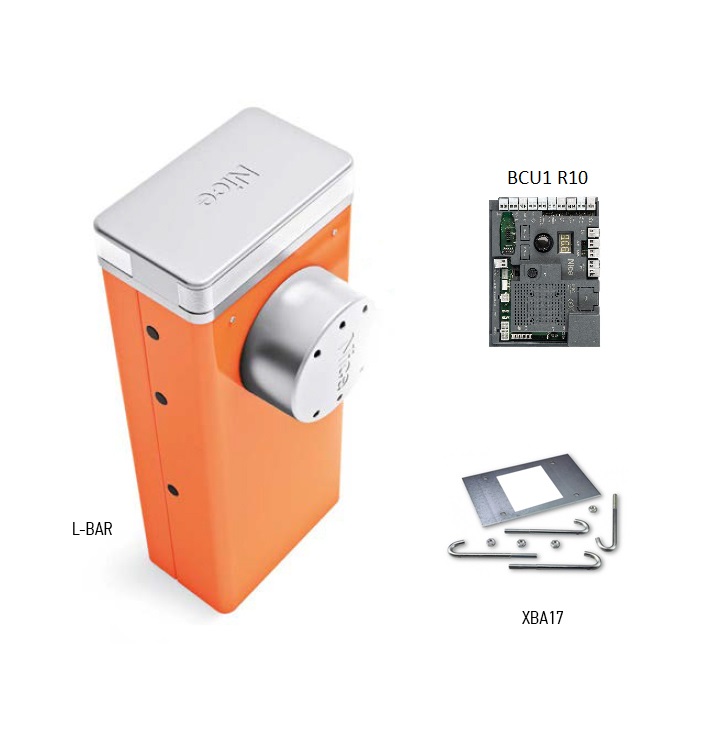
NICE LBAR barrier - without arm
| Product availability: | within 3 days | We usually ship the goods within 3 days. |
|---|
within 3 days
€2,552.32 including VAT
| Weight |
|---|
| 85 kg |
Description of NICE LBAR barrier - without arm
NICE LBAR is an electromechanical barrier for controlled access by motor vehicles, supplied without a boom. It has a 24 V DC motor and a built-in control unit BCU1 R10 (XBA3 R10). A standard configuration is powered from a 230 V AC; 24 V is the motor voltage.
It is designed for a boom specified as 7, 8 or 9 m. It has a robust steel housing and a balancing spring. Elliptical aluminium booms XBA15, XBA14 and XBA5 can be joined in approved combinations using XBA9. The exact assembled boom length and its accessories determine the spring setting.
In the event of a power failure, the boom can be released with a key or operated using the PS224 backup battery. The housing can accommodate the XBA7 warning light or XBA8 traffic light. Two opposing barriers can be synchronised in Master–Slave.
If you have an existing barrier, first check the board marking. The following settings apply to the BCU1 R10 with display and rotary selector; the older XBA3 has different controls and cannot be interchanged based on a similar name alone.
When to choose NICE LBAR
| What to check | Specification and meaning |
|---|---|
| Clearance width | 7–9 m |
| Adjustable operating time | 8–12 s for the stated BCU1 R10 configuration |
| Max. cycles at rated torque | 150 cycles/h |
| Boom | Supplied separately; component and connector combinations |
| Manual release | With a key in the event of a power failure or for servicing |
| Two opposing barriers | Master–Slave synchronisation |
The boom length is not the same as the clear passage width. When selecting a barrier, allow for the space taken up by the housing and bracket; check the final clear width on site. Operating time depends on the settings, the boom and its accessories. The maximum number of cycles does not guarantee unlimited operation under every load.
The barrier is designed for vehicles. Boom movement must not endanger pedestrians; provide a separate pedestrian passage and select safety devices according to the risks at the specific entrance. Before installation, also check the clearance above the boom when it is in the open position.
Boom accessories and their limitations
| Accessory | Condition |
|---|---|
| Rubber and lights | Permitted when the length, wiring and balance are correct. Choose the light strip according to the actual boom length. |
| Under-boom barrier skirt WA13 | Only for 7.33 or 8.33 m configurations, according to the spring table. The table does not list this accessory for a 9.33 m boom; do not install it without a confirmed solution. |
| Mobile support WA12 | It is taken into account for 7.33 m and 8.33 m booms. Do not use it with a 9.33 m boom without an individually confirmed solution. |
| XBA11 folding joint | It is not permitted for LBAR. It is not a solution for low ceilings for this barrier. |
After adding lights, rubber, a support or a barrier skirt, reselect the spring attachment and balancing. Increasing the motor power does not replace correct mechanical adjustment.
What the arm consists of
| Arm designation | Parts | What to check |
|---|---|---|
| 7 m | XBA15 + XBA14 + XBA9 | Spring table: 7.33 m; shorter section by the cabinet. |
| 8 m | 2 × XBA14 + XBA9 | Spring table: 8.33 m. |
| 9 m | XBA14 + XBA5 + XBA9 | Spring table: 9.33 m; shorter section by the cabinet. |
XBA15 is 3,150 mm, XBA14 is 4,150 mm, and XBA5 is 5,150 mm long. Do not use the product designations 6, 7, 8 or 9 m as exact installation dimensions. Measure the assembled arm length and clear opening before installation. The XBA9 connector does not allow the barrier's limits to be exceeded.
Barrier kits with arm and accessories
For a complete assembly with an arm, choose from the available kits. The stated length refers to the arm, not the clear opening. Kits from different ranges have different control units and limits; open the kit product page to see its specific contents.
| NICE LBAR barrier kits | |
|---|---|
LBAR – 8 m arm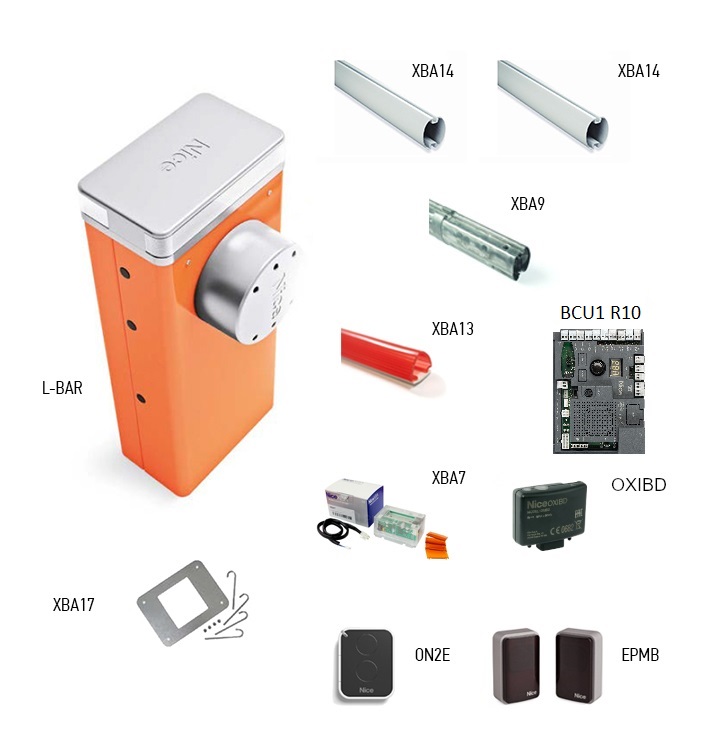 | LBAR – 9 m arm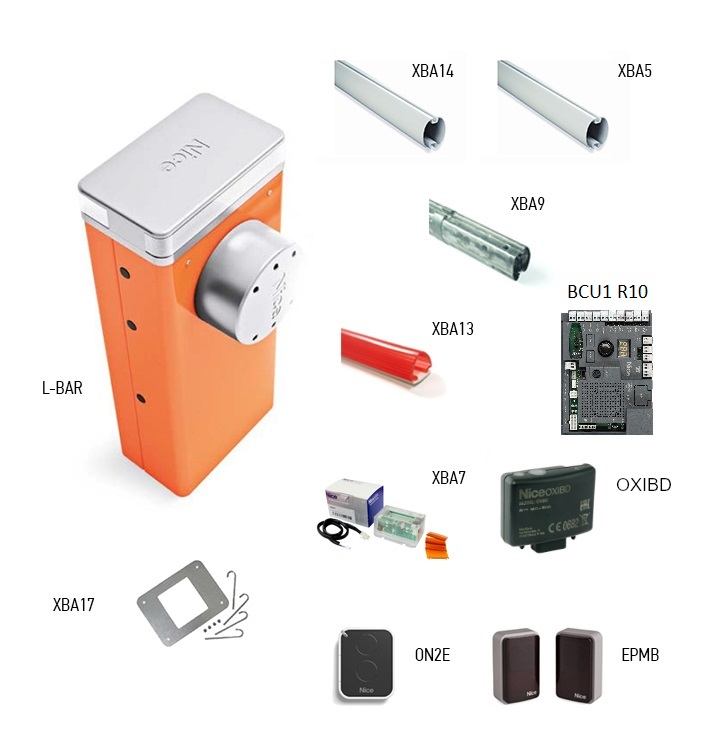 |
Accessories compatible with the LBAR barrier
Choose the equipment according to the arm length and operating conditions. Compatible accessories also have mechanical and electrical limitations; not all accessories can necessarily be used at the same time.
| What | Why | Type |
|---|---|---|
Arm 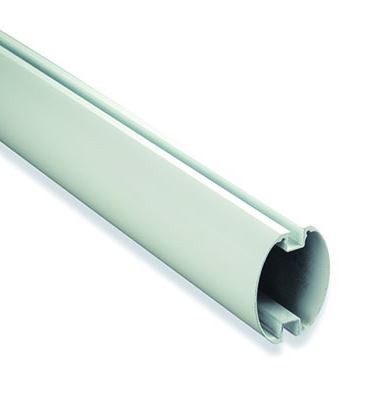 | The cabinet is supplied without an arm. Choose the sections and connector according to the specific length. | |
Arm connector 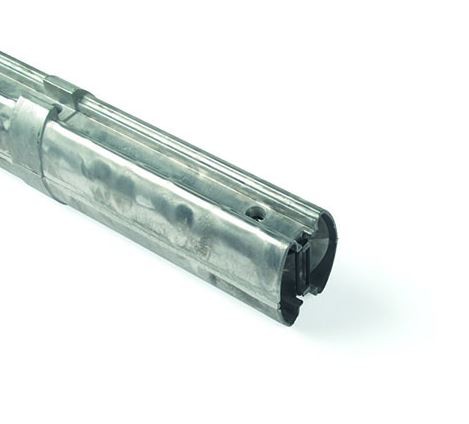 | Joins two arm sections; installation procedure. Use the connector only with the compatible sections specified for this barrier. | |
Fixed support 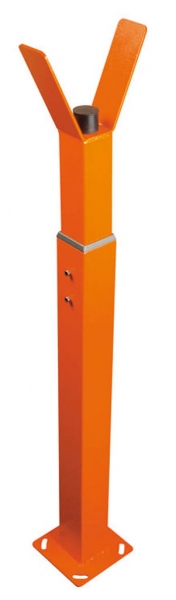 | Height-adjustable support for the end of the lowered arm. This is not a support attached to the arm. | |
Mobile support 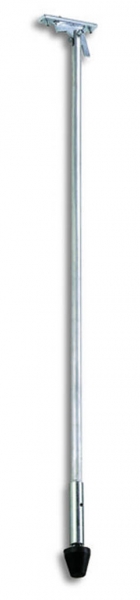 | Fold-down support attached to the arm. Check the permitted lengths and its load capacity in the spring table. | |
Under-barrier skirt 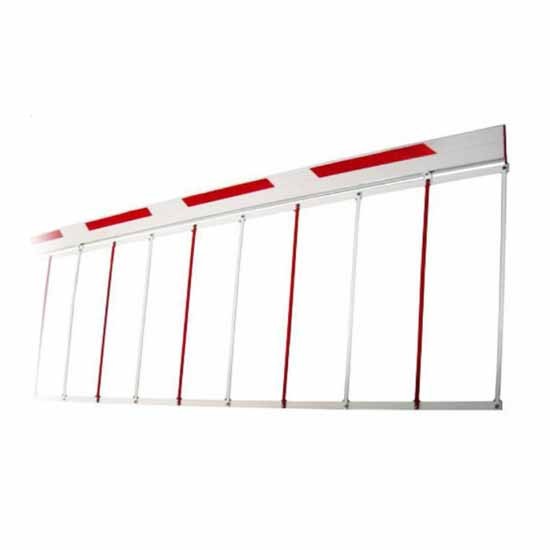 | Aluminium barrier skirt, 2 m section. Only in permitted configurations; length restrictions. | |
Reflective stickers  | 24 red stickers to improve the arm's visibility. | |
Arm lighting 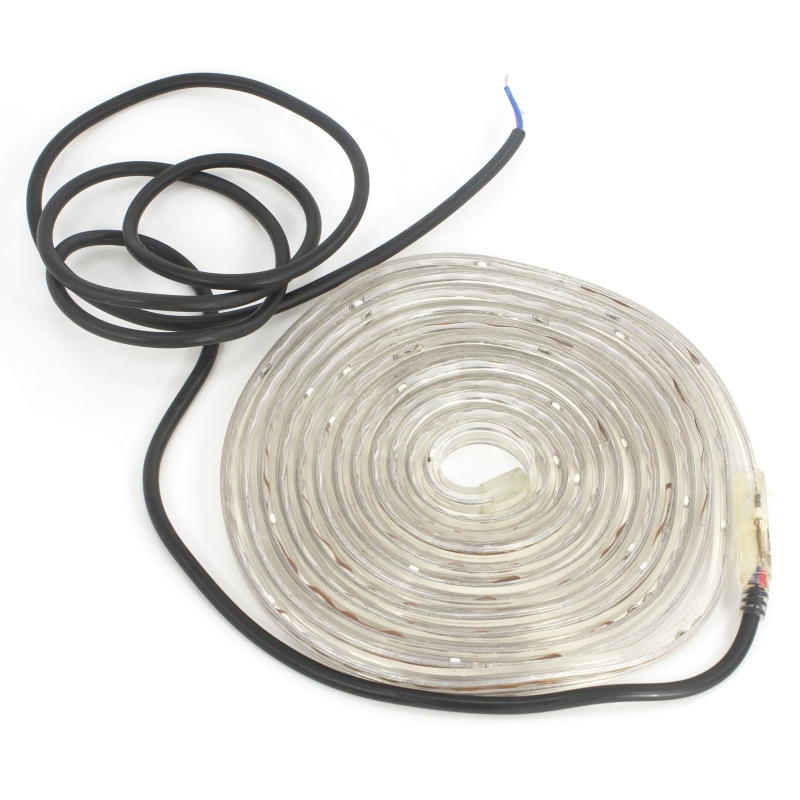 | XBA18 is an 8 m strip; it does not automatically cover the entire 9 m arm. Check the quantity and wiring against the power consumption at the LIGHT output. | |
Protective rubber 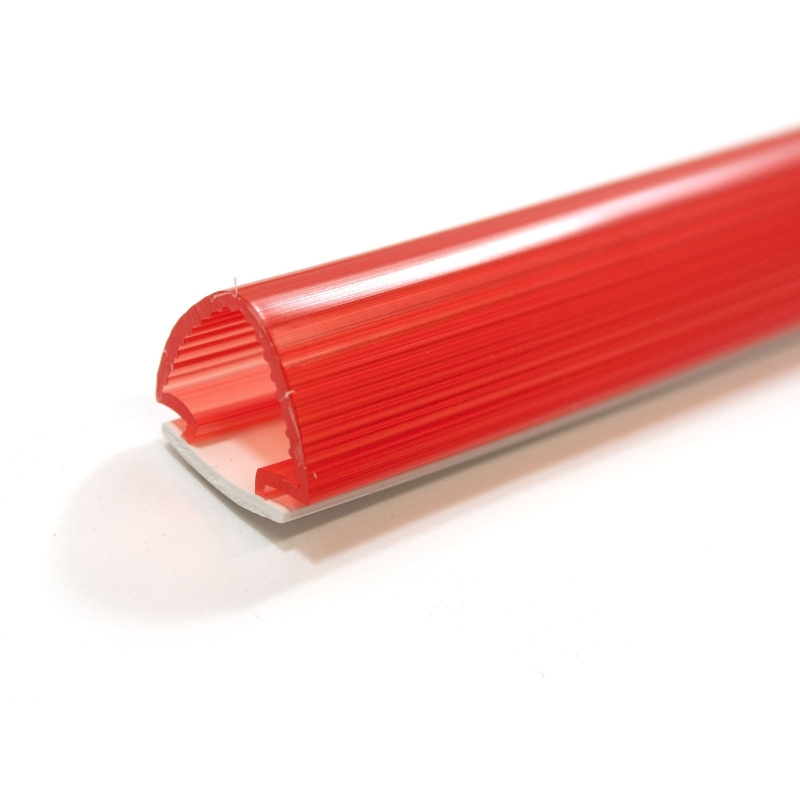 | 9 sections, 1 m each. Mechanical edge protection; it does not replace a monitored safety edge. | |
Backup 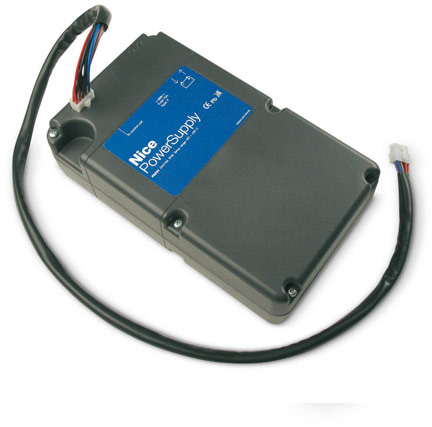 | 24 V rechargeable battery for operation during a power outage; the number of operating cycles depends on the charge level and equipment. | |
Beacon in housing 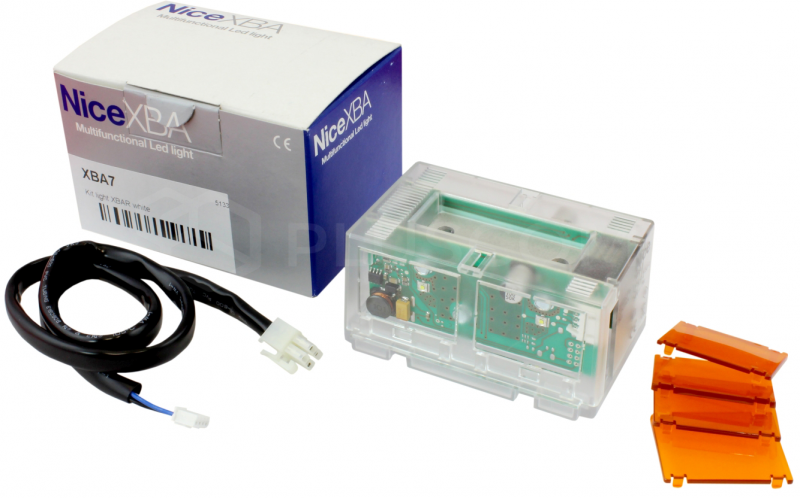 | Signals movement and diagnostics via INTERNAL LIGHT. | |
Traffic light in housing 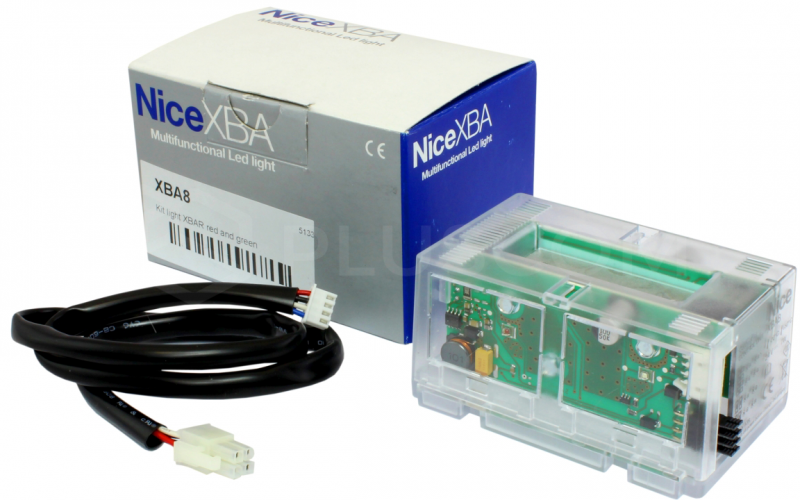 | Traffic control according to the INTERNAL LIGHT / OU4 setting. | |
Photocells | Two-wire BlueBUS. After changing the wiring, perform Set 1. | |
Remote control | An SM receiver and a remote control with matching coding; with an existing receiver, check the remote-control family already stored. | |
Control board | Replacement board for the generation with a display and selector. The barrier already has a control unit; no additional external controller is needed. | |
Service and setup | BUS T4 interface for diagnostics and the service counter. | |
Solar power supply | Alternative power source instead of mains power. Do not connect 230 V at the same time with this wiring arrangement. |
Installing the cabinet and boom
Installation, mains connection and commissioning must be carried out by a qualified technician. Disconnect the mains and backup battery before starting work. Check that the foundation is solid, drainage is adequate, there is room for the full boom, and the release can be accessed safely.
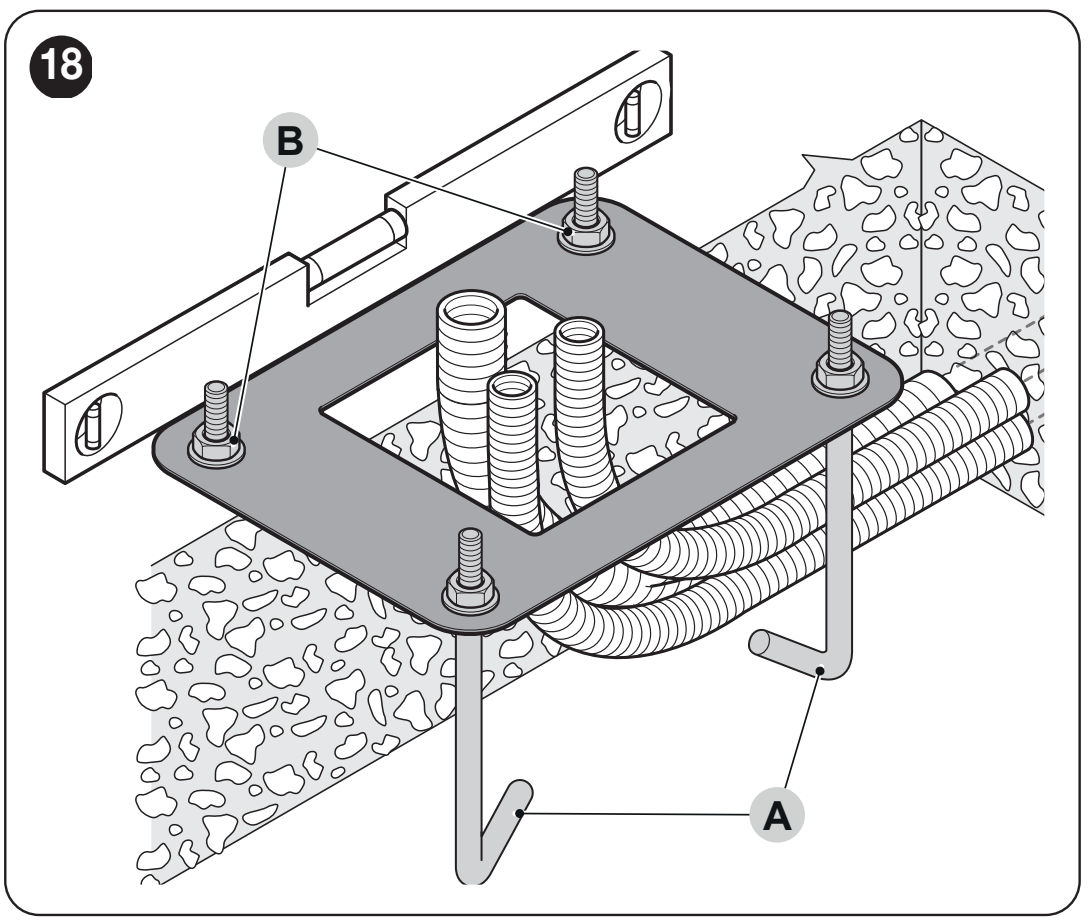
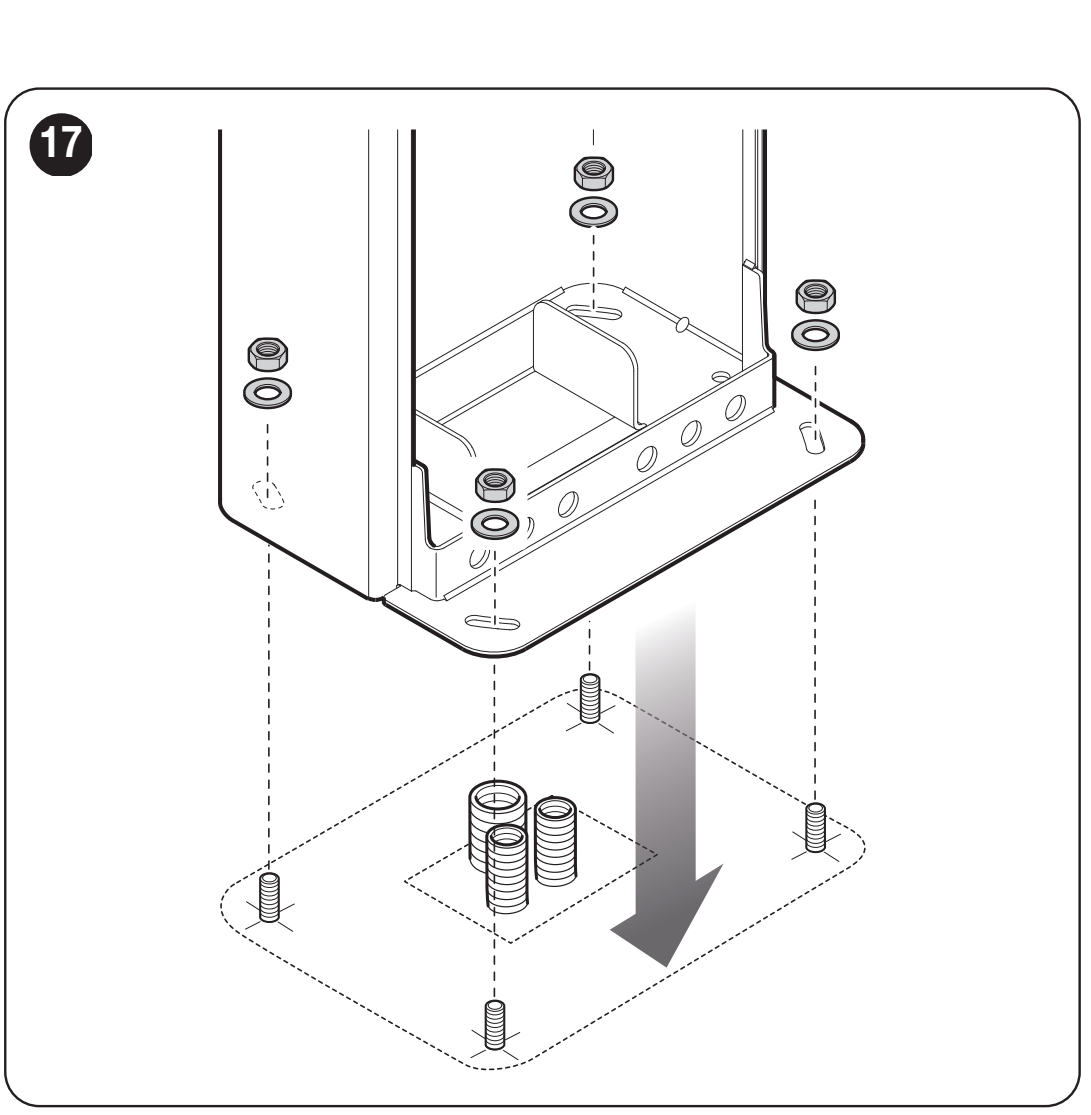
Foundation plate and anchoring
If the existing foundation is suitable, mark four holes to match the cabinet and select anchors appropriate for the substrate. For a new foundation, prepare the conduits, the four supplied anchor bolts, and a level foundation plate parallel to the boom.
| Substrate check | Requirement |
|---|---|
| Concrete foundation | Reinforced concrete, at least 0.15 m thick and with a volume greater than 0.2 m³. The technician determines the foundation dimensions according to local conditions. |
| Concrete anchors | 4 anchors with 12 MA (M12) bolts, each with a tensile capacity of at least approximately 3.9 kN. |
| Other load-bearing material | Verify that the substrate and four anchor points can withstand a load of at least approximately 9.8 kN. |
| Installation | Level the plate with the surface; secure the cabinet only after the concrete has fully cured. |
Attaching and assembling the boom
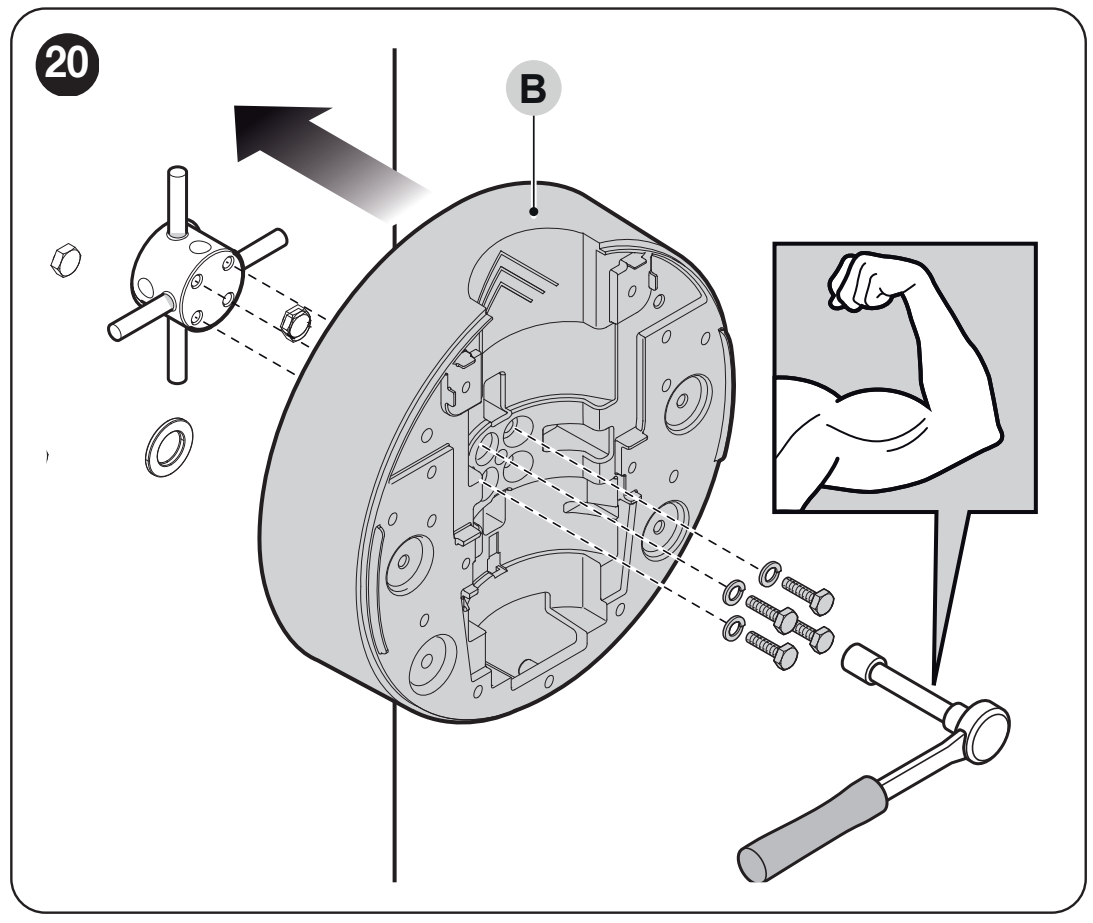
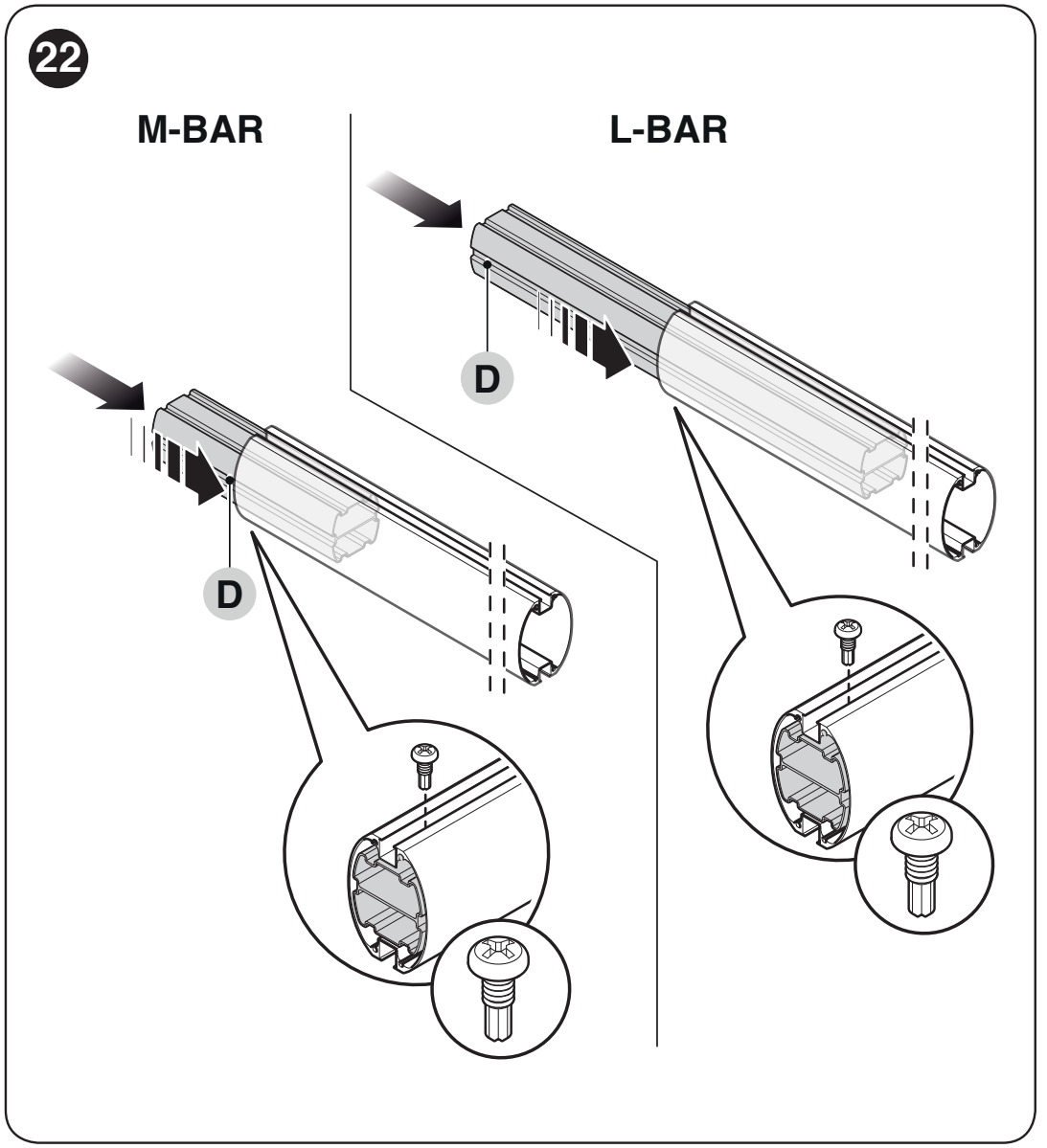
For a two-piece boom, the shorter section goes next to the barrier cabinet. Insert the specified reinforcement insert into its end by the bracket: 700 mm for LBAR. This insert is not the XBA9 connector between the two boom sections.
- Insert the two specified pins into the output shaft. Fit the bracket in the position for the vertical boom, and secure it with bolts and spring washers.
- Fit the cover onto the bracket using the six bolts; leave them loose for now.
- Insert the supplied connector insert into the end of the correct aluminium boom and secure it with a bolt.
- Insert the protective rubber strip into the grooves with the appropriate connectors, then fit the end cap and rubber end caps.
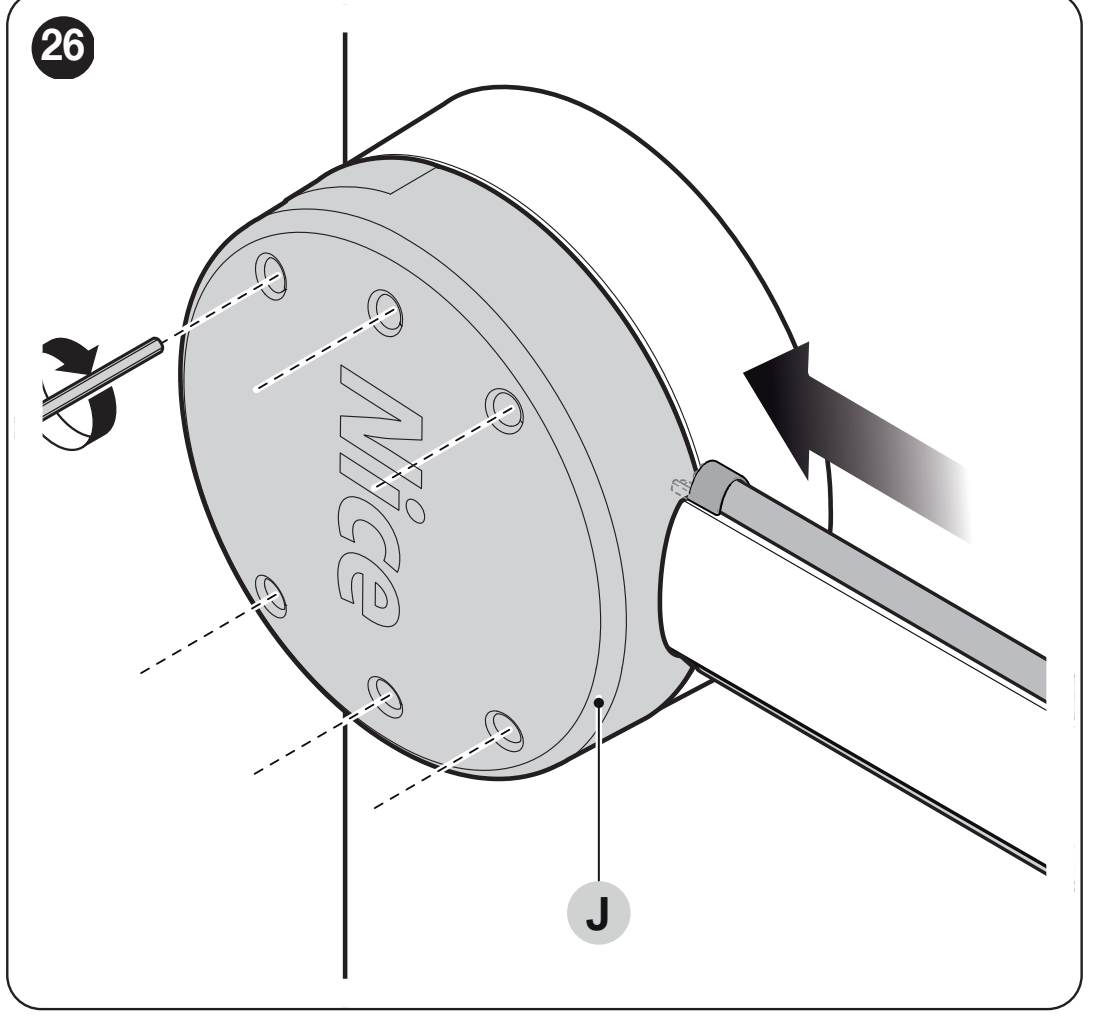
- Slide the complete boom into the bracket as far as it will go and firmly tighten all six bolts.
- Install the selected accessories, then complete the spring adjustment, balancing and learning procedure.
Joining two sections using XBA9
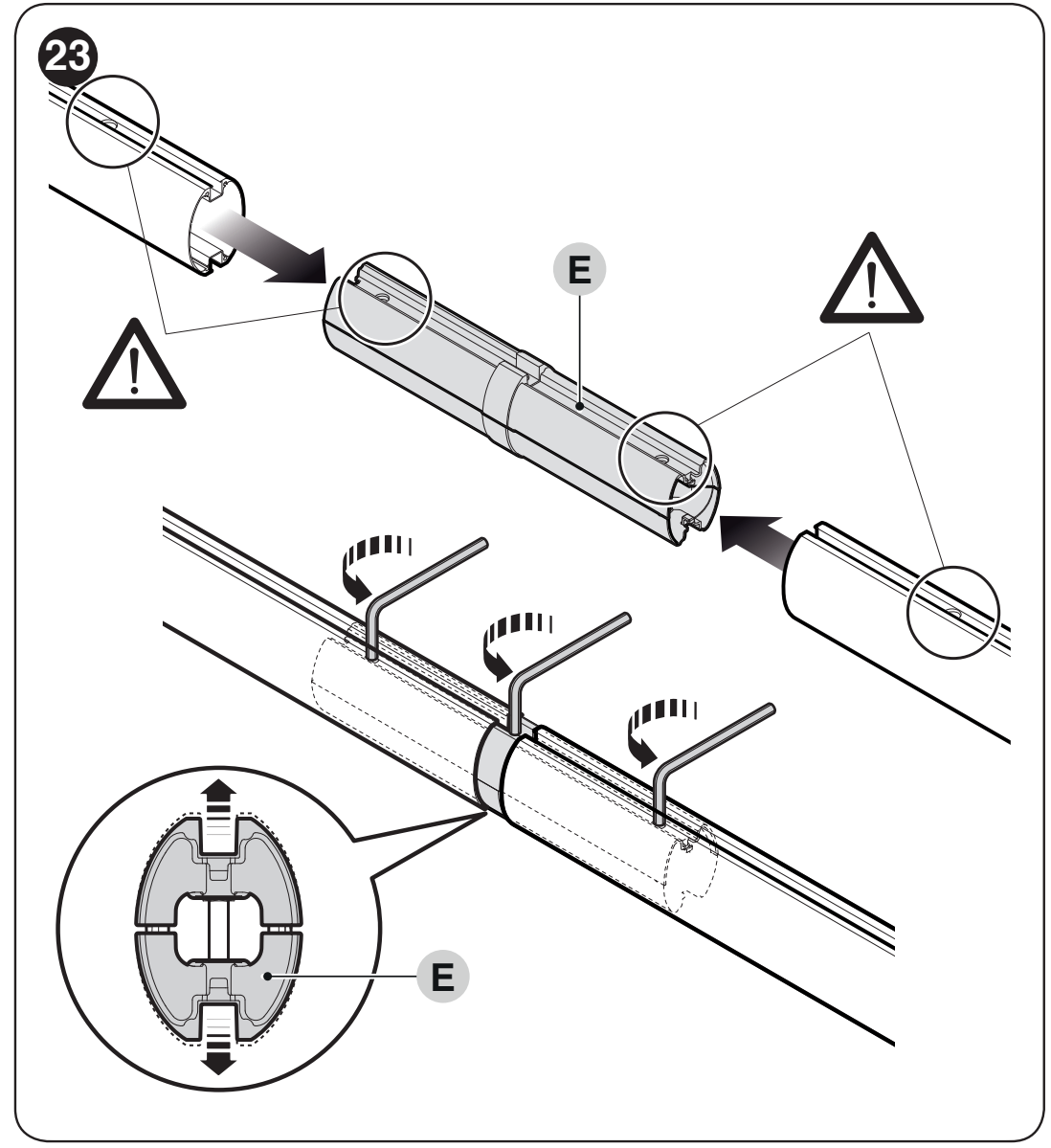
- Insert the XBA9 connector into the open ends of both sections. The holes in the booms and connector must align.
- The connector’s three expansion bolts should be loosened evenly as shown in the picture. This expands the mechanism and locks the connector inside the booms; this is not ordinary tightening of a fastening bolt.
- Check that the joint is secure and has no play. Only after assembling the boom and fitting its accessories should you complete the balancing and tests.
Left- or right-hand barrier installation
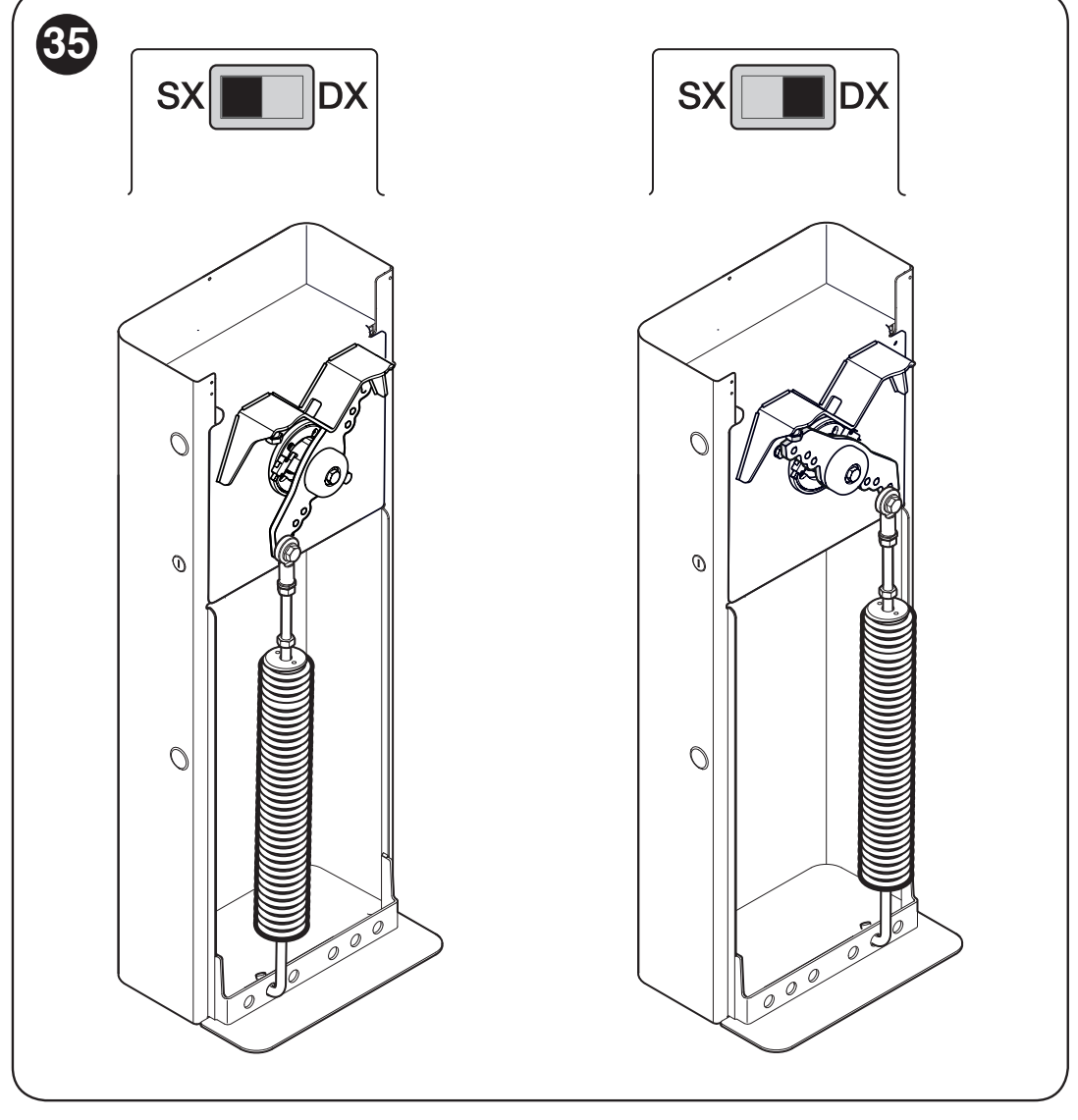
The spring-hinge side must match the direction switch position on the board. RH/DX is for a spring on the right-hand side of the balancing lever, LH/SX for a spring on the left-hand side. A technician must change the mechanical configuration with the spring safely released; simply turning the switch without changing the mechanism is not sufficient.
Spring attachment and boom balancing
Choose according to the exact model, actual length and all installed accessories. The upper attachment is marked with the letter A or B, and the lower one with the number 1, 2 or 3. Use the lever holes marked for LBAR. For closing in the opposite direction, use the corresponding holes on the other side of the lever.
For the maximum-length boom with protective rubber, or with rubber and lights, use section A of the original table: L9BAR, 9.33 m = B / 1. For shorter booms and additional accessories, use section B. The L9BAR designation in the table applies to this LBAR family; also check the label on the actual barrier before carrying out any work.
Accessory indexes for section B
| Boom accessory | Index |
|---|---|
| Protective rubber XBA13 | 0 |
| Protective rubber with XBA4/XBA6/XBA18 lights | 1 |
| WA12 | 3 |
| WA13 | 2 at 7.33 and 8.33 m |
Add the corresponding index for each accessory used. The “rubber” and “rubber with lights” rows are alternatives and must not be added together. Each additional accessory increases the load; both the total and the number of items must remain within the permitted range for the configuration. A dash indicates an impermissible combination.
| Exact boom configuration | Mounting based on the sum of the indices |
|---|---|
| XBA15 + XBA14, 7.33 m | 0–2: A / 1 3–4: A / 2 5–6: A / 3 |
| 2 × XBA14, 8.33 m | 0–2: A / 3 3–6: B / 1 |
| XBA14 + XBA5, 9.33 m | Section A: B / 1, protective rubber or rubber with lights. Section B is not listed for this length. |
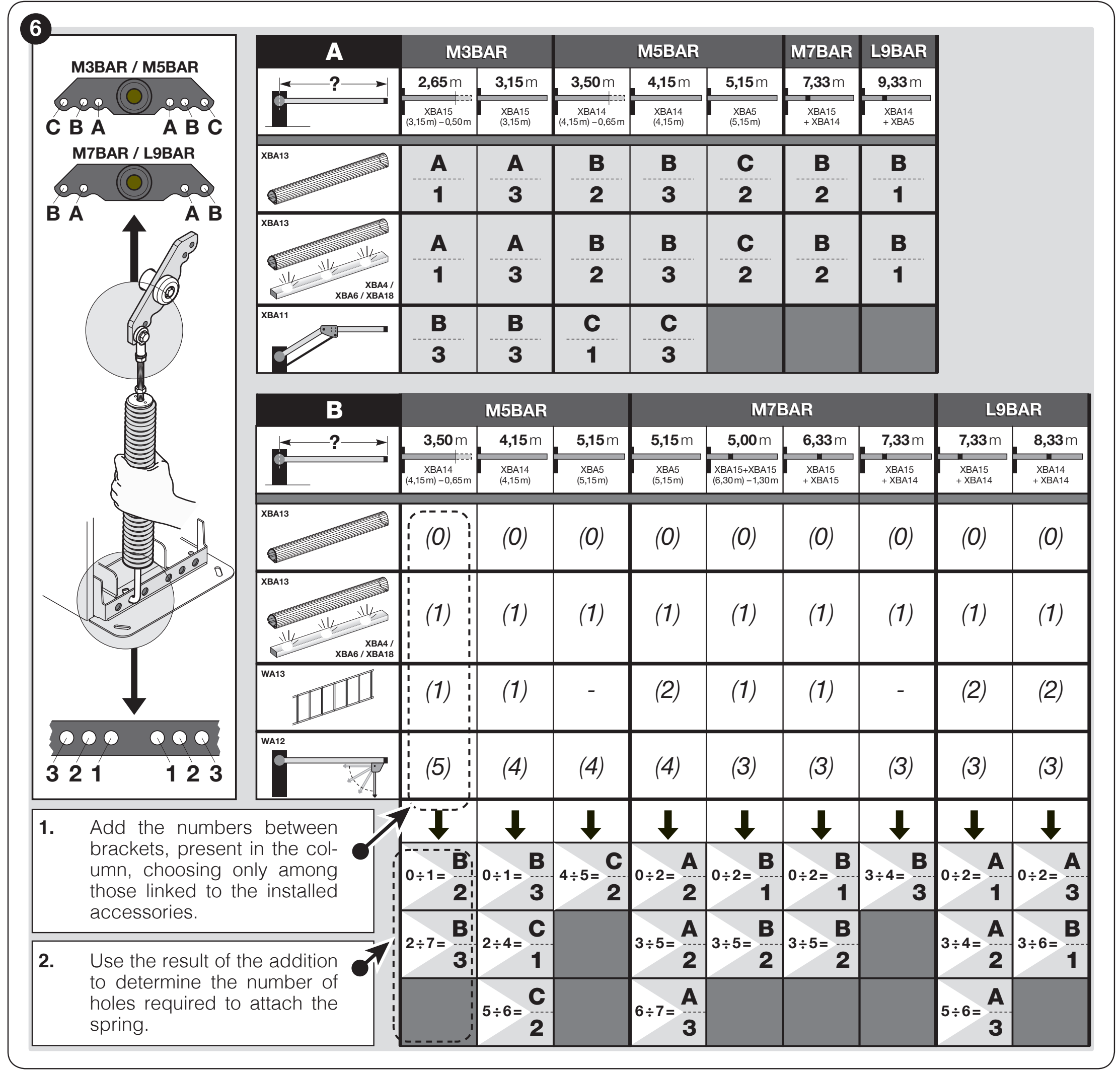
Use the positions shown only with the matching illustrated bracket and spring arrangement. For a different mechanical design, follow the instructions supplied with the specific barrier; do not interchange hole positions between designs.
If the table does not cover the length, equipment or resulting total, do not guess the mounting position. Before moving the spring, a technician must secure the boom and safely release its preload. Do not remove the boom from the bracket while the spring is loaded.
Balance check at 45°, 20° and 70°
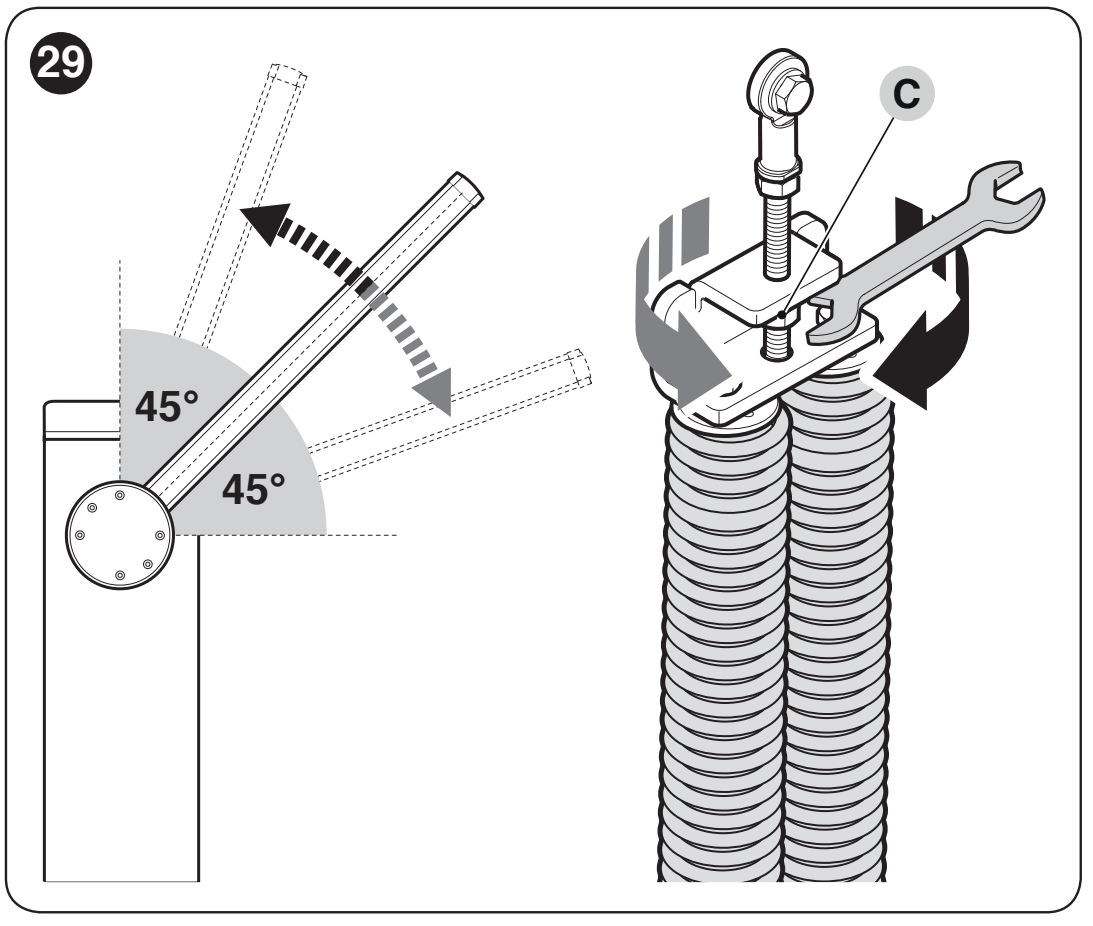
- Disconnect the mains power and battery. Securely support the boom, release the gearbox, and set it to approximately 45°.
- If the boom rises, reduce the preload by turning adjustment nut C clockwise. If it lowers, increase the preload by turning it counterclockwise.
- Repeat the check at approximately 20° and 70°. The boom must not move significantly on its own or accelerate as it falls.
- After completing the check, lock the gearbox.
With the motor released, the force required to move the boom manually, either opening or closing, must not exceed approximately 65 N. This is the maximum permissible imbalance, not the target setting. Measure the force perpendicular to the boom, 1 m from the pivot; this does not indicate the impact force of a powered boom.
Mechanical stops
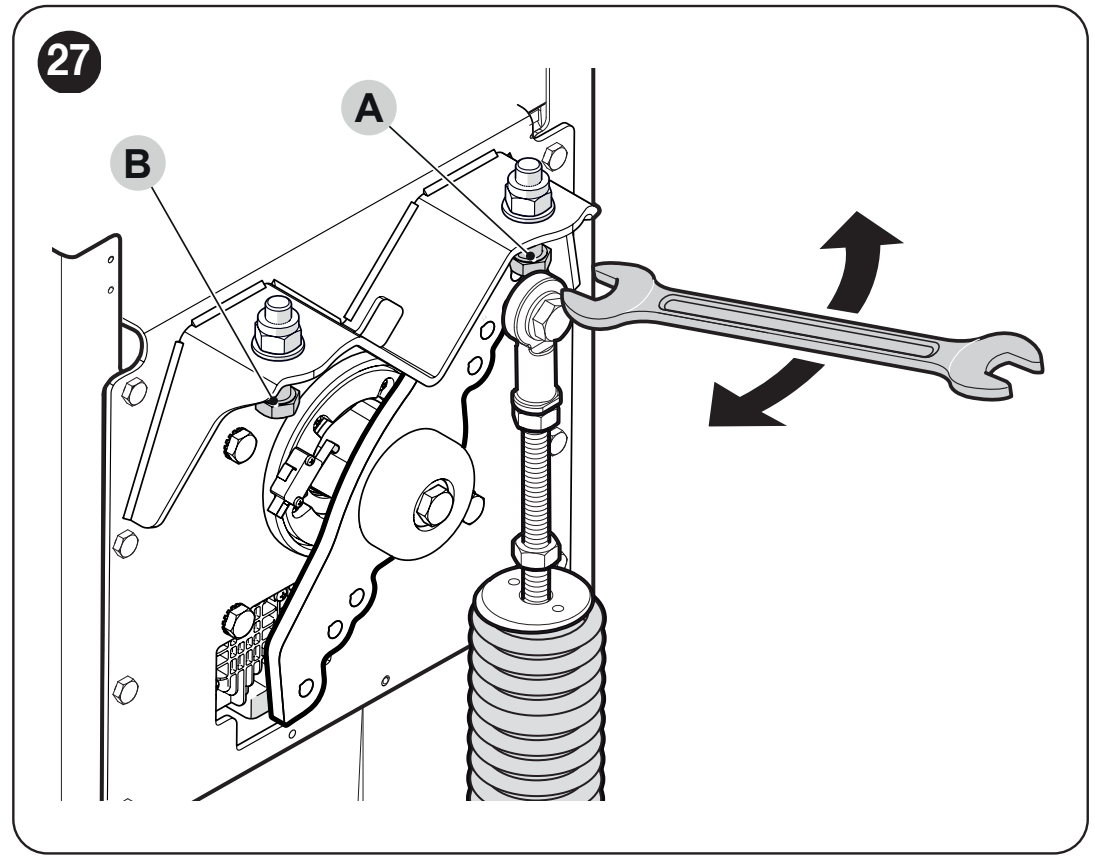
After releasing the drive, manually move the boom through its full travel. Use the stop screws to set the closed horizontal and open vertical positions, then tighten the locknuts. Then perform Set 2 position learning. Electronic learning does not replace correctly adjusted mechanical stops.
Wiring and power supply separation
Connect the 230 V mains cable to the L/N mains terminal block and the protective conductor as shown in the original installation. Secure the cable with a cable gland and strain relief. Do not apply 230 V to the command inputs or BlueBUS. Do not interchange motor and accessory circuits.
| Cable | Cross-section and length |
|---|---|
| 230 V mains | 3 × 1.5 mm² up to 30 m; for greater lengths, use 3 × 2.5 mm² and suitable grounding. |
| BlueBUS | 2 × 0.5 mm² up to 20 m; use 2 × 1 mm² up to 40 m. |
| Key switch | 2 cables, each 2 × 0.25 mm², up to 30 m; these can be replaced by one 4 × 0.5 mm² cable. |
| OPEN / CLOSE | 2 × 0.25 mm² up to 30 m for each input. |
| Flashing light / indicator | 2 × 0.5 mm² up to 30 m; the device voltage must match the output setting. |
| Master–Slave | 2 × 1 mm² up to 20 m. |
| Antenna | RG58 coaxial cable, maximum 15 m; recommended length under 5 m. |
BCU1 R10 control unit: wiring diagram and terminals
Disconnect the mains power and battery before wiring. The terminal blocks are removable; connect the wires according to the labels on the control board itself. The following diagram is for a control unit with a display and rotary selector.
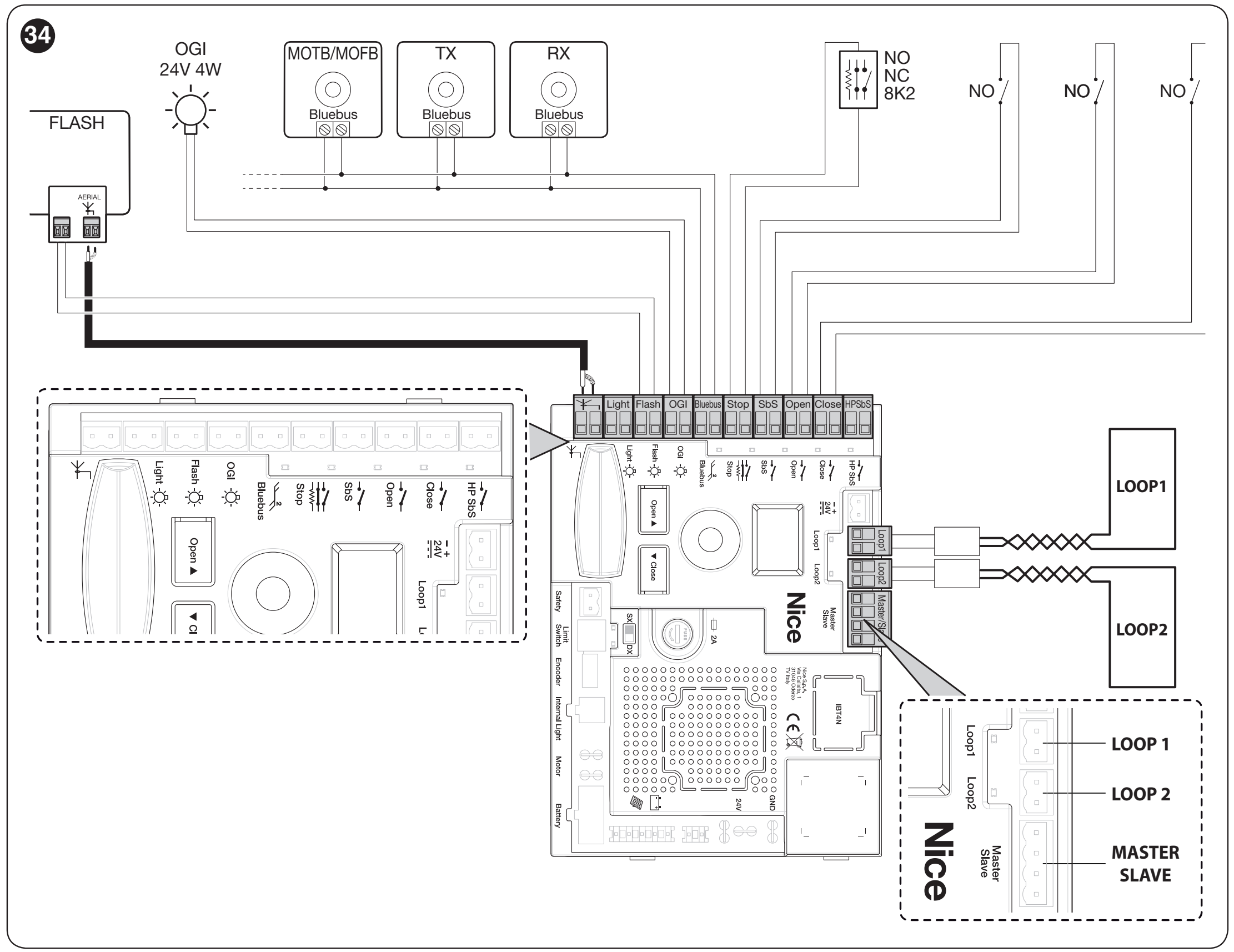
The mains supply must have protective earth (PE) and a suitable device for complete disconnection from the mains. A qualified electrician must connect the 230 V supply and check the protective measures. Mains voltage must not reach the command or accessory terminals.
| Terminal / connector | What connects here |
|---|---|
| FLASH | Flashing light, 12 V as standard, max. 21 W. OU2 changes both the function and voltage; check the current setting before connecting. |
| LIGHT | Boom lights, standard 24 V circuit, max. 10 W; OU1 function. |
| OGI | Barrier indicator, 24 V, max. 10 W; its operation is determined by OU3. |
| BlueBUS | Two-wire power supply and communication for compatible accessories; non-polarized. |
| STOP | NO, NC or 8.2 kΩ; the type is recognized during learning. A subsequent change of state stops the operation. |
| SbS / OPEN / CLOSE | Voltage-free NO switching contacts for step-by-step, open or close commands. The In1–In3 assignments can be changed. |
| HP SbS | High-priority NO command input, In4 = 6 by default. |
| LOOP1 / LOOP2 | Connection for an inductive loop detector output. The loop itself must not be connected directly as a command contact. |
| MASTER–SLAVE | Communication between two opposing barriers; maintain the 1–1 and 2–2 connections. |
| SAFETY | NC safety contact for the articulated boom, depending on the equipment used. |
| INTERNAL LIGHT | Dedicated connector for XBA7 or XBA8, OU4 function. |
| ANTENNA / SM | Coaxial antenna and separate socket for a compatible receiver. |
BlueBUS photocells and STOP input
EPMB photocells are connected in parallel to the two BlueBUS wires. The TX and RX of one pair must have the same address; the next pair needs a different one. For safety protection of the passage, use the FOTO, FOTO II, FOTO 1 or FOTO 1 II addresses according to their position and function. FA1/FA2 are command addresses for opening and do not replace the safety function of the photocells.
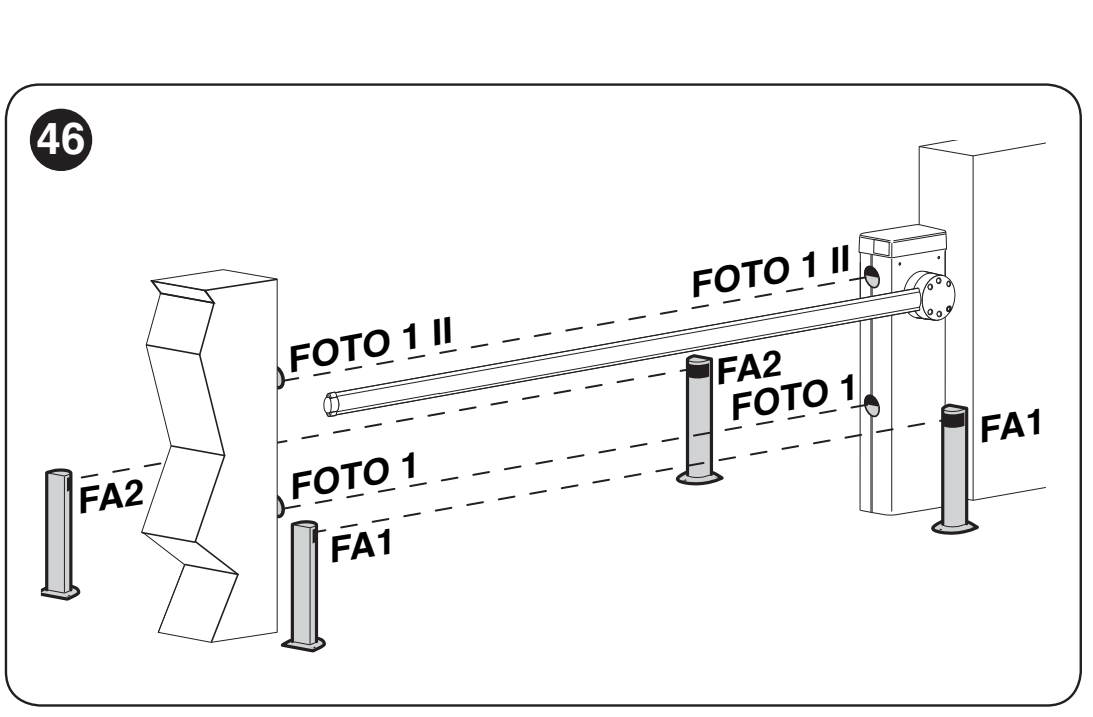
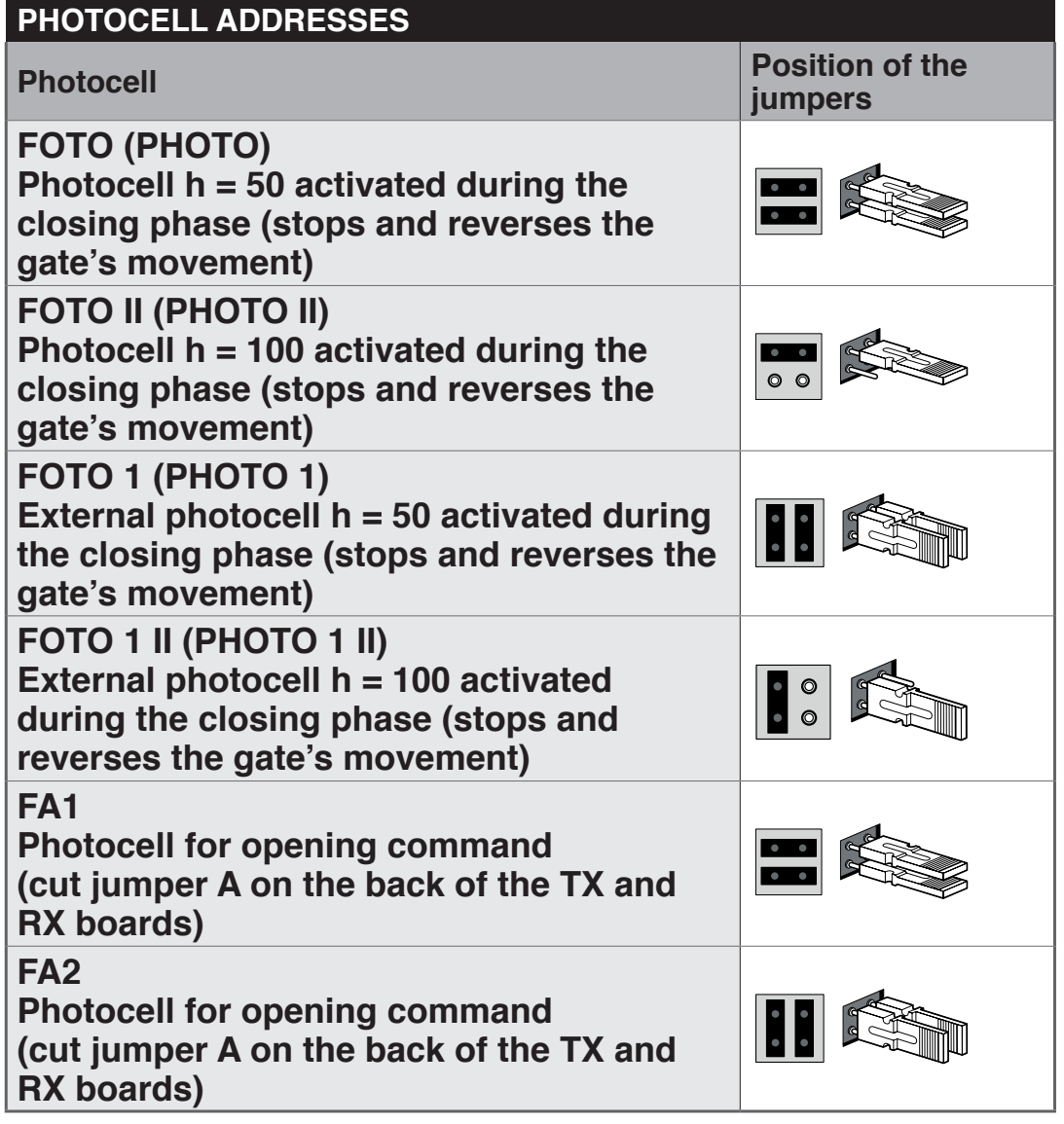
After adding or removing photocells or changing STOP, perform Set 1 and a new safety-function test. Do not bypass a fault to disable STOP; the connection of multiple safety devices must take their type and monitoring into account.
For the stated BCU1 R10 configuration, the BlueBUS load is a maximum of 10 BlueBUS units. Calculate power consumption according to the instructions for each device; the number of units is not necessarily the same as the number of physical devices.
Lights, beacon and traffic light
XBA6 / XBA18 are fitted into the boom slot according to their own instructions. XBA7 and XBA8 are connected to INTERNAL LIGHT. Before each change to OU1–OU4, check the voltage and maximum output power. Do not confuse the traffic-light connector with the terminal for a standard external beacon.
24 V power supply for additional accessories
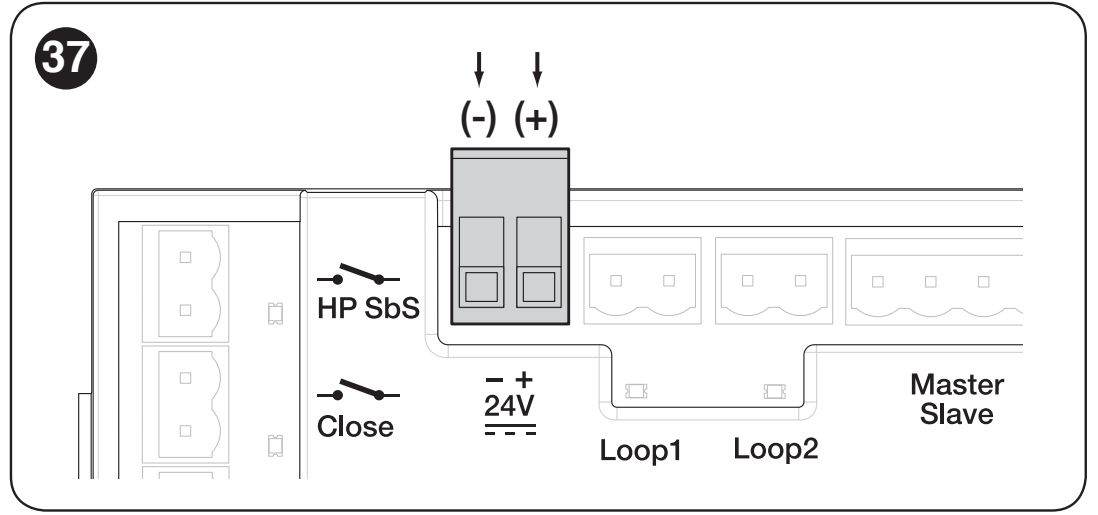
Separate output 24 V DC for auxiliary devices has a tolerance of −30% to +10% and a maximum available current of 500 mA total. Add up the current draw of all devices powered this way. On its two-pole terminal block, marked − + 24 V when viewed as shown in the image below, the left terminal is minus (−) and the right terminal is plus (+).
| 24 V auxiliary output terminal | Accessory power-supply wire |
|---|---|
| Left: − | Minus (−), marked 0 V or GND on the device. |
| Right: + | Plus (+), marked +24 V on the device. |
This marking applies to the separate 24 V output shown below. BlueBUS photocells are connected without regard to polarity to their own BlueBUS terminals. The SbS, OPEN, CLOSE and HP SbS command inputs use volt-free contacts; do not connect an external power supply to them.
Initial start-up and learning
Before switching on, the boom must be installed with all equipment, balanced and secured. Check the stops, direction switch, safety devices and clear passage. After connecting the mains, the display and photocell LEDs should light up; with the default settings, the beacon should not be on when the barrier is not moving.
1. Set → 1: BlueBUS and STOP learning
- Turn the selector to find Set.
- Briefly press the selector, choose the value 1 and press again to confirm.
- The control unit detects the connected devices and the type of STOP input. Perform the learning procedure even when no accessories are connected.
If error E01 remains, check the wiring and compatibility; simply repeating the learning procedure without resolving the cause is not enough.
2. Set → 2: learning the mechanical positions
- Unlock the motor, manually position the boom at approximately 45° and lock the gearbox.
- Select Set → 2 and confirm.
- Let the control unit perform the learning procedure over the entire travel range. The balancing lever must reach the set mechanical stops.
- If it does not reach the stops, stop the learning procedure by pressing the selector, adjust the mechanism and start again. After each interruption, the procedure must be repeated from the beginning.
Menu 8.8.8. starts a quick combined learning procedure for the devices and positions. Even with this option, first manually position the boom at approximately 45° and lock the gearbox. The movement area must remain clear. Learning the devices or positions does not program the remote-control buttons.
3. Movement and safety checks
Use the OPEN and CLOSE buttons to perform several complete cycles. The boom should slow down before reaching the stops; it must not snag, drop suddenly or vibrate excessively. Test each pair of photocells, STOP, manual release, power failure and any Master–Slave setup.
The technician must also check the risk of the boom lifting a person: the test uses a 20 kg load at the midpoint of the boom and, when opening, the boom must not rise more than 50 cm above the closed position. Measure impact force according to the requirements of the specific installation; photocells or reducing the force alone do not replace a full risk assessment.
Programming the BCU1 R10 using the rotary selector
The control unit is configured using a rotary selector and a three-digit display. Record the original value before making any changes; changes to force, speed or safety functions require the barrier to be tested again.
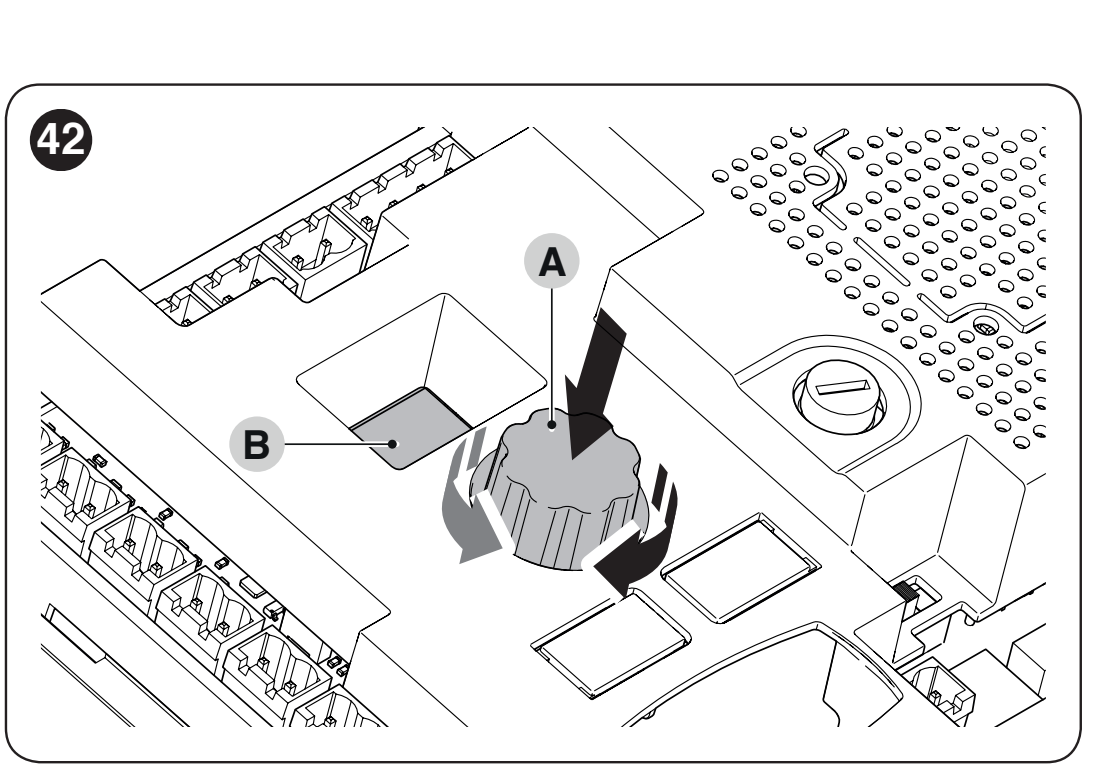
- Turn the selector in either direction to choose the parameter code.
- Briefly press and release it. The saved value is displayed; the display remains steadily lit.
- Turn the selector to choose a new value. The display flashes while a value is being selected.
- Press and release to confirm the value. The control unit returns to parameter selection.
Selecting ESC exits without saving the change. The display --- indicates a configuration set via OVIEW; it is not another selectable value. In the tables, the confirmed factory setting is shown in bold; the actual control board may have values changed during installation.
Operating functions F01–F09
| Parameter and purpose | Values and operation |
|---|---|
| F01 – Automatic closing Applies after fully opening. | OFF – semi-automatic operation: closes on command (factory setting) On – closes after time t01 |
| F02 – Close after photocell activation After the selected safety device is cleared, the t10 timer starts. | OFF – disabled (factory setting) 1 – open only until the photocell is cleared: activation stops movement; once cleared, t10 starts and the gate closes 2 – open fully: activation triggers full opening; a new open command during t10 cancels the subsequent closing 3 – open fully 2: same as setting 2, but a new open command during t10 does not cancel the subsequent closing |
| F03 – Device for F02 | 1 – photocells and loops configured as photocells (factory setting) 2 – photocells only 3 – loops configured as photocells only |
| F04 – Close after power is restored Before enabling this function, assess the safety of automatic movement after a power failure. | OFF – disabled (factory setting) 1 – if the arm is not closed, the warning light flashes for t09 after power is restored, then the arm closes 2 – resumes automatic closing if the pause timer was running before the power failure |
| F05 – Standby Standby is activated after time t04; a new command restores operation. | OFF – disabled (factory setting) 1 – switches off the display, BlueBUS, outputs and some internal circuits 2 – switches off BlueBUS 4 – when powered by battery, automatically enters full standby |
| F06 – Starting force | OFF – disabled (factory setting) On – when starting from the open or closed position, briefly uses maximum power to overcome static friction |
| F07 – Emergency opening Requires a connected, functioning battery. | OFF – disabled (factory setting) On – automatically opens the arm if the mains power supply fails |
| F09 – Master / Slave | OFF – Master barrier (factory setting) On – Slave barrier; see Master–Slave procedure |
Timing, speeds, force and input functions
| Parameter and purpose | Available values |
|---|---|
| 8.8.8. – Quick programming | Programs BlueBUS, STOP and the positions in a single sequence. First, meet the start-up requirements. |
| Set – Programming | 1 – BlueBUS and STOP devices 2 – open and closed positions |
| Prn – Program | 000 – basic program (factory setting) 001 / 002 / 003 – reserved custom programs; not normally used |
| t01 – Pause before closing Effective when F01 = On. | 0–250 s Factory setting: 20 s |
| t02 – Pre-flashing on opening Time between the warning light switching on and opening starting. | 0–5.0 s Factory setting: 0 s |
| t03 – Pre-flashing on closing Time between the warning light switching on and closing starting. | 0–5.0 s Factory setting: 0 s |
| t04 – Standby delay Time from the end of a manoeuvre until enabled F05 activates. | 0–60 s Factory setting: 60 s |
| t06 – Electromagnet delay After the locking electromagnet is de-energized, the controller waits before opening. Used only when an electromagnet is installed and the output is configured accordingly. | 0–3.0 s Factory setting: 0.2 s |
| t07 – Auxiliary light duration How long the output configured as an auxiliary light stays on. | 0–250 s Factory setting: 60 s |
| t09 – Pre-flashing after power is restored Used by function F04. | 0–20 s Factory setting: 5 s |
| t10 – Close after photocell activation Time after the device is cleared when F02 is enabled. | 0–250 s Factory setting: 5 s |
| SPO – Opening speed | 1 – slowest 2 – level 2 3 – level 3 4 – fastest (factory setting) |
| SPC – Closing speed | 1 – slowest 2 – level 2 3 – level 3 4 – fastest (factory setting) |
| SLO – Opening slowdown | 1 – slowest speed 2 – medium speed (factory setting) 3 – fastest speed |
| SLC – Closing slowdown | 1 – slowest speed 2 – medium speed (factory setting) 3 – fastest speed |
| PLO – Opening slowdown position Distance between the end position and the start of slowdown. | 1 – 0° (factory setting) 2 – approximately 10° 3 – approximately 20° |
| PLC – Closing slowdown position Distance between the end position and the start of slowdown. | 1 – 0° (factory setting) 2 – approximately 10° 3 – approximately 20° |
| FrO – Opening force Does not replace mechanical balancing. | 1 – lowest 2 – level 2 3 – medium (factory setting) 4 – level 4 5 – level 5 6 – highest |
| FrC – Closing force Does not replace mechanical balancing. | 1 – lowest 2 – level 2 3 – medium (factory setting) 4 – level 4 5 – level 5 6 – highest |
| tF – Force limit response time A higher value increases the time before an obstacle is detected. | 3–32, each unit = 30 ms Range: 90–960 ms Factory setting: 3 = 90 ms |
| In1 – SbS input | Available codes: 0, 1, 3, 4, 6, 7, 8, 11, 12, 16, 19, 20, 21, 22, 25, 26, 27, 28, 29, 30. Factory setting: 1 Meaning of input codes; for In2, code 25 controls Master only. |
| In2 – OPEN input | Available codes: 0, 1, 3, 4, 6, 7, 8, 11, 12, 16, 19, 20, 21, 22, 25, 26, 27, 28, 29, 30. Factory setting: 3 Meaning of input codes; for In2, code 25 controls Master only. |
| In3 – CLOSE input | Available codes: 0, 1, 3, 4, 6, 7, 8, 11, 12, 16, 19, 20, 21, 22, 25, 26, 27, 28, 29, 30. Factory setting: 4 Meaning of input codes; for In2, code 25 controls Master only. |
| In4 – HP SbS input | Available codes: 0, 1, 3, 4, 6, 7, 8, 11, 12, 16, 19, 20, 21, 22, 25, 26, 27, 28, 29, 30. Factory setting: 6 Meaning of input codes; for In2, code 25 controls Master only. |
| SE1 – Step-by-step sequence | 1 – industrial mode: semi-automatic opening; closing by holding the command 2 – open – stop – close – stop 3 – open – stop – close – open 5 – residential step-by-step mode (factory setting) 6 – hold-to-run control |
| SE3 – OPEN sequence | 1 – open – stop – open 2 – residential opening mode (factory setting) 3 – opening by holding the command |
| SE4 – CLOSE sequence | 1 – close – stop – close 2 – residential closing mode (factory setting) 3 – closing by holding the command |
| SE5 – Photocell function during closing | 1 – stop and reverse to open (factory setting) 4 – stop temporarily; open when the photocell is clear 5 – stop temporarily; close when the photocell is clear |
| SE6 – STOP during opening | 1 – stop immediately 2 – stop and briefly reverse to close (factory setting) |
| SE7 – STOP during closing | 1 – stop immediately 2 – stop and briefly reverse to open (factory setting) |
| SE8 – Obstacle during opening | 2 – stop and briefly reverse to close (factory setting) 3 – stop and reverse fully to close |
| SE9 – Obstacle during closing | 2 – stop and briefly reverse to open 3 – stop and reverse fully to open (factory setting) |
| LO1 – LOOP1 function | 1 – open – open, NO contact (factory setting) 2 – close – close, NO contact 4 – photocell, NC contact |
| LO2 – LOOP2 function | 1 – open – open, NO contact 2 – close – close, NO contact (factory setting) 4 – photocell, NC contact |
In hold-to-run mode, the arm moves only while the contact is active. Residential mode prevents further commands from interrupting opening; check how it behaves in your own setup before use. F02 determines whether the gate closes after the safety device is cleared; SE5 determines how the arm responds when the safety device is triggered during closing. Do not confuse these settings.
Meaning of command codes for In1–In4
| Code | Command |
|---|---|
| 0 | No command. |
| 1 | Step-by-step operation according to SE1. |
| 3 | Opening according to SE3. |
| 4 | Closing according to SE4. |
| 6 | High-priority step-by-step operation, effective even when software-locked. |
| 7 | Open and engage the software lock. |
| 8 | Close and engage the software lock. |
| 11 | Switch on the timed courtesy light; it switches off after the set time. |
| 12 | Switch the courtesy light on/off; the set time also applies. |
| 16 | Photocell. |
| 19 | Release the software lock and open. |
| 20 | Release the software lock and close. |
| 21 | Enable opening via BlueBUS command photocells. |
| 22 | Disable opening via BlueBUS command photocells. |
| 25 | Step-by-step operation for Master and Slave; for In2, controls Master only. Before operation, verify the assignment by testing both arms. |
| 26 | Open both Master and Slave. |
| 27 | Close both Master and Slave. |
| 28 | Step-by-step operation for Slave only. |
| 29 | Open Slave only. |
| 30 | Close Slave only. |
OU1–OU4 outputs and indicators
Changing the function may also change the output voltage. External 24 V functions are limited to 10 W per output; the 12 V warning light on FLASH is limited to 21 W. Always check the device, voltage and power consumption before connecting. INTERNAL LIGHT is a connector for the dedicated XBA7/XBA8 module.
| Output | Code and function |
|---|---|
| OU1 – LIGHT | 0 – 24 V warning light 1 – OGI indicator 2 – barrier closed 3 – barrier open 4 – flashing arm light (factory setting) 5 – maintenance indicator 6 – courtesy light 8 – red traffic light 9 – green traffic light 10 – radio channel 1 11 – radio channel 2 12 – radio channel 3 13 – radio channel 4 14 – locking electromagnet |
| OU2 – FLASH | 0 – 24 V beacon 1 – 12 V beacon (factory setting) 2 – OGI indicator 3 – barrier closed 4 – barrier open 5 – boom flashing light 6 – maintenance indicator 7 – auxiliary light 9 – red traffic light 10 – green traffic light 11 – radio channel 1 12 – radio channel 2 13 – radio channel 3 14 – radio channel 4 15 – locking electromagnet |
| OU3 – OGI | 0 – 24 V beacon 1 – OGI indicator 2 – barrier closed (factory setting) 3 – barrier open 4 – boom flashing light 5 – maintenance indicator 6 – auxiliary light 8 – red traffic light 9 – green traffic light 10 – radio channel 1 11 – radio channel 2 12 – radio channel 3 13 – radio channel 4 14 – locking electromagnet |
| OU4 – INTERNAL LIGHT | 0 – beacon (factory setting) 1 – OGI indicator 2 – barrier closed 3 – barrier open 4 – auxiliary light 5 – red traffic light 6 – green traffic light 7 – one-way traffic light 8 – alternating one-way traffic light 9 – pedestrian traffic light |
| Signaling mode | Meaning |
|---|---|
| Beacon | Flashes during operation: 0.5 s on / 0.5 s off. |
| OGI | Closed: off; opening: slow flashing; closing: fast flashing; open: on. |
| Barrier closed / open | On only at the selected end position. |
| Boom flashing light | Flashes every 0.5 s, even when the boom is stationary. |
| Maintenance | Below 80% of the set count: on for 2 s at the start of opening. From 80% to 100%: flashes during operation. Above 100%: flashes continuously. |
| Auxiliary light | On during movement and afterward until t07 expires. |
| Red traffic light | Flashes slowly while closing, stays on when closed, and is otherwise off. |
| Green traffic light | Flashes slowly while opening, stays on when open, and is otherwise off. |
| Radio channels | A command on the corresponding channel activates the output; the command intended for the control unit is ignored. |
| Locking electromagnet | Active when closed; switches off before opening, and the unit waits for time t06. |
| OU4 = 7 | Green when the boom is open, red in all other states. |
| OU4 = 8 | For the inside, use In2 or LOOP1 set to open; for the outside, use In3 or LOOP2 set to open. Green is assigned to the side that issued the command; red lights up on the opposite side. When closed or closing, both sides are red. |
| OU4 = 9 | When closed, green on the inside and red on the outside; when open, the opposite. In intermediate positions, both sides are red. |
Counters, versions and service data
| Menu | Use |
|---|---|
| MnP – Set number of operations | Press to display in sequence: a = units, b = thousands, c = millions. Used for maintenance signaling. |
| MnE – Number of operations performed | Press to display in sequence: t = units, u = thousands, v = millions. |
| ErS – Reset | 1 – devices; 2 – positions; 3 – function values; 5 – everything. Procedure and subsequent learning. |
| Fir – Firmware version | Press twice to display two three-digit identification sections. |
| Hdr – Hardware version | Press three times to display three three-digit identification sections. |
| din – Input diagnostics | Input and display statuses. |
Resetting the control board does not reset the service counter. Reset it using OVIEW only after maintenance has been completed and recorded.
Two opposing barriers: Master–Slave
Two complete barriers can be synchronized. Each has its own motor, control unit and power supply; they are not connected like two motors on a single board. Connect the communication terminals 1–1 and 2–2 using 2 × 1 mm² cable, up to 20 m.
- Complete installation, direction, balancing and electrical wiring on both barriers.
- On the Slave barrier, perform Set 1 and Set 2, set its speed, slowdown and force, then set F09 = On.
- Perform Set 1 and Set 2 on the Master barrier. Until then, the Slave may report communication error E05.
- Issue a command from the Master unit and check the movement of both booms and the safety devices.
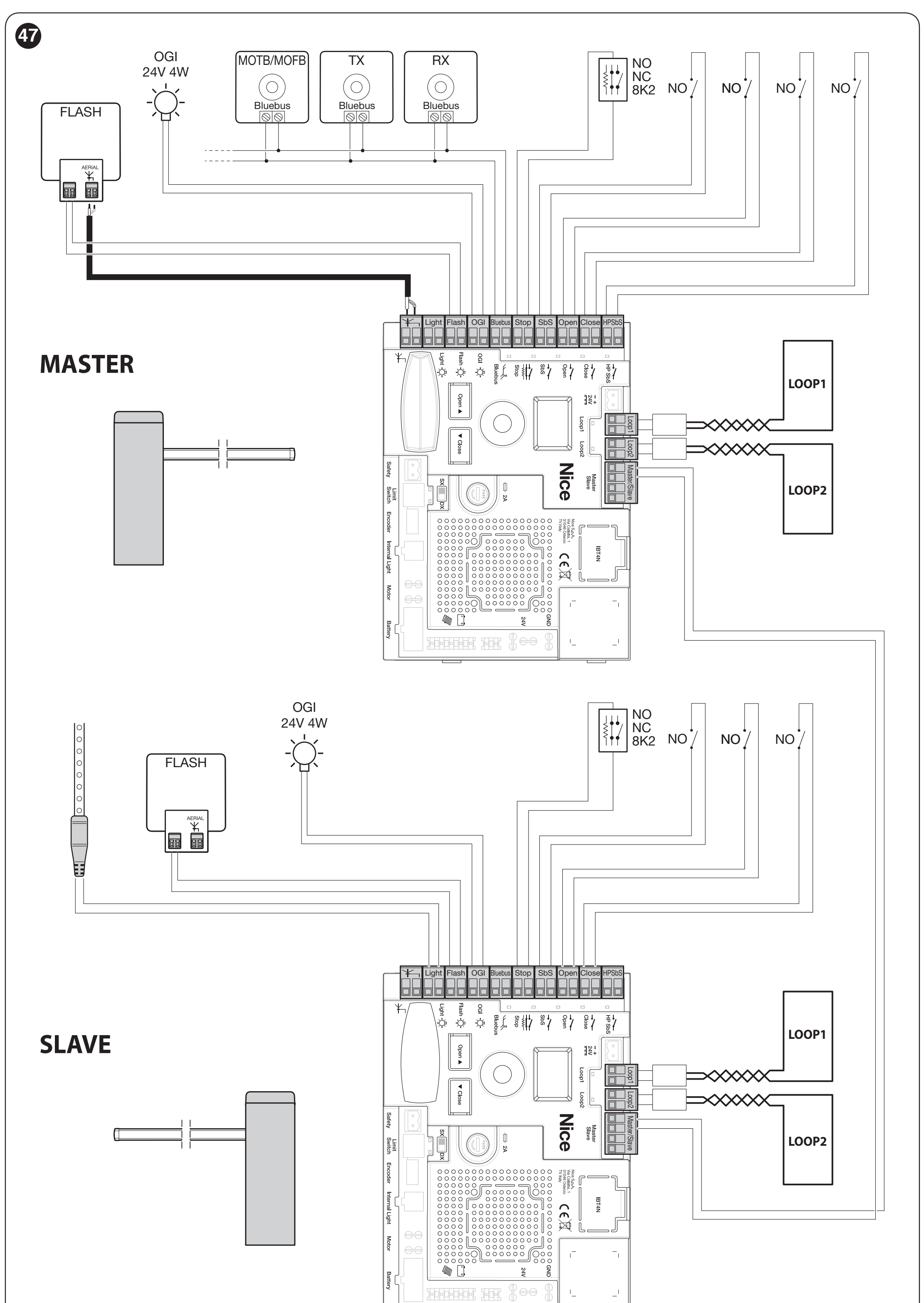
Shared BlueBUS devices and the receiver belong on the Master. The Slave’s own SbS/OPEN/CLOSE commands can operate only its own boom. Speed, slowdown, slowdown position and force are set separately for each barrier. For backup power, each barrier needs its own PS224.
Remote control and backup power
Receiver and transmitters
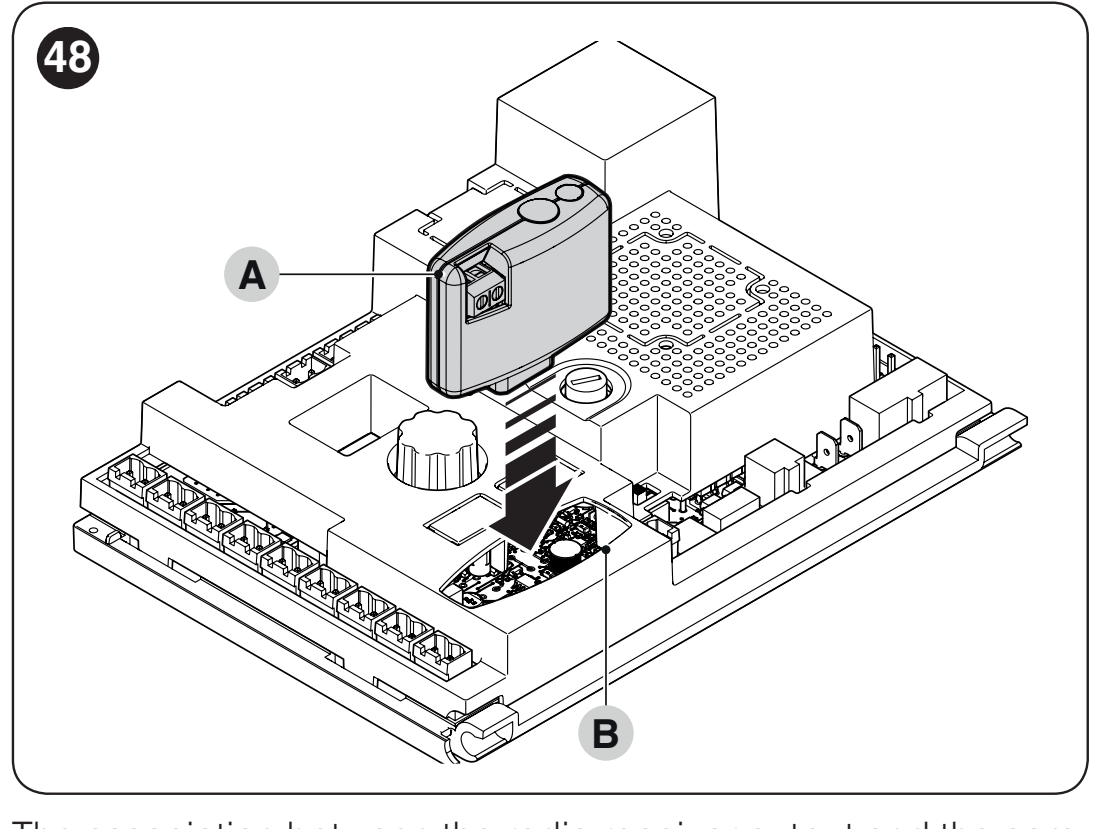
The board has an SM socket for a compatible receiver. Current selection OXIBD supports compatible transmitters, such as ON2E. Connect the receiver only when both the mains supply and battery are disconnected. Store and delete transmitters according to the specific receiver's instructions; resetting the control board does not replace the receiver's radio procedure.
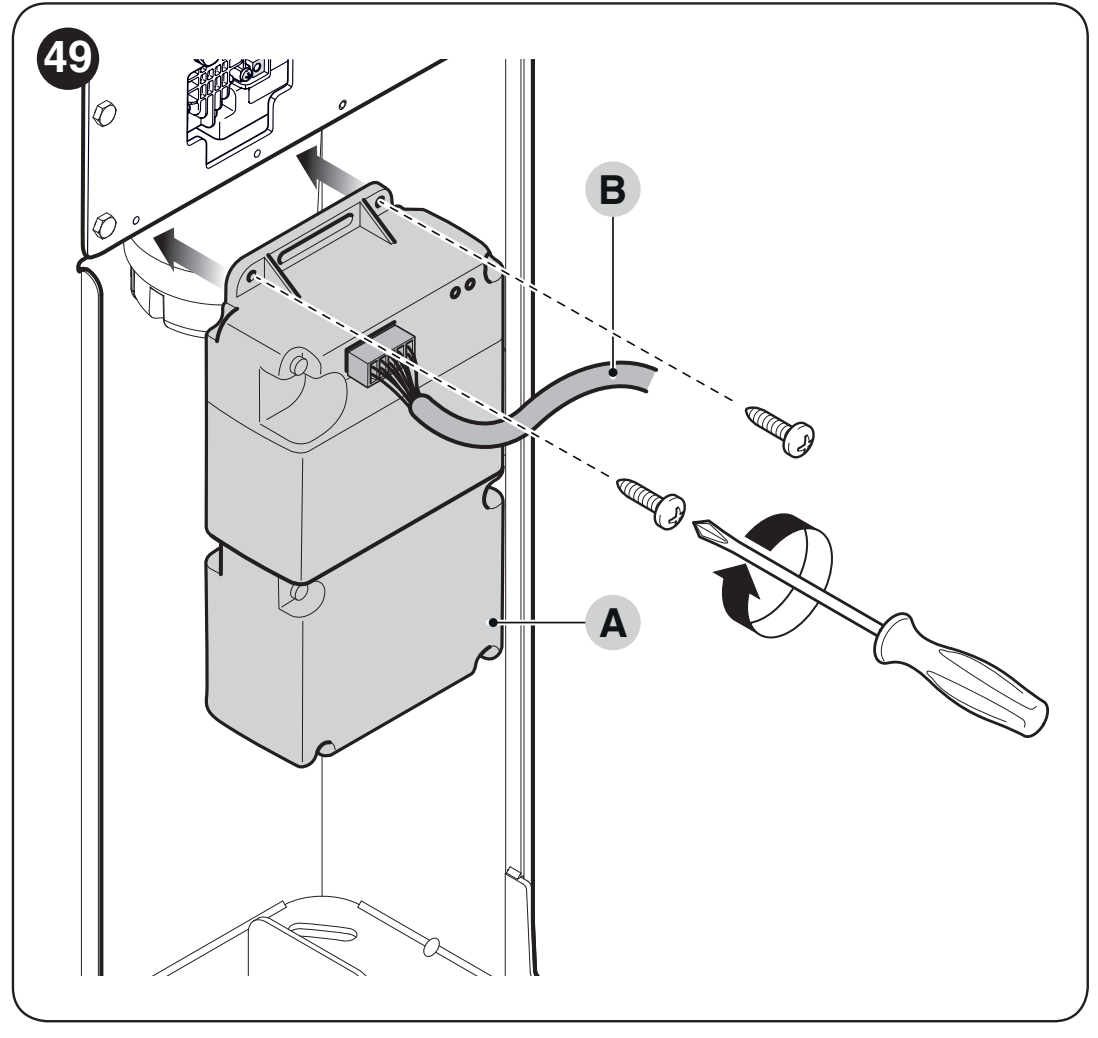
PS224 during a power outage
PS224 should only be connected after installation and programming are complete: disconnect the mains, fit the battery, and connect the designated cable to the backup connector; then restore mains power. Mode F05 = 4 can limit power consumption when running on battery. The F07 = On function commands the gate to open during a mains failure if a battery is installed; it is not enabled by default.
Solemyo SYKCE30 is a different power supply option. When using Solemyo, the barrier must not be connected to the 230 V mains at the same time. Assess the power source capacity based on the number of operating cycles and the installed accessories.
Troubleshooting
First, check the display code or the number of short flashes. The diagnostic sequence repeats after a pause of about 1 s; normal flashing during movement is not a fault code.
When the barrier does not respond or moves incorrectly
| Symptom | What to check |
|---|---|
| The remote control does not respond and its LED is off | Check the remote control battery. |
| The remote control LED is on, but the barrier does not respond | Check that the remote control is stored in the receiver and is compatible with the installed receiver; receiver and remote control. |
| The display is off and no command works | A technician should check the power supply and fuses F1/F2. Replace a fuse only after identifying the cause, and use one of the same type and rating; never bypass a fuse. |
| A command is issued, but the operating cycle does not start | For a wired command, check the LED for the corresponding input. If the warning light signals a fault, refer to the code table below. |
| The arm immediately reverses direction or moves unusually slowly | First check balance, free movement, stops and limit switches. If the control board does not recognize the end position, check the switches and position learning. |
| The arm moves in the opposite direction | Check the spring side and direction switch. Do not swap wires at random. |
| Code / signal | What to check |
|---|---|
| E01 / 1 flash | BlueBUS/STOP devices changed or not learned. Check the wiring, then run Set 1. |
| E02 | Positions not learned; after checking the stops and balance, run Set 2. |
| E03 | Limit switches reversed; check their direction and electrical connections. |
| E04 | Encoder signal missing; a technician should check the sensor connector and cable. |
| E05 | Communication error Master–Slave; check the polarity and learning of both barriers. |
| E06 / 5 flashes | Parameter memory error. Disconnect and restore all power sources, then try again; if the problem persists, service is required, possibly including a full reset and relearning. |
| E07 / 7 flashes | Internal electronics fault. Disconnect all power sources; if the fault recurs, arrange for service. |
| E08 | Barrier type configuration; a technician should check the board's factory settings. |
| E09 / 9 flashes | Software lockout. Enter the designated unlock command, or HP SbS; this is not a mechanical release using a key. |
| E10 | Missing NC safety contact or limit switch; check SAFETY and the switches. |
| E11 | BlueBUS short circuit. With the power disconnected, check the wiring and devices. After resolving the cause, restore power, issue a command, and wait 40 s. If the fault recurs, service is required. |
| I02 / 2 flashes | Photocell active. Remove the obstruction, clean the optics, and check the alignment. |
| I03 / 3 flashes | Force limit triggered. First check balance, friction, and stops. Do not increase the force to compensate for a mechanical fault. |
| I04 / 4 flashes | STOP triggered. Identify the cause in the connected device; do not bypass the safety input. |
LEDs and the din mode
STOP is lit when the input is normally enabled; if it goes out, the input has been triggered. The SbS, OPEN, CLOSE, and HP SbS LEDs are lit when the corresponding command is active. The FC1/FC2 status depends on the RH/LH switch: with RH, FC1 goes out in the closed position and FC2 in the open position; with LH, the reverse applies.
Display codes and warning-light flash counts are numbered differently. For example, E06 means five flashes; sequences of six and eight flashes do not have an assigned function in this setup.
The din menu displays the inputs using the segments of the display's three digits. Labels A to G and the dp decimal point are shown in the illustration. For FC1/FC2, the open and closed positions are determined by the RH/LH setting specified above.
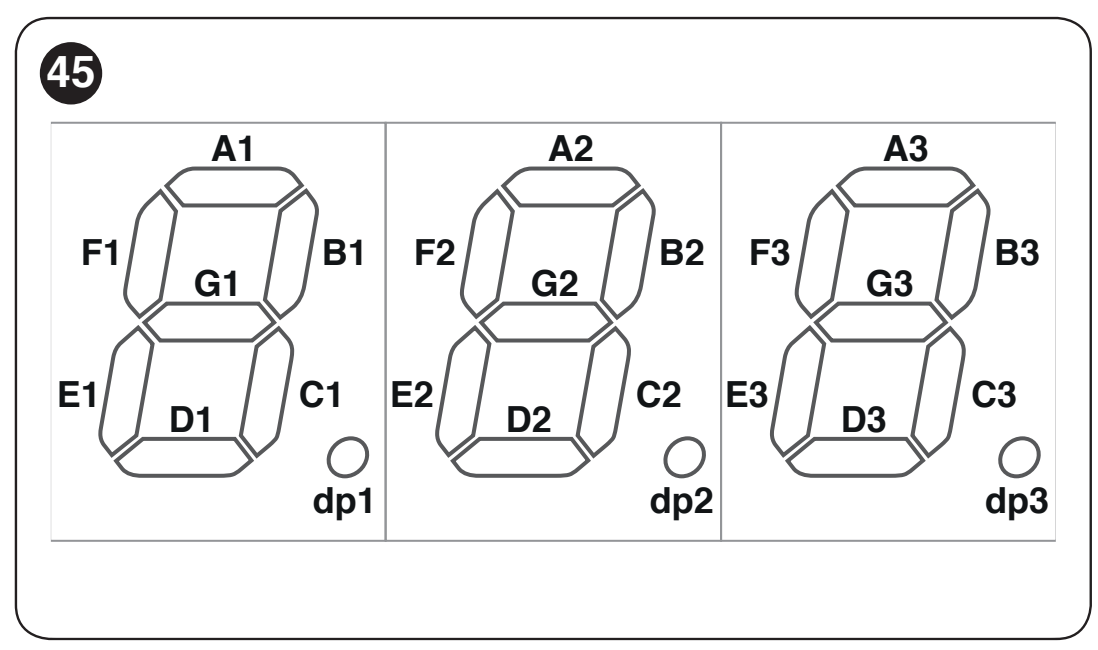
| Digit | Segment and meaning |
|---|---|
| First | A1 – LOOP1 B1 – CLOSE C1 – HP SbS D1 – LOOP2 E1 – OPEN F1 – SbS G1 – unused dp1 – flashes once per second while the board is running |
| Second | A2 – FC1 B2 – CLOSE button on the board C2 – RH direction D2 – battery power E2 – LH direction F2 – OPEN button on the board G2 – FC2 dp2 – motor sensor input A |
| Third | A3 – opening photocell FA1 B3 – FOTO active C3 – FOTO II active D3 – opening photocell FA2 E3 – FOTO 1 active F3 – FOTO 1 II active G3 – Master detected Slave dp3 – motor sensor input B |
The dp2/dp3 indicators may be lit or unlit when the motor is stopped, depending on the sensor position; they flash while it is moving. Correct the direction in the mechanism and selector switch, not by swapping wires at random.
Clearing the settings and starting over
Select ErS, press, select the required value and confirm. 1 deletes learned devices, 2 positions, 3 function values, 5 all control unit data. After a complete reset, repeat Set 1, Set 2, the setup and the safety tests.
Control board reset does not reset the number of operations performed. After maintenance has actually been carried out, reset the service counter via OVIEW. Deleting remote controls is part of the procedure for the specific receiver.
Manual release of the boom
In the event of a power failure, malfunction or installation work, stop operation, disconnect the power supply and ensure the area is clear. Hold the boom; an incorrectly balanced boom may move on its own.
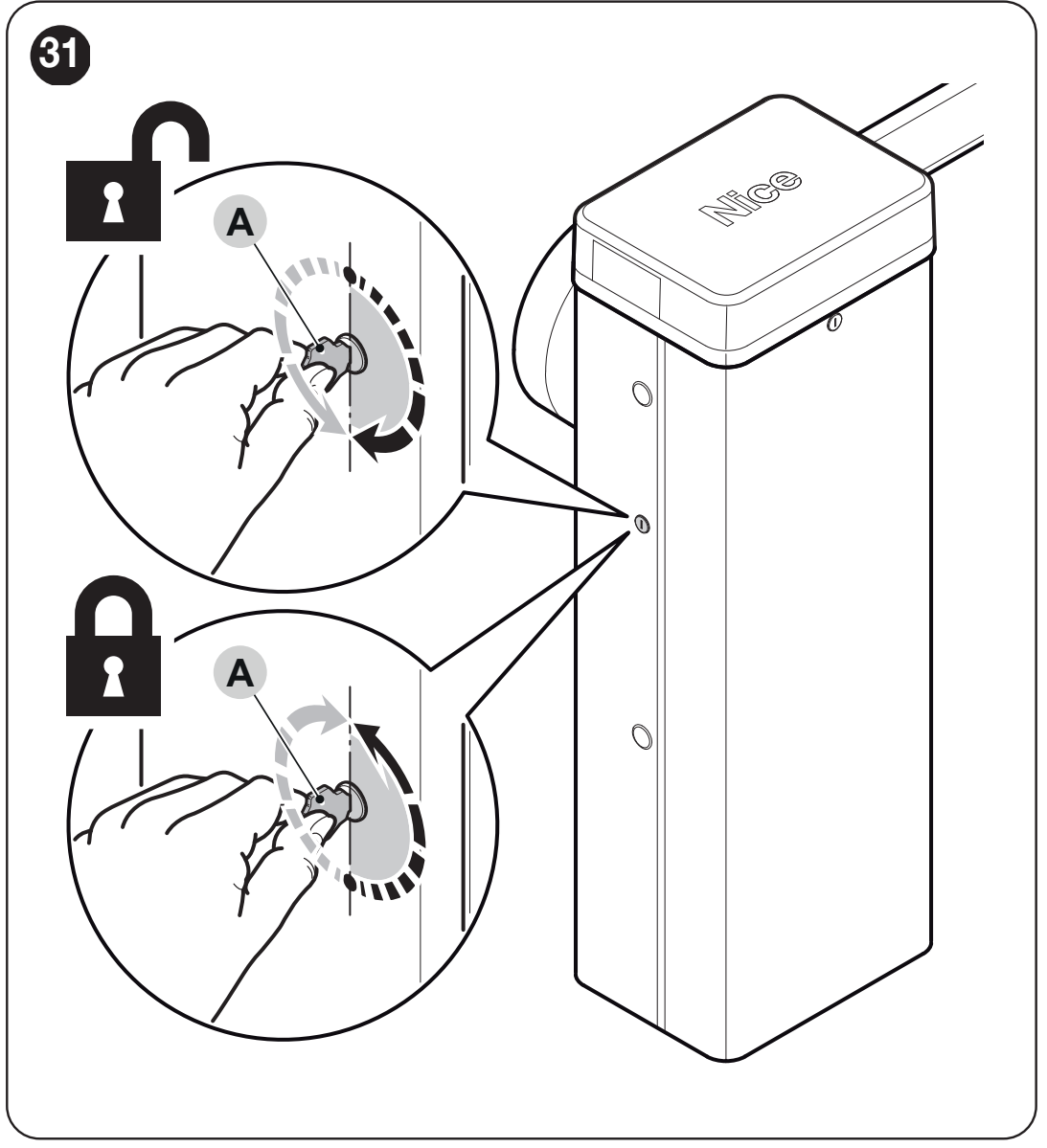
- Insert the release key and turn it 180° to the left or right.
- Move the boom manually to the required position.
- To resume motorized operation, return the key to its original position and remove it. Check that the boom is secured and that control has been safely restored.
Maintenance and service life
For an existing installation with BCU1 R10, schedule a professional inspection no later than 6 months or 20,000 operations, whichever comes first. With intensive use, the cycle count may be reached much sooner. Check the balance after changing the boom equipment as well.
The technician will disconnect all power sources and check the secure connection between the two boom sections, the XBA9 coupling expansion bolts, corrosion, anchoring, screws and spring attachment, shaft play, the condition of the boom, and the release mechanism. After restoring the power supply, repeat the safety device and force tests. Record servicing and any spring replacement in the maintenance log.
Factors affecting the estimated service life
| Characteristics of the complete automation system | Index | Service life graph |
|---|---|---|
| Speed, level 3 | 15% |
|
| Speed, level 2 | 10% | |
| Photocell activations in more than 10% of operations | 15% | |
| STOP activations in more than 10% of operations | 15% | |
| WA12 mobile support | 10% in the permitted configuration | |
| Salt in the environment | 10% | |
| Dust / sand | 5% | |
| Under-barrier installation | 5% in the permitted configuration | |
| Temperature above 40 °C or below 0 °C | 5% | |
| Set force FrO / FrC | Level 4: 5% Level 5: range 5–10% Level 6: 10% |
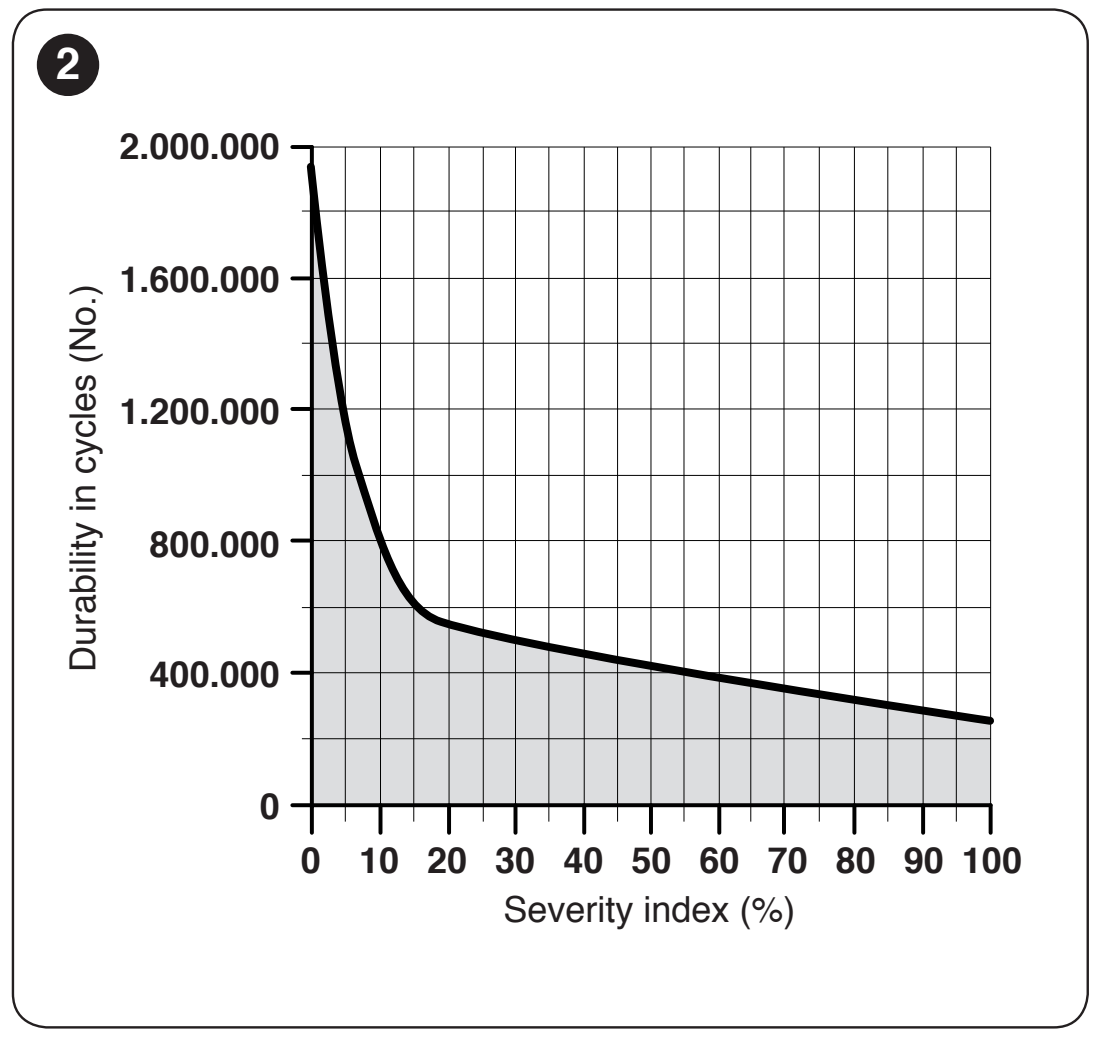
Speed levels 2 and 3 are alternatives; add only the level in use. No index is specified for level 4, so do not estimate the number of cycles for it. Add together the indices for all other applicable factors. Find the total on the graph's horizontal axis and read the estimated number of cycles from the vertical axis. At force level 5, the estimate is a range; do not estimate the number of cycles beyond the graph's range. The estimate assumes correct installation and regular maintenance; it does not guarantee a number of cycles or advise delaying servicing.
Technical specifications of the NICE LBAR barrier
| Parameter | Value |
|---|---|
| Model | NICE LBAR – without boom |
| Type | Electromechanical barrier with a 24 V DC motor and integrated control unit |
| Control unit | BCU1 R10 (XBA3 R10) |
| Mains power supply | 230 V AC, 50/60 Hz |
| Motor voltage | 24 V DC |
| Current consumption | 1.3 A |
| Maximum power draw during startup | 160 W |
| Power draw at rated torque | 50 W |
| Operating time | 8–12 s for the specified BCU1 R10 setup |
| Startup torque | 400 Nm |
| Rated torque | 130 Nm |
| Max. frequency at rated torque | 150 cycles/h |
| Clear passage width | 7–9 m |
| Ingress protection rating | IP54 |
| Operating temperature | −20 to +55 °C |
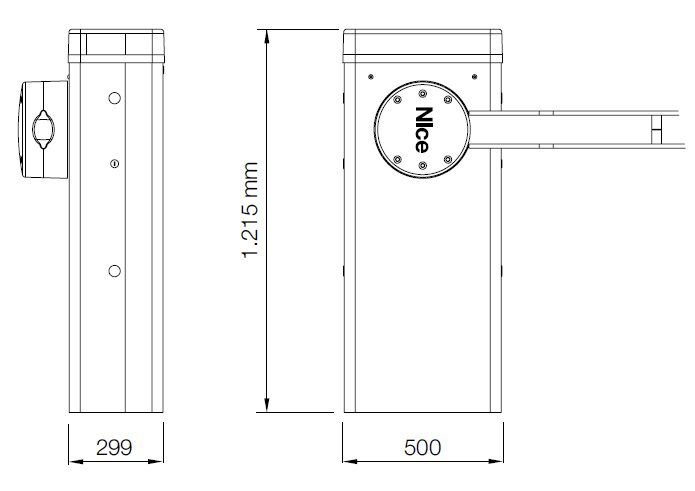
| Enclosure dimensions | 500 × 299 × 1 215 mm (width × depth × height) |
| Weight | 98 kg |
| Insulation class | I |
| Backup power supply | PS224 |
| Solar power supply | Solemyo SYKCE30 |
The specifications apply at a reference temperature of approximately 20 °C. Consider them together with the arm length, equipment and balance. For a different operator or control unit version, check the operating time and available settings against the marking on the device.
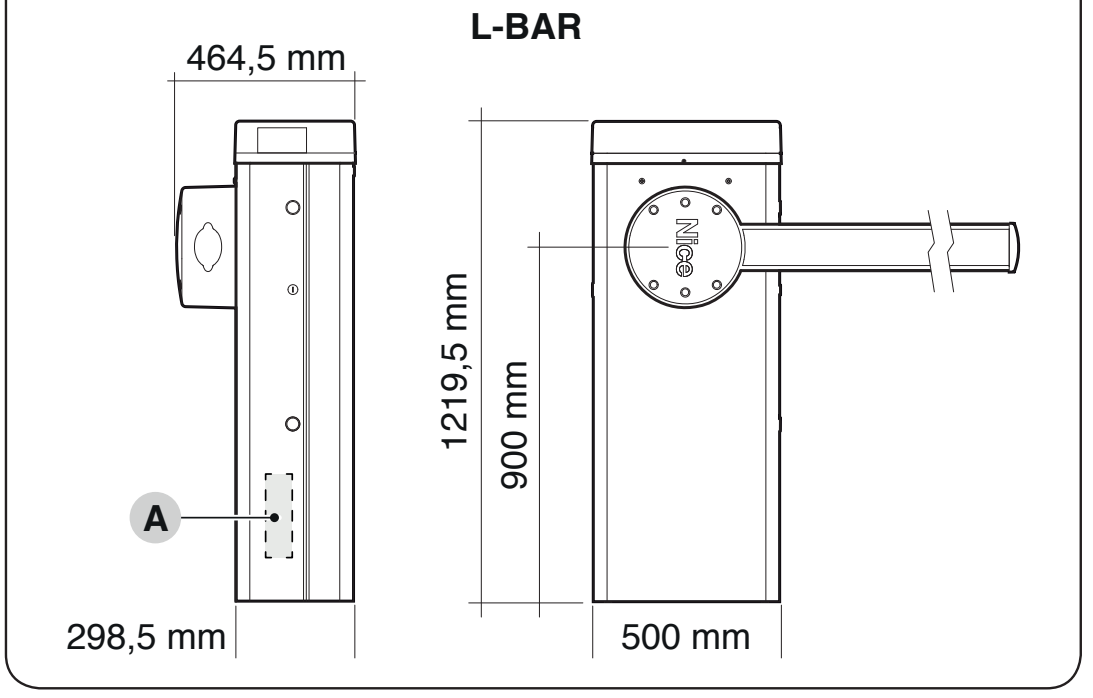
The drawing also shows protruding parts and the exact dimensions of 298.5 and 1 219.5 mm. Use the drawing when anchoring and positioning; do not rely only on the rounded enclosure dimensions in the table.
How can I order this item?
Choose the option that suits you:
- order online: use the buy button to add the goods to your shopping cart (you will find the buy button here in the product variants table).
- order by email: place your order at [email protected]