Garage door opener kit for doors up to 11.4/12.6 m² NICE SPIDER800
| Product availability: | within 7 days | We usually dispatch goods within 7 days. |
|---|
within 7 days
€342.17 including VAT
| Weight |
|---|
| 10 kg |
Description of Garage door opener kit for doors up to 11.4/12.6 m² NICE SPIDER800
- sectional garage doors up to a height of 2,6 m and an area of 11,4 m²,
- overhanging up-and-over garage doors up to a height of 3 m and an area of 12,6 m²
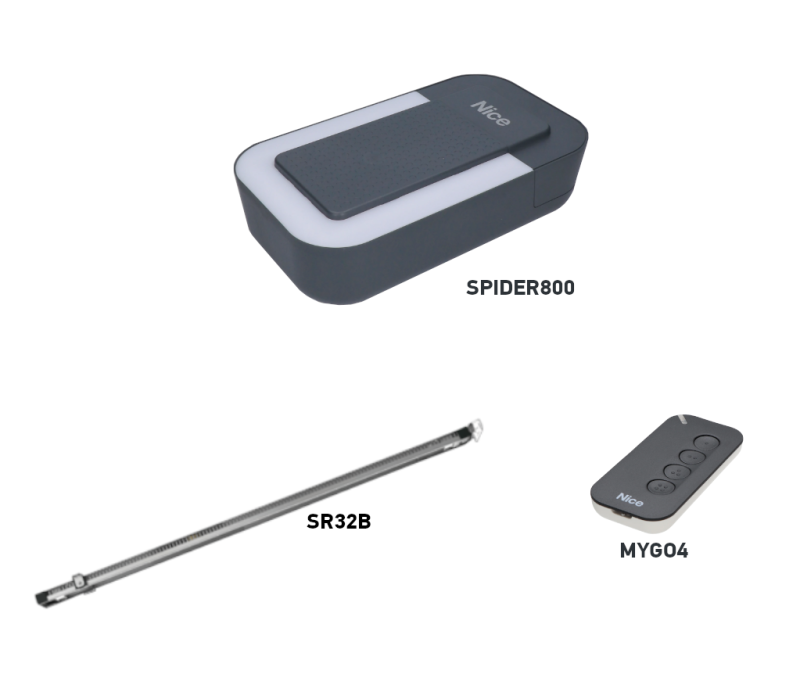
| The kit includes: | NICE-SPIDER800 | |||
|---|---|---|---|---|
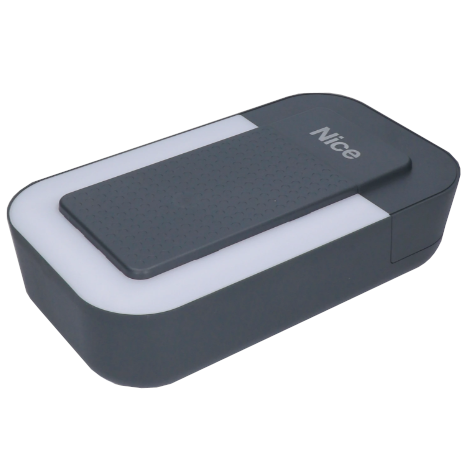 |
1 × | NICE SPIDER800 Drive | ||
|
NICE SPIDER800 electromechanical drive for sectional garage doors with an area of up to 11,4 m², or overhanging up-and-over garage doors with an area of up to 12,6 m². The motor is supplied with an integrated control unit and receiver. |
||||
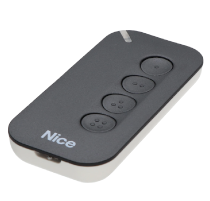 |
1 × | NICE MYGO4 Remote Control | NICE-MYGO4 | |
|
Four-button remote control for operating a gate automatically from a distance. You can use it to control four devices or send four different commands to one device. |
Detail  |
|||
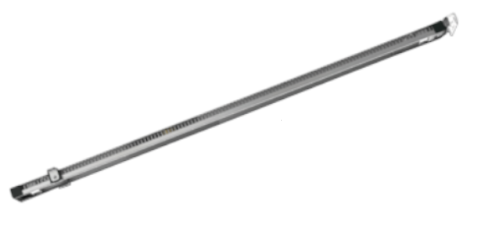 |
1 × | SR32B belt rail, 3.2 m | NICE-SR32B | |
Pre-assembled belt rail SR32B with a length of 3.2 m. For sectional doors up to approximately 2.6 m; the limit for up-and-over doors varies depending on the construction. See the compatibility table. | Detail |
|||
 |
1 × | NICE SPIDER800 Installation Manual | ||
|
Installation manual for a successful installation, with wiring diagrams and instructions for programming and pairing the remote controls. |
Download |
|||
| 1 × | Installation accessories | |||
|
Screws for attaching the drive to the rail, mounting brackets, release cord, etc. |
||||
NICE SPIDER800 is a garage door opener kit with an SR32B 3.2 m rail and one MYGO4 remote control. It has a built-in MCU1 control unit and radio receiver. The kit is powered by 230 V AC.
The belt rail, reinforced with steel cables, ensures quiet operation. The control unit learns the end positions, force and deceleration, and detects obstacles. In the event of a power failure, the garage door can be released with the cord and operated manually.
Accessories and controls
Choose safety devices based on the actual risks associated with the garage door. The opener’s obstacle detection does not replace photocells, a safety edge or force measurement when commissioning the installation.
| What | Why | Type |
|---|---|---|
| Control unit | Opener setup, operation and servicing; the control board is built in. | |
| Rail | The opener moves a trolley with an arm and requires a suitable belt rail. |
|
| Taller door | Choose a rail extension based on the door type, height, area and resistance. | |
| Up-and-over door | Up-and-over doors with counterweights require a suitably designed arm geometry. |
|
| Photocells | Obstacle detection in the protected area. Choose the correct electrical interface. | |
| Flashing beacon | Visible indication that the door is moving; may also include an external antenna. | |
| Remote control | The receiver is built in. The remote control must be stored in its memory. | |
| Backup power | Enables operation during a power outage when a battery is added. | |
| Service settings | Diagnostics and more advanced settings via BusT4. |
SPIDER800 kit contents
This product page offers the SPIDER800 kit with an SR32B rail and one MYGO4. The package contents are listed in the kit table above. Photocells, a flashing beacon, backup battery and SPA5 arm are ordered as needed; they are not automatically included in every kit.
| Kit with rail |
|---|
NICE SPIDER800 800 N; SR32B + 1 × MYGO4. Sectional doors up to 11.4 m². |
Which garage doors is the opener suitable for?
With the standard rail SR32B approximate dimensions depend on the type of garage door. The dimensions in the table are width × height. Suitability also depends on balance, friction and available installation space.
| Door type | Approximate dimensions | Condition |
|---|---|---|
| Sectional | 4.4 × 2.6 m | Approximately 11,4 m². |
| Non-protruding up-and-over | 4,2 × 2,4 m | SPA5; area 10,08 m². |
| Protruding up-and-over | 4,2 × 3,0 m | SPA5; area 12,6 m². |
| Spring-assisted up-and-over | 4,2 × 3,0 m | Depending on the installation, without SPA5; check the travel and balance. |
Maximum force 800 N indicates the drive's pulling force. It is not the gate's weight in kilograms. During the test with the gate disengaged the force required to move it manually in either direction over its full travel must not exceed 225 N. The drive must not be used as a substitute for repairing damaged springs or an improperly balanced gate.
The SR32B rail is 3,2 m long, with a useful trolley travel of 2,8 m. The gate height also depends on its design and the arm. For a taller gate, you can add an SR08B 0,8 m extension with a longer belt; with a 4 m rail, the useful travel is 3,5 m. The extension alone does not confirm that a larger or heavier gate is suitable. Send us the width, height, gate type and required travel via contact.
Number of cycles and load
One cycle is a complete opening and closing. The table shows maximum values by height; gate resistance reduces these further. The overall limit of 50 cycles/day also applies, as does a maximum of 4 minutes of continuous operation.
| Gate height | Cycles/hour | Consecutive |
|---|---|---|
| Up to 2 m | 20 | 10 |
| Over 2 m up to 2,5 m | 15 | 7 |
| Over 2,5 m up to 3 m | 12 | 5 |
| Over 3 m up to 3,5 m | 10 | 4 |
For the force required to move the gate up to 250 N, the manufacturer specifies a 25% reduction in the number of cycles; at 250–400 N, the reduction is 42%. This load calculation does not increase the permitted resistance during the manual movement test: the limit remains no more than 225 N. The thermal limit may temporarily prevent further movement; let the drive cool down.
Installing the rail and drive
Install with the gate closed and both the mains supply and backup battery disconnected. The gate must move smoothly by hand and remain balanced in various positions when disconnected from the trolley. Resolve any locks that would prevent automatic movement before installation. Springs and counterweights must be adjusted by a qualified technician.
- Check the clearance above the gate, rail length, and the strength of the wall and ceiling. Ensure access to the drive and release cord.
- For a two-piece rail, insert both sections into the connector as far as they will go. With the pre-assembled SR32B this joining step is not required. Check that the trolley moves freely and continuously.
- Fit the motor head onto the rail and secure it with the supplied screws. The head may also be rotated 90° relative to the rail axis, as shown in the installation drawing.
- Adjust the belt tension. An overtightened belt can damage the drive; a loose belt causes noise and unreliable movement. When using an extension, fit the correct longer belt.
- Secure the front bracket to a sufficiently strong surface and suspend the rear section from the ceiling brackets. Align the rail and tighten all fasteners.
- With the gate closed, disconnect the trolley, position the gate bracket in line with the rail, and connect the drive arm. A thin panel must be suitably reinforced; the mounting must withstand the drive force without deforming.
- Complete the release cord installation. Manually move the gate through its full travel, check the clearances, then re-engage the trolley before programming.
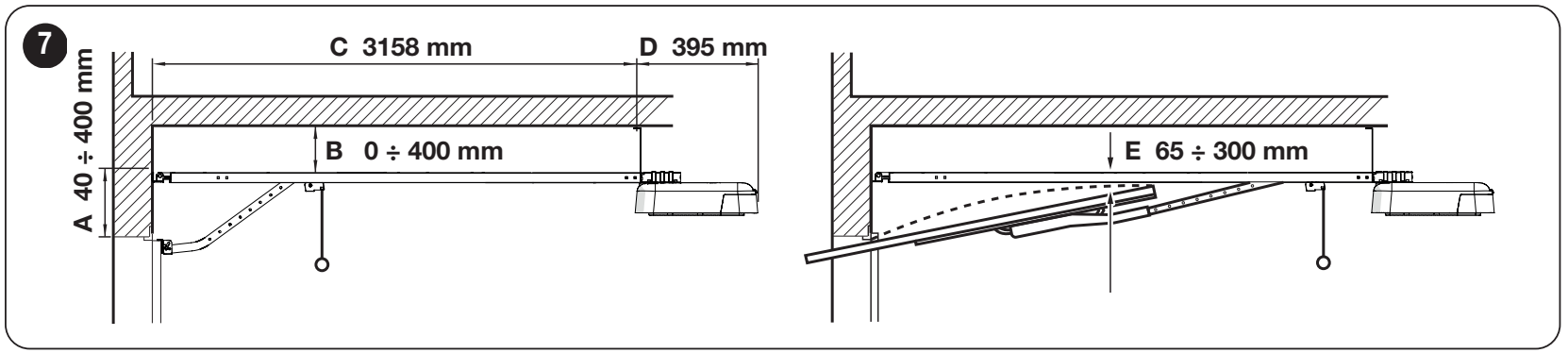
In the orientation shown:
- A = 40–400 mm
- B = 0–400 mm
- C = 3 158 mm
- D = 395 mm.
For an up-and-over gate, maintain E = 65–300 mm, i.e. the clearance between the rail and the highest point of the gate's top edge as it moves. The dimensions apply to the installation arrangement shown.
Wiring and mains power supply
Use a protected socket 230 V AC, 50/60 Hz with a protective conductor and a means of safe disconnection. Do not cut off the supplied cable or plug. If no suitable socket is available, an electrician must install the supply and protective devices. Route low-voltage conductors separately from mains wiring and protect them from tension and contact with moving parts.
| Connection | Cable / maximum length |
|---|---|
| Warning light | 2 × 0,5 mm²; maximum 20 m. |
| Antenna | Separate RG58 coaxial cable; maximum 10 m, less than 5 m recommended. |
| Push button / key switch | 2 × 0,5 mm² for a volt-free NO command; maximum 50 m. For two contacts, use two 2 × 0,5 mm² cables or one 4 × 0,5 mm² cable. |
| Photocells | BlueBUS: 2 × 0,7 mm², TX and RX connected in parallel. Relay type: RX 4 × 0,5 mm², TX 2 × 0,5 mm². Maximum 30 m. |
| Safety edge | 2 × 0,5 mm²; maximum 20 m. OSE requires three conductors according to the safety edge wiring. |
| Mains supply to the socket | 3 × 1,5 mm² up to 30 m; for longer runs, use 3 × 2,5 mm² as specified in the installation instructions, with protective earthing at the automation unit. The electrician is responsible for the design and installation. |
The stated lengths apply to the relevant wiring and environment. If using a different safety edge or control module, also follow that device’s instructions. Do not connect mains power to accessory inputs.
Control board, terminals and polarity
SPIDER800 has a built-in MCU1 control unit with BlueBUS and L1–L8 programming LEDs.
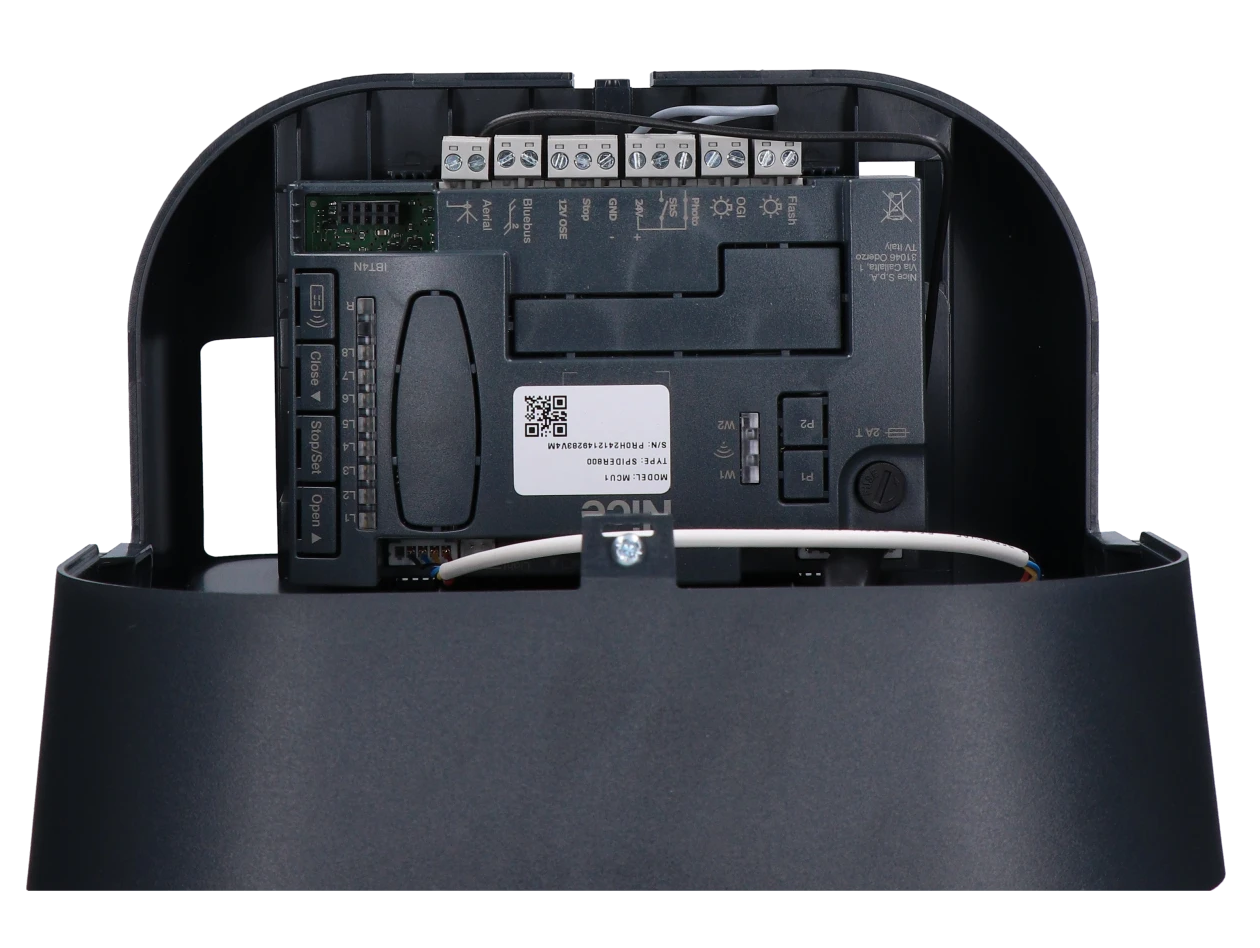
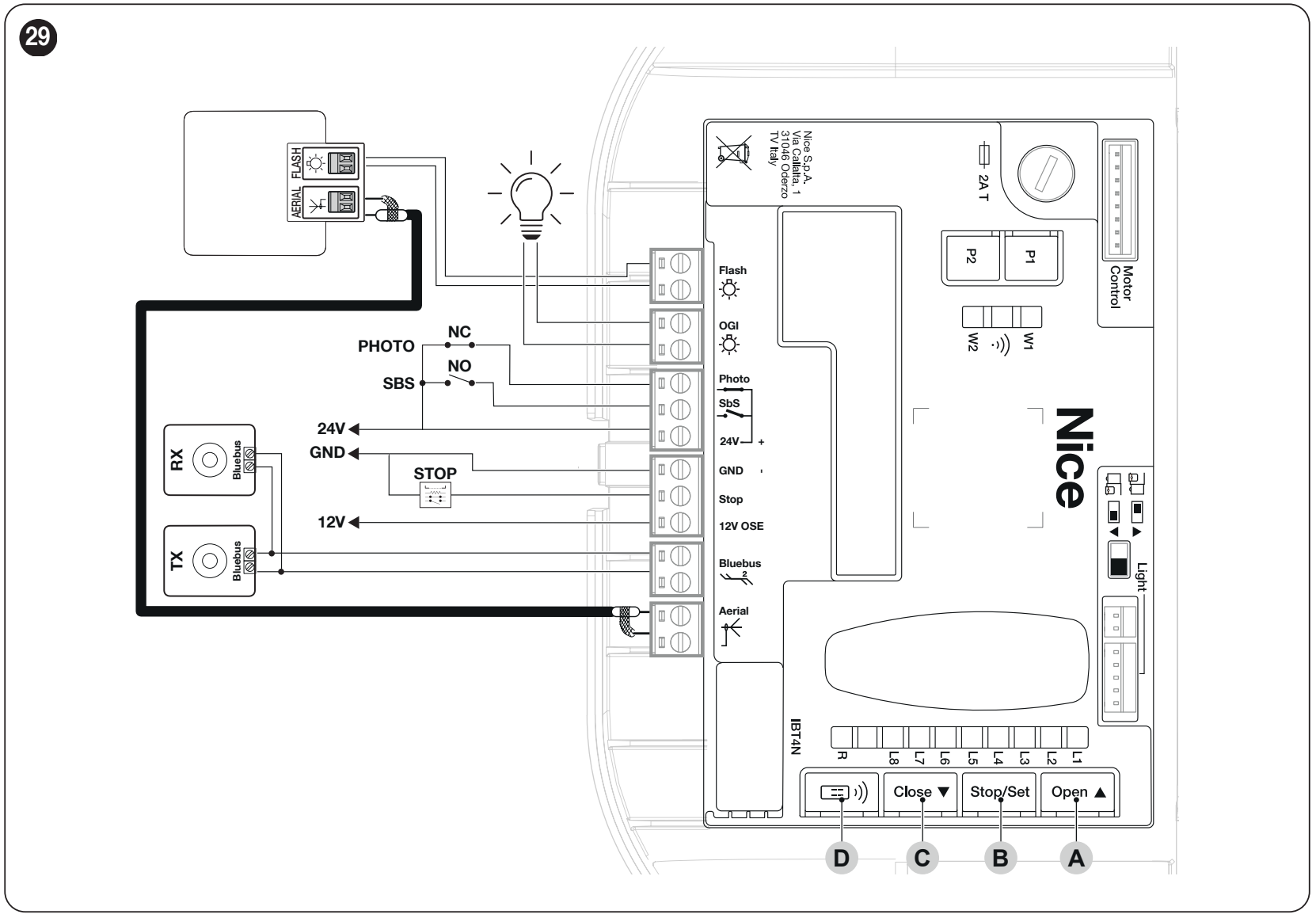
| Terminal | Function and connection |
|---|---|
| 24 V / GND | 24 V is positive (+), GND is negative (−). Auxiliary 24 V DC power supply, tolerance −30% / +50%, maximum 100 mA total. |
| BlueBUS | Two-wire power and communication for compatible devices; EPMB are connected in parallel. No polarity (+/−). |
| PHOTO | Voltage-free normally closed (NC) contact between PHOTO and 24 V (+). Power relays for photocells separately from 24 V (+) / GND (−). |
| SbS | Voltage-free normally open (NO) button between SbS and 24 V (+); a brief contact closure sends a step-by-step command. |
| STOP / GND | STOP safety input referenced to GND. NO, NC or 8.2 kΩ type is learned during setup. The contact itself is not polarity-sensitive. |
| 12 V OSE / STOP / GND | Optical safety edge: 12 V OSE = positive (+), STOP = signal, GND = negative (−). 12 V DC power supply, maximum 15 mA. Connect only a suitable OSE edge, following its instructions. |
| FLASH / OGI | Separate two-pole outputs, typically 24 V DC, maximum 10 W per output. FLASH for the warning light, OGI for the open-gate indicator. The function depends on the setting. |
| AERIAL | Coaxial antenna input: center conductor and shielding as shown in the diagram; this is not an accessory power supply. |
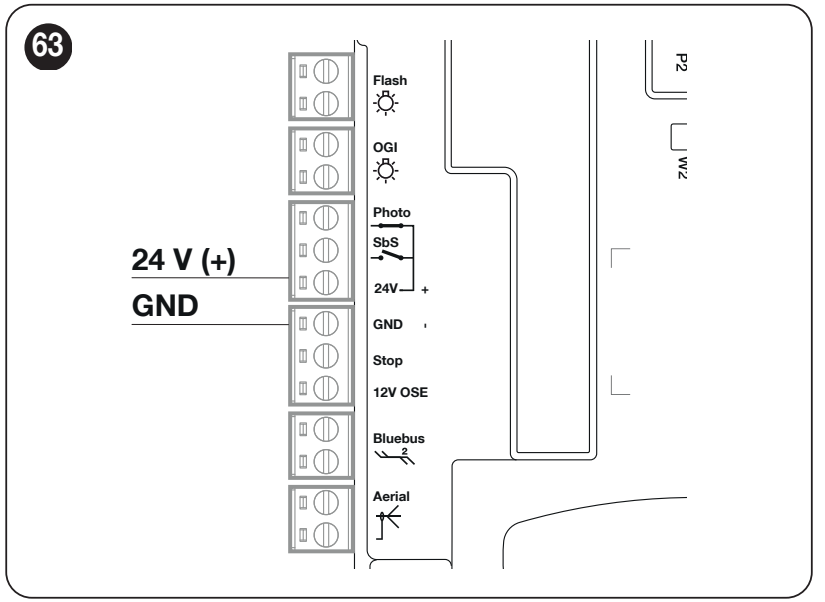
Button, key switch or relay
Connect only a voltage-free NO contact, for example a button or a control-module relay. The contact bridges SbS and 24 V (+). Do not apply the module’s output voltage to the command input. If the module requires power, use 24 V (+) and GND (−) separately, and observe the 100 mA total limit.
Safety edge and STOP input
STOP halts movement and briefly reverses it. When changing a safety device, you must learn the devices again. Connect multiple NO contacts in parallel and NC contacts in series. Wire 8.2 kΩ edges and their combinations according to the specific diagram; a standard switch does not provide the same fault monitoring as a monitored edge.
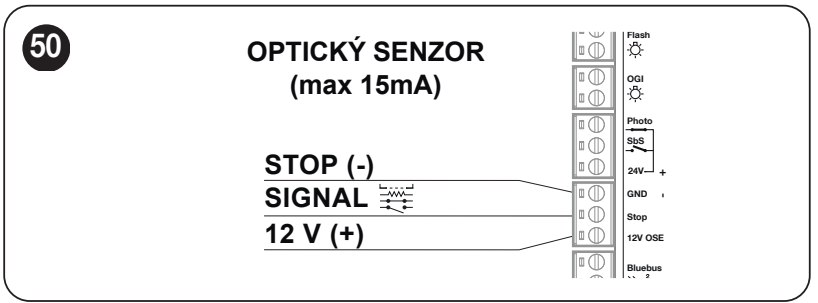
Photocell wiring
For simple two-wire wiring, choose NICE EPMB with BlueBUS. Connect both wires from TX and RX in parallel to the BlueBUS pair.. This bus is not polarity-sensitive; the 24 V (+) / GND (−) markings refer to other terminals.
- With the power disconnected, set the same jumper address on the TX and RX of each pair. Each additional pair must have a different address.
- Secure and align TX with RX, then connect BlueBUS. Choose the function and installation height according to the protected area.
- After wiring or changing addresses, perform device learning and a separate safety test.
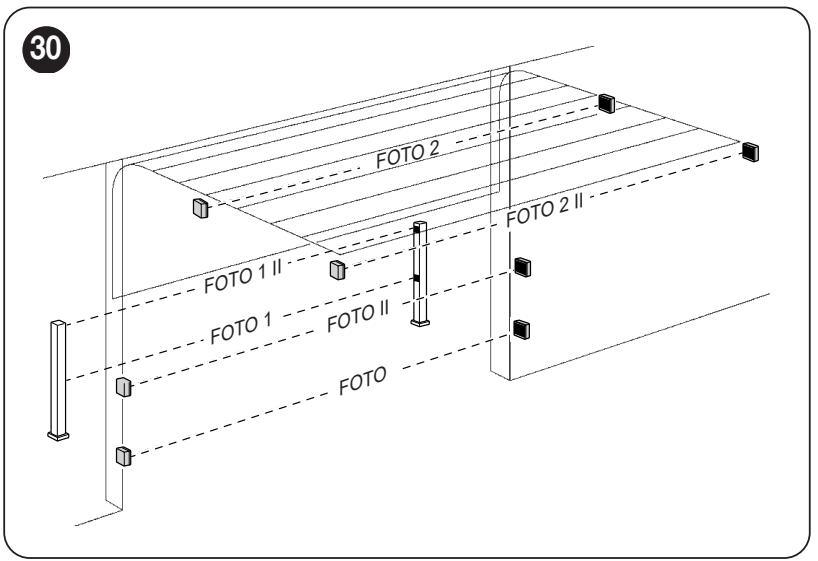
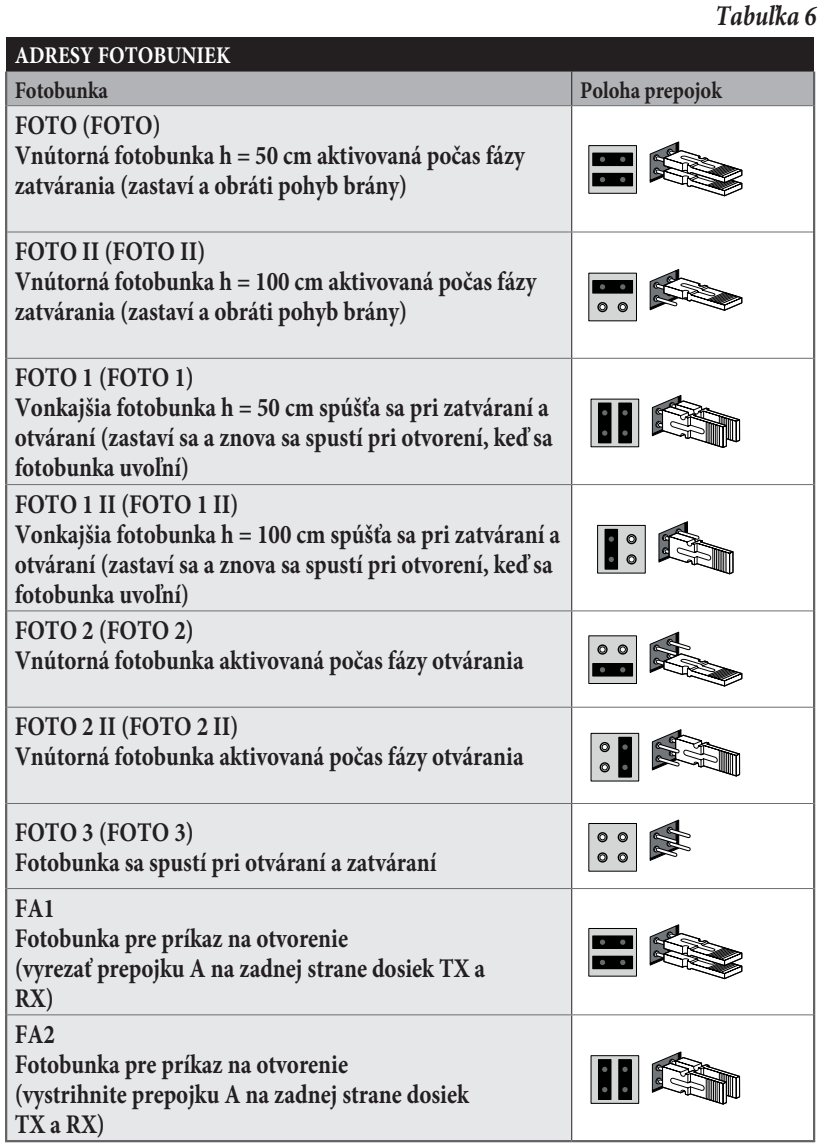
| Address | Position and response |
|---|---|
| PHOTO / PHOTO II | Internal photocell at a height of 50 / 100 cm; stops and reverses movement during closing. |
| PHOTO 1 / PHOTO 1 II | External photocell at a height of 50 / 100 cm; stops during both opening and closing, then resumes opening when cleared. |
| PHOTO 2 / PHOTO 2 II | Internal protection active during opening; position as shown in the diagram. |
| PHOTO 3 | Protection during both opening and closing; select according to the actual risk and location. |
Do not place pairs with the following addresses next to each other: PHOTO / PHOTO 2, PHOTO II / PHOTO 3, PHOTO 1 / PHOTO 2 II, to prevent interference. Photocells used as an opening command do not replace a safety pair.
Relay photocells on PHOTO
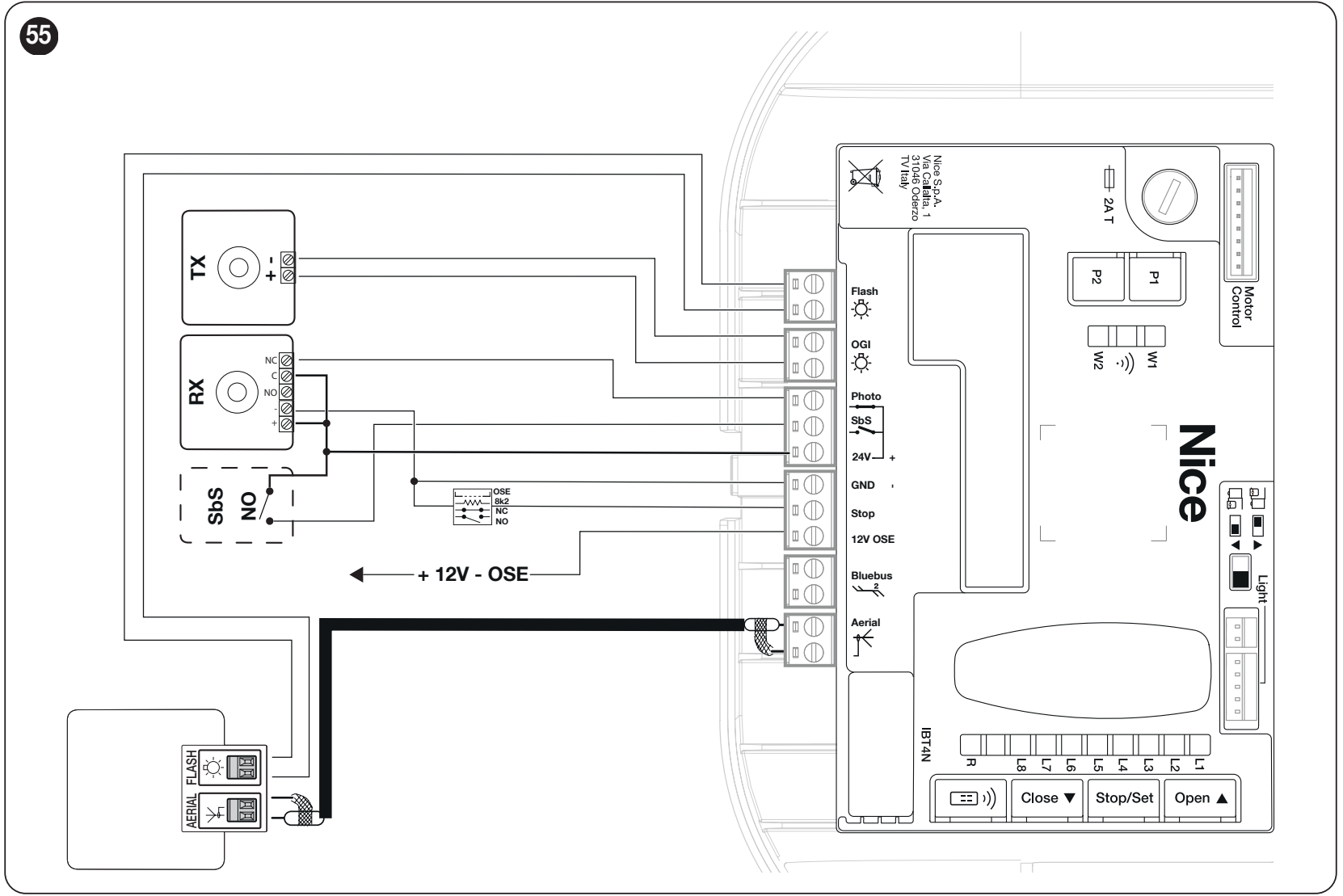
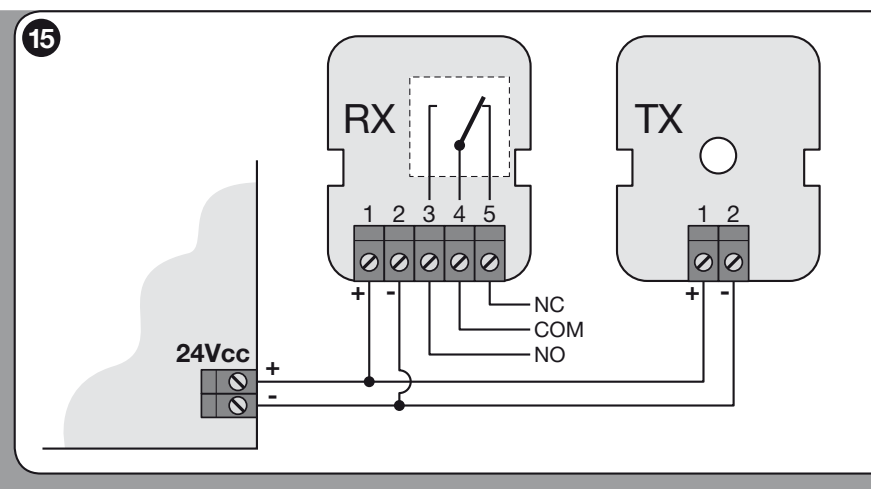
For EPM without testing: on both TX and RX, 1 = positive, 2 = negative. Power them from the terminals 24 V (+) and GND (−). On RX, use 4 – COM and 5 – NC between 24 V (+) and PHOTO. Terminal 3 is NO and is not used for the PHOTO safety input. The total auxiliary power consumption must not exceed 100 mA.
Relay photocells with PHOTOTEST
For a tested configuration, power TX from the OGI, while RX remains on 24 V (+) / GND (−). With the board oriented exactly as shown in the diagram below, the upper OGI terminal is negative (−), and the lower one is positive (+). On EPM, 1 is (+) and 2 is (−); RX terminals 4 – COM and 5 – NC go between 24 V (+) and PHOTO. OGI supplies 24 V DC, max. 10 W. Do not confuse these wires with the FLASH output.
Set level II/L5 to value LED L2 – PHOTOTEST and relearn the devices. Before movement, the control unit tests the photocells; if the test fails, the manoeuvre is blocked. This relay procedure is not used with BlueBUS EPMB.
FLASH warning light, lighting and antenna
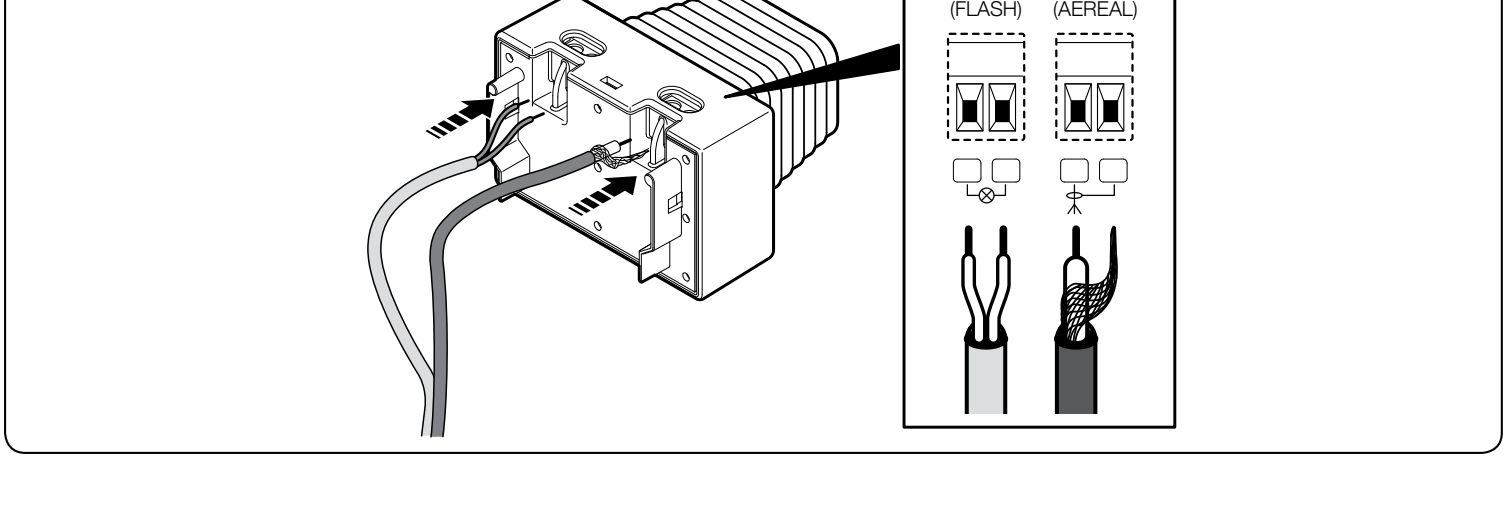
NICE ELDC connect it via its terminal block marked FLASH to the FLASH pair on MCU1; the standard output is 24 V DC, max. 10 W. The output function must be set accordingly via programming. Do not connect a 230 V mains-powered warning light to these terminals.
For the FLASH pair on the warning light, follow the markings on the connected device. The polarity is not marked in this ELDC detail; do not apply the orientation of the auxiliary 24 V / GND terminal block to it. The AERIAL input on the ELDC is a separate antenna: connect the coaxial cable to the control unit’s antenna connector as shown. Do not confuse the antenna with the warning light power supply.
The drive also has built-in garage lighting. The OGI output is also intended for external open-status indication; if you change its function, check the OGI setting and load.
Initial start-up and learning
First complete the mechanical installation and wiring, secure the carriage, and clear the entire travel area. Check the STOP circuit, photocells and correct direction of travel. Position learning, force learning and remote control pairing are separate procedures.
Before switching on for the first time, position the secured gate approximately halfway along its travel. With a new, unconfigured control unit, 4 red BlueBUS flashes are a normal indication that configuration is missing. The warning light and interior light should be off at rest; for a standard installation, the direction selector is set to the left.
1. BlueBUS and STOP learning
- Switch on the power. On first start-up, L1 and L2 flash; run the recognition procedure even if no accessories are connected.
- Press and hold OPEN + STOP/SET for approximately 3 s. Release when L1 and L2 start flashing rapidly.
- Wait for the process to finish. STOP must be lit; L1 and L2 will go out. On first installation, L3 and L4 start flashing: the positions must be stored.
If you change the direction using the rotary switch on the board, set it with the power disconnected, according to the drive configuration, then relearn the devices. The direction change takes effect only after this learning procedure; do not change direction by swapping the safety accessory wires.
2. Storing the open and closed positions
- Press and hold STOP/SET + CLOSE for approximately 3 s. L1 starts flashing.
- Use OPEN / CLOSE to set the required fully open position. Press and hold STOP/SET for 3 s; L1 lights up and the open position A1 is stored. Release.
- While L8 is flashing, move the gate using OPEN / CLOSE to the fully closed position at floor level. Press and hold STOP/SET for 3 s; L8 lights up. Release; the programming LEDs go out.
- Send an SbS or OPEN command. The drive performs a complete automatic force-learning cycle.
Each step requiring a movement command has a time limit of 60 s; if this limit is exceeded, start the position-setting procedure again. The control unit calculates intermediate positions, slowdown and partial opening automatically; these can be adjusted in more detail via the service interface.
Force learning and the first movement test
Force learning runs an automatic opening and closing cycle at increased force. Keep people and objects away from the gate during this process. The flashing interior light indicates that learning is in progress. Force learning must be repeated after changing the positions, speed or direction, or after reducing mechanical resistance.
If the process is interrupted by STOP, a photocell or a power failure, rectify the cause and resume learning with another SbS / OPEN / CLOSE command.
Pre-commissioning test
- With the carriage disengaged, check manual opening and closing over the full travel: the required force must not exceed 225 N (approximately 23 kgf, not the weight of the gate). Then re-engage the carriage.
- Repeat powered opening and closing; the gate must reach the stored positions without jamming or deforming the brackets.
- Check slowdown at the end positions, belt slackening after stopping, manual release and re-engagement.
- Interrupt each photocell at the TX, at the RX and in the middle of the beam; check that it responds correctly as a safety device. Test all STOP devices.
- A technician must measure impact forces and verify the safety of the entire gate. Do not use increased force to mask poor mechanical operation. Repeat the measurement after changing the force setting.
- Give the user instructions for operation, manual release and maintenance. Pass through only when the gate is fully open and stationary.
MCU1 programming
Use OPEN, STOP/SET, CLOSE and LEDs L1–L8 on the board. Program with the gate stationary. During normal operation, pressing any button on the board sends a STOP command. A short flash of the selected function LED indicates OFF; a longer flash indicates ON. After changing the force or sensitivity, check the gate’s safety again.
Level I – ON / OFF functions
- Press and hold STOP/SET until L1 starts flashing, then release.
- Use OPEN / CLOSE to move the flashing LED to the required function.
- Briefly press STOP/SET to change the ON / OFF setting. You can then set another function.
- To save and exit, wait 20 s without pressing a button.
| LED – function | Meaning / factory setting |
|---|---|
| L1 – Automatic closing | ON: closes after opening, following the pause set at level II/L1. OFF: waits for a command. Factory setting: OFF. |
| L2 – Close after photocell | ON: uses a 5 s pause after the photocell beam is cleared. With automatic closing enabled, it may complete the opening movement after the beam is cleared; without automatic closing, it completes opening and closes after 5 s. STOP cancels this subsequent response. Factory setting: OFF. |
| L3 – Always close | ON: after power is restored, if the gate is detected as open, it flashes for 5 s and closes. Factory setting: OFF. |
| L4 – Standby | ON: after 1 minute of inactivity, it switches off some of the electronics; BlueBUS flashes slowly. Take the power requirements of connected devices into account. Factory setting: OFF. |
| L5 – Protection against unauthorised opening | ON: if forced opening is detected, it closes the gate. App notifications require a compatible interface and configuration. Factory setting: OFF. |
| L6 – Pre-flashing | ON: the warning light flashes for 3 s before movement begins. Factory setting: OFF. |
| L7 – Disable internal radio | ON: the internal receiver is disabled, for example when using an external OXI/OXIBD. OFF: the built-in radio is active. Factory setting: OFF. |
| L8 – Light / heavy gate | ON: preset for a light gate. OFF: preset for a heavy gate. Changes the group of force, sensitivity and speed values; force learning must then be performed. Factory setting: OFF. |
Level II – adjustable values
- Hold STOP/SET until L1 starts flashing; release the button.
- Use OPEN / CLOSE to select the parameter's input LED..
- Hold STOP/SET. After approximately 3 s the LED for its current value lights up. Keep holding STOP/SET and use OPEN / CLOSE to select another value LED.
- Release STOP/SET. Set another parameter or wait 20 s without pressing any buttons to save and exit.
The factory-set value LED is shown in bold. The light/heavy gate preset or settings via the service interface may change some values; the current indications on the control board take precedence.
| Input LED – name and description | Setting LED – value |
|---|---|
| L1 – Pause Automatic closing time; applies when I/L1 is ON. | L1 – 5 s L2 – 15 s L3 – 30 s L4 – 45 s L5 – 60 s L6 – 80 s L7 – 120 s L8 – 180 s |
| L2 – Step-by-step command Sequence for the step-by-step input and the first radio command. Modes L4, L5, L7 and L8 also change the OPEN / CLOSE commands. | L1 – open – stop – close – stop L2 – open – stop – close – open L3 – open – close – open – close L4 – shared input L5 – shared input 2; holding for more than 2 s = STOP L6 – step-by-step 2; holding for more than 2 s = partial opening L7 – movement only while the command is held L8 – semi-automatic opening, closing while the command is held |
| L3 – Speed Percentage of maximum speed. Force learning is repeated after a change. | L1 – 30% L2 – 44% L3 – 58% L4 – 72% L5 – 86% L6 – 100% L7 – opening V4 (72%), closing V2 (44%) L8 – opening V6 (100%), closing V4 (72%) |
| L4 – FLASH (OUT1) The output function must be suitable for the load. 24 V DC output, max. 10 W. The lock, latch and magnet must be electromagnetic types without their own electronics. | L1 – gate-open indicator L2 – active only when the gate is fully closed L3 – active only when the gate is fully open L4 – warning light during movement L5 – electric latch: active during opening; mechanically secured during closing L6 – electric lock: activated at the start of opening for the set time L7 – magnetic lock: active when fully closed; released before opening L8 – maintenance notification |
| L5 – OGI (OUT2) Second 24 V DC output, max. 10 W; for the photo test, TX must be wired correctly and learning performed again. | L1 – OGI open-gate indicator L2 – PHOTOTEST: power to TX and check before movement L3 – gate status: active during movement, off when stopped L4 – garage lighting: follows the internal light L5 – radio channel 1 L6 – radio channel 2 L7 – radio channel 3 L8 – radio channel 4 |
| L6 – Motor force Adjustment values in %: opening / closing. This is not the force measured on impact. | L1 – 60 / 30% L2 – 60 / 40% L3 – 70 / 40% L4 – 70 / 50% L5 – 80 / 50% L6 – 80 / 60% L7 – 90 / 70% L8 – 90 / 80% |
| L7 – Obstacle sensitivity Sensitivity levels for opening / closing; these are not newtons. | L1 – off L2 – 10 / 20 L3 – 20 / 30 L4 – 30 / 40 L5 – 40 / 50 L6 – 50 / 60 L7 – 60 / 70 L8 – 70 / 80 |
| L8 – Mechanical relief A brief reverse movement releases tension once the gate reaches the closed position. Force learning must be performed after a change. | L1 – no relief L2 – minimum L3 – intermediate level 3 L4 – intermediate level 4 L5 – intermediate level 5 L6 – intermediate level 6 L7 – intermediate level 7 L8 – maximum |
If you assign a radio channel to the OGI output, it remains active while the corresponding radio command is being sent. The same channel will then not execute the original motor command. This output function is not available for BD two-way transmitters.
If L1 and L8 flash simultaneously during setup, the current value is outside the range offered on the board, for example after being set via the service interface. Check this setting or use the OPEN / CLOSE buttons to select a suitable value from the available options.
Remote controls and pairing
The receiver is built in. MYGO4 from the set must be stored in memory. The MCU1 supports O-Code and BD and, in Mode 1, can store 100 remote controls; when adding another remote, check the coding, not just the 433.92 MHz frequency.
Mode 1 – all buttons
- Hold RADIO until the green R LED lights up, then release it.
- Within 10 s hold any button on a one-way remote control. Release it at the first of the three green flashes of R.
- For a two-way remote control, press and immediately release the button; three green flashes of R and a brief vibration from a compatible remote confirm that it has been stored.
| Button in Mode 1 | Command |
|---|---|
| 1 | Step-by-step (SbS) command |
| 2 | Partial opening |
| 3 | Open |
| 4 | Close |
Mode 2 – one button
Press and release RADIO n times, according to the command number. LED R will repeat the number of flashes. Within 10 s, store the selected remote control button as described above; repeat the procedure for each additional button.
| Number of times RADIO is pressed | Command |
|---|---|
| 1 | SbS |
| 2 | Partial opening 1 |
| 3 | Open |
| 4 | Close |
| 5 | STOP |
| 6 | SbS for shared entrance |
| 7 | High-priority SbS |
| 8 | Partial opening 2 |
| 9 | Partial opening 3 |
| 10 | Open and disable automation |
| 11 | Close and disable automation |
| 12 | Disable automation |
| 13 | Enable automation |
| 14 | Lighting – timer |
| 15 | Lighting – on/off |
With the MCU1, the high-priority button can also operate automation that has been disabled. For normal operation, use SbS; select the disable commands only when you need this function.
Adding a remote control using an existing one
Carry out the procedure within range of the drive and only when learning is enabled. Applies to one-way remote controls.
- On the new remote control, hold the desired button for 7 s and release it.
- On the original remote control, slowly press and release the stored button three times.
- On the new remote control, press and release once the same button as in the first step.
Erasing the radio memory
Erases all stored remote controls. Keep holding RADIO even after LED R lights up and then goes out. When it flashes again, release it exactly on the fifth flash. Five rapid flashes confirm success. Erasing the radio memory is a separate operation from resetting the control unit.
For two-way remote controls, follow their instructions to also remove the stored pairing on the transmitter.
Erasing one remote control or button
- Hold RADIO on the board until the green R lights up and then goes out. Release RADIO at that point; do not wait for the fifth flash as you would when erasing the entire memory.
- On a one-way remote control, hold the stored button. Release it at the first of the five rapid green flashes of R.
- On a two-way remote control, press and immediately release the button instead of holding it. Five rapid green flashes of R confirm that it has been erased.
In Mode 1 you can use any button, and the entire remote control will be erased. In Mode 2 repeat the procedure for each stored button you want to remove.
Disabling remote learning
- Disconnect the mains and backup power, then wait 10 s. Hold RADIO and restore the power supply.
- After the stored remote controls are indicated, release RADIO exactly after the second short orange flash of R.
- Within 5 s, use short presses of RADIO to select the setting: R off = no lock; red = learning disabled at the receiver; green = learning disabled via an authorisation code; orange = both disabled.
- Within 5 s, press a stored button on an already paired transmitter to save the selected setting.
Resetting the control unit
Resetting will clear the control unit's custom settings. Hold OPEN + CLOSE for approximately 3 s, until L1–L8 light up; then release. Rapid flashing for 3 s confirms success. After resetting, repeat the device learning, position and test the gate. This procedure does not erase the radio codes in the built-in or external receiver.
Troubleshooting
FLASH indicates errors by the number of short flashes. The sequence repeats after a 1 s pause; count one sequence.
| Indicator | Cause and next step |
|---|---|
| 1 flash | Closing / position No floor was detected while closing. Relearn the closed position. |
| 2 flashes | Photo cells Remove the obstruction, check alignment and photo cell wiring. Obstacle detection is expected. |
| 3 flashes | Force limit Check manual movement, springs, obstructions and friction. Do not automatically increase the force; check the mechanism and safety. |
| 4 flashes | STOP Check the STOP safety device and check whether the control unit is blocked. |
| 5 flashes | Parameter memory Wait at least 30 s and try issuing a command. If the fault persists, book a service call. |
| 6 flashes | Operation limit Wait a few minutes for it to cool down. Check the operating load and gate resistance. |
| 7 flashes | Internal electrical circuit Disconnect all power supplies for a few seconds. If the fault persists, have a service technician check the control board and motor wiring. |
| 8 flashes | Continuous command Remove the continuously active command, such as a pressed button or activated relay; check SbS. |
| 9 flashes | Automation stopped A command was issued to stop the automation. If the automation was blocked by the corresponding radio command, restore it using the command Unblock automation (command 13). |
| LED / indication | Meaning and check |
|---|---|
| BlueBUS – 2 green flashes/s | Normal operation. Two quick green flashes indicate an input change. |
| BlueBUS – rapid and longer red flash sequences | Bus short circuit: check the cables with the power disconnected. Once the issue is resolved, normal indication resumes after approximately 10 s. |
| STOP off | STOP active; check the safety wiring. |
| PHOTO off | PHOTO relay input activated. |
| SbS on | Command present; if the button is not pressed, check the cables and relay. |
| L1 + L2 flashing | Device learning. |
| L3 + L4 flashing | Position learning. |
| Red light during movement | The set maintenance interval has been exceeded; carry out an inspection. |
| L1 to L8 illuminate in sequence | Firmware update: wait and do not disconnect the power supply. |
L1–L8 during movement: Increasing numbers of illuminated or flashing LEDs indicate the motor's instantaneous load, from low at L1 to high at L8. This indication alone does not indicate a fault, and is not an LED value for the motor force. If the load is unusually high, check for obstructions and inspect the gate mechanism.
Do not use the automation normally if a safety device is faulty. Safely release the gate and arrange a repair. Replace the fuse only with one of the same type and rating; do not repair it by bridging it.
PS124 backup battery
PS124 fits into the dedicated compartment in the drive unit and connects to the specified connector, as shown in the installation PDF. Connect it only after completing the mechanical installation, wiring and programming. The battery remains energised even when the mains supply is disconnected: before working, disconnect both the mains supply and the PS124. The number of operations possible during a power failure depends on the battery condition, temperature and gate resistance.
Releasing the drive and manual operation
Release the drive only when the gate is stationary. If a spring is faulty or the gate is unbalanced, the released gate may drop uncontrollably; secure it and call a technician. If the garage can only be accessed through this gate, arrange in advance for an external release suitable for the specific gate.
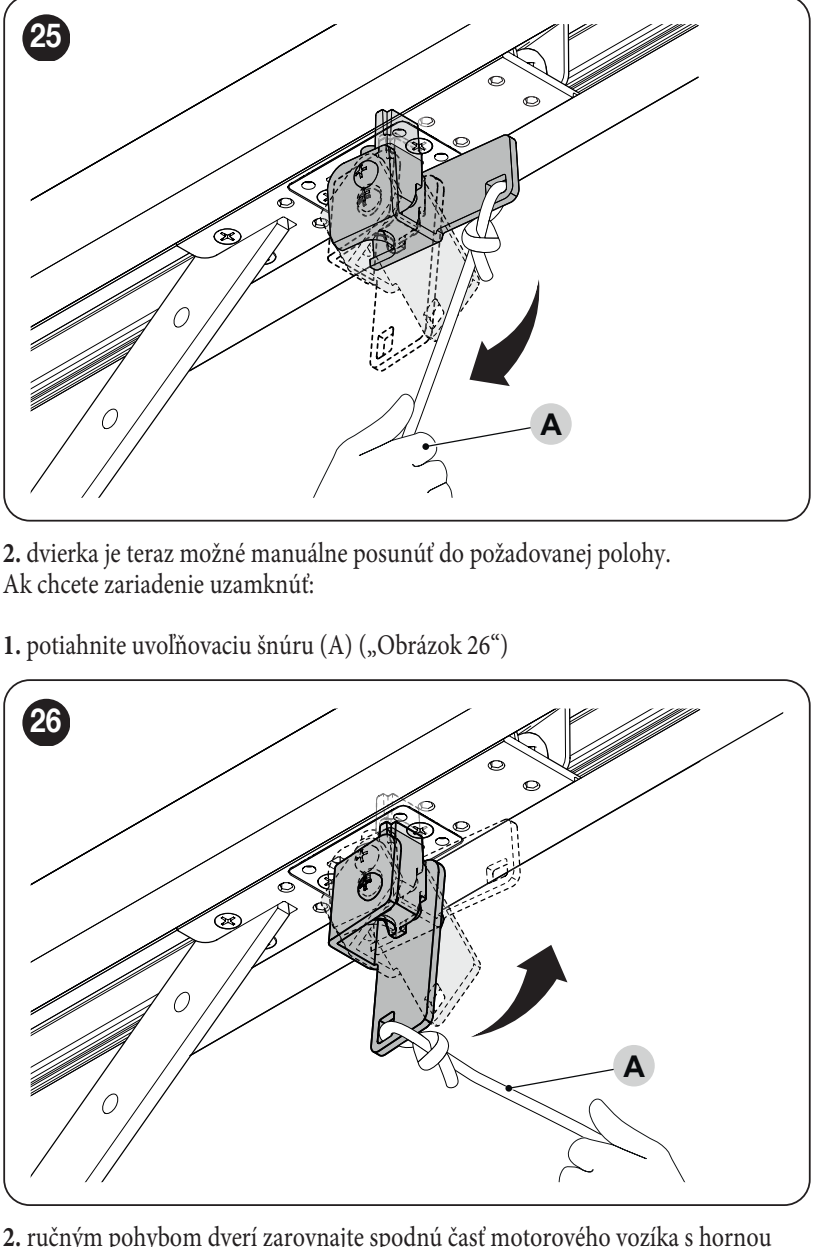
- Pull release cord A. The carriage disengages, allowing you to move the gate safely by hand.
- To re-engage the carriage, pull cord A again as shown in the second illustration.
- Move the gate by hand until the lower and upper parts of the carriage align and engage. Check that the carriage is engaged before issuing an electrical command.
Maintenance and safe operation
Schedule an inspection at least every 6 months or after 3,000 operations, whichever comes first. Disconnect all power sources before carrying out maintenance. Check the rail, belt, carriage, brackets, corrosion, springs and gate balance; replace worn parts. After the inspection, repeat the safety device and force tests.
Keep remote controls out of children's reach. Do not enter the gate area while it is moving. If you notice unusual noise, jerky movement or a change in balance, stop operation and contact a service technician. Dispose of electronic equipment and batteries at an appropriate collection point, not in general waste.
SPIDER800 technical specifications
| Parameter | Value |
|---|---|
| Application | Electromechanical garage door operator for residential use. |
| Control unit | Built-in MCU1, BlueBUS and L1–L8 LEDs. |
| Mains power supply | 230 V AC ±10%, 50/60 Hz; protective earth. |
| Maximum / rated force | 800 / 400 N. |
| Rated / maximum power consumption | 180 / 280 W. |
| Maximum speed | 0.20 m/s; actual operation depends on the settings and load. |
| Cycles/day | 50; also observe the other operating limits. |
| Continuous operation | Maximum 4 minutes. |
| Ingress protection / temperature | IP40; −20 to +55 °C. |
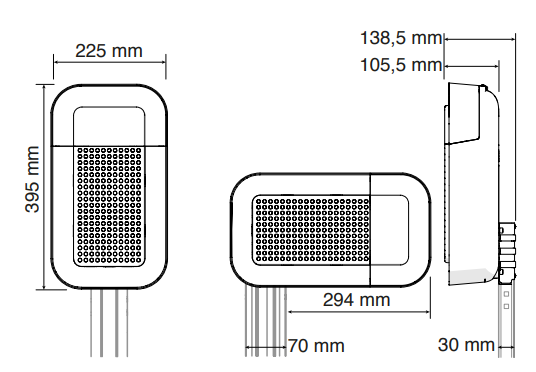
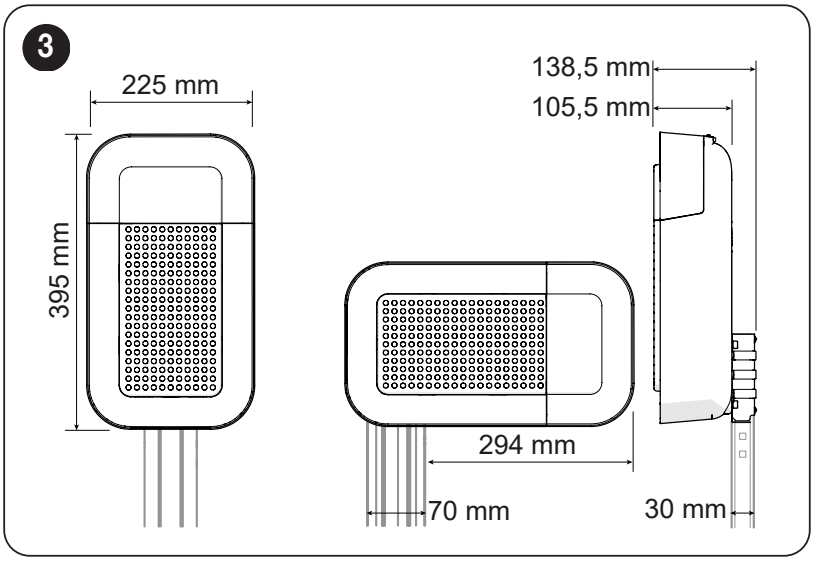
| Head dimensions | 225 × 395 × 105 mm; see the drawing for mounting details. |
| Motor weight | 4.9 kg; not the weight of the complete kit. |
| Auxiliary accessories | 24 V DC, tolerance −30% / +50%, total max. 100 mA; polarity and terminals. |
| Backup | PS124 – optional. |
| Lighting | Built-in LED. |
How can I order this item?
Choose the option that suits you:
- order online: use the buy button to add the goods to your shopping cart (you will find the buy button here in the product variants table).
- order by email: place your order at [email protected]