NICE MyMoonBus MOMB – contactless card reader with BlueBUS technology
| Product availability: | Unavailable | We’ll be happy to help you choose a replacement. Feel free to contact us. |
|---|
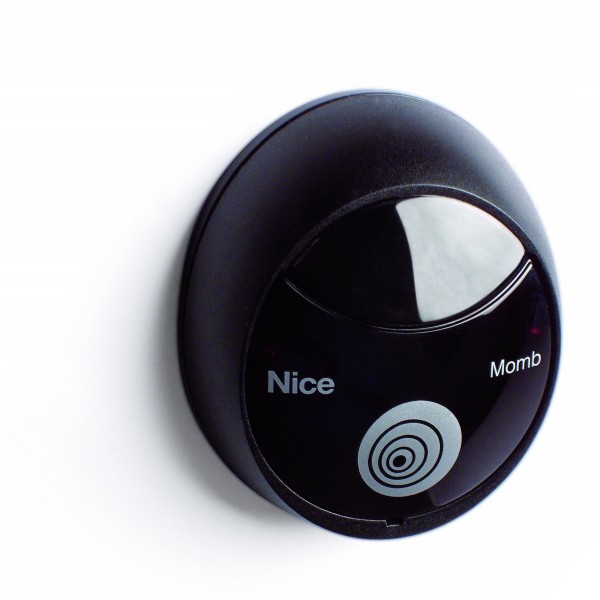
Description of NICE MyMoonBus MOMB – contactless card reader with BlueBUS technology
NICE ERA Transponder Reader ETPB with a new design, it replaces the NICE MyMoonBus MOMB contactless reader.
Card reader NICE MyMoonBus MOMB is a device that allows authorized persons to enter a building or control the gate drive or other automation. This person is assigned a card (or key fob), which sends a command to the drive when presented to the card reader. The cards are stored in the reader's memory. The card itself stores no information, so it can be used to operate any number of automated systems. The NICE MOMB reader communicates with the drive using the BlueBUSsystem. The reader connects to the control unit using a two-core cable, with no need to observe polarity. Up to four card readers can be connected to a single drive, with a unique address set for each using a jumper, allowing the drive to distinguish between the readers.
The reader can store up to 255 cards, or key fobs.
The reader supports two programming modes: simple for quick, straightforward use, and professional for advanced access control.
When installed correctly, the detection range is 4–8 centimetres.
You can program a specific number of access attempts for a given card, for example, for visitors.
It is possible to program the function to permanently lock the drive and then unlock it again.
Contents
Installing and wiring the reader
Programming the NICE MyMoonBus MOMB reader
Programming in simple mode
Programming in professional mode
- Creating MASTER cards
- Programming cards
- Deleting a card
- Checking the number of cards
- Programming a card for a limited number of uses
- Setting permanent memory lock or unlock
- Erasing the entire memory using a MASTER card
Other functions of the NICE MyMoonBus MOMB reader
Adding a new standard card using a card already stored
Erasing the entire memory
Changing the type of the first and second commands
Troubleshooting by problem type
Troubleshooting using the flashing signals
Technical specifications of the reader
Installing and wiring the NICE MyMoonBus MOMB reader
Before installing the reader, ensure the surface is suitable and the wiring has been routed to the installation location. The wiring should be disconnected from the drive and must not be live. A two-core cable is generally used: 2x0.5mm2, but we recommend checking the manual for the specific drive control unit, if necessary.
Install the reader as follows:
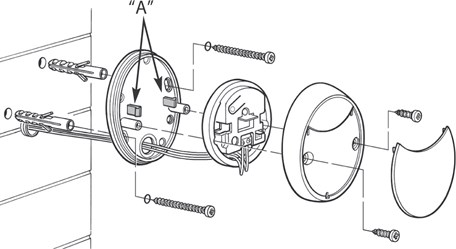
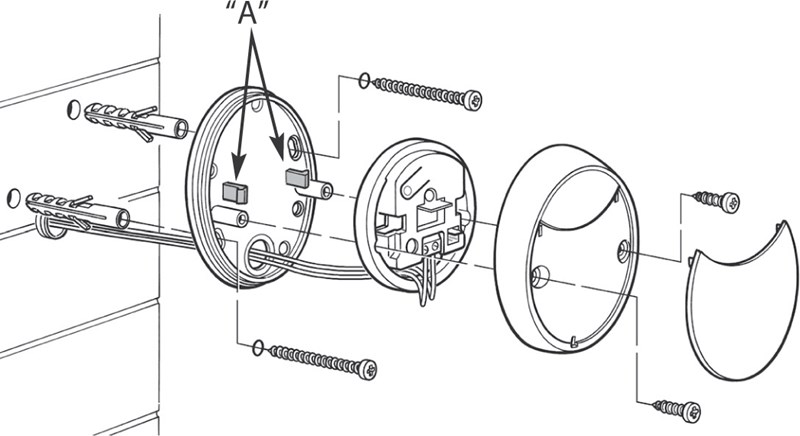
- Remove the cap, loosen the two screws, and take off the reader cover. The installation setup looks as follows:
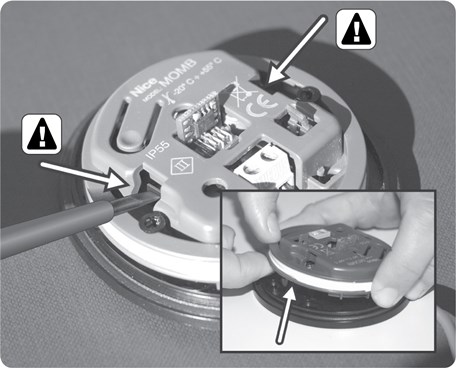
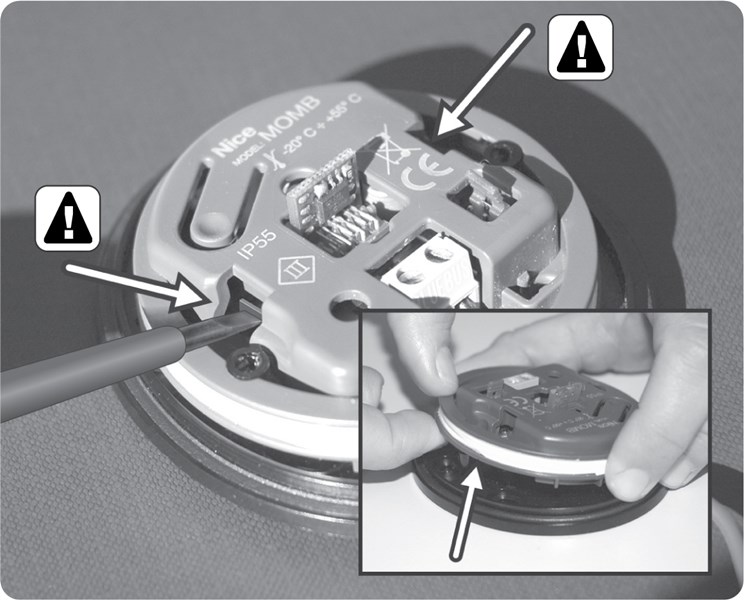
- With the reader cover removed, use a screwdriver to press one clip and then the other, and remove the reader's electronic unit. Be careful not to damage the circuit board with the screwdriver; see the image:
- Make the required holes (usually two are enough) in the lower plastic part for the screws that will secure the reader to the mounting surface.
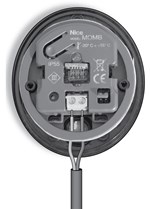
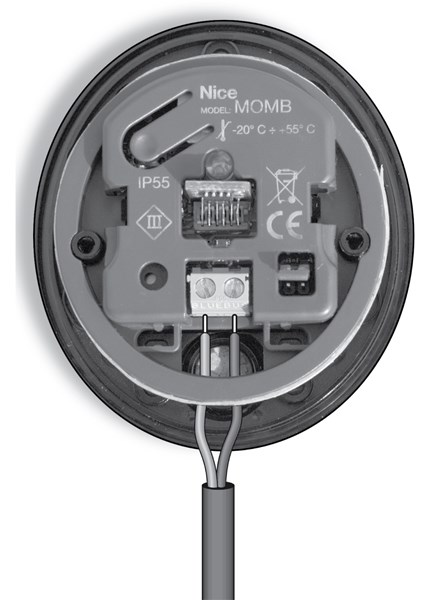
- Feed the wiring through the hole in the lower part and connect it to the BlueBUS terminal as shown:
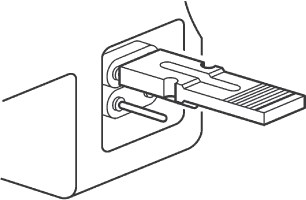
- If you are connecting multiple readers to the drive, set a unique address for each using the jumper. If you are connecting just one reader, you can skip this step. Use a different jumper setting for each reader:
First MOMB Second MOMB 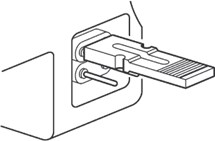
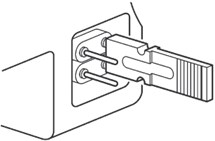
Third MOMB Fourth MOMB 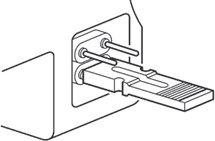
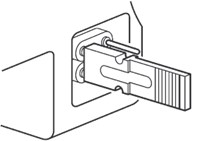
- You can switch on the power. If the reader starts flashing, everything is working correctly (the reader will flash a sequence indicating the type of memory installed; see memory type). Secure the reader to the mounting surface with screws, snap the electronic unit into place, attach the cover with the two screws, and then snap the cap into place.
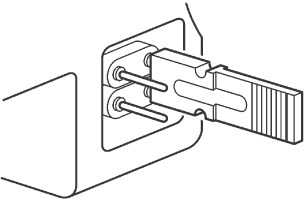
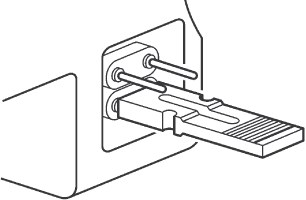
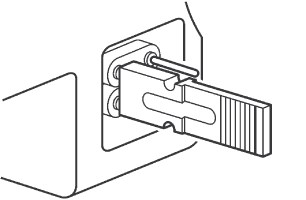
All that remains is to program the reader.
Programming the NICE MyMoonBus MOMB reader
The reader can be programmed in two ways:
- simple for quick, straightforward use
- and professional for advanced access control.
Choose the programming mode while the reader's memory is still empty. Otherwise, to change the programming mode, you will first need to erase the entire memory.
Command types
The reader can send two commands to the drive. You can assign a card the first command, the second command, or both commands. The operating principle is as follows:
| Static I. | First command only – present the card and the reader will send the first command |
|---|---|
| Static II | Second command only – present the card and the reader will send the second command |
| Dynamic |
Both commands
|
Note: You can therefore have cards that send only the first command, cards that send only the second command, and, of course, cards that send both commands.
The commands available vary for each drive model, but are generally as follows:
| Command number | Command description |
|---|---|
| 1. | Step-by-step operation (preset as Static command I) |
| 2. | Open |
| 3. | Close |
| 4. | Partial opening (preset as Static command II) |
| 5. | STOP (Stop the gate) |
| 6. | Lighting |
The preset command for Static command I and Static command II and Dynamic command can be changed by programming a command change.
Programming in simple mode
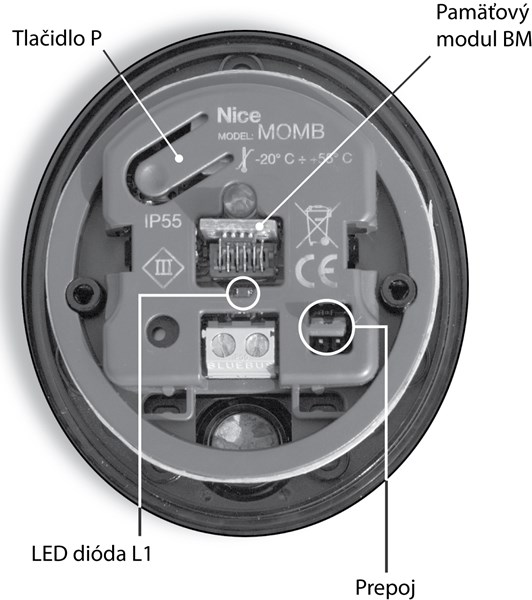
- Press the P button to enter initial programming mode.
- The reader will start beeping at regular intervals.
- Within 30 seconds save the first card to memory.
- You can choose from three options (see Command types):
- Static I – present the card to the reader one time
- Static II – present the card to the reader two times
- Dynamic – present the card to the reader three times
Within 10 seconds you can save another card each time, following step 4., if 10 seconds pass without you presenting a card, initial programming ends and you must add any further cards using secondary programming – the procedure for adding a new card using an already paired card.
In simple mode, you can:
- Add more cards using an already paired card
- Erase the entire memory
- Change the type of the first and second commands
Programming in professional mode
In professional mode, functions are operated and programmed using one or two so-called MASTER cards, which are designated at the start of programming. They can also be used to lock and unlock the drive so that other cards will not work. For example, you can open the gate in the morning and then use a MASTER card to lock it so that nobody can close it. In the evening, you can unlock the gate, close it, and lock it again overnight so that nobody can open it. In the evening, you can unlock the gate, close it, and lock it again overnight so that nobody can open it. MASTER cards can, of course, also be used as regular cards with other MOMB readers.
The reader can store two MASTER cards:
- MAJSTER1 – controls all cards assigned Static command I.
- MAJSTER2 – controls all cards assigned Static command II.
This creates two groups of cards. A card can belong to only one group and therefore can issue only one command. If this arrangement does not suit you, you can program one card as both MASTER1 and MASTER2. In that case, you will have just one group of cards to which you can assign commands either Static I, Static II, or Dynamic.
Creating MASTER cards
Creating two MASTER cards (one MASTER1 and one MASTER2)
This procedure creates two MASTER cards, each of which controls its own group of regular cards. This effectively creates two groups of cards: one group uses only Static command I, and the other uses only Static command II.
Creating the first MASTER1 card
- You can perform this procedure only if the reader's memory is empty
- Hold the desired MASTER1 card in front of the reader for at least 5 seconds.
- After 5 seconds, the reader will emit three tones, followed by one more.
- Then remove the card. The MASTER1 card is now ready.
Creating the second MASTER2 card
- You can perform this procedure only if a MASTER1 card has already been saved.
- Hold the desired MASTER2 card in front of the reader for at least 5 seconds.
- After 5 seconds, the reader will emit three tones, followed by one more.
- Then remove the card. The MASTER2 card is now ready.
Creating one unique MASTER card (which acts as both MASTER1 and MASTER2)
This procedure creates a unique MASTER card that controls all regular cards to which you can assign commands either Static I, Static II, or Dynamic.
The procedure is the same as for creating two MASTER cards, MASTER1 and MASTER2, except that you use the same card in both steps.
Programming cards
Programming in two-MASTER-card mode (Static command I and Static command II)
Programming Static command I with a MASTER1 card
This procedure saves regular cards to memory so that they issue Static command I. You can repeat the programming procedure at any time:
- Present the MASTER1 card once.
- Present a regular card once.
- To save another regular card, continue from step 2. You always have 10 seconds to save the next card.
Programming Static command II with a MASTER2 card
The procedure is the same as for programming Static command I, except that you use a MASTER2 card.
Programming in single unique MASTER-card mode (Static command I, Static command II, and Dynamic command)
Programming Static command I with a unique MASTER card
This procedure saves regular cards to memory so that they issue Static command I. You can repeat the programming procedure at any time:
- Present the unique MASTER card once.
- Present a regular card once.
- To save another regular card, continue from step 2. You always have 10 seconds to save the next card.
Programming Static command II with a unique MASTER card
This procedure saves regular cards to memory so that they issue Static command II. You can repeat the programming procedure at any time:
- Present the unique MASTER card once
- Present the regular card twice
- To save another regular card, continue from step 2. You have 10 seconds to save each additional card.
Programming a Dynamic Command with a unique MASTER card
This procedure saves regular cards to memory; these cards will issue the Dynamic Command. You can repeat the programming procedure at any time:
- Present the unique MASTER card once
- Present the regular card three times
- To save another regular card, continue from step 2. You have 10 seconds to save each additional card.
Deleting a card
Proceed as follows:
- Present twice MASTER card (if you have two MASTER cards, MASTER1 and MASTER2, present the one belonging to the group that contains the card you want to delete)
- Present the regular card you want to delete once
- To delete another card, repeat step 2. You have 10 seconds to delete each additional card.
Deletion mode ends when:
- 10 seconds have passed since the last card was deleted
- You present a card that is not saved in memory
- You present a MASTER card
Checking the number of cards
The maximum number of cards is 999. To count the cards in a given command group, present the MASTER card three times. The reader counts the cards using audible signals: it first beeps the number of hundreds, then tens, and then ones. If a tone beeps 10 times, it indicates zero in that group:
| 3 beeps | 100 cards |
|---|---|
| 2 beeps | 10 cards |
| 1 beep | 1 card |
| 10 tones | 0 cards |
Example I: You have 54 cards saved. The reader beeps the 3-beep tone 10 times, indicating 0 hundreds. It then beeps the 2-beep tone 5 times, i.e. 50. It then beeps the 1-beep tone 4 times. Add them up: 0 + 50 + 4 = 54.
Example II: You have 7 cards saved. The reader beeps the 3-beep tone 10 times, indicating 0 hundreds. It then beeps the 2-beep tone 10 times, i.e. 0 tens. It then beeps the 1-beep tone 7 times. Add them up: 0 + 0 + 7 = 7.
Note: When you present the MASTER1 or MASTER2 card, the reader counts only the cards belonging to that group. When you present the unique MASTER card, the reader counts all cards (the unique MASTER card belongs to only one group).
Programming a card for a limited number of uses
All cards are set to unlimited use by default. If you need to limit the number of uses for a regular card so that it becomes inactive once that limit is reached, follow these instructions:
- Divide the required number of uses into hundreds, tens, and ones. You will enter these values in sequence by presenting the card repeatedly. For example, suppose you want to set the card for 345 uses.
- Present the MASTER card four times
- Wait 2 seconds. The reader will beep three times, indicating that it is ready for you to enter the number of hundreds of uses.
- Present the card as many times as the number of hundreds of uses you want to set. Present the card three times (3 × 100 = 300).
- Wait 2 seconds. The reader will beep twice, indicating that it is ready for you to enter the number of tens of uses.
- Present the card as many times as the number of tens of uses you want to set. Present the card four times (4 × 10 = 40).
- Wait 2 seconds. The reader will beep once, indicating that it is ready for you to enter the number of ones of uses.
- Present the card as many times as the number of individual uses you want to set. Present the card five times (5 × 1 = 5).
- Done. You have entered the number of uses in sequence: 300 + 40 + 5 = 345.
Note: The maximum number of uses is 999. A higher value means unlimited use. To restore unlimited use to a card with limited use, present the card at least 10 times in step 3 (i.e. 10 × 100 = 1000 > 999). If you do not want to enter a value, wait for the next beep.
Setting permanent lockout and unlocking of the automation system
To lock the automation system (drive):
- Present the MASTER card seven times
- Present the MASTER card once more and hold it in front of the reader
- Wait for 1 beep, then move the card away
- If successful, the reader will beep three times and the drive will be locked.
To unlock the automation system (drive):
- Present the MASTER card seven times
- Present the MASTER card once more and hold it in front of the reader
- Wait for 2 beeps, then move the card away
- If successful, the reader will beep three times and the drive will be unlocked.
Erasing the entire memory using the MASTER card
WARNING: This function erases the reader's entire memory, including all regular and MASTER cards. It also removes the reader from the drive control unit's memory, so you must run the connected-device recognition phase on the control unit (usually by pressing and holding the first two buttons).
- Present the MASTER card in front of the reader five times
- Wait for 3 beeps
- Immediately after the third beep, present the MASTER card again and hold it in front of the reader
- Wait for 5 beeps, then move the card away after the fifth beep
- The reader will beep three times and then flash five times
Additional features of the NICE MyMoonBus MOMB reader
When the MOMB reader is connected to the power supply (or when the drive it is connected to is powered up), the reader starts up and flashes according to the following table to indicate the type of memory installed:
| Number of flashes | Memory type or explanation |
|---|---|
| 1 | BM60 |
| 2 | BM250 |
| 3 | BM1000 |
| 4 | Error: invalid codes are stored in memory |
| 5 | Error: memory cannot be read |
If the reader flashes 5 more times, the memory is empty.
While using the reader, whether programming it or operating it, the following events are indicated by beeps:
| Beeps | Description |
|---|---|
| 1 beep | Card presented |
| 2 quick beeps + 1 beep | Incorrect card |
| 3 beeps | Programming completed successfully |
| 5 beeps | Error during programming |
Adding a new regular card using a card already saved
This function lets you add additional cards to memory (NEW) using a card that has already been paired (OLD), from which the NEW card copies the settings command types.
- Hold up NEW card to the reader for at least 5 seconds, then move it away.
- Present the already paired OLD card three times.
- Present the NEW card once.
Erase all memory
WARNING: This function completely erases all data from the reader’s memory, including all cards. It also erases the reader from the drive control unit’s memory, so you must perform the Connected Device Detection Phase on the control unit (usually by pressing and holding the first two buttons).
- Press and hold button P
- LED L1 lights up for approximately three seconds and then starts flashing
- Release the button exactly on the third flash
- The reader will flash rapidly for a moment, then beep three times and flash slowly five times.
Changing the type of the first and second commands
- Depending on the command type, whose type you want to change:
Static I. Static II. Dynamic I. Dynamic II. Present once Present once Present the card; when it beeps, keep it there until it beeps again, then move it away Present the card, wait for a beep, move it away, then present it again within 2 seconds and move it away - LED L1 flashes as many times as the command type currently programmed for that card.
- Press button P enough times for LED L1 to flash the number corresponding to the desired command type
- Depending on the command type whose type you are changing:
Static I. Static II. Dynamic I. Dynamic II. Present once Present once Present the card; when it beeps, keep it there until it beeps again, then move it away Present the card, wait for a beep, move it away, then present it again within 2 seconds and move it away - The command type has been changed
Troubleshooting the NICE MyMoonBus MOMB reader by problem
| If the MOMB reader flashes | Check that the jumper is installed correctly and that the reader has been detected by the control unit |
| If several readers are connected to the drive and the reader’s backlight flashes after a command is entered, but the command is not executed | Check that you have not set the jumper |
| to the same setting | If the reader does not beep when you present a card Check that the. |
| BM memory module |
is inserted correctly If LED L1 flashes after a command is entered, but nothing starts. |
| Check that the Connected Device Detection Phase has been completed and that the automation system (drive) | is not blocked |
| If the reader does not switch on | Check that there is voltage at the BlueBUS input |
If the reader switches on but does not work
| Check that the drive control unit supports the BlueBUS system | Diagnostics using the NICE MyMoonBus MOMB reader’s flashing signals Lit Reader IS synchronised with the BlueBUS system.. |
|---|---|
| After erasing the reader’s memory, perform the | Connected Device Detection Phase 3 flashes, pause, 3 flashes Reader IS NOT synchronised with the BlueBUS system.. |
| Perform the | Connected Device Detection Phase 2 flashes, pause, 2 flashes The reader DOES NOT HAVE a jumper installed.. |
Fit the jumper correctly according to the
| jumper table | Technical specifications of the NICE MyMoonBus MOMB reader Type |
|---|---|
| Access control device using passive 125 kHz, 32-bit transponder cards. |
Reader only. |
| Technology | NICE BlueBUS |
| Backlight colour | Red |
| Connection cable length | According to the control unit |
| Power supply | Exclusively via the NICE BlueBUS terminal, which supplies power to the reader and enables it to communicate with the control unit |
| Current consumption | 2 BlueBUS units |
| Detection range | 5 to 10 cm |
| Magnetic induction | At a distance of 10cm from the reader < 2microT |
| Memory capacity | One NICE BM1000 memory module (255 cards) |
| Protection class | Class III. |
| Ingress protection rating | IP55 |
| Operating temperature | -20°C to +50°C |
| Use in acidic or saline environments, or in areas with an increased risk of explosion | No |
| Mounting | Vertically on a wall |
| Dimensions | 78x69x26 |
How can I order this item?
Choose the option that suits you:
- order online: use the buy button to add the goods to your shopping cart (you will find the buy button here in the product variants table).
- order by email: place your order at [email protected]