Drive kit for sliding gates up to 400 kg CAME BXV04AGS, 801MS-0150 (D)
| Product availability: | within 3 days | We usually ship the goods within 3 days. |
|---|
within 3 days
€676.89 including VAT
| Weight |
|---|
| 12 kg |
Description of Drive kit for sliding gates up to 400 kg CAME BXV04AGS, 801MS-0150 (D)
CAME BXV04AGS gate operator is designed for sliding gates weighing up to 400 kg and a passage width up to 14 m. It has an electromechanical stop switch. The operator is non-reversible. Detailed technical specifications ». Download the manual ».
BXV04AGS with ZN7 control board is a sliding gate operator with a 24 V DC motor and mechanical limit switches. The mains supply is 230 V AC. Consider the gate’s weight, length and resistance together; the operator is not suitable for a gate leaf that moves with difficulty or is damaged.
Installation, mains wiring and commissioning must be carried out by a qualified technician. Disconnect the mains supply and any batteries before carrying out work. The encoder and photocells do not replace fixed stops, protection of hazardous areas, or force testing on the completed gate.
Check the ZN7 board and its menu before programming. The values shown correspond to menu settings F28 = 60–100 %, F8 = 1/2 and U3 = 0/1. If your board offers different values, use the settings for its specific version; view the version using H1.
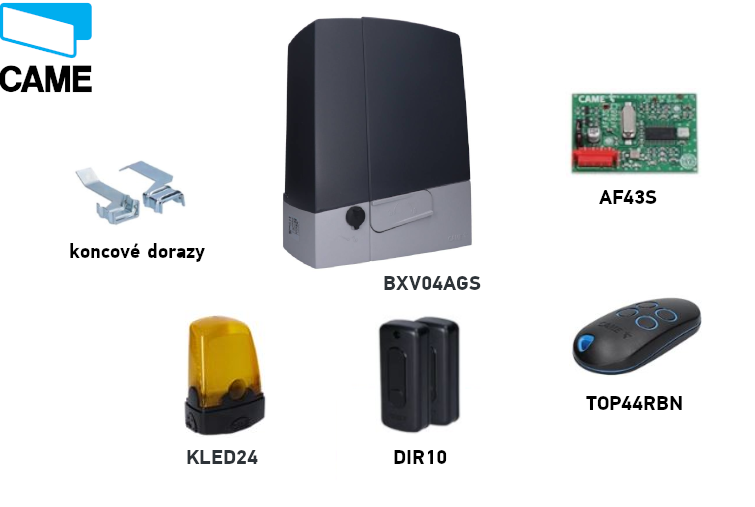
CAME BXV04AGS kit
The kit includes a 24 V motorised operator, remote control, photocells, radio receiver and flashing light. Choose additional components, especially the rack and any extra controls, to suit the specific gate. Check the control unit and supplied components before wiring.
| Feature | CAME BXV04AGS |
|---|---|
| Kit |  BXV04AGS / 801MS-0150 (D) |
| Max. gate leaf | 400 kg / 14 m |
| Motor / power | 24 V DC / 170 W |
| Control unit in this manual | ZN7: display and menu |
| Operation | Intensive use |
| Radio memory | 250 users |
Compatible accessories
| What | Why | Type |
|---|---|---|
| Photocells | Detect passage; select the safety input response. |
|
| Flashing light | Signals gate movement. |
|
| Receiver | Radio control with matching coding. |
|
| Remote control | Additional transmitter for a compatible fixed-code system. |
|
| Rack | Transfers movement to the gate leaf. |
|
| Push button / key switch | Local command or STOP. |
|
Operator installation
With the operator released, the gate must move easily along its entire travel, without any slope, damaged wheels or risk of coming off the track. Check that there are solid mechanical stops in both the open and closed positions, that the base is stable, and that areas where the gate leaf could trap someone are protected. Water must not collect in the operator area or hit it directly.
Foundation and mounting plate
The installation example uses an excavation 400 × 240 mm and 800 mm deep. Adapt the foundation dimensions to the ground and the specific gate. The formwork extends 50 mm above ground level; use reinforcement and M12 anchors. A Ø 40 mm conduit is recommended for the operator supply cable, Ø 25 mm for accessories, and Ø 20 mm for any release cable.
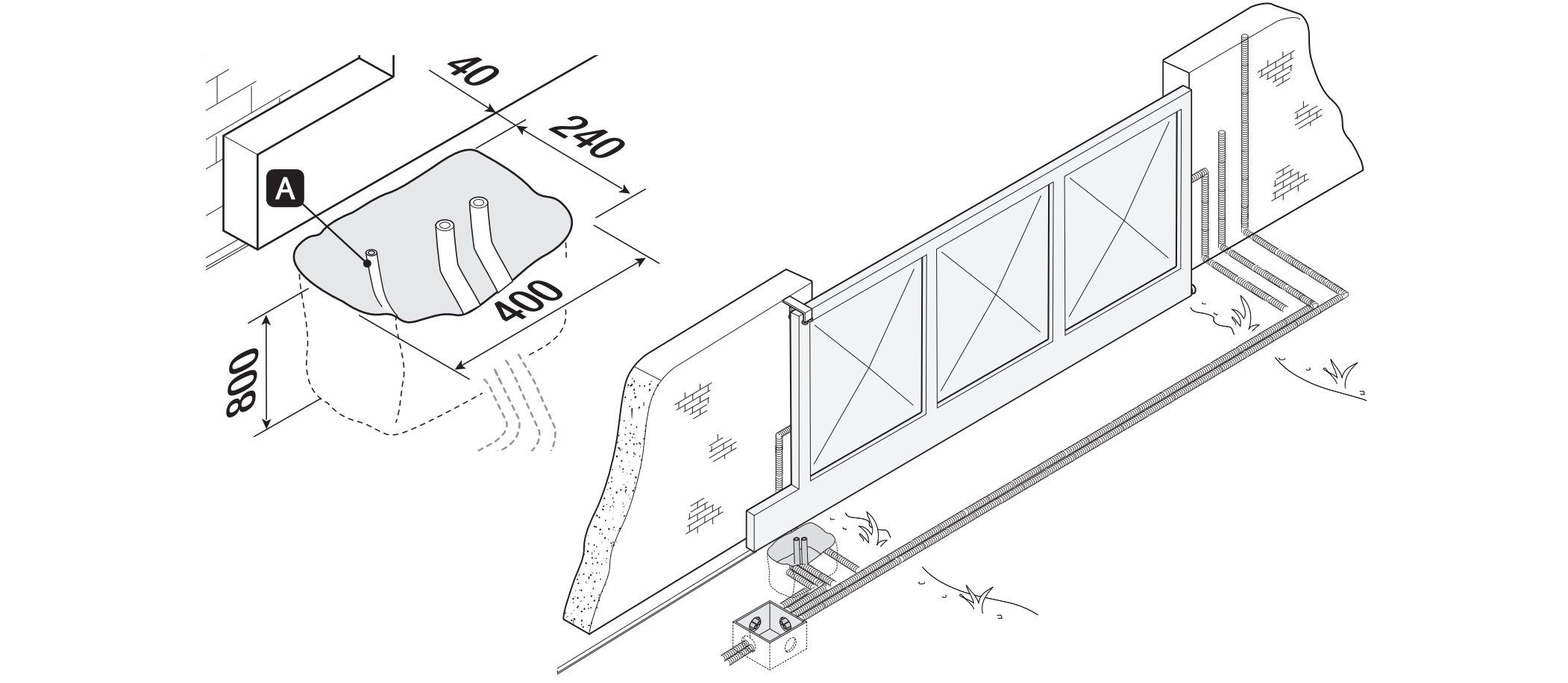
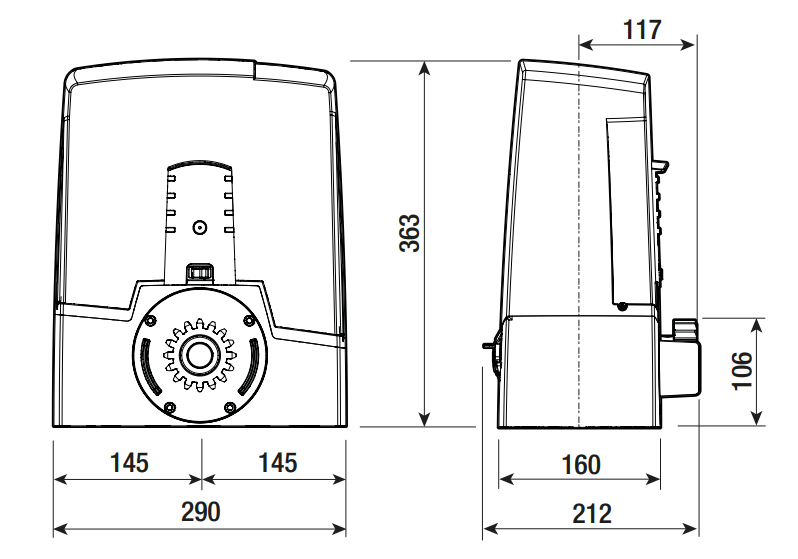
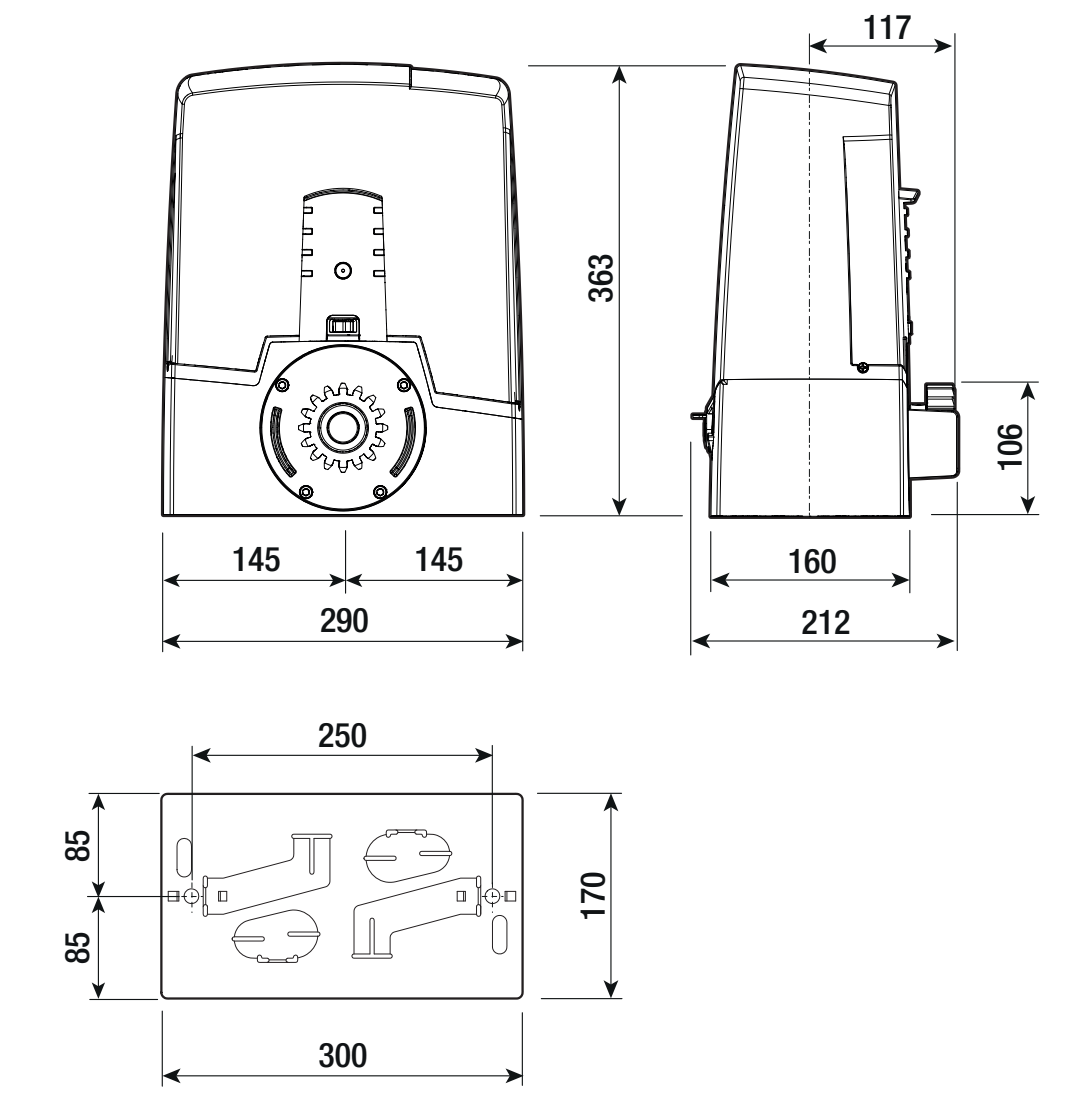
Set the mounting plate level, route the cables through its openings, and leave the threaded parts of the anchors above the surface. Allow the concrete to cure for at least 24 hours. Position the plate relative to the rack according to the dimensional drawing; the pinion height differs between these two operators.
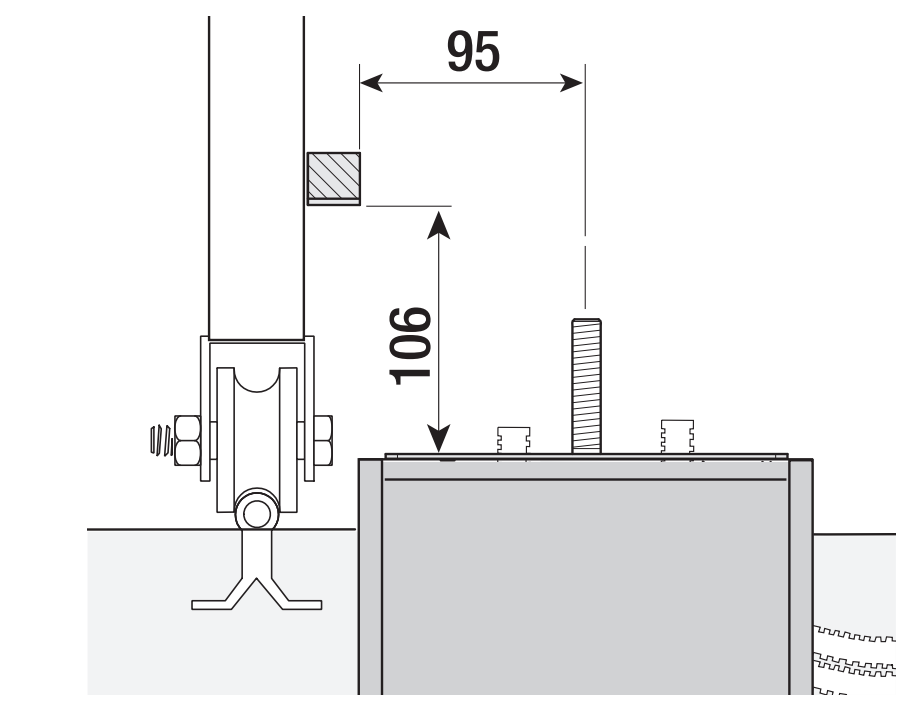
Installation and height adjustment
Remove the cover and fit the operator onto the plate. The cables must enter through the underside of the housing and correctly fitted cable glands. While adjusting, raise the operator using the threaded feet by 5–10 mm, leaving room to adjust the mesh.
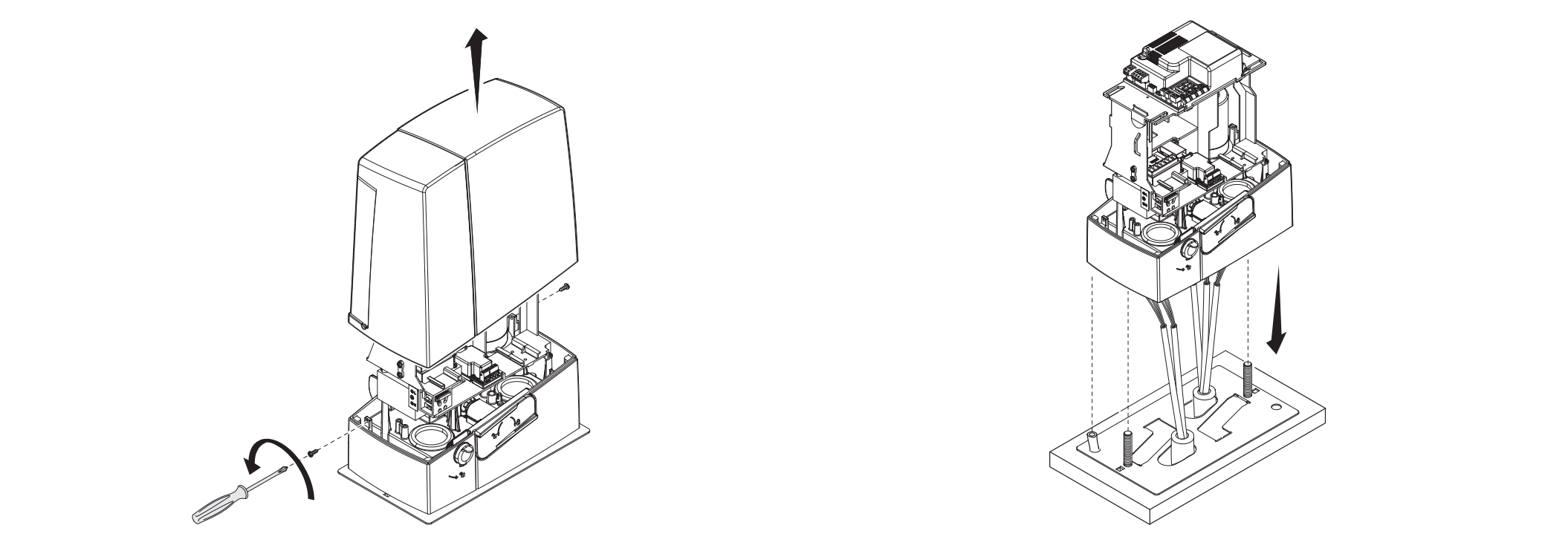
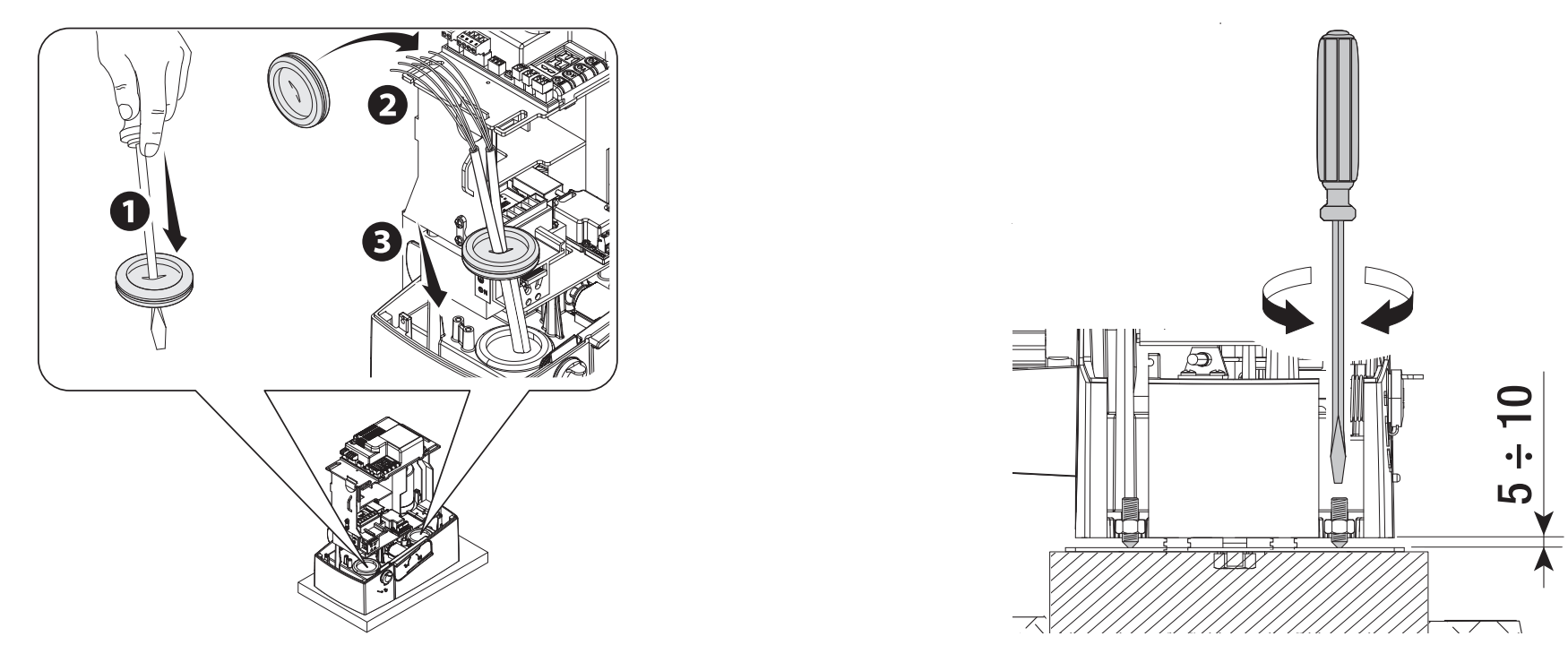
Rack and gear mesh clearance
Release the operator and install the rack while moving the gate leaf manually. When joining sections, use a spare piece of rack beneath the joint so the teeth align smoothly. After installation, adjust the operator’s vertical and horizontal position.
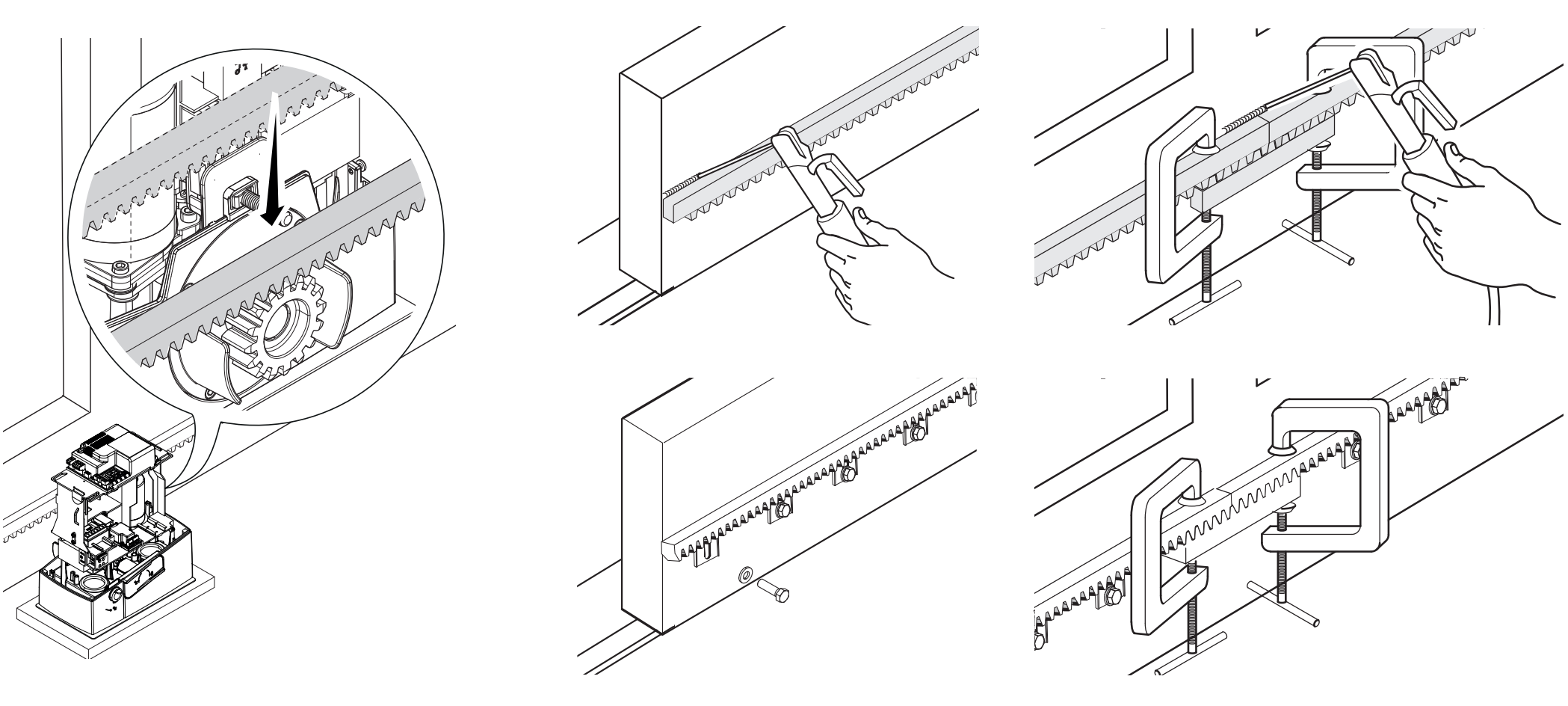
Leave 1–2 mm of clearance between the rack and pinion. The weight of the gate must not rest on the operator. Manually move the gate through its full travel and check the mesh and rack joints; only then tighten the nuts and washers on the anchors.
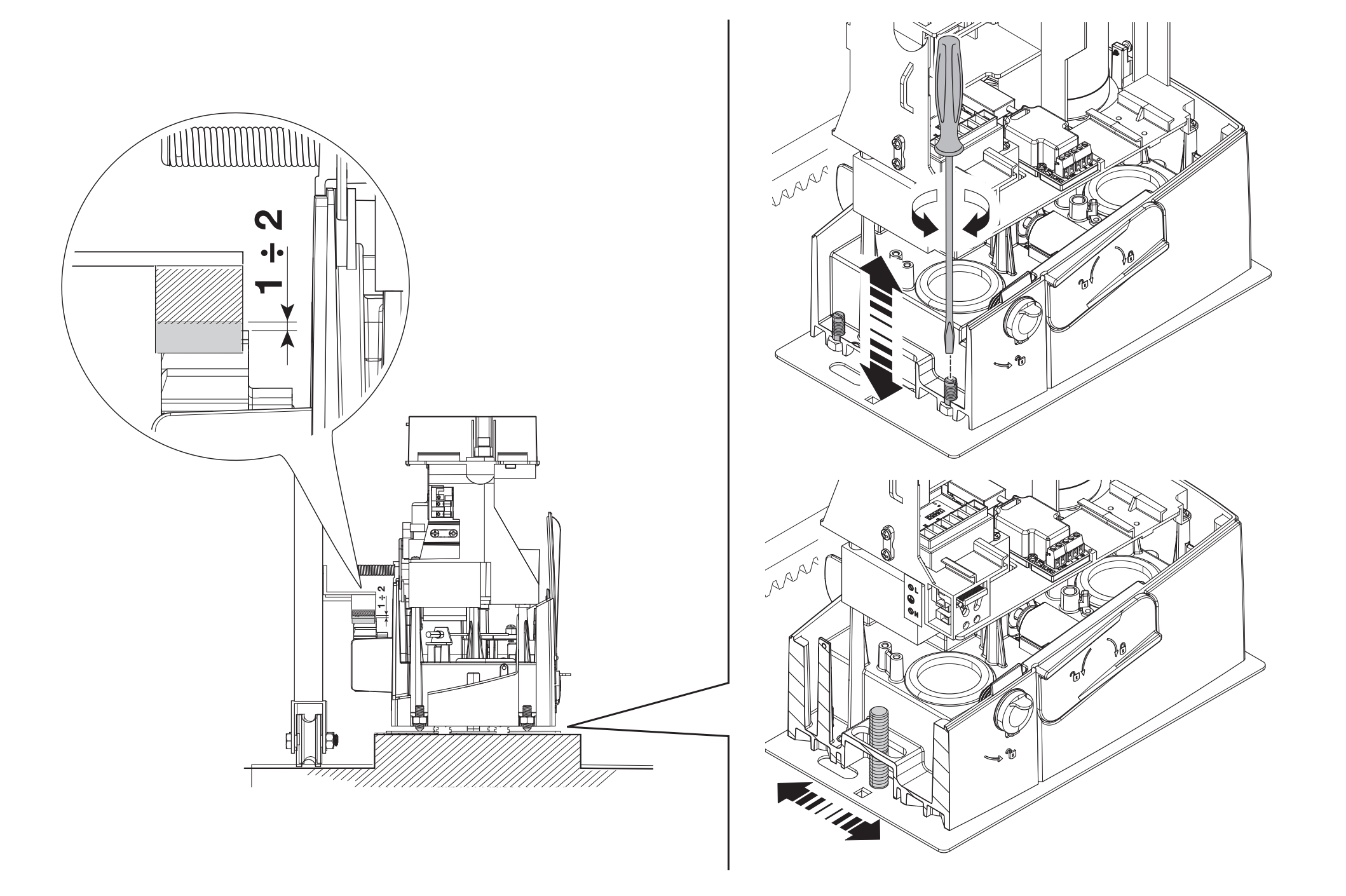
Mechanical limit switches
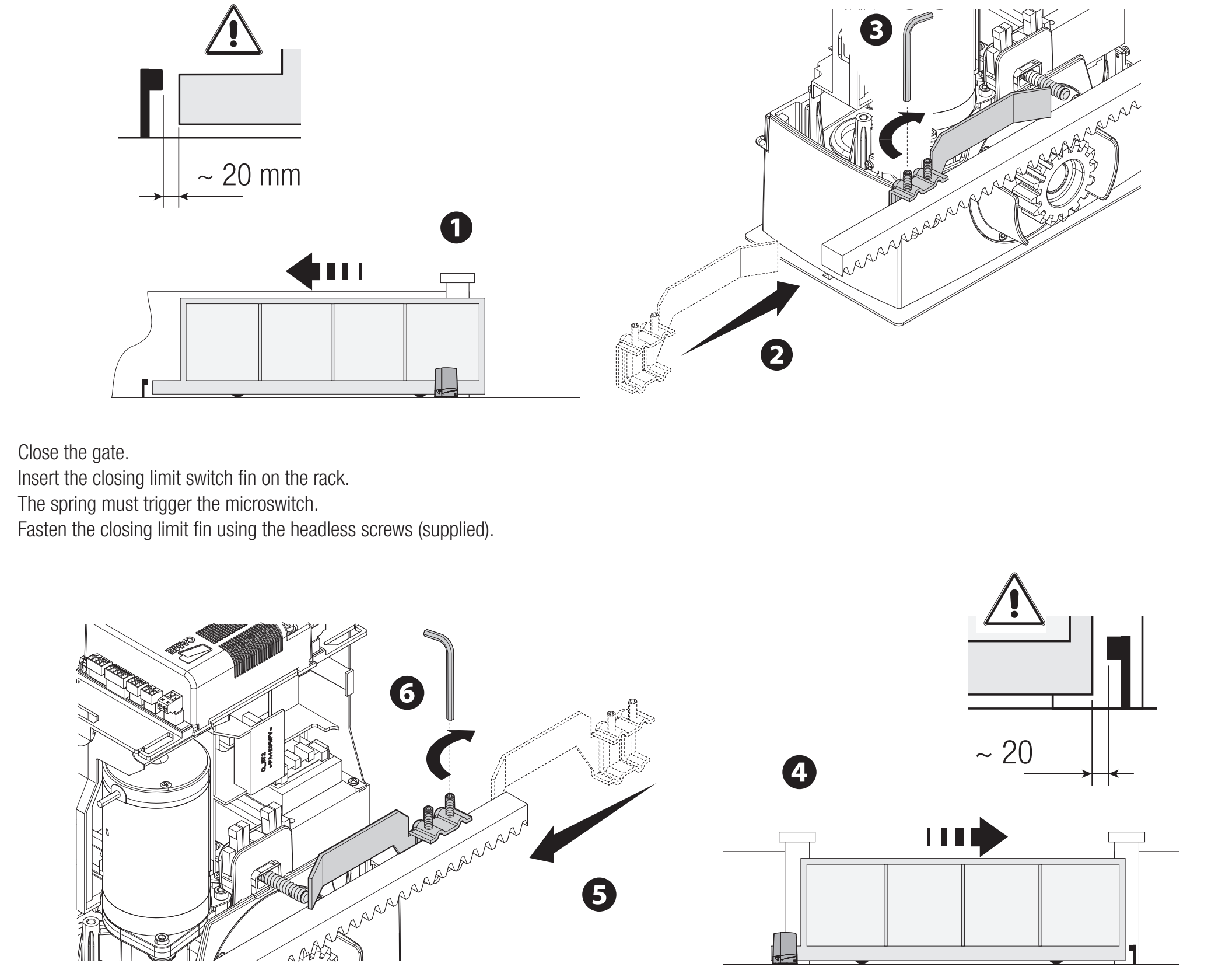
Move the gate leaf manually to the open position. Secure the opening limit-switch cam to the rack so that its ramp reliably actuates the spring-loaded microswitch. Set the closing limit-switch cam in the same way. Secure the cams firmly; the gate’s fixed mechanical stop and the operator’s limit-switch cam serve different purposes.
In the assembly shown, leave approximately 20 mm before the fixed stop. Check the run-on distance at the actual speed and under load.
Wiring
| Connection | Cable / condition |
|---|---|
| 230 V AC mains, L/N/PE | 3G × 1.5 mm² up to 20 m; 3G × 2.5 mm² for 20–30 m. |
| Controls | Number of conductors depends on the control; 0.5 mm² cross-section for the short runs specified. |
| DIR10 photocells | TX: 2 × 0.5 mm²; RX: 4 × 0.5 mm². Ensure the TX connection and NC contact are wired as specified. |
| Antenna | RG58, maximum 10 m; 5 m or less recommended. |
| RSE / CRP | UTP CAT 5; separate serial connection, not motor power. |
The number of conductors must cover the entire selected wiring diagram. For a longer run, simultaneous loads, or other accessories, a technician must recalculate the cross-section based on current and voltage drop. Protect cables from damage and contact with the motor or transformer; route the mains supply and low-voltage circuits suitably apart.
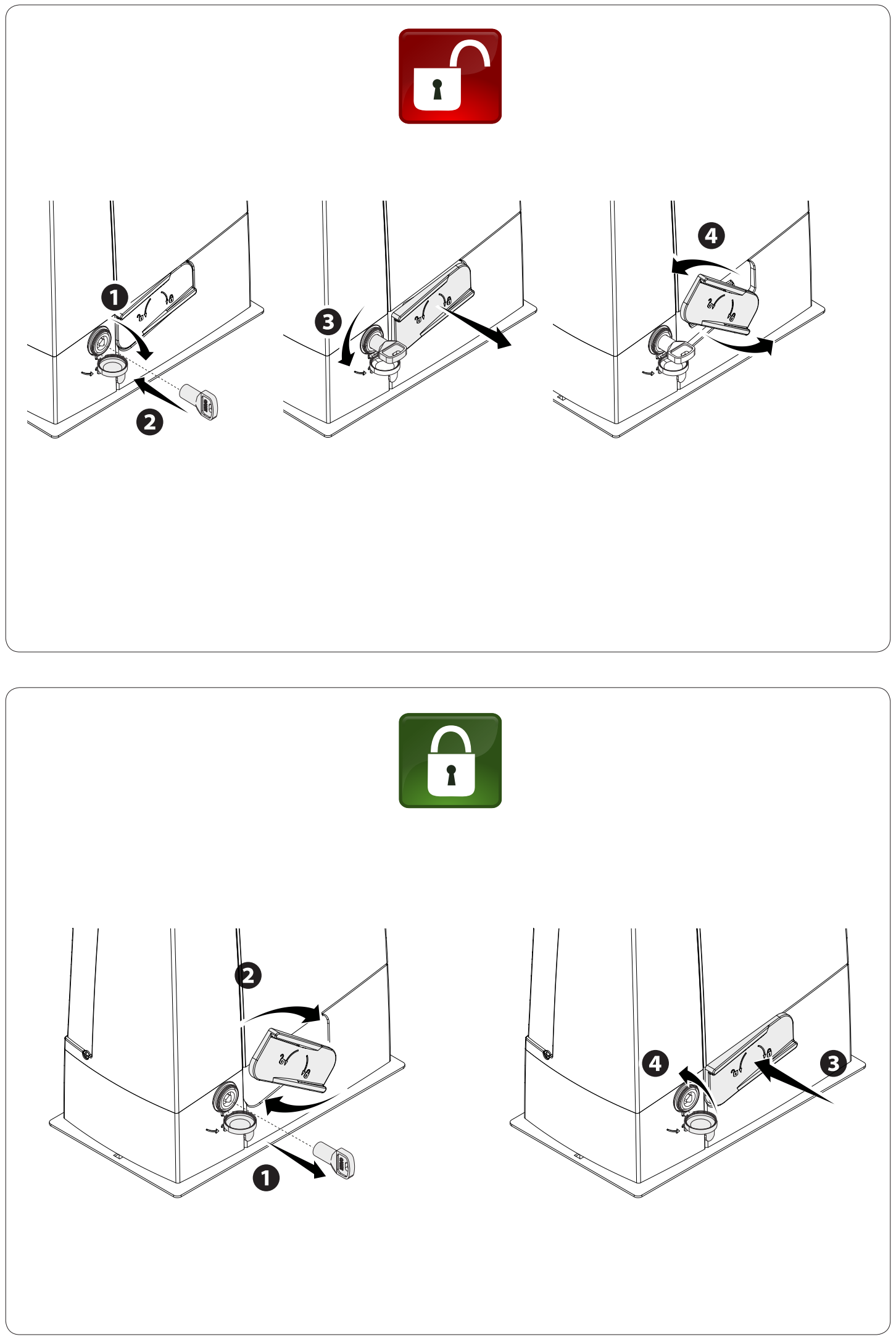
Manual release during a power failure
Disconnect the power supply and secure the gate leaf before moving it manually. Releasing a damaged or unbalanced gate may cause uncontrolled movement.
- Insert the key into the lock and turn it in the direction of the arrow shown in the illustration.
- Pull and open the release lever as shown in the illustration.
- Move the gate manually in a controlled manner, keeping people clear of its path.
- To re-engage the mechanism, return the lever to its original position and lock it. Before issuing a motor command, check that the drive is engaged.
Overview of the ZN7 control board
The ZN7 has a display and ESC, arrow, and ENTER buttons. Settings, timings, and users are managed through the menu. The AF, Memory Roll, R700/R800, RSE, and RIOCN8WS connectors have separate functions; insert or remove the card only when both the mains supply and batteries are disconnected.
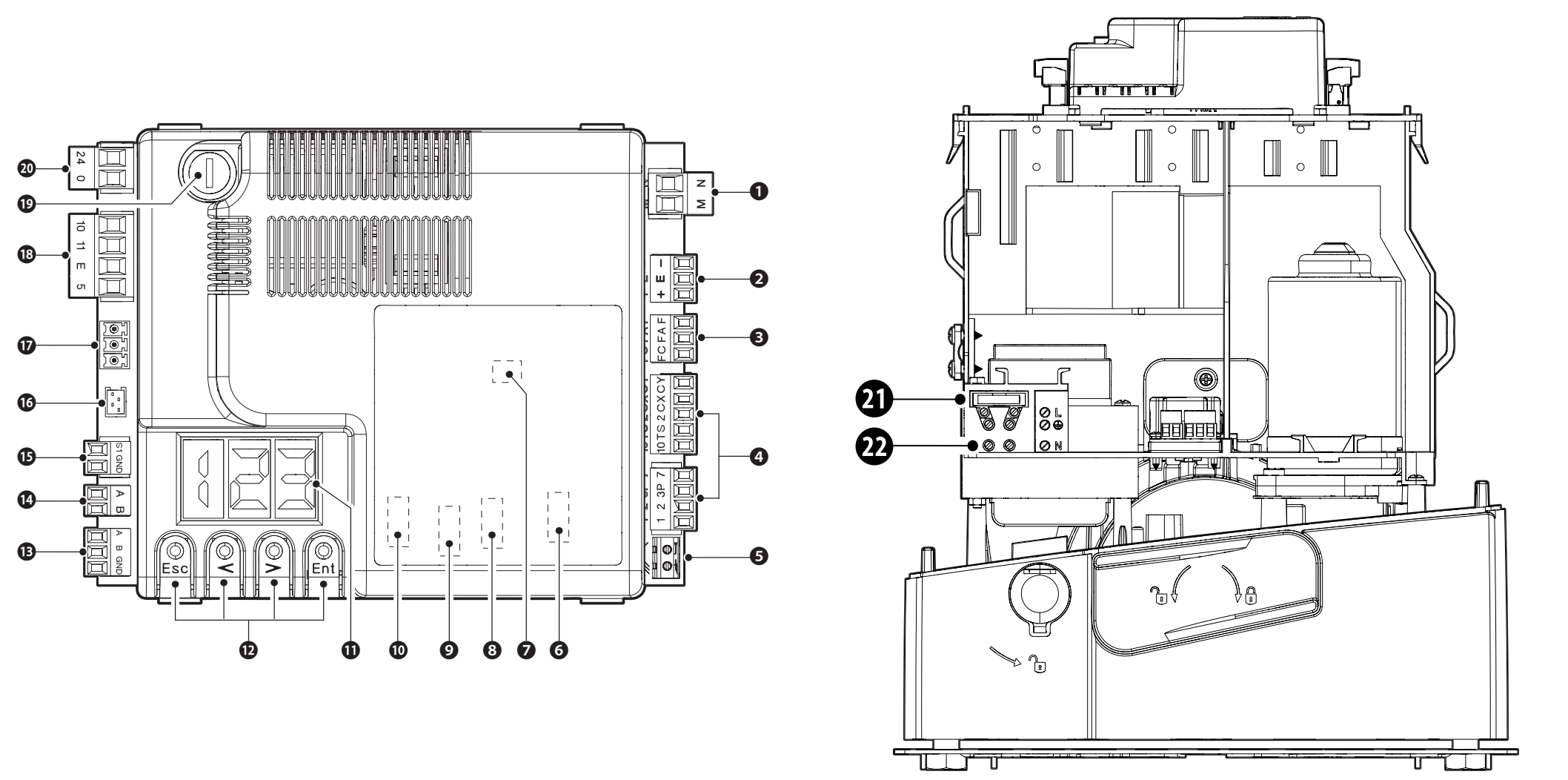
| Figure number | Component |
|---|---|
| 1 / 2 / 3 | Motor / encoder / limit switches |
| 4 / 5 / 6 | Commands and safety / antenna / AF |
| 7 / 8 / 9 / 10 | Memory Roll / R700 or R800 / RSE / RIOCN8WS |
| 11 / 12 | Display / programming buttons |
| 13 / 14 / 15 | A–B–GND serial connection / A–B keypad / S1–GND transponder |
| 16 / 17 / 18 | GSM module / RGP1 / accessories and lights |
| 19 / 20 / 21 / 22 | Accessory fuse / board input / mains fuse / mains supply |
ZN7 terminals and power supply
| Terminals | Use / voltage / polarity |
|---|---|
| L / N / PE | 230 V AC mains, 50/60 Hz for BXV04AGS. PE is the protective conductor; AC has no +/−. |
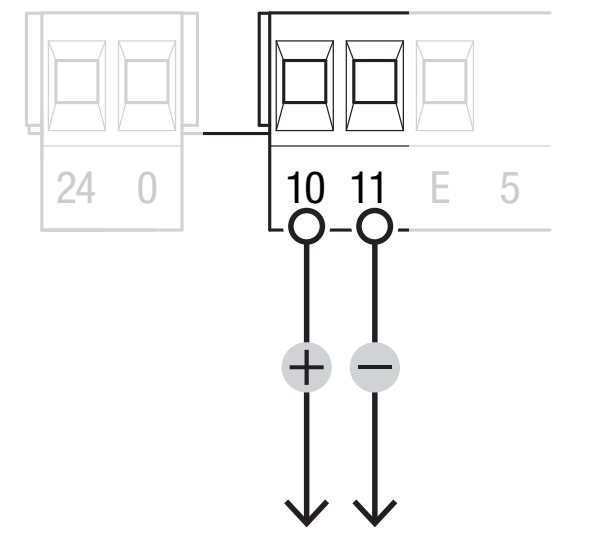
| 10 / 11 | Accessories: typically 24 V AC, in battery operation 24 V DC, total load maximum 40 W. For DC 10 = plus (+), 11 = minus (−); for AC, no polarity. |
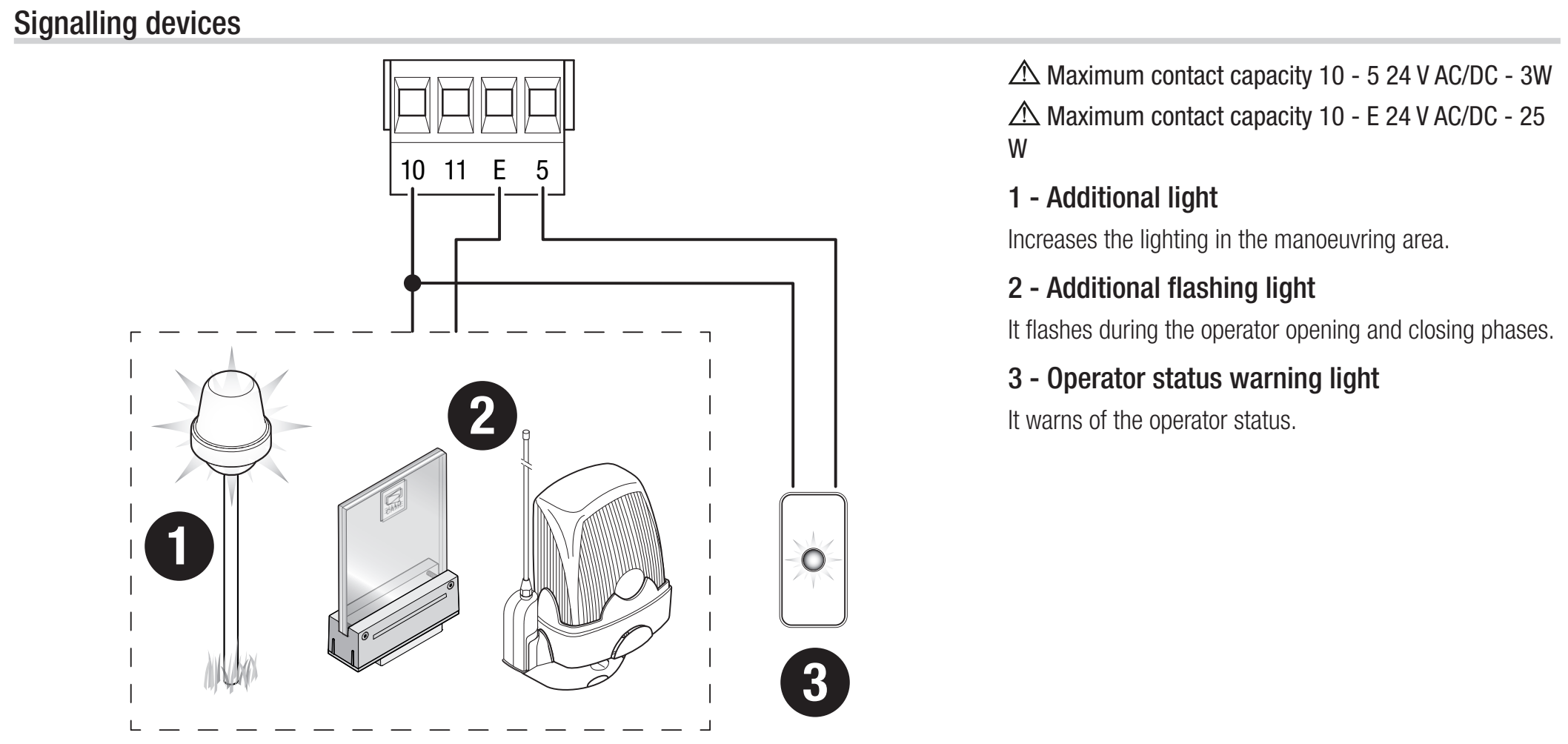
| 10 / E | Flashing light or cycle light, 24 V AC/DC, max. 25 W. For DC, 10 is the positive common terminal and E is the switched output. |
| 10 / 5 | Gate status indicator, 24 V AC/DC, max. 3 W. For DC, 10 is the positive common terminal and 5 is the switched output; not for continuous power supply. |
| 24 / 0 | Internal board supply from the power supply section; do not use as an accessory output or as an external battery input. |
| M / N | 24 V DC motor; retain the wiring for the correct assembly. Not a 230 V supply. |
| + / E / − | Encoder: +/− power supply and E signal; not a general-purpose accessory output. |
| F / FA, F / FC | F common, FA opening, FC closing; NC limit contacts, no polarity. |
| A / B / GND – RSE | Serial interface with the RSE card; do not confuse with the keypad A/B terminals. |
Commands and safety contacts
| Terminals | Contact / function |
|---|---|
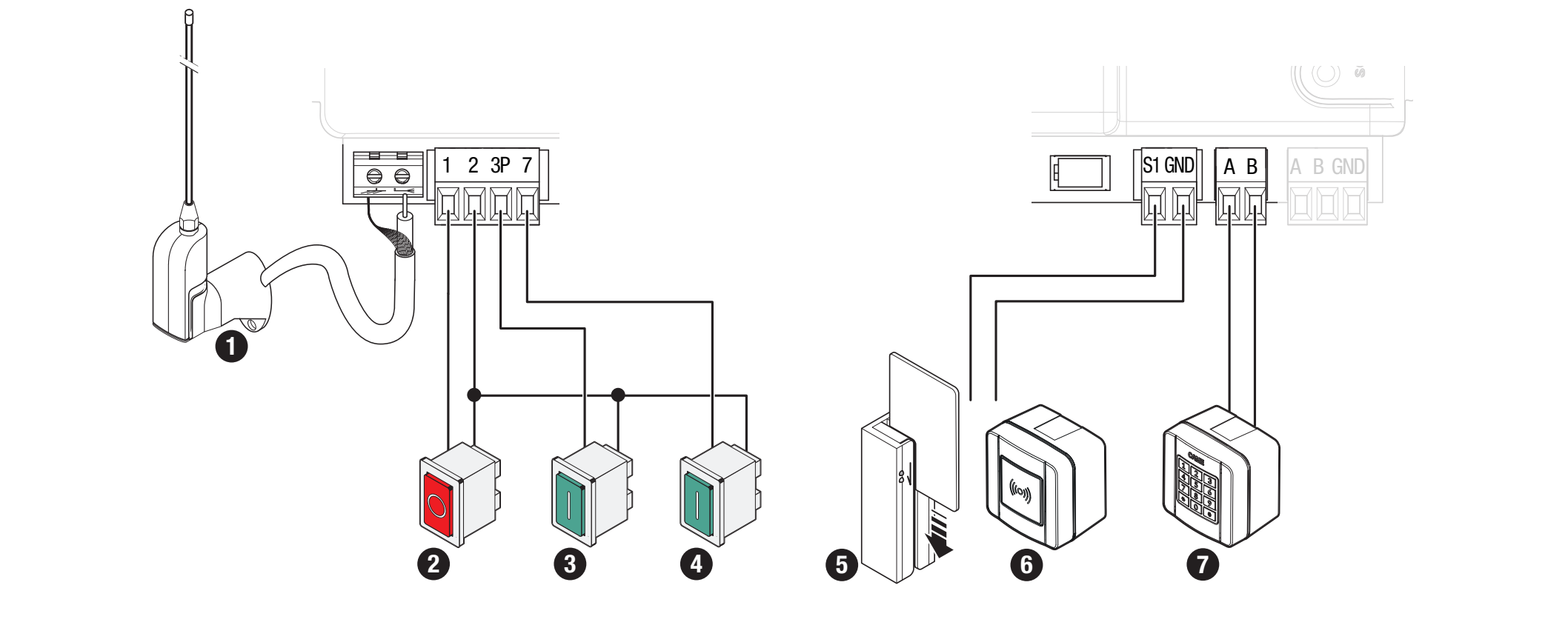
| 1–2 | NC STOP; set F1 = ON if connected. Factory setting: F1 = OFF. No polarity. |
| 2–7 | NO command; function selected by F7. Potential-free contact, no polarity. |
| 2–3P | NO partial or full opening, according to F8. Potential-free contact, no polarity. |
| 2–CX / 2–CY | NC safety inputs; configure F2/F3. No polarity. |
| 10 / TS | Tested photocell power supply branch as shown in the wiring diagram; do not enable F5 unless correctly wired. |
| A–B / R800 | Keypad with R800 decoding card, F14 = 1. |
| S1–GND / R700 | Transponder or reader with R700, F14 = 0. |
| Antenna / AF | RG58 and plug-in radio card with the correct frequency/coding. |
Flashing light and status indicator
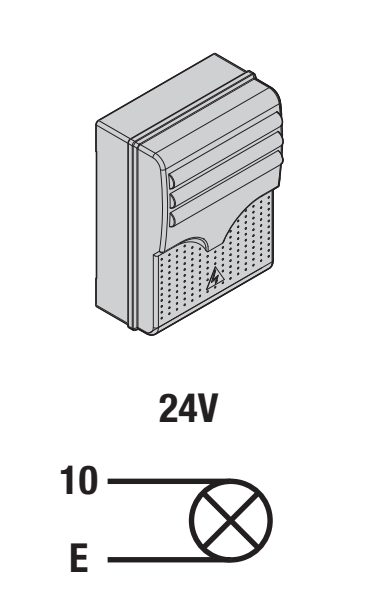
KLED24, 24 V AC/DC and 2 W, connect to 10–E; for a flashing light, set F18 = 0. KLED24 does not have a supply connection marked separately as +/−. For AC there is no DC polarity; for DC, 10 is the board's positive common terminal. Do not connect a 230 V flashing light to this 24 V output.
Output 10–5 is for a low-power status indicator, max. 3 W, with setting F10. Cycle light mode F18 = 1 requires automatic closing time; the light stays on from opening until fully closed, including during the waiting period.
Photocells and safety test
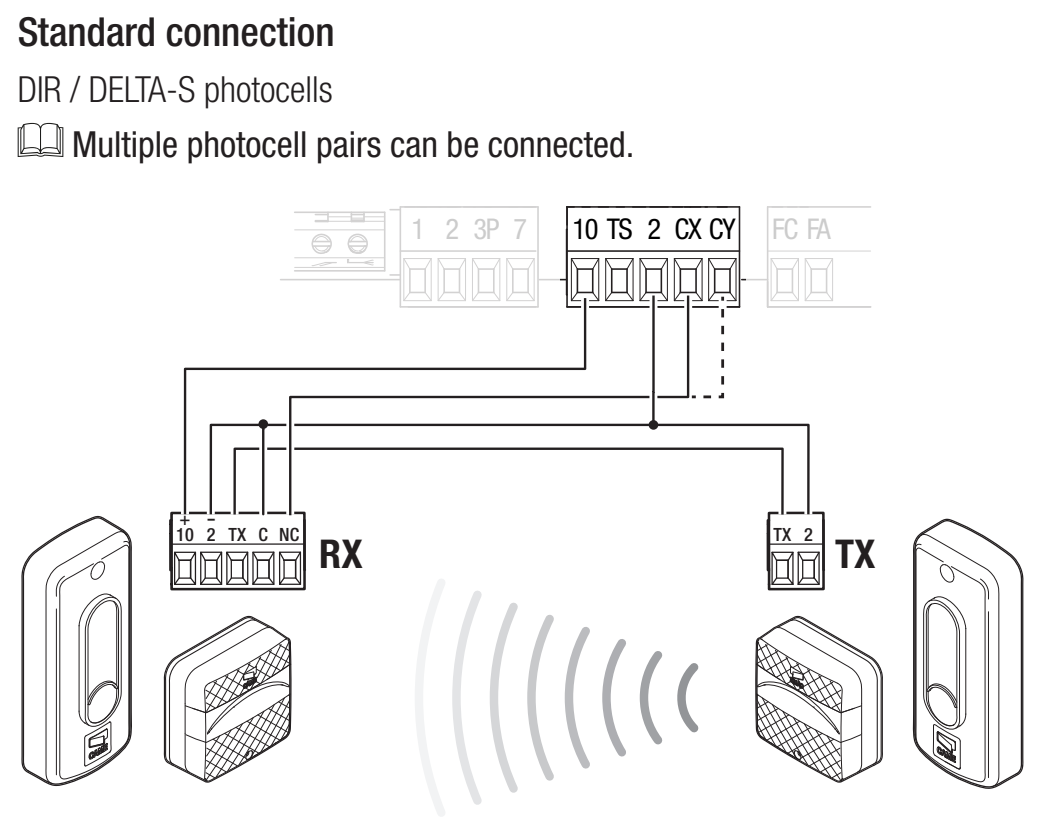
CAME DIR10 consists of a TX transmitter and an RX receiver with a range of 10 m. Set the receiver jumper to 24 V. The pair draws 60 mA at 24 V AC. The RX power terminals are marked 10 (+), 2 (−); the TX has TX (+), 2 (−). With AC power, DC polarity does not apply. The TX terminal is part of the synchronisation circuit; do not omit its connection.
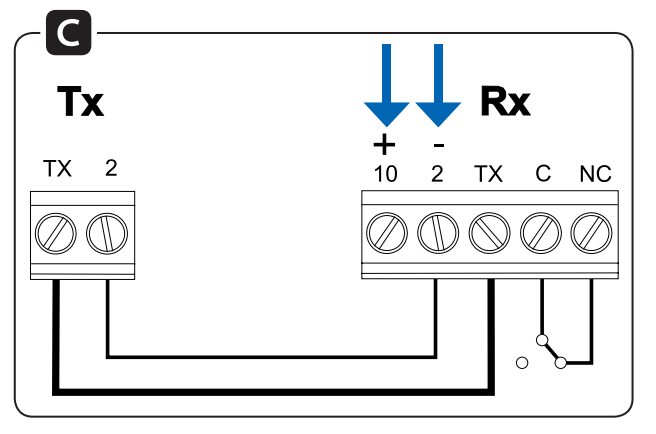
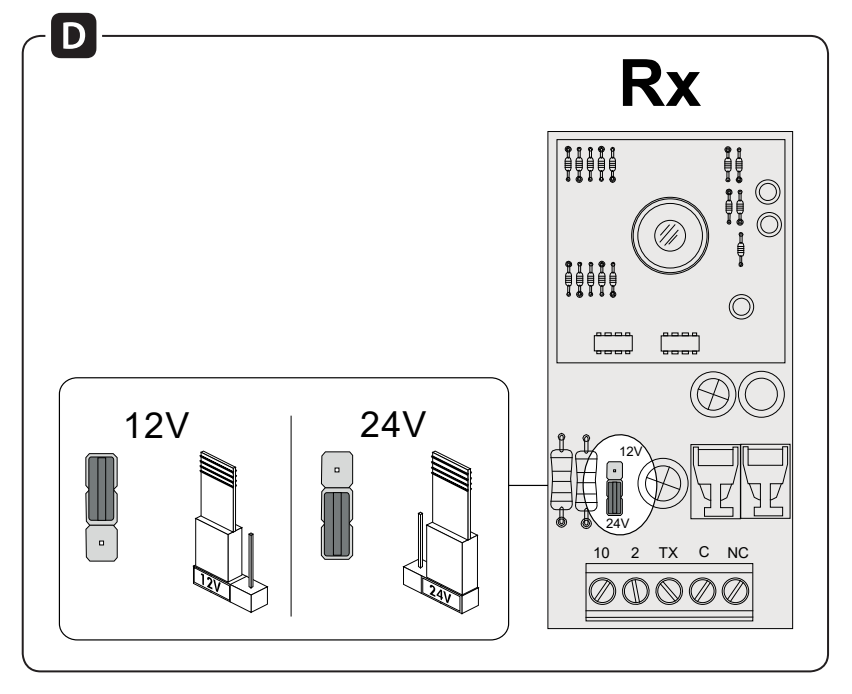
| Photocell terminal | Standard wiring | Wiring with test |
|---|---|---|
| RX 10 (+) | Board 10 | Board 10 |
| RX 2 (−) and RX C | Board 2 | Board 2 |
| RX TX ↔ TX TX (+) | Connect TX between the receiver and transmitter | Same connection |
| TX 2 (−) | Board 2 | Board TS |
| RX NC | Board CX | Board CX |
The C–NC contact is a volt-free safety contact. It has no positive or negative polarity. The power supply wiring and the contact wiring are two separate circuits. With DC, 10 is the positive terminal; in this specific diagram, the RX 2 negative terminal is connected to the board's common terminal 2. Do not confuse terminal 2 with power supply terminal 11.
For a contact connected to CX, set F2 = C1. For a contact connected to CY, select the corresponding response using F3. C1 reopens during closing, C2 recloses during opening, C3 stops and then closes automatically and requires F19; C4 waits for the obstacle to be removed and then resumes movement.
Test wiring via TS
For the test, TX 2 is moved to TS, while RX 2 and RX C remain connected to board terminal 2. The TX connection between the transmitter and receiver remains in place. Change the wiring with the power off first, and only then enable the test.
Set F5 = 1 for CX, 2 for CY, or 4 for both CX and CY. If the test fails, E4 is displayed and the operator will not execute the command. This function is used together with active safety inputs.
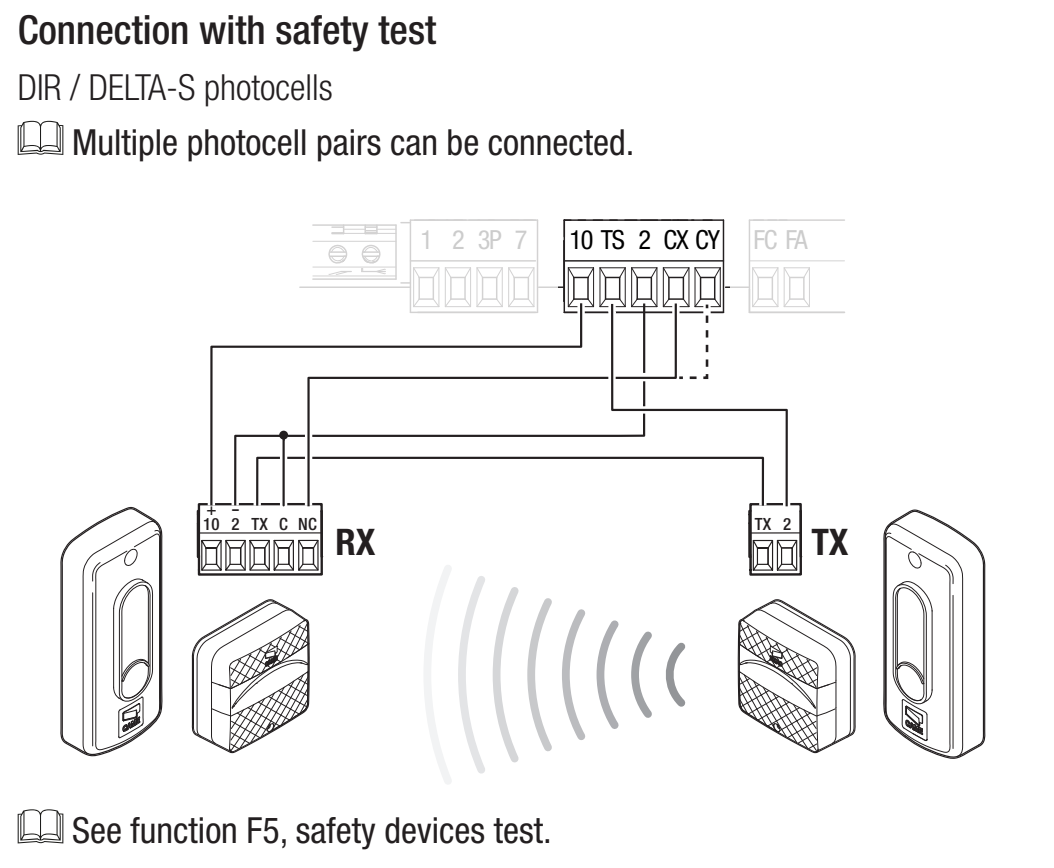
After wiring, test interrupting the beam during the relevant movement, then clearing it again. Do not bypass a safety input as a permanent fault-fix.
Safety edges
Connect an NC contact edge between 2 and CX or CY, and select C7 — reopen during closing — or C8 — reclose during opening. A volt-free contact has no polarity. Do not connect a resistive edge as a standard NC contact; it must have an interface suitable for the specific controller.
Initial ZN7 startup
- Check that the gate moves freely, the rack and fixed and switching limit stops are correctly installed, the operator is engaged, the wiring is correct, and hazardous areas are protected.
- Switch on the power and check the display. Set A1 = 1 for a motor up to 400 kg, F54 according to the direction and F1 according to the connected STOP input.
- Set F2/F3 for the connected safety devices and, if applicable, test F5. Leave unused inputs disabled. For learning, F11 must be set to ON.
- Run A3 — travel learning.
- Set the operating parameters and users, then test the full cycle, partial opening, every safety device, the flashing light, and behaviour after a power failure.
The first normal manoeuvre after switching on the power is opening; wait for it to finish. A3 calibration has its own sequence. If you notice unusual noise, vibration, or incorrect direction, stop immediately using ESC/STOP and fix the cause.
A3 — automatic travel learning
Prerequisites: A1 and F54 set correctly, STOP configured, encoder active, limit switches and fixed stops correctly set. Move the gate manually to approximately halfway and re-engage the operator. Keep the area clear.
Safety devices are disabled during calibration, except for stopping with the ESC button. A technician must supervise the entire movement and prevent people from entering the travel path.
- Press ENTER, use the arrows to select A3, then confirm with ENTER.
- Select ON and confirm with ENTER.
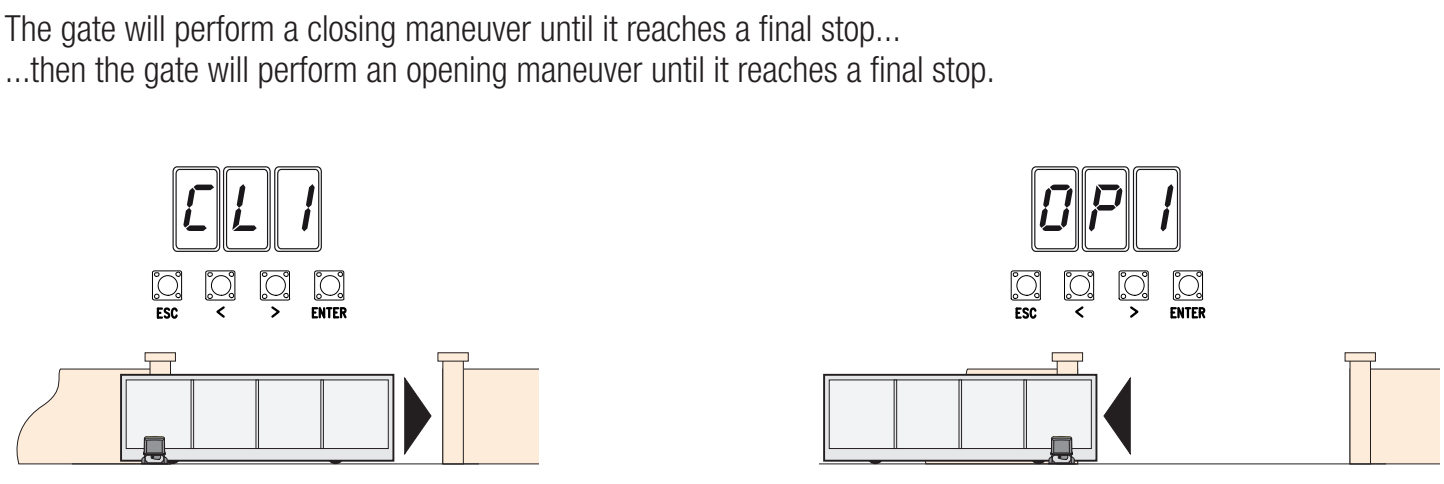
- The operator first closes to the end position; the display shows CL1.
- It then opens to the end position; the display shows OP1.
- When finished, check the full movement and safety devices. For E1/E2, first resolve the cause according to the diagnostics; do not repeat learning while a mechanical fault remains.
Programming via the display
Program the operator while it is stopped. ENTER opens the menu and confirms a selection; arrows </> select an item or change a value. Press ENTER to confirm a change. ESC cancels an unconfirmed change, goes back, or exits the menu. During normal operation, ESC stops the operator; the arrow buttons allow test movement.
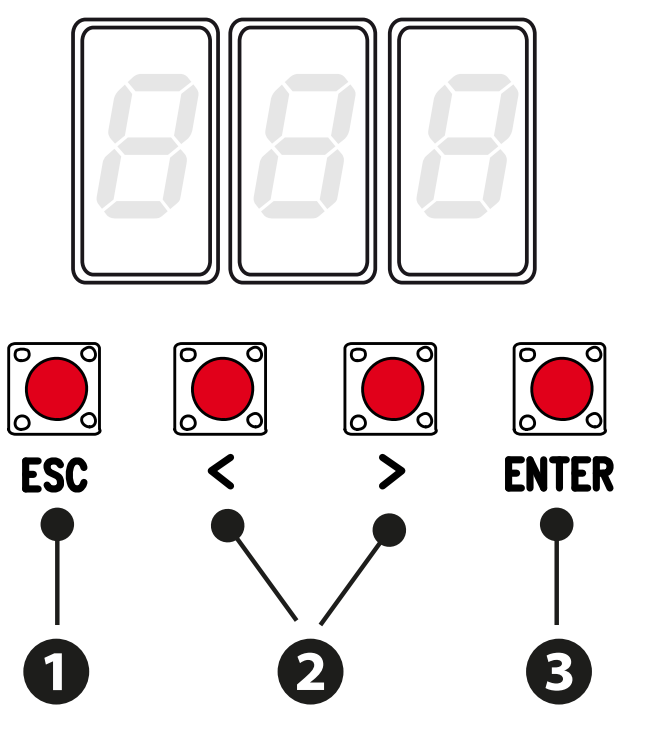
Factory values explicitly specified for the menu are shown in bold. Accessory functions appear only when the required card is installed or a related function is active. Make a note of the current settings before changing them. A lower F34/F35 sensitivity value means higher sensitivity; after changing speed, torque, or sensitivity, check the forces and safety devices.
F functions
Users and system U / A / H
Pairing and deleting remote controls
The ZN7 memory has a capacity of 250 users. The receiver must be fitted in the AF slot and match the transmitter’s frequency and coding. An example of a 433.92 MHz fixed-code transmitter is TOP-432EE with AF43S. U4 can restrict the range of accepted coding systems; matching frequency alone is not enough.
- In U1, select the function: 1 step-by-step, 2 sequential, 3 open only, or 4 partial opening.
- Press ENTER to confirm, then send the code by pressing the selected button on the remote control.
- Repeat the procedure for each additional user. Record the storage numbers and their assigned commands, then test the actual operation.
Delete a single user via U2: select ON, choose the number using the arrow buttons or activate the corresponding stored transmitter, then press ENTER to confirm. The display confirms deletion with CLr. U3 = 1 deletes all users.
U4 = 2 (Rolling Code) or 3 (TWIN) deletes transmitters previously stored with a different coding system. Before changing this setting, check the system, H1 version and remote-control records; do not use this setting as a trial-and-error fix for a receiver fault.
Backup using Memory Roll
- Disconnect the mains and any batteries, then insert the Memory Roll into its connector.
- Switch on the power; use F50 = 1 to save the data and F51 = 1 to load it. Loading replaces the board’s data with the saved data.
- When finished, disconnect the power again and remove the memory card.
- After loading, check the model, direction, safety devices and all commands. This ZN7 has a Memory Roll connector; do not use a USB port, which it does not have.
Connecting two operators in master-slave configuration
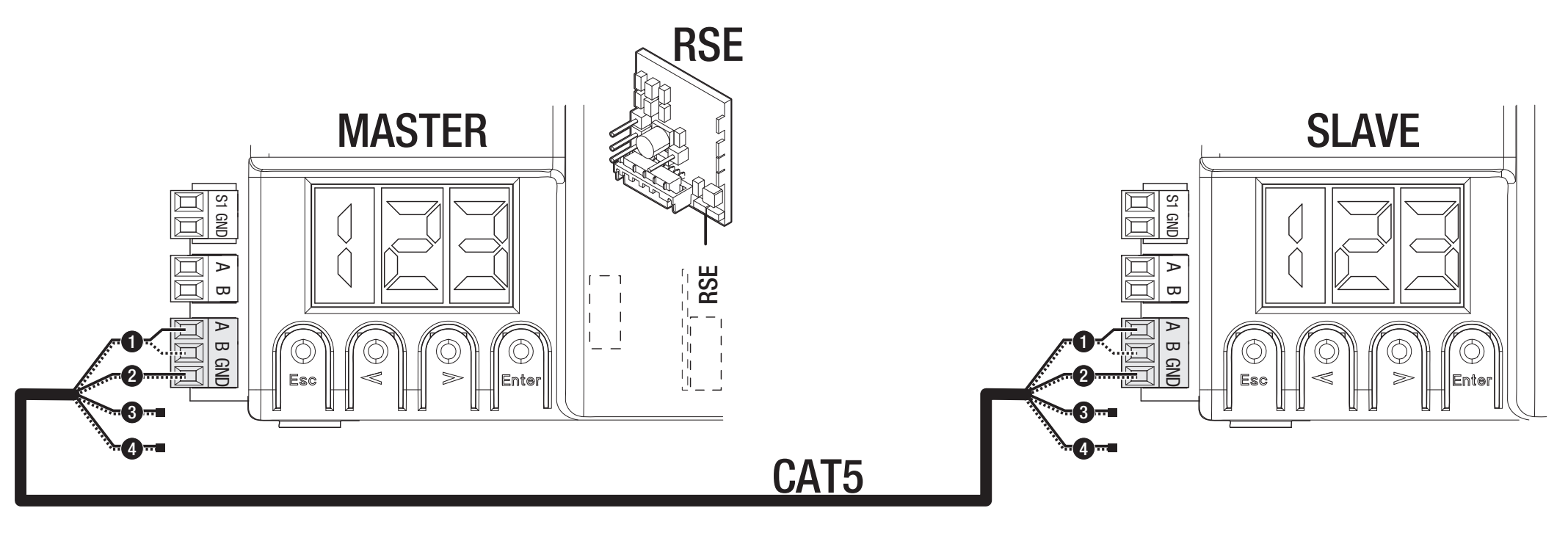
An RSE card is used in each control board, with a CAT 5 connection via A–B–GND as shown in the diagram. Connect the control and safety devices to the MASTER board. Set F49 = 1, direction F54, and parameter transfer F52 on it. Store users on the MASTER; partial opening and step-by-step commands operate as shown in the shared system.
RIO wireless safety
RIOCN8WS uses a separate RIO connector. F65/F66 configure two wireless safety edges, and F67/F68 configure two photocell channels. Check the actual item and channel designation on the display. The wireless safety test is still active; resolve loss of connection E17 or missing configuration E18 before resuming operation.
A4 – parameter reset
Before resetting, note down the H1 version, settings, and users; if you have a Memory Roll, save the data. Select ON in A4 and confirm with ENTER. For the version described here, the factory settings are restored and the learned travel path is deleted.
After the reset, reconfigure A1, F54, F1, the safety inputs, and A3 learning. Check the safety devices before normal operation. Deleting users is a separate function, U3. On a board with a different menu, A4 may restore a different range of settings; refer to the specific board version.
Display-based diagnostics
| Code | Meaning / check |
|---|---|
| E1 | Calibration error. Check A3, the mechanism, direction, and limit switches. |
| E2 | Configuration error. Check the A1 model, F54 direction, and that learning is complete. |
| E3 | Encoder error. With the power disconnected, check the +/E/− connector and wiring; perform learning after the repair. |
| E4 | Safety test error. Check TX on TS, power supply, NC, and F5. |
| E7 | Operating time exceeded. Check resistance, stops, and that movement is completed. |
| E9 | Obstacle while closing. Remove the actual obstacle; check the rack and sensitivity. |
| E10 | Obstacle while opening. Check the travel path and correct force settings. |
| E11 | Too many consecutive obstacles. Repair the mechanism or address the cause of safety device activation. |
| E13 | Both limit contacts are open. Check FA/FC/F and switching stops. |
| E14 | Serial communication error. Check RSE, CAT 5, and configuration. |
| E15 | Incompatible transmitter. Check AF, frequency, and U4. |
| E17 | Wireless system communication fault. Check RIO, devices, and interference. |
| E18 | Wireless system is not configured. Check RIO and the relevant F65–F68 settings. |
If the gate does not move, check the power supply, operator release, STOP and active safety inputs, a continuously pressed button, and the transmitter battery. If it opens but does not close, check the photocells and their NC contact. Do not bypass a safety device fault with a permanent jumper.
ZN7 fuses for 230 V
| Circuit | Fast-acting fuse |
|---|---|
| Mains LINE | 1.6 A-F |
| Accessories | 2 A-F |
Check fuses with the mains and batteries disconnected. Replace only with a fuse of the same rating and type; first eliminate the cause of the short circuit or overload.
Maintenance and servicing
Regularly check that the travel path and rack are clean, that the gate moves easily by hand, and inspect the operator mounting, switching stops, cable condition, manual release, photocells, and other safety devices. Disconnect the mains and any battery backup before cleaning or carrying out work. If there is damage, unusual noise, or vibration, stop operation and have the cause rectified.
Set motor torque A6 and sensitivity F34/F35 according to the actual mechanical setup. Higher torque must not mask resistance or a fault; after adjustment, measure the forces and check the safety devices. Record the H1 version, number of manoeuvres A5, and repairs carried out in the service log.
Technical specifications of BXV04AGS
| Parameter | Value |
|---|---|
| Maximum gate leaf weight | 400 kg |
| Maximum gate leaf length | 14 m |
| Operator power supply – mains | 230 V AC, 50/60 Hz |
| Motor power supply | 24 V DC |
| Power | 170 W |
| Maximum current draw | 7 A |
| Thrust | 350 N |
| Maximum travel speed | 12 m/min |
| Operating time | 180 s |
| Ingress protection rating | IP44 |
| Operating temperature | −20 to +55 °C |
| Operation | Intensive use; no fixed number of cycles per hour. |
| Standby power consumption | 5.5 W |
| Protection class | I |
| Pinion / limit switches | Module 4 / mechanical |
| Control system of the version described | ZN7, display + ESC/arrows/ENTER |
How can I order this item?
Choose the option that suits you:
- order online: use the buy button to add the goods to your shopping cart (you will find the buy button here in the product variants table).
- order by email: place your order at [email protected]