Instructions for Creating SUPLA Schedules
SUPLA app – guide to creating schedules
WARNING: For correct operation, the Wi-Fi module must be connected as follows:
Wi-Fi module switch 1 terminals (OUT1) connected to the OPEN terminal on the control unit
Wi-Fi module switch 2 terminals (OUT2) connected to the CLOSE terminal on the control unit
Quick guide to creating a schedule:
- 1. Log in to SUPLA cloud: https://cloud.supla.org/
- 2. From the top menu, select My SUPLA
- 3. Click the ZAMEL SBW-02 Wi-Fi module
- 4. Click channel 1 at the bottom of the screen
- 5. Change the function to Gate Opening and rename it to Open/Close (we recommend testing the switch action to identify it correctly)
- 6. Set the relay activation time to 0.5 seconds.
- 7. Repeat steps 4–6 for the second channel as well.
WARNING: For the gate-closing channel, the channel action will also be named “Open.”
- 8. From the top menu, select Automation, then the Schedules subcategory
- 9. Click the Create New Schedule button
- 10. Enter a schedule name and select the desired channel (opening or closing)
- 11. Select the desired mode (daily, minutely, etc.)
- 12. For daily mode, select the days on which the gate should perform the automatic action
- 13. Add an action using the At the specified time button, then enter the desired action time
- 14. Save the schedule and create a new schedule for the second channel (steps 9–13)
Detailed guide to creating a schedule:
After logging in to SUPLA cloud go to My SUPLA and click the ZAMEL SBW-02 Wi-Fi module. At the bottom, you will see a list of channels that must be configured correctly before creating schedules.
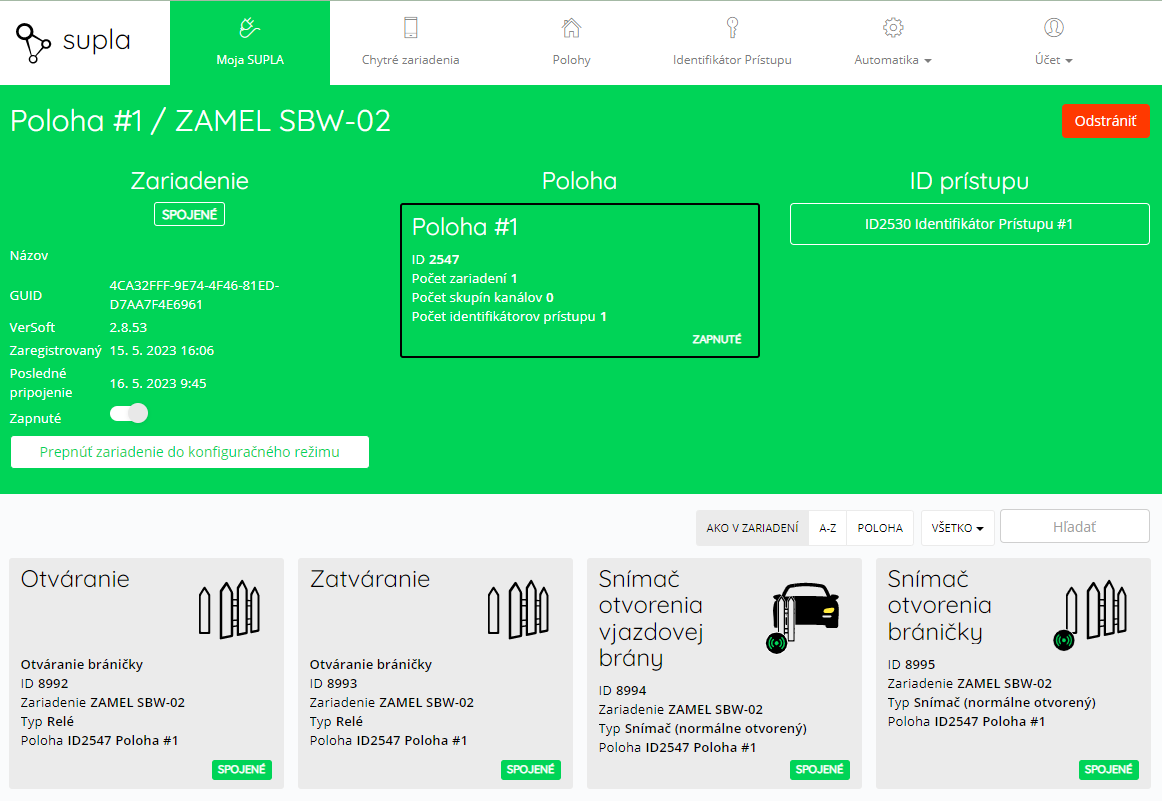
Fig. 1 Wi-Fi module overview with channel list
Click channel 1 in the channel list. Change the function to Gate Opening. This function has only one action, so it is more suitable than Opening/Closing an entrance gate. We recommend clicking the Open button in the Action panel on the right to determine whether the channel is for opening or closing the gate. Based on the result, you can rename the channel to Opening or Closing. Set the relay activation time to 0.5 seconds and save the changes. Configure the second channel in the same way, making sure to name it according to its action. You can check that the channels are configured correctly using the attached images.
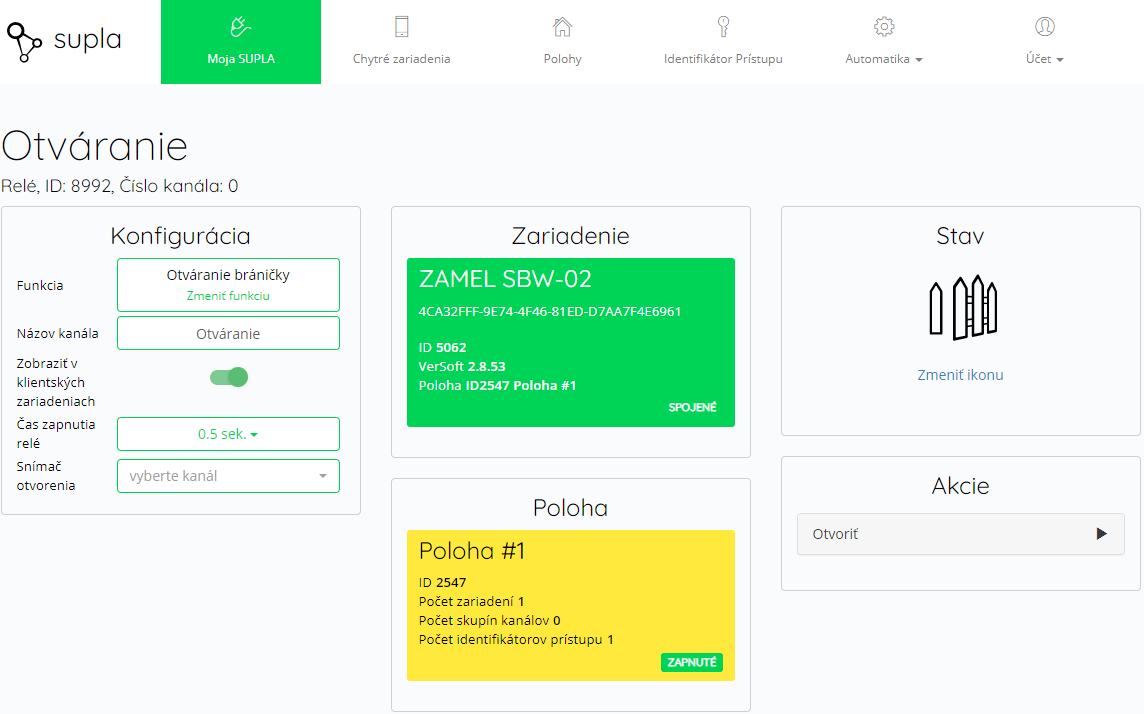
Fig. 2 Correct configuration of the gate-opening channel
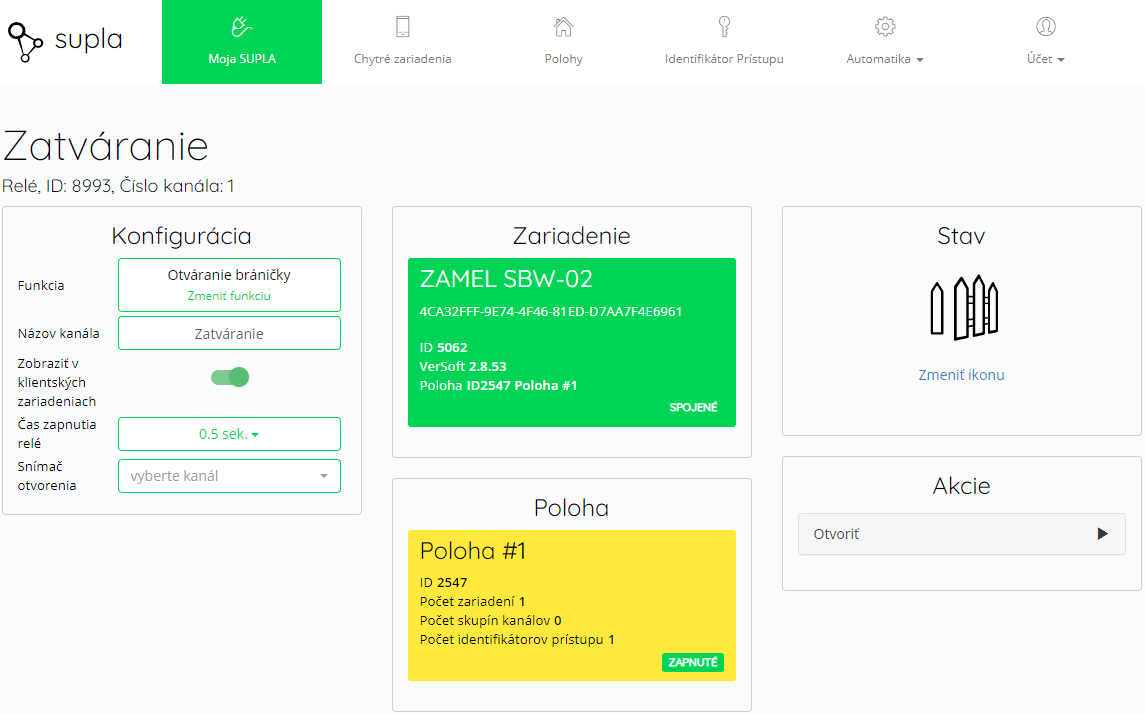 Fig. 3 Correct configuration of the gate-closing channel
Once the channels are configured correctly, you can create schedules. From the top menu, go to Automation, select the Schedules subcategory, then choose Create New Schedule.
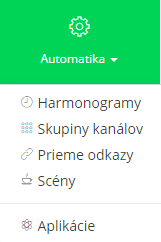
Fig. 4 Automation category and its subcategories
The basic schedule settings are adjusted on the left, while the time modes for the selected cycle are configured on the right. Imagine this scenario: the gate should be open every weekday from 5:30 to 17:00, and you want it closed on weekends. In this case, you will create two separate schedules (the first to open the gate and the second to close it). For the first schedule, select the opening channel and the daily cycle. On the right, select the weekdays and set the action for the specified time of 5:30. Once everything is configured correctly, remember to save the schedule using the button on the right.
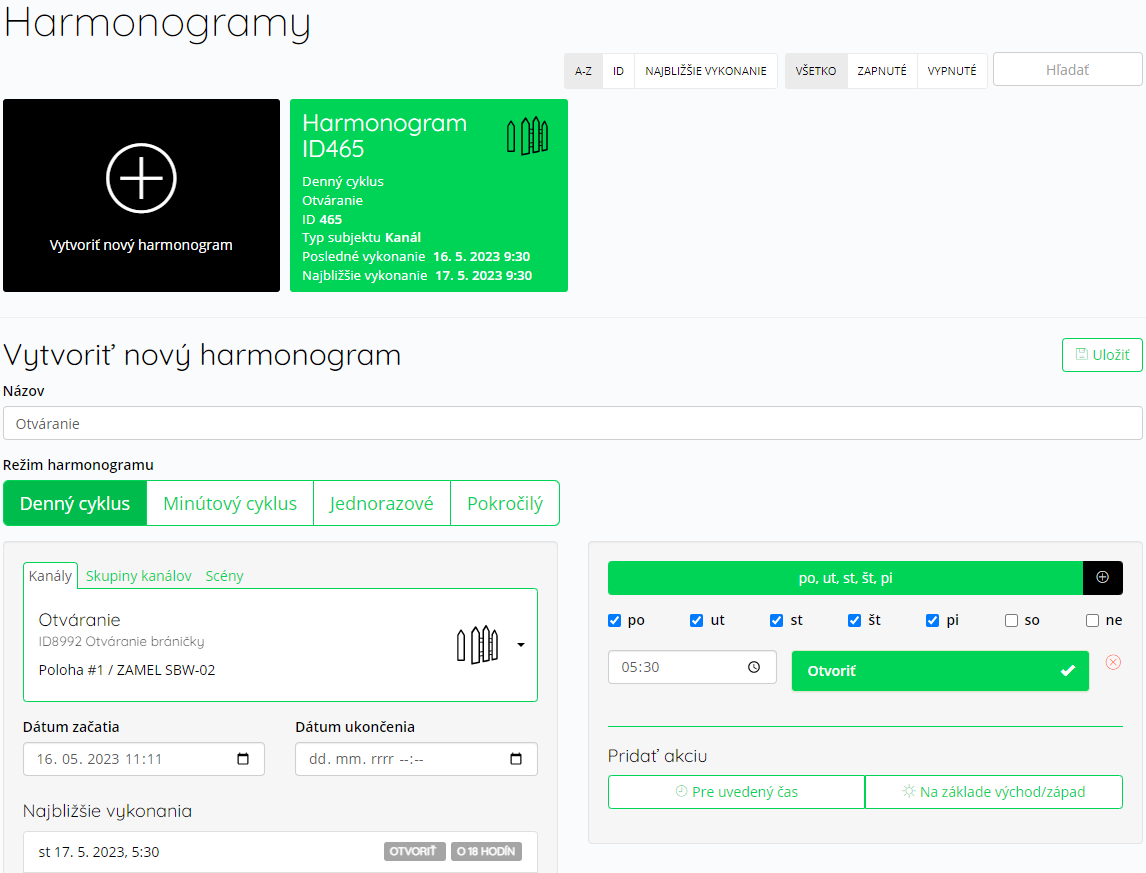
Fig. 5 Setting up a gate-opening schedule (example scenario)
The first schedule configured the gate to open automatically. The second schedule will take care of closing it automatically. Create another schedule, but this time select the closing channel. As in the first case, select the daily cycle and mark all weekdays. All that remains is to enter the desired gate-closing time (17:00 in this example). We would like to remind you again that the action for the closing channel will be named “Open.”
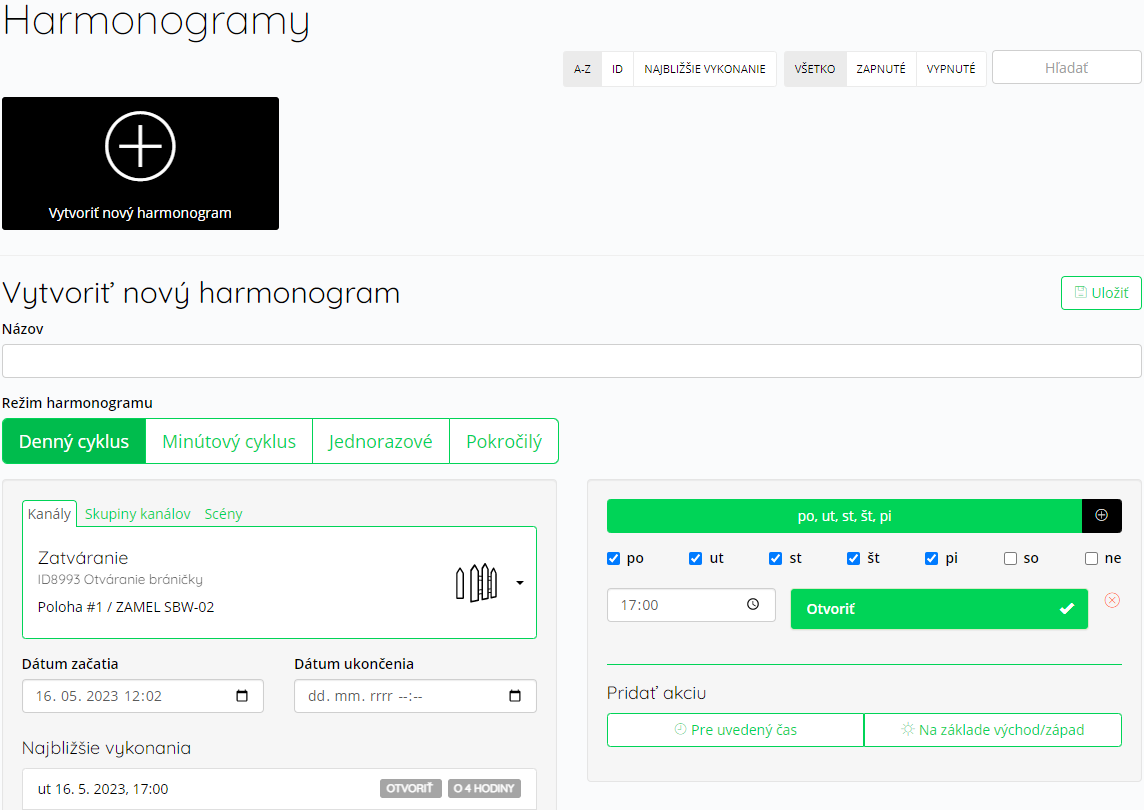
Fig. 6 Setting up a gate-closing schedule (example scenario)
After saving the second schedule, the gate is set to open and close automatically at the desired times.
WARNING: Setting the gate to open automatically according to a schedule does not guarantee that it will remain open the whole time! The gate may close in response to a command (using the remote control, automatic closing configured on the control unit, etc.). If automatic closing is enabled on the control unit, the gate will close automatically after the set time!