Instructions for adding additional users
Simplified administrator guide:
- 1. Download the SUPLA app (Android, iOS)
- 2. Register in the app
- 3. Pair with the Wi-Fi module by following the instructions in the app
- 4. Log in to SUPLA Cloud: https://cloud.supla.org/login
- 5. You can find the login details for additional users in the green box: https://cloud.supla.org/home
- 6. Share the login details with additional users and enable client registration: https://cloud.supla.org/smartphones
Detailed administrator guide:
Location - a virtual grouping of devices (Wi-Fi modules) that are controlled as part of a single group. If there is only one device, the location can be viewed as a link between the Wi-Fi module and the access identifier.
Access identifier - the identifier allows you to log in to the app without registering. After logging in with the identifier, you can control devices in locations to which that identifier has been assigned.
Once the device (Wi-Fi module) has been successfully paired with your account, it should be automatically assigned to a location and an access identifier. Log in to your SUPLA account on the website https://cloud.supla.org/. On the home page (https://cloud.supla.org/home) login details for new users are displayed.
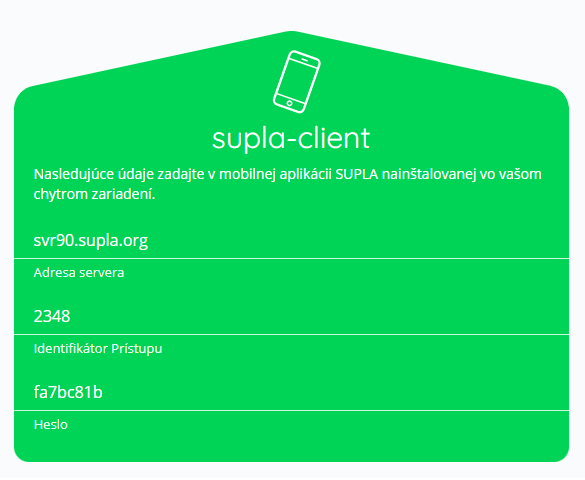 Fig. 1. Default access identifier on the home page
Smart devices:
Registration of new users must be enabled manually.
Go to the Smart Devices section (https://cloud.supla.org/smartphones) and enable registration by clicking the box on the right. Registration of new devices is automatically disabled after 24 hours. To enable or disable it again, simply click the Client Registration field again. The list of logged-in users is shown below; you can edit a user by simply clicking on that user's device. You can then delete or rename the user.
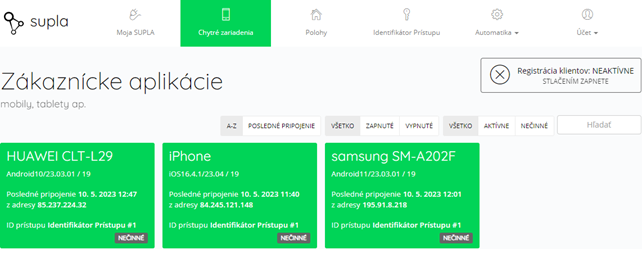
Fig. 2. Managing users in the Smart Devices section
Device (Wi-Fi module) configuration:
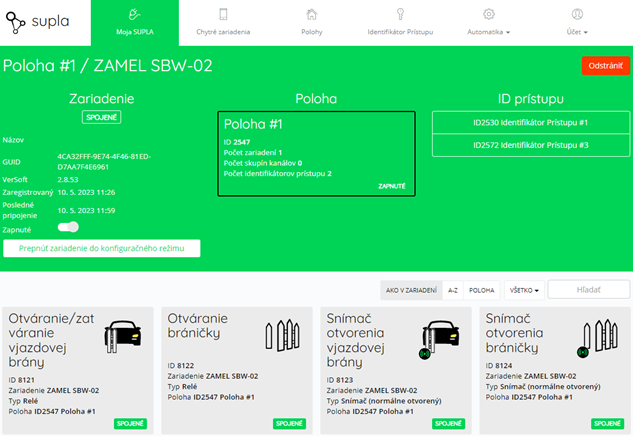
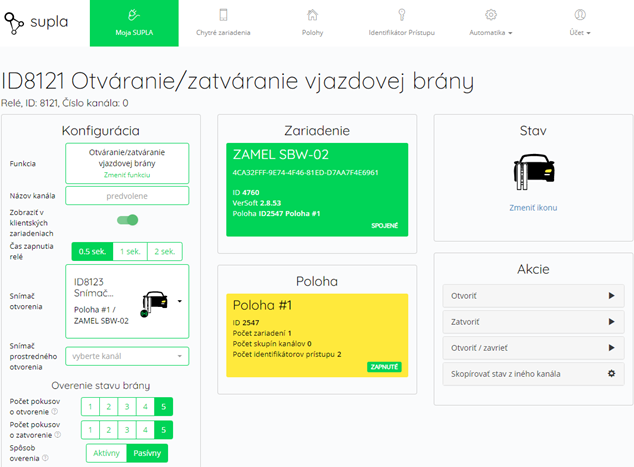
The Wi-Fi module can be managed in the My SUPLA section by selecting the device. There, you can remotely turn the device off, rename it, or switch it to configuration mode (Fig. 3). The right-hand side of the page shows an overview of connected locations and access identifiers. Below is an overview of the individual channels, which you can configure by clicking on a channel (Fig. 4)
Guide for new users
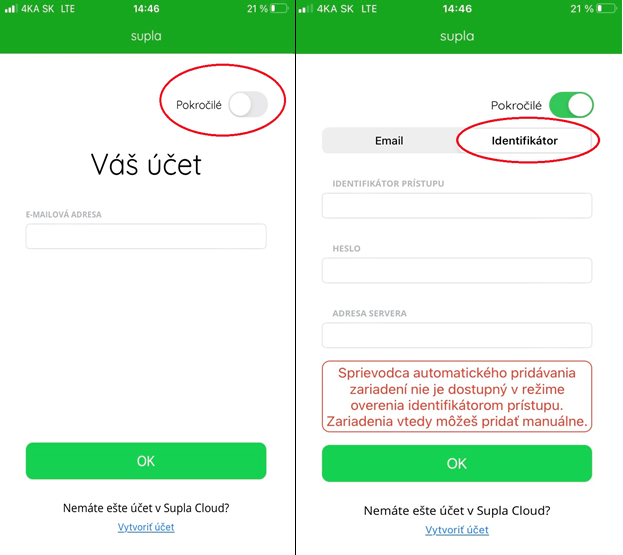
Download the SUPLA app from Google Play (Android) or App Store (iOS). After launching the app, select advanced login and then identifier in the upper-right corner of the screen. Fill in the fields using the details provided by the administrator.. Once logged in successfully, you will have access to all permitted devices.