Gate position display in the SUPLA app
The Zamel SBW-02 dual-channel Wi-Fi module not only lets you control 2 devices, but also shows whether the gate has reached one of its end positions (open/closed). First, the gate status information needs to be sent to the Wi-Fi module itself. The IN1 sensor terminal is used for this purpose. For a second connected device, the IN2 terminal is available.
GATE STATUS INFORMATION VIA THE CONTROL UNIT
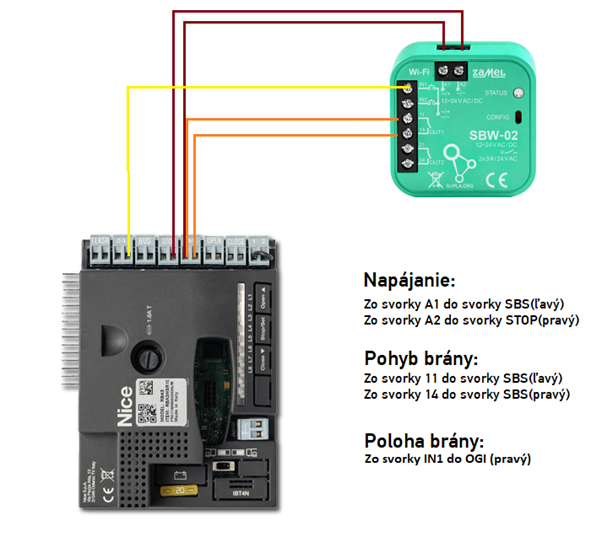
Selected control unit models have outputs that provide information about the gate's status. NICE labels these outputs OGI (or S.C.A.). By default, these outputs are programmed to indicate the gate's position, but they can be reprogrammed for another function (e.g. an electric lock). If you use the OGI terminals for another function, we recommend using the second method to indicate the gate's position, with a magnetic switch.
Example of connecting the Zamel SBW-02 Wi-Fi module to a NICE RBA3R10 control unit, with the IN1 and OGI terminals connected:
GATE STATUS INFORMATION USING A MAGNETIC SWITCH
If your control unit does not have a terminal for gate status information, or if that terminal is being used for another purpose, you can use a magnetic switch consisting of the switch itself and a magnet. A magnetic switch works simply and has 2 states:
- state - the magnetic switch is in contact with the magnet
- state - the magnetic switch is not in contact with the magnet
To ensure the gate status indicator works correctly, the magnetic switch and magnet must be positioned correctly. The magnetic switch is connected to the Wi-Fi module and mounted on a fixed object beside the gate (e.g. a post, wall, etc.). The magnet must be mounted on the moving part of the gate (the gate frame) so that it contacts the magnetic switch when the gate is closed (or open) and is separated from it in the other position. Each position represents a gate status (closed or open).
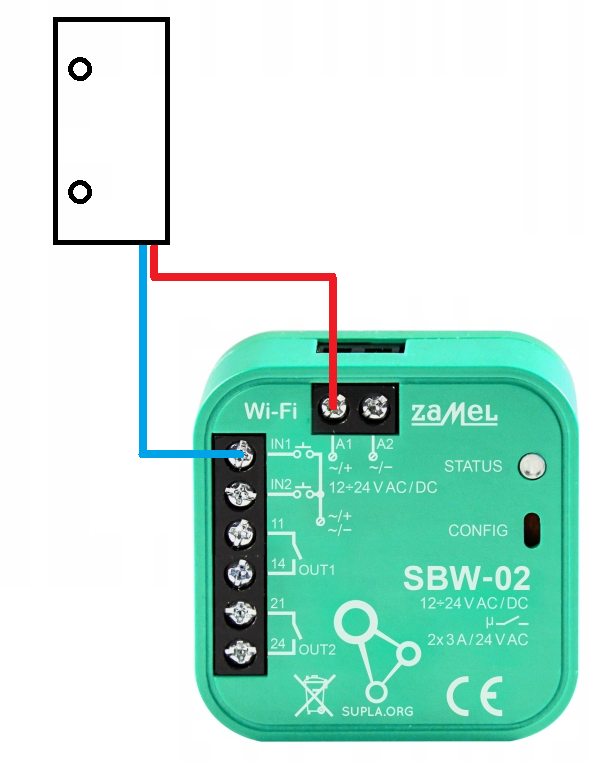
Connect the magnetic switch to the Wi-Fi module as follows:
- wire to terminal A1
- wire to terminal IN1
Connecting the magnetic switch to the Zamel SBW-02 Wi-Fi module:
SETTING UP GATE STATUS DISPLAY CORRECTLY IN SUPLA CLOUD
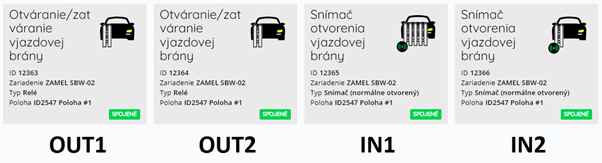
In the app, the gate status is shown separately as Gate opening sensor. You can also link the sensor to a control channel and show the gate status directly on that channel. Log in at https://cloud.supla.org/login and open the ZAMEL SBW-02 Wi-Fi module under My SUPLA. Near the bottom of the screen, you will see the device's individual channels, which represent the inputs and outputs on the Wi-Fi module. The first 2 channels are used for control, and the remaining channels serve as gate status sensors.
Wi-Fi module channels by input and output:
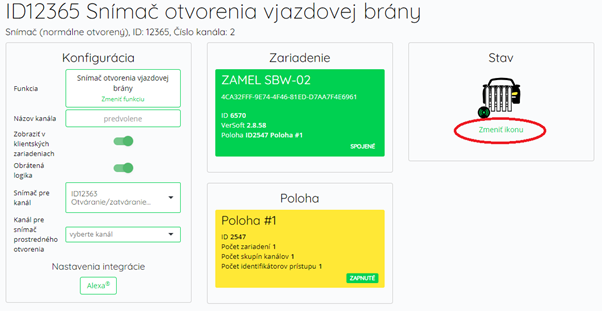
Open the active sensor channel and, in the Sensor for channel row, select the control channel on which the gate status should be displayed.
Linking a sensor channel to a control channel:
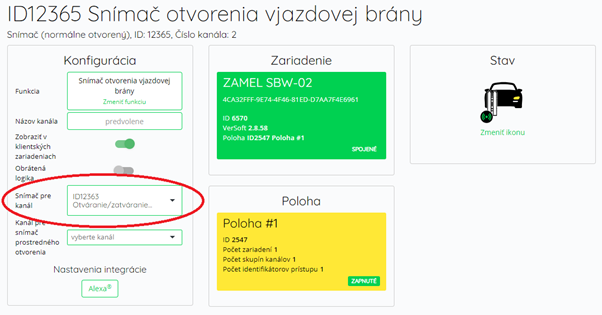
Once the sensor channel is linked to a control channel, the gate status appears directly on the control button in the app.
Gate status display in the SUPLA app after linking the sensor to a control channel:
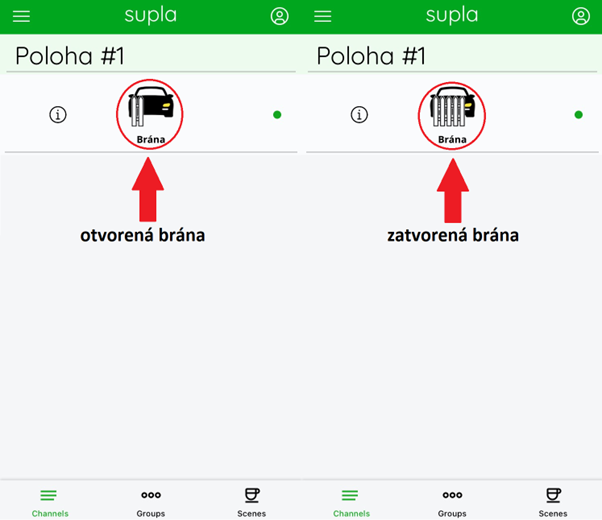
TIP: If you are using only 1 channel (1 connected device), you can disable the unused channels for a clearer view in the SUPLA mobile app. Open the unused channel and select the function: none (channel disabled).
FIXING AN INCORRECT STATUS DISPLAY
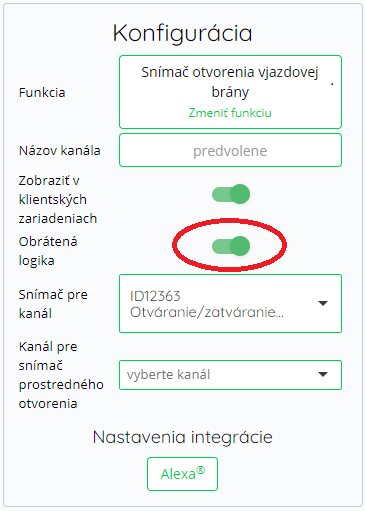
The app may sometimes show the wrong gate status—for example, showing the gate as closed when it is open, and vice versa. To fix this, log in at https://cloud.supla.org/login and open the ZAMEL SBW-02 Wi-Fi module under My SUPLA. Select the sensor channel, then in the Configuration table, click the gray button in the Inverted logic row; it will turn green. Remember to save the change.
Setting inverted logic for a sensor channel:
Final tip: You can change the gate status icon in the sensor channel settings: